OEM vs Aftermarket Laptop RAM A Complete Buying Guide
Choosing between OEM vs aftermarket laptop RAM can be confusing, but it doesn’t have to be. This guide breaks down the pros, cons, and key differences so you can make a smart, budget-friendly decision. You’ll learn which option fits your needs, budget, and laptop model best.
When your laptop starts slowing down, one of the first upgrades people consider is adding more memory. But then comes the big question: should you stick with OEM vs aftermarket laptop RAM? It’s a debate that confuses a lot of users, and honestly, it’s not as complicated as it seems.
OEM RAM is the memory that comes already installed in your laptop from the factory. Aftermarket RAM is the memory you buy separately and install yourself. Both serve the same basic purpose, but they differ in quality, price, warranty, and compatibility. In this guide, we’ll walk you through everything you need to know to make the right choice.
Whether you’re looking to upgrade RAM in your HP laptop or just shopping for a new memory module, this guide covers it all. Let’s dive in and break down the real differences between OEM and aftermarket options.
Key Takeaways
- OEM RAM: Comes pre-installed from the manufacturer and is tested for guaranteed compatibility.
- Aftermarket RAM: Offers more variety, often better value, and easier upgrade paths for most users.
- Compatibility matters: Always check your laptop’s RAM type, speed, and form factor before buying.
- Performance differences: In most cases, OEM and aftermarket RAM perform nearly identically when specs match.
- Warranty considerations: Some brands may void warranty if you swap out OEM RAM with aftermarket modules.
- Price comparison: Aftermarket RAM is typically 20-40% cheaper than OEM-branded options.
- Upgrade flexibility: Aftermarket RAM gives you the freedom to mix, match, and expand your laptop’s memory.
📑 Table of Contents
- What Is OEM Laptop RAM?
- What Is Aftermarket Laptop RAM?
- OEM vs Aftermarket Laptop RAM: Head-to-Head Comparison
- How to Choose the Right RAM for Your Laptop
- Can You Mix OEM and Aftermarket RAM?
- Is Aftermarket RAM Reliable?
- When to Choose OEM vs Aftermarket RAM
- Common Mistakes to Avoid When Buying Laptop RAM
- How to Install Aftermarket Laptop RAM
- Expert Insights on OEM vs Aftermarket RAM
- Key Takeaways
- Conclusion
What Is OEM Laptop RAM?
OEM stands for “Original Equipment Manufacturer.” When a laptop brand like Dell, HP, or Lenovo builds a computer, they often source RAM from third-party manufacturers like Samsung, Kingston, or Micron. The RAM gets installed at the factory and comes with the laptop right out of the box.
How OEM RAM Is Made
OEM RAM modules are built to the laptop manufacturer’s exact specifications. The brand tells the RAM maker what kind of chips, timings, and speeds to use. The module then gets tested with that specific laptop model to ensure it works perfectly. This is why OEM RAM tends to have very high compatibility rates.
Here’s something many people don’t know. OEM RAM is often just standard memory with a custom sticker or label on it. Underneath that label, it’s usually the same chips you’d find in aftermarket modules. The main difference is the branding and the testing process.
Pros of OEM RAM
- Guaranteed compatibility: It’s tested with your specific laptop model.
- Warranty coverage: Some manufacturers cover OEM RAM under the laptop’s warranty.
- No installation hassle: It comes pre-installed and ready to use.
- Consistent quality: Each module meets the brand’s strict standards.
Cons of OEM RAM
- Higher price: OEM RAM often costs more than equivalent aftermarket options.
- Limited choices: You’re stuck with whatever the manufacturer chose.
- Harder to find later: If you need a replacement, OEM modules can be tough to track down.
- Less flexibility: You can’t easily mix brands or upgrade to higher-capacity modules.
What Is Aftermarket Laptop RAM?
Aftermarket RAM refers to memory modules you buy from retailers or online stores and install yourself. These come from brands like Corsair, Kingston, Crucial, G.Skill, and many others. Aftermarket RAM is widely available and comes in a huge range of speeds, capacities, and styles.
Types of Aftermarket RAM Available
When you shop for aftermarket laptop RAM, you’ll see a few common types. DDR4 SODIMM is still the most popular for older laptops. DDR5 SODIMM is the newer standard for modern systems. You’ll also find different speeds like 3200MHz, 4800MHz, and even 5600MHz for DDR5 modules.
Most aftermarket laptop RAM comes in single-rank or dual-rank configurations. Dual-rank modules can offer slightly better performance in some scenarios, but for everyday use, the difference is minimal. For most users, a standard DDR4 3200MHz SODIMM works perfectly fine.
Pros of Aftermarket RAM
- More affordable: You can save 20-40% compared to OEM options.
- Wider selection: Choose from many brands, speeds, and capacities.
- Easy to find: Available at most electronics stores and online retailers.
- Upgrade-friendly: Mix and match modules or expand your total memory.
- Better reviews: You can read user reviews before buying a specific module.
Cons of Aftermarket RAM
- Compatibility risk: Not every module works with every laptop model.
- Self-installation: You’ll need to open your laptop and install it yourself.
- No manufacturer warranty: Some brands may not cover RAM issues under laptop warranty.
- Quality varies: Some budget brands use lower-quality memory chips.
OEM vs Aftermarket Laptop RAM: Head-to-Head Comparison
Let’s put the two side by side so you can see the real differences. This comparison covers the factors that matter most to laptop users.
| Feature | OEM RAM | Aftermarket RAM |
|---|---|---|
| Price | Higher | Lower (better value) |
| Compatibility | Guaranteed | Varies (check specs) |
| Performance | Good | Same when specs match |
| Availability | Limited | Widely available |
| Brand Options | One (laptop brand) | Many (Crucial, Kingston, etc.) |
| Warranty | Often covered under laptop warranty | Separate module warranty |
| Installation | Pre-installed | DIY required |
| Upgrade Flexibility | Limited | High |
As you can see from the table, aftermarket RAM wins on price, flexibility, and availability. OEM RAM wins on guaranteed compatibility and convenience. The right choice depends on your specific situation and needs.
How to Choose the Right RAM for Your Laptop
Picking the right memory module isn’t as simple as just grabbing the cheapest option off the shelf. There are a few key things you need to check first.
Check Your Laptop’s RAM Specifications
Before you buy any RAM, find out what your laptop supports. Check your laptop’s manual or look up the model number online. You need to know the RAM type (DDR4 or DDR5), the form factor (SODIMM for laptops), and the maximum supported capacity.
For example, if you have a Dell laptop, you might want to check what Dell laptops with 8GB RAM use as a reference point for compatible modules. Knowing your current specs helps you make a smarter upgrade decision.
Match the Speed and Timings
RAM speed is measured in megahertz (MHz). Higher speeds mean faster data transfer, but your laptop can only run at the speed of its slowest module. If you mix a 3200MHz module with a 2666MHz module, both will run at 2666MHz.
Timings (also called latency) are a bit more technical. They measure how quickly the RAM responds to requests. Lower timings are better, but for most users, matching the speed is more important than obsessing over timings.
Consider Your Usage Needs
What do you use your laptop for? This matters a lot when choosing RAM.
- Basic tasks: Web browsing, email, and office work need 8GB to 16GB.
- Content creation: Video editing and graphic design benefit from 16GB to 32GB.
- Gaming: Modern games run best with 16GB or more.
- Professional work: Programming, virtualization, and data analysis often need 32GB or more.
If you’re unsure about what you need, check out articles on laptops with the most RAM to get ideas for what configurations work best for different use cases.
Can You Mix OEM and Aftermarket RAM?
This is one of the most common questions we get. The short answer is yes, you can mix OEM and aftermarket RAM in most cases. But there are some important caveats to keep in mind.
First, both modules need to be the same type. You can’t mix DDR4 and DDR5 RAM. They need to match. Second, the speed will default to the slower module. If your OEM RAM runs at 2666MHz and your aftermarket RAM runs at 3200MHz, both will run at 2666MHz.
Third, some laptop manufacturers are pickier than others about mixing memory brands. Apple, for instance, has been known to have stricter compatibility requirements. For most Windows laptops though, mixing OEM and aftermarket RAM works just fine in everyday use.
If you’re planning a RAM upgrade, it’s always a good idea to research your specific laptop model first. You can find laptops with expandable RAM up to 64GB to understand what’s possible with different machines.
Is Aftermarket RAM Reliable?
One of the biggest concerns people have about aftermarket RAM is reliability. They worry that non-OEM memory might be lower quality or cause problems. Let’s address this directly.
The truth is, most aftermarket RAM brands use the same memory chips as OEM manufacturers. Companies like Samsung, Micron, and SK Hynix make the actual memory chips. Both OEM and aftermarket brands buy from these same chip makers. The difference is in the module assembly, testing, and branding.
Reputable aftermarket brands like Kingston, Crucial, and Corsair have excellent track records. They test their modules rigorously and offer their own warranties. A 16GB DDR4 aftermarket RAM kit from a trusted brand is just as reliable as the OEM version in most cases.
That said, you should avoid no-name or ultra-cheap brands with no reviews. Stick with well-known manufacturers and read user feedback before purchasing. Quality aftermarket RAM is a safe and smart choice for the vast majority of users.
When to Choose OEM vs Aftermarket RAM
Still not sure which option is right for you? Here’s a simple breakdown to help you decide.
Choose OEM RAM if:
- Your laptop is still under warranty and you want to avoid any issues.
- You don’t feel comfortable opening your laptop to install RAM yourself.
- You need guaranteed compatibility and don’t want to risk any issues.
- You’re buying a new laptop and the RAM is already included.
Choose Aftermarket RAM if:
- You want to save money and get better value for your budget.
- You need a specific capacity or speed that OEM doesn’t offer.
- You’re comfortable installing RAM yourself or have someone help.
- You want the flexibility to upgrade or replace RAM in the future.
- You need to upgrade your laptop’s RAM to improve performance for work or gaming.
For most users, aftermarket RAM is the better choice. It’s more affordable, more flexible, and just as reliable when you buy from a trusted brand. OEM RAM makes sense mainly for users who prioritize convenience and want zero risk of compatibility issues.
Common Mistakes to Avoid When Buying Laptop RAM
Even experienced users sometimes make mistakes when purchasing laptop RAM. Here are a few pitfalls to watch out for.
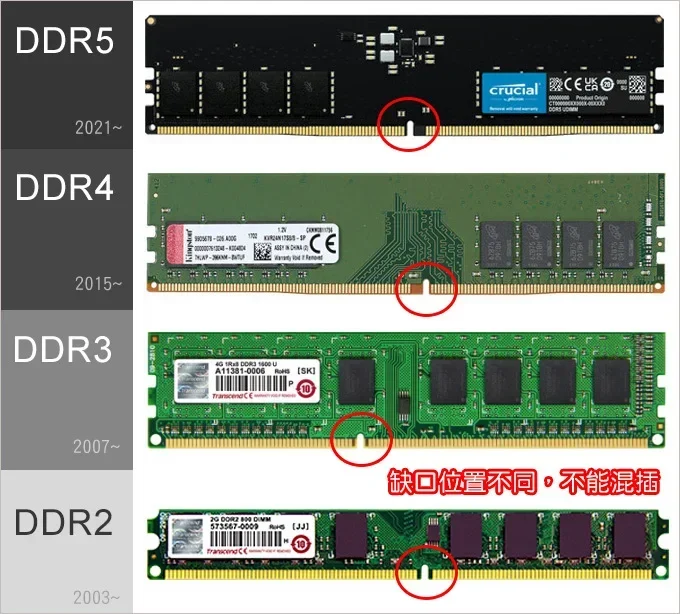
- Buying the wrong type: Make sure you know if your laptop uses DDR4 or DDR5 SODIMM. Buying the wrong type means the RAM won’t fit or work at all.
- Ignoring maximum capacity: Some laptops only support up to 16GB or 32GB total. Buying a 64GB module won’t help if your laptop can’t use it.
- Mixing speeds carelessly: Always match speeds when possible. Mismatched speeds can cause instability in some systems.
- Skipping compatibility checks: Always verify that the RAM is compatible with your specific laptop model before purchasing.
- Forgetting about single vs. dual channel: Using matched pairs of RAM in dual-channel mode can boost performance. Check if your laptop supports dual-channel memory.
Avoiding these mistakes will save you time, money, and frustration. Take a few minutes to research your laptop’s RAM requirements before making a purchase.
How to Install Aftermarket Laptop RAM
Installing aftermarket laptop RAM is easier than most people think. Here’s a quick overview of the process.
- Power off your laptop and unplug it from the power source.
- Remove the battery if it’s removable. If not, disconnect it internally.
- Ground yourself by touching a metal surface to discharge any static electricity.
- Locate the RAM compartment on the bottom of your laptop. It’s usually marked with a small RAM icon.
- Remove the existing RAM by gently pushing the side clips outward. The module will pop up at an angle.
- Align the new module with the slot at a 30-45 degree angle and press it down firmly until the clips click into place.
- Reassemble your laptop and power it on. Check that the system recognizes the new RAM in your settings.
If you’d like a more detailed walkthrough for specific laptop brands, check out our guide on RAM upgrade for HP laptops which covers the process step by step.
Expert Insights on OEM vs Aftermarket RAM
We asked a few hardware experts about their thoughts on the OEM vs aftermarket RAM debate. Here’s what they had to say.
Most experts agree that for the average user, aftermarket RAM from a reputable brand is the better choice. The performance is identical, the price is lower, and the selection is much wider. The only time OEM RAM really makes sense is when you’re dealing with a warranty-covered laptop and don’t want to risk any compatibility issues.
One expert noted that some premium laptops, especially those from Apple or certain gaming brands, use proprietary RAM configurations. In these cases, OEM RAM might be the only option. Always check your laptop’s specifications and user manual before making a purchase.
Another point worth mentioning: the gap between OEM and aftermarket RAM is shrinking. More laptop manufacturers are using standard, off-the-shelf memory modules, which makes aftermarket upgrades even easier and more reliable than before.
Key Takeaways
- OEM RAM comes pre-installed from the factory and offers guaranteed compatibility, but at a higher price.
- Aftermarket RAM gives you more choices, better value, and greater flexibility for upgrades.
- Performance is nearly identical when both options share the same specifications.
- Always check your laptop’s RAM specs before purchasing any module.
- Stick with reputable aftermarket brands like Kingston, Crucial, or Corsair for reliability.
- Mixing OEM and aftermarket RAM is possible in most cases but comes with some caveats.
- For most users, aftermarket RAM is the smarter, more cost-effective choice.
Conclusion
The debate between OEM vs aftermarket laptop RAM comes down to your personal needs and preferences. If you value convenience and don’t want to deal with compatibility research, OEM RAM is a solid choice. If you want to save money, get more options, and have the freedom to upgrade in the future, aftermarket RAM is the way to go.
For the vast majority of laptop users, aftermarket RAM offers the best balance of price, performance, and flexibility. Just make sure you buy from a trusted brand, verify compatibility with your laptop model, and follow proper installation steps.
Upgrading your laptop’s memory is one of the easiest and most effective ways to boost performance. Whether you go with OEM or aftermarket, the important thing is that you’re taking action to improve your system. Your laptop will thank you with faster speeds, smoother multitasking, and a longer useful life.
Frequently Asked Questions
Is OEM RAM better than aftermarket RAM?
Not necessarily. OEM RAM is tested for guaranteed compatibility with your laptop model, but aftermarket RAM from reputable brands performs just as well when the specifications match. The main difference is price, with aftermarket options typically being 20-40% cheaper.
Can I mix OEM and aftermarket RAM in my laptop?
Yes, in most cases you can mix OEM and aftermarket RAM. Both modules need to be the same type (DDR4 or DDR5) and ideally the same speed. The system will run at the speed of the slower module. Always check your laptop’s compatibility before mixing brands.
Will aftermarket RAM void my laptop warranty?
It depends on the manufacturer. Some brands may void the warranty if you remove OEM RAM and install aftermarket modules. Check your laptop’s warranty terms before making any changes. In many cases, simply adding RAM (not removing existing modules) won’t void the warranty.
How do I know what RAM my laptop needs?
Check your laptop’s user manual or look up the model number online. You need to know the RAM type (DDR4 or DDR5), form factor (SODIMM for laptops), maximum supported capacity, and speed. Tools like Crucial’s scanner can also help identify compatible RAM automatically.
Is it worth upgrading laptop RAM?
Absolutely. If your laptop has 8GB of RAM or less and you struggle with multitasking, upgrading to 16GB can make a huge difference. RAM upgrades are one of the most cost-effective ways to improve laptop performance for everyday use.
What’s the best aftermarket RAM brand for laptops?
Kingston, Crucial, and Corsair are among the most trusted aftermarket RAM brands. They offer reliable modules with solid warranties and good customer support. Always check compatibility with your specific laptop model before purchasing any brand.