Ram Upgrade for Laptop Hp
A ram upgrade for laptop HP is one of the simplest and most effective ways to speed up your computer. Whether you have an HP Pavilion, HP Omen, or another HP model, upgrading your laptop memory can dramatically improve multitasking, reduce lag, and extend the life of your device. In this guide, you will learn everything about HP laptop RAM compatibility, how to choose the right modules, and step-by-step installation instructions.
Key Takeaways
- Check compatibility first: Not all HP laptops support RAM upgrades, so always verify your model’s specs before buying new memory.
- DDR4 and DDR5 are the current standards: Make sure you purchase the correct RAM type that matches your HP laptop’s motherboard and slots.
- 8GB to 16GB is the sweet spot: For most users, upgrading from 8GB to 16GB of RAM offers the best performance boost for everyday tasks and light gaming.
- Installation is straightforward: Most HP laptops have an accessible RAM compartment that lets you swap modules in under 15 minutes.
- Dual-channel memory improves speed: Using two matching RAM sticks in dual-channel mode can significantly boost memory performance on your HP laptop.
- Upgrading RAM revives an old laptop: If your HP laptop feels sluggish, a memory upgrade is often cheaper and more impactful than buying a new machine.
📑 Table of Contents
- Ram Upgrade for Laptop HP: The Complete Guide to Faster Performance
- Why You Need a Ram Upgrade for Your HP Laptop
- Understanding HP Laptop RAM Compatibility
- Choosing the Best RAM for Your HP Laptop
- Step-by-Step Guide: How to Install RAM in Your HP Laptop
- Common Mistakes to Avoid When Upgrading RAM
- How a Ram Upgrade Boosts Your HP Laptop Performance
- Expert Insights and Pro Tips for RAM Upgrades
- Conclusion: Take the First Step Toward a Faster HP Laptop
Ram Upgrade for Laptop HP: The Complete Guide to Faster Performance
Is your HP laptop running slower than a snail on a sidewalk? You know that frustrating moment when your browser has 20 tabs open and your whole screen freezes. A ram upgrade for laptop HP models can completely change that. It is one of the easiest and most affordable upgrades you can do to breathe new life into your computer.
Whether you own an HP Pavilion, HP Omen, or an HP EliteBook, this guide covers everything you need to know. We will walk you through compatibility checks, the best RAM modules to buy, and a full installation walkthrough. By the end, you will feel confident about boosting your HP laptop RAM and enjoying a smoother computing experience.
Let us dive right in and get your laptop running like it is brand new again.
Why You Need a Ram Upgrade for Your HP Laptop
Your laptop’s RAM, or Random Access Memory, acts as the short-term memory for your computer. It handles everything you are working on right now. When you open apps, browse the web, or edit photos, your laptop memory stores all that data for quick access. When you do not have enough, things slow down fast.
Signs Your HP Laptop Needs More RAM
Here are some clear signs that your HP laptop is begging for a laptop memory upgrade:
- Your system takes forever to boot up or wake from sleep.
- Apps crash or freeze when you switch between them.
- Your browser crawls with more than 5-10 tabs open.
- You see the “Out of Memory” error or high disk usage warnings.
- Video playback stutters or audio drops out.
- Your laptop fan runs constantly, even during light tasks.
If you notice several of these issues, a RAM upgrade can make a huge difference. Many users see instant improvements after adding more memory to their HP machines. For specific models like the HP Omen, you can check our detailed guide on HP Omen laptop RAM upgrade to get model-specific advice.
Understanding HP Laptop RAM Compatibility
Before you buy any new memory, you need to know what your HP laptop supports. Not every laptop takes the same type of RAM, and putting in the wrong module can cause problems. This is the most important step in any HP laptop RAM upgrade project.
DDR3 vs DDR4 vs DDR5: What Your HP Laptop Supports
Different HP laptops use different generations of RAM. Here is a quick breakdown:
- DDR3: Found in older HP laptops from around 2010-2017. These modules run at 1333MHz or 1600MHz.
- DDR4: The most common type in modern HP laptops. It runs at 2133MHz to 3200MHz and offers better speed and efficiency.
- DDR5: The newest standard, appearing in the latest HP models released in 2023 and beyond. It offers even faster speeds and lower power use.
You must match the generation exactly. A DDR4 stick will not work in a DDR3 slot, and vice versa. Check your laptop’s manual or use a system information tool to find out which type you need. If you are unsure, our guide on how to upgrade RAM on HP laptop has detailed compatibility tips for many models.
How to Check Your HP Laptop’s RAM Slots and Maximum Capacity
Here is a simple way to find out what your laptop supports:
- Press Windows key + R, type “cmd”, and press Enter.
- In the command prompt, type “wmic memorychip get capacity, speed, manufacturer” and hit Enter.
- You will see your current RAM details including capacity and speed.
- Visit the HP support website and enter your laptop’s model number to find the maximum RAM capacity.
Most HP laptops support a maximum of 16GB or 32GB of RAM. Some budget models are limited to 8GB because they have soldered memory. Always double-check before purchasing new modules.
Choosing the Best RAM for Your HP Laptop
Now that you know your laptop’s compatibility, let us talk about what to buy. The best RAM for HP laptop upgrade depends on your needs and budget. Here is a simple guide to help you decide.
How Much RAM Do You Really Need?
The right amount of laptop RAM depends on how you use your computer:
- 4GB: Good for basic web browsing and word processing. If you are currently on 4GB, consider upgrading to at least 8GB.
- 8GB: The standard for most users. Handles multitasking, streaming, and light gaming well.
- 16GB: Ideal for heavy multitasking, photo editing, programming, and gaming. This is the sweet spot for power users.
- 32GB: Best for video editing, 3D rendering, and running virtual machines. Overkill for everyday use but great for professionals.
If you want a quick comparison, here is a table to help you choose:
| Usage Type | Recommended RAM | Upgrade From |
|---|---|---|
| Basic Office Work | 8GB | 4GB |
| Multitasking & Streaming | 16GB | 8GB |
| Gaming & Creative Work | 16GB-32GB | 8GB or 16GB |
| Professional Video Editing | 32GB | 16GB |
RAM Speed and Timing: Does It Matter?
RAM speed, measured in MHz, does affect performance. Faster RAM means data moves more quickly between your memory and processor. For most HP laptops, DDR4-2666MHz or DDR4-3200MHz is a great choice. However, your laptop’s motherboard may limit the maximum speed it supports, so do not overspend on modules faster than what your model accepts.
Timing, often called CAS Latency, also plays a role. Lower timings mean faster response. For everyday use, the difference is small, but gamers and professionals may notice the improvement.
Brands to Consider
Some trusted brands for HP laptop memory upgrade include Kingston, Crucial, Samsung, and Corsair. These manufacturers offer reliable modules with good warranties. Always buy from authorized sellers to avoid counterfeit products.
Step-by-Step Guide: How to Install RAM in Your HP Laptop
The actual HP laptop RAM installation process is simpler than you might think. Most HP laptops have an easy-access panel on the bottom. Let us walk through it step by step.
What You Will Need
- A Phillips-head screwdriver (small size)
- Your new RAM module(s)
- An anti-static wrist strap (optional but recommended)
- A clean, flat surface to work on
Installation Steps
- Power down and unplug: Turn off your HP laptop completely. Disconnect the power adapter and any external devices.
- Ground yourself: Touch a metal surface or wear an anti-static strap. This prevents static electricity from damaging your components.
- Find the RAM compartment: Flip your laptop over. Look for a panel with a RAM icon or a small access hatch on the bottom. Some HP models require removing the entire back panel.
- Remove the panel: Use your screwdriver to remove the screws. Keep them in a safe place.
- Locate the RAM slots: You will see one or two horizontal slots holding your current RAM modules.
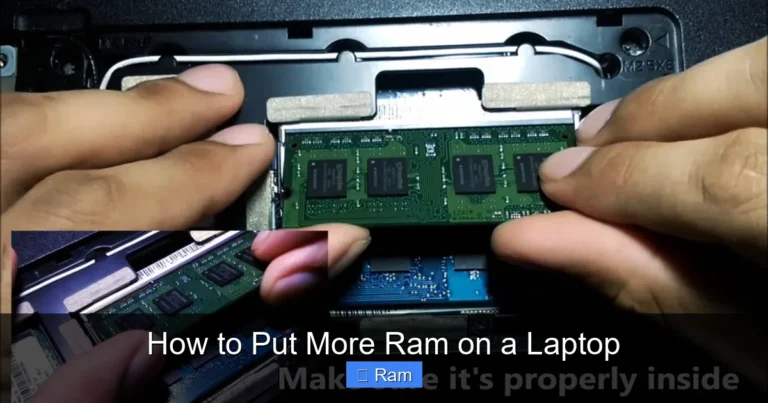
- Remove old RAM (if needed): Gently push the plastic clips on both sides of the module outward. The stick will pop up at an angle. Pull it out carefully.
- Install the new RAM: Hold your new module at a 30-degree angle. Align the notch on the bottom edge with the ridge in the slot. Press it down gently and then push it flat until the clips click into place.
- Replace the panel: Put the cover back on and screw it in securely.
- Power on and verify: Boot your laptop. Right-click on “This PC” and select “Properties” to see your new RAM total. You can also open Task Manager and check the “Performance” tab under Memory.
For a visual walkthrough, our article on how to install RAM in HP laptop includes detailed photos and model-specific instructions.
Quick Tips for a Smooth Installation
- Never force a RAM module into the slot. If it does not slide in easily, check the alignment.
- Handle RAM by the edges. Avoid touching the gold contacts or the chips.
- If your laptop has two slots, install matching modules in both for dual-channel performance.
- Restart your laptop after installation to ensure the system recognizes the new memory.
Common Mistakes to Avoid When Upgrading RAM
Even a simple upgrade can go wrong if you are not careful. Here are some common mistakes people make when upgrading their HP laptop RAM:
Buying the Wrong Type of RAM
This is the biggest mistake. As we mentioned, DDR3 and DDR4 modules look similar but are not interchangeable. Always double-check your laptop’s specifications before ordering. Check the model number on the bottom of your laptop and look it up on HP’s support page.
Ignoring the Maximum Capacity
Some HP laptops have a firmware limit on how much RAM they can recognize. For example, a laptop might have two physical slots but only support up to 16GB total. Installing 32GB in this case would waste your money. Always verify the maximum supported capacity.
Skipping the Anti-Static Precaution
Static electricity can fry your RAM or motherboard silently. You might not notice the damage right away, but your laptop could start acting weird weeks later. Always ground yourself before handling internal components.
Forcing the RAM Into the Slot
If the module resists, stop and check the orientation. Forcing it can break the slot or the module itself. The notch on the RAM must line up with the key in the slot.
How a Ram Upgrade Boosts Your HP Laptop Performance
So what exactly changes after a laptop RAM upgrade? The difference can be dramatic, especially if you are currently running with very little memory. Here is what you can expect:
Faster Multitasking
With more laptop memory, your HP laptop can keep more apps open at the same time without slowing down. You can switch between your browser, spreadsheet, music app, and video call without any stutter. This alone makes the upgrade worthwhile for most people.
Smoother Gaming Experience
Many popular games list 16GB of RAM as the minimum requirement. If your HP Omen or Pavilion is running on 8GB, you might experience frame drops and long loading screens. Upgrading to 16GB can noticeably improve your gaming sessions. Our guide on upgrading from 4GB to 16GB covers exactly how to make this jump.
Reduced Lag and Freezing
When your RAM is full, Windows starts using your hard drive as temporary memory. This is called “virtual memory” and it is extremely slow. With more physical RAM, your laptop relies less on the hard drive, which means less lag and fewer frustrating freezes.
Longer Lifespan for Your Device
A HP laptop RAM upgrade can add several more years to your device. Instead of buying a new laptop every few years, a simple memory upgrade can keep your current one running smoothly. It is a smart investment that saves you money in the long run.
Expert Insights and Pro Tips for RAM Upgrades
Here are some tips from experienced tech professionals that go beyond the basics:
- Match your RAM sticks: Use the same brand, same speed, and same size for both slots. Matching modules ensure maximum stability and dual-channel performance.
- Update your BIOS: Before installing new RAM, check if your HP laptop has a BIOS update available. Updated firmware often improves memory compatibility.
- Test your new RAM: After installation, run the Windows Memory Diagnostic tool. Search for “Windows Memory Diagnostic” in the Start menu and run it to check for errors.
- Consider SSD upgrades too: If your laptop is still slow after adding RAM, an SSD upgrade can complement your new memory and deliver even better results.
Conclusion: Take the First Step Toward a Faster HP Laptop
A ram upgrade for laptop HP models is genuinely one of the best upgrades you can make. It is affordable, easy to do, and delivers noticeable results. Whether you are a student, a professional, or a casual user, adding more memory to your HP laptop will make your daily tasks smoother and faster.
Remember to check your laptop’s compatibility first, choose the right type and amount of RAM, and follow the installation steps carefully. Avoid the common mistakes we covered, and you will have a perfectly upgraded laptop in no time. If you want more specific guidance, explore our detailed articles on HP laptop memory upgrades and installation tips. Your faster, more responsive HP laptop is just a few minutes away.
So go ahead, give your HP laptop the boost it deserves. You will be amazed at how much better it feels with the right amount of RAM under the hood.
Frequently Asked Questions
Can I upgrade RAM in any HP laptop model?
Not all HP laptops allow RAM upgrades. Many newer ultrabooks and thin-and-light models have soldered memory that cannot be replaced. Before buying any new modules, check your specific model’s specifications on the HP support website. Look for an access panel on the bottom or check the service manual to confirm whether your laptop has replaceable RAM slots.
What is the difference between DDR4 and DDR5 RAM for HP laptops?
DDR4 is the most common RAM type in current HP laptops, offering speeds from 2133MHz to 3200MHz with good power efficiency. DDR5 is the newest standard, found in the latest HP models, providing faster speeds and improved bandwidth. DDR5 modules are not backward compatible with DDR4 slots, so you must use the type your laptop supports. Always verify your model’s specifications before purchasing.
How much does a RAM upgrade cost for an HP laptop?
A standard 16GB DDR4 RAM module typically costs between $30 and $60, depending on the brand and speed. If you need two sticks for dual-channel, budget around $60 to $100 total. DDR5 modules and 32GB kits tend to cost more, ranging from $80 to $150. Overall, a RAM upgrade is one of the most budget-friendly improvements you can make to speed up your HP laptop.
Will adding more RAM improve my HP laptop’s gaming performance?
Yes, upgrading your RAM can significantly improve gaming performance, especially if you are currently running on 8GB or less. Many modern games require at least 16GB of RAM to run smoothly. However, RAM alone will not fix all gaming issues. For the best results, pair your RAM upgrade with a solid graphics card and consider adding an SSD if your laptop still uses a traditional hard drive.
Do I need to remove the battery to upgrade RAM in my HP laptop?
For most HP laptops, you do not need to remove the battery. Simply power down the laptop, unplug the charger, and ground yourself before opening the RAM compartment. However, some older HP models with removable batteries may recommend taking the battery out as an extra safety measure. Always refer to your specific model’s service guide for the recommended procedure.
Can I mix different brands of RAM in my HP laptop?
You can mix different brands of RAM, but it is best to use matching modules for optimal stability and performance. If you mix sticks, try to match the speed (MHz), capacity, and timings as closely as possible. Using identical modules in both slots ensures your laptop runs in dual-channel mode and reduces the chance of compatibility issues or system errors.