Onenote Freezing After Windows Update Try These 6 Fixes
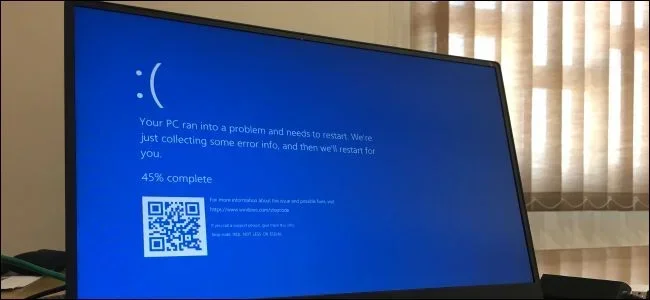
OneNote freezing after a Windows update is a frustrating but common problem that disrupts your workflow and productivity. This guide walks you through 6 proven fixes, from clearing the OneNote cache to rolling back problematic Windows updates. Each solution is simple, step-by-step, and designed to get your note-taking app running smoothly again fast.
OneNote is one of the most reliable note-taking apps out there. It works across devices, syncs seamlessly, and handles everything from quick thoughts to full research projects. But when OneNote starts freezing after a Windows update, it can throw a serious wrench into your day.
You sit down to jot down ideas, click the app, and nothing happens. Or worse, it opens but locks up the moment you try to type. This problem has affected thousands of Windows users, especially after major update cycles. The good news is that you can fix it yourself without needing a tech expert.
In this article, we cover 6 practical fixes that actually work. Each one targets a different possible cause, so you can work through them in order and stop the freezing for good. Let us dive in.
## Fix 1: Restart OneNote and Clear the Cache
The first thing you should try is the simplest. Restarting OneNote clears temporary glitches that might be causing the freeze. But if a simple restart does not do the trick, clearing the OneNote cache is your next best move.
### Why Cache Issues Cause Freezing
OneNote stores temporary files to help the app load faster. These files are called the cache. After a Windows update, these cache files can become corrupted or outdated. When OneNote tries to read them, it gets stuck and freezes.
This is one of the most common reasons OneNote crashes after a system update. The cache does not automatically refresh when Windows changes core system files. So the old cache conflicts with the new system environment.
### Step-by-Step Cache Clearing
Here is how you clear the OneNote cache safely:
1. Close OneNote completely. Right-click the OneNote icon in the system tray and select Close.
2. Press Windows Key + R to open the Run dialog.
3. Type `%localappdata%\Microsoft\OneNote` and press Enter.
4. Look for a folder named something like `16.0` or `15.0`. Open it.
5. Find the `cache` folder inside. Delete its contents.
6. Restart OneNote and let it rebuild the cache from scratch.
This fix works for most users. OneNote will take a few seconds longer to open the first time after clearing the cache, but it should run much smoother after that.
## Fix 2: Update or Roll Back Windows
Sometimes the Windows update itself is the problem. Microsoft releases updates frequently, and occasionally they introduce bugs that affect specific apps like OneNote. If clearing the cache did not work, this fix is worth trying.
### Check for Pending Updates
First, make sure your system has the latest patches. Microsoft often releases follow-up updates to fix issues found in earlier releases.
1. Go to Settings > Update & Security > Windows Update.
2. Click Check for updates.
3. Install any available updates and restart your PC.
If a fix is already available, this will resolve the OneNote freezing issue right away.
### How to Roll Back a Problematic Update
If the latest update caused the problem, you can undo it. Here is how:
1. Go to Settings > Update & Security > Windows Update.
2. Click View update history.
3. Click Uninstall updates.
4. Find the most recent update in the list.
5. Right-click it and select Uninstall.
6. Restart your PC.
Rolling back an update is safe and reversible. You can always reinstall the update later once Microsoft patches the issue. Many users have reported that OneNote runs perfectly fine again after removing a bad update.
## Fix 3: Repair OneNote Through Microsoft Office
If the problem is deeper than a cache issue or a Windows update conflict, your OneNote installation files might be damaged. Microsoft Office has a built-in repair tool that can fix this without you needing to reinstall anything.
### Using the Built-In Repair Tool
1. Open the Control Panel and go to Programs and Features.
2. Find Microsoft Office in the list.
3. Right-click it and select Change.
4. In the new window, click Quick Repair first.
5. Follow the on-screen prompts and restart your PC.
Quick Repair is fast and fixes most minor file corruption issues. It replaces damaged files with fresh copies from your installation source.
### Online Repair vs Quick Repair
If Quick Repair does not work, try Online Repair. It takes longer but does a much deeper scan.
1. Repeat steps 1 through 3 above.
2. This time, select Online Repair instead of Quick Repair.
3. Let the process run. It may take 10 to 20 minutes.
4. Restart your PC once it finishes.
Online Repair downloads replacement files from Microsoft servers. It is the most thorough repair option available without a full reinstall.
## Fix 4: Update Your Graphics and System Drivers
Outdated or incompatible drivers are a hidden cause of OneNote freezing. After a Windows update, driver conflicts can emerge because the update changes how the system communicates with hardware.
### Why Driver Updates Matter
OneNote uses your graphics card to render the interface, especially when you have images or drawings in your notes. If the graphics driver is outdated or conflicts with the new Windows build, OneNote can freeze or crash.
The same applies to other system drivers, like those for your touchpad or touchscreen. If these drivers are not aligned with the current Windows version, they can cause app instability.
### How to Update Drivers Safely
1. Right-click the Start button and select Device Manager.
2. Expand the Display adapters section.
3. Right-click your graphics card and select Update driver.
4. Choose Search automatically for drivers.
5. Repeat this process for other key devices like your touchpad and audio drivers.
If you recently installed a new GPU or made hardware changes, conflicts are even more likely. You might want to check what to do after installing a new GPU to make sure everything is properly configured. Keeping drivers up to date is one of the simplest ways to prevent app crashes and freezing across your entire system.
## Fix 5: Reset OneNote Settings
When all else fails, resetting OneNote to its default settings can eliminate deep-rooted configuration problems. This fix does not delete your notes. It only resets the app’s preferences and settings to factory defaults.
### What Happens When You Reset OneNote
Resetting OneNote clears custom settings like shortcut keys, display preferences, and sync configurations. Your actual notes stored in OneDrive or local storage remain completely safe. You will simply need to reconfigure a few preferences after the reset.
### Step-by-Step Reset Process
1. Open OneNote if it will open at all.
2. Go to File > Options.
3. Look for a Reset or Advanced reset option.
4. Click Reset and confirm the action.
5. Restart OneNote.
If OneNote will not open at all, you can reset it through the Settings app:
1. Go to Settings > Apps > Apps & features.
2. Find OneNote in the list.
3. Click Advanced options.
4. Scroll down and click the Reset button.
5. Confirm and restart your PC.
After the reset, OneNote should launch and run without freezing. You may need to sign back into your Microsoft account and adjust a few settings.
## Fix 6: Check for Conflicting Software
Sometimes the culprit is not Windows or OneNote at all. Third-party software can interfere with OneNote, especially after a major system update changes how apps interact with the operating system.
### Common Software Conflicts
Antivirus programs are the most common cause of app conflicts. They sometimes flag OneNote processes as suspicious and block them, causing freezes. Other common troublemakers include:
– Cloud storage apps like Dropbox or Google Drive that sync files in the same folders as OneNote.
– Overlay software from gaming platforms like Discord or Steam.
– Clipboard managers that monitor and modify copied content.
– Note-taking competitors like Evernote that run in the background.
### How to Identify the Culprit
1. Boot your PC into Safe Mode. This disables all third-party software and drivers.
2. Open OneNote in Safe Mode and see if it still freezes.
3. If OneNote works fine in Safe Mode, a third-party app is likely the cause.
4. Restart your PC normally and open your antivirus or security software.
5. Check the quarantine or blocked items log for OneNote-related blocks.
6. Add OneNote as an exception or temporarily disable the software to test.
You can also perform a clean boot to isolate the issue. This starts Windows with a minimal set of drivers and startup programs, making it easy to identify what is causing the conflict.
If your system is also running slowly in general, you may want to check out these tips on how to fix a computer running slow and freezing. The same underlying issues can affect multiple apps at once.
## Frequently Asked Questions
Why does OneNote freeze after every Windows update?
Windows updates change core system files and settings that apps like OneNote depend on. When OneNote’s cache, drivers, or configuration files are not compatible with the new system state, freezing occurs. Clearing the cache and updating drivers usually resolves this.
Will resetting OneNote delete my notes?
No. Resetting OneNote only clears app settings and preferences. Your notes stored in OneDrive or local storage remain completely untouched. You will just need to reconfigure a few app preferences after the reset.
Can outdated graphics drivers cause OneNote to freeze?
Yes. OneNote relies on your graphics card to render the interface, especially when your notes contain images or drawings. Outdated or incompatible graphics drivers can cause OneNote to freeze or crash, particularly after a Windows update changes system communication protocols.
How long does the Office Online Repair take?
Online Repair typically takes 10 to 20 minutes depending on your internet speed and the size of your Office installation. It is slower than Quick Repair but much more thorough at fixing deep file corruption issues.
Is it safe to roll back a Windows update?
Yes. Rolling back a Windows update is completely safe and fully reversible. You can always reinstall the update later through Windows Update once Microsoft releases a patch for any bugs it introduced. Many users have found that removing a bad update immediately fixes app compatibility issues.
What should I do if none of these fixes work?
If none of the six fixes resolve the issue, try uninstalling and reinstalling OneNote. Go to Settings > Apps, find OneNote, uninstall it, and then download the latest version from the Microsoft Store. You can also reach out to Microsoft Support for personalized help with persistent freezing problems.
## Conclusion
Dealing with OneNote freezing after a Windows update is incredibly frustrating, but it is almost always fixable. The six solutions in this guide cover the most common causes, from simple cache issues to deeper configuration conflicts. You do not need to be a tech expert to work through them.
Start with the easiest fix and work your way down the list. Most users find that clearing the cache or rolling back a bad update solves the problem immediately. If the issue persists, the repair tools and reset options are there as backup solutions.
The key is to act quickly. The longer you wait, the more your productivity suffers. Try these fixes today and get back to taking notes without interruptions. Your OneNote app should be running smoothly again in no time.
Key Takeaways
- Clearing the OneNote cache resolves most freezing issues caused by corrupted temporary files after a Windows update.
- Rolling back a recent Windows update can quickly restore OneNote stability if the update introduced a compatibility conflict.
- Running the built-in Office repair tool fixes damaged OneNote files and settings without a full reinstall.
- Updating graphics and system drivers prevents crashes and freezing triggered by outdated or incompatible drivers.
- Resetting OneNote settings eliminates deep-rooted configuration problems that survive other fixes.
- Checking for conflicting software helps identify third-party apps that interfere with OneNote after system changes.
- Acting quickly when OneNote starts freezing prevents data loss and saves hours of frustration.
Frequently Asked Questions
What is Onenote Freezing After Windows Update 6 Fixes That Work?
Onenote Freezing After Windows Update 6 Fixes That Work is an important topic with many practical applications.