Gigabyte B560 Hd3 Ram Ssd Build Guide For Beginners
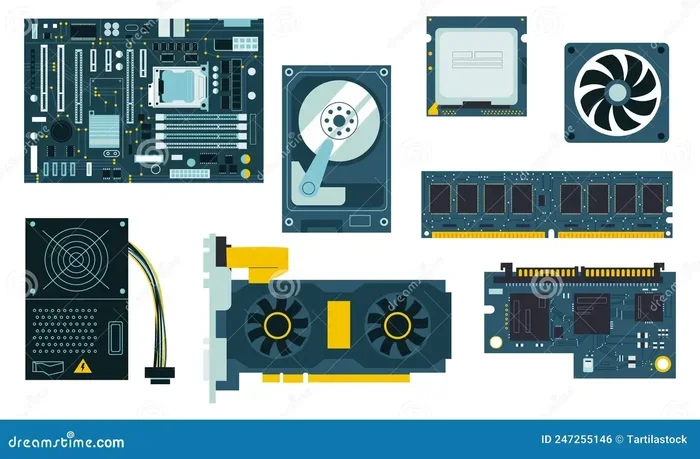
The Gigabyte B560 HD3 is a solid budget motherboard that makes building a PC easy for beginners. It supports DDR4 RAM and M.2 SSD storage, giving you fast speeds and plenty of room to grow. In this guide, we walk you through every step from picking parts to final setup. You will learn about RAM slots, SSD compatibility, and how to configure your BIOS with confidence. By the end, you will feel ready to start your own PC build using the B560 HD3.
Building a PC for the first time can feel overwhelming. There are so many parts to choose from, and it is easy to wonder if everything will work together. The Gigabyte B560 Hd3 Ram Ssd combination is one of the best starting points for beginners. This motherboard gives you a strong foundation without making things complicated. In this guide, we will walk you through everything you need to know.
Whether you want a budget PC for school work or a setup for light gaming, the B560 HD3 handles it well. It supports DDR4 RAM and M.2 SSD drives, which means fast speeds and reliable performance. You do not need to be a tech expert to use this board. We will break down each step in plain language so anyone can follow along.
By the time you finish reading, you will understand how to pick the right RAM and SSD for your B560 HD3. You will also know how to install them and set up your BIOS like a pro. Let us dive in and make your first PC build a success.
Key Takeaways
- Easy Compatibility: The B560 HD3 supports Intel LGA 1200 processors and DDR4 RAM, making part selection simple.
- Flexible Storage: It offers M.2 slots for fast NVMe SSDs and SATA ports for extra storage options.
- Beginner Friendly: Clear BIOS settings and straightforward RAM installation make this board ideal for first-time builders.
- Budget Smart: You can build a capable PC without spending too much on the motherboard.
- Upgrade Ready: The board leaves room for future RAM and SSD upgrades as your needs grow.
- Solid Performance: With proper RAM and SSD pairing, you get smooth everyday computing and light gaming.
- Quick Setup: Most users can complete a full build in under two hours with this board.
📑 Table of Contents
What Is the Gigabyte B560 HD3 Motherboard?
The Gigabyte B560 HD3 is an Intel LGA 1200 chipset motherboard. It belongs to the B560 family, which sits between the budget H510 and the powerful Z590. This board gives you a nice balance of features and price. It is designed for 10th and 11th generation Intel processors, which means you have many CPU options to choose from.
One of the best things about the B560 HD3 is its simplicity. It does not have fancy RGB lights or extra USB ports you may never use. Instead, it focuses on what matters most. You get two DDR4 RAM slots, one M.2 NVMe SSD slot, and four SATA III ports. These are more than enough for a solid PC build.
The board also features a basic audio codec and Gigabit LAN for networking. It uses a Micro-ATX form factor, which means it fits in most mid-tower cases. If you are looking for a reliable motherboard that does not break the bank, the B560 HD3 is a great choice.
Key Specifications at a Glance
- Chipset: Intel B560
- Socket: LGA 1200
- RAM Support: DDR4, up to 64GB across two slots
- Storage: One M.2 slot, four SATA III ports
- Form Factor: Micro-ATX
- PCIe Slots: One PCIe 4.0 x16, two PCIe 3.0 x1
- USB Ports: USB 3.2 Gen 1 and USB 2.0 rear I/O
RAM Compatibility and Upgrade Options
Understanding RAM compatibility is one of the most important parts of any build. The B560 HD3 has two DDR4 RAM slots. This means you can install up to two sticks of memory. The board supports DDR4-3200 MHz on Intel 11th gen processors and DDR4-2933 MHz on 10th gen chips.
For most users, 16GB of RAM is the sweet spot. You can use two 8GB sticks to fill both slots. This gives you dual-channel memory, which improves performance in games and multitasking. If you want more power, you can go with a single 16GB stick or push to 32GB using two 16GB sticks, if your processor supports it.
When choosing RAM speed look for DDR4-3200 CL16 modules. They offer a great balance of speed and price. Brands like Kingston, Corsair, and G.Skill all make compatible DDR4 RAM kits that work perfectly with the B560 HD3.
How to Install RAM on the B560 HD3
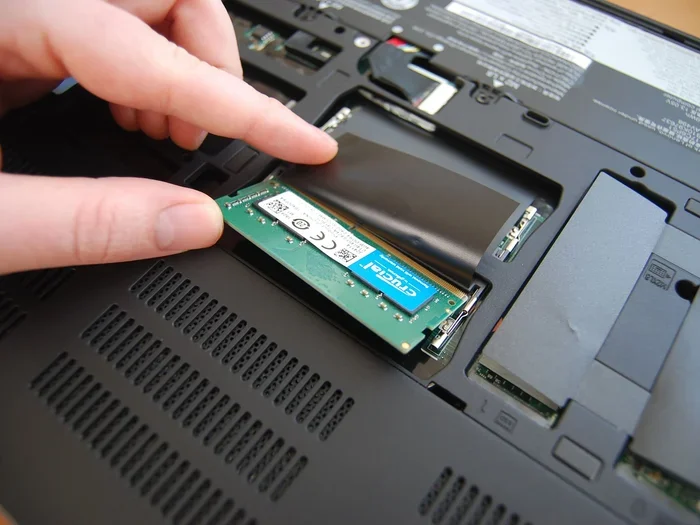
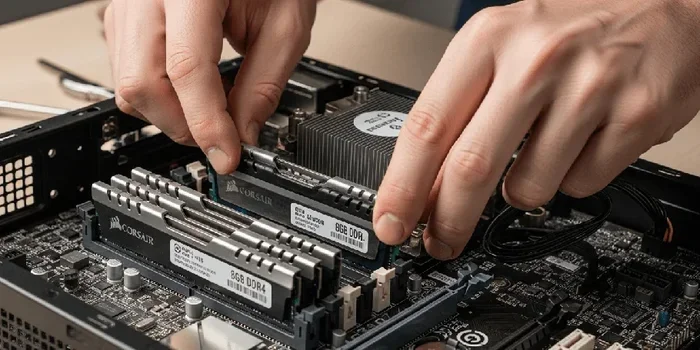
Installing RAM on this board is very simple. First, open the clips on both RAM slots. Line up the notch on the RAM stick with the slot key. Press the stick down firmly until both clips click into place. That is it. No tools are needed.
If you are pairing two sticks, always install them in the slots labeled A2 and B2. This ensures you get dual-channel mode, which boosts memory performance. Check the motherboard manual for the exact slot colors and positions.
SSD Installation and Storage Options
The B560 HD3 gives you multiple ways to add storage. The M.2 slot supports NVMe PCIe 4.0 SSDs. This means you get lightning-fast read and write speeds. An NVMe SSD can make your PC feel super responsive. Boot times drop to seconds, and games load in a flash.
For those who need more space, the board also has four SATA III ports. These support traditional 2.5-inch SSDs and HDDs. You can pair a fast NVMe SSD for your operating system with a larger SATA SSD or HDD for storing files and games.
A popular setup for beginners is a 512GB NVMe SSD for the system drive and a 1TB HDD for extra storage. This combo keeps your PC fast while giving you plenty of room for all your files.
Choosing the Right SSD for Your Build
When picking an SSD for your Gigabyte B560 Hd3 Ram Ssd setup, consider your needs. For basic use, a 500GB NVMe SSD works great. For gaming or content creation, a 1TB or 2TB NVMe drive is better. Some popular choices include the Samsung 970 EVO, WD Black SN770, and Crucial P3 Plus.
Make sure the SSD you choose is an M.2 2280 form factor. This is the standard size that fits the B560 HD3 slot. Some SSDs come with a heatsink, which can help with cooling during heavy workloads. However, the B560 HD3 does not have a large heatsink over the M.2 slot, so a drive with a small heatsink is a safe bet.
Step-by-Step Build Process
Now let us walk through the actual build process. Follow these steps carefully and you will have a working PC in no time.
Step 1: Prepare Your Workspace
Find a clean, flat surface with good lighting. Gather your tools, including a Phillips head screwdriver. Lay out all your parts and check them against your list. Make sure you have the motherboard box, the CPU, RAM, SSD, power supply, and a case ready.
Always ground yourself before touching components. You can use an anti-static wrist strap or simply touch a metal part of the case to discharge any static electricity. This protects your parts from damage.
Step 2: Install the CPU
Open the CPU socket on the B560 HD3 by lifting the retention arm. Carefully place the Intel processor into the socket. Make sure the golden triangle on the CPU aligns with the triangle on the socket. Gently lower the CPU in and lock the arm back down. Do not force it. The CPU should drop in with zero pressure.
Step 3: Install the RAM
Open the RAM slot clips. Insert the DDR4 stick at a 45-degree angle and press it down until it clicks. Repeat for the second stick if you are using two. Remember to use the A2 and B2 slots for dual-channel performance.
Step 4: Mount the M.2 SSD
Locate the M.2 slot on the B560 HD3. Remove the mounting screw and the standoff if needed. Insert the NVMe SSD at a 30-degree angle and press it down flat. Secure it with the screw. This takes less than a minute once you get the hang of it.
Step 5: Connect Power and Cables
Place the motherboard into the case and secure it with screws. Connect the 24-pin ATX power cable from the PSU to the motherboard. Plug in the 8-pin CPU power cable near the top of the board. Connect your SSD to the M.2 slot directly. There is no need for extra SATA cables for NVMe drives.
Once everything is connected, you can do a quick bench test outside the case before final assembly. This helps you confirm everything works before you close up the build.
BIOS Setup and Configuration
After powering on your new build, you will enter the BIOS. The Gigabyte B560 HD3 uses a classic BIOS layout that is easy to navigate. Press the Delete key or F2 during boot to access the setup screen.
In the BIOS, you can check your RAM speed and make sure it is running at the rated frequency. Go to the Overclocking or D.O.C.P. menu to enable XMP profiles. This allows your DDR4 RAM to run at its advertised speed, such as DDR4-3200 MHz.
You should also check the boot order in the BIOS. Make sure your M.2 SSD is set as the first boot device. This ensures Windows or your chosen operating system loads from the correct drive. Save your settings and exit the BIOS to continue with the operating system installation.
Updating the BIOS
It is a good idea to update your BIOS before using the B560 HD3. New BIOS versions improve CPU compatibility and fix bugs. Gigabyte provides a simple BIOS Flashback feature on some models, which lets you update without a CPU or RAM installed. Check the Gigabyte website for the latest BIOS file and instructions.
Common Mistakes to Avoid
Even experienced builders make mistakes sometimes. Here are a few common errors to watch out for when building with the B560 HD3.
- Forgetting the CPU power cable: Without the 8-pin CPU power connector, your PC will not turn on. Always double-check this connection.
- Using the wrong RAM slots: If you install RAM in the wrong slots, you may not get dual-channel mode. Always use the A2 and B2 slots.
- Over-tightening the M.2 screw: The SSD is secured with a light touch. Over-tightening can damage the drive or the motherboard.
- Skipping BIOS updates: An outdated BIOS can cause compatibility issues with newer processors. Always update before your first boot.
- Ignoring RAM speed settings: If you do not enable XMP in the BIOS, your DDR4 RAM will run at a slower default speed. This can hurt performance.
Taking your time and following each step carefully will save you from frustration. A patient approach is the best approach when building a PC.
Final Thoughts
The Gigabyte B560 Hd3 Ram Ssd build is a fantastic choice for anyone starting their first PC build. The motherboard offers solid compatibility, easy installation, and reliable performance. Whether you are a student, a gamer, or someone who just needs a dependable computer, this setup delivers.
By choosing the right DDR4 RAM and a fast NVMe SSD, you create a system that feels quick and responsive every day. The build process is straightforward, and the BIOS setup is simple enough for beginners. You do not need years of experience to get great results with this board.
Remember to take your time, follow each step, and enjoy the process of building something with your own hands. Once your PC is up and running, you will feel a real sense of accomplishment. Happy building.
Frequently Asked Questions
What type of RAM does the Gigabyte B560 HD3 support?
The B560 HD3 supports DDR4 RAM at speeds up to DDR4-3200 MHz on 11th gen Intel processors. It has two DIMM slots that can hold up to 64GB total. Always check your specific CPU’s memory support list for the best compatibility.
Can I use a SATA SSD with the Gigabyte B560 HD3?
Yes, the B560 HD3 has four SATA III ports in addition to the M.2 NVMe slot. You can connect a 2.5-inch SATA SSD or an HDD for extra storage. This gives you flexibility to build a storage setup that fits your budget and needs.
Do I need a CPU cooler with the B560 HD3 build?
Yes, every Intel build needs a CPU cooler. The B560 HD3 works with LGA 1200 Intel processors. A basic air cooler is enough for most builds. If you plan to overclock or use a high-performance chip, consider an aftermarket cooler for better temperatures.
Is the Gigabyte B560 HD3 good for gaming?
The B560 HD3 can handle light to moderate gaming very well. Pair it with a decent GPU and 16GB of DDR4 RAM for smooth performance in most games at 1080p. It is not designed for high-end gaming but it gets the job done for casual and mid-range setups.
How do I enable XMP on the B560 HD3?
To enable XMP, enter the BIOS by pressing Delete or F2 at boot. Go to the Overclocking or D.O.C.P. menu. Find your RAM profile and set it to Enabled. Save and exit. Your DDR4 RAM will now run at its rated speed instead of the default JEDEC speed.
What processors work with the Gigabyte B560 HD3?
The B560 HD3 supports 10th and 11th generation Intel Core processors with the LGA 1200 socket. Popular choices include the Core i5-10400, Core i5-11400, and Core i7-11700. Always verify your chosen CPU on the Gigabyte CPU support list before purchasing.