Overclocking RAM XMP EXPO Manual Tuning for Beginners
Overclocking RAM through XMP and EXPO manual tuning is one of the easiest ways to boost your PC’s memory speed and overall performance. This guide walks beginners through every step, from understanding what XMP and EXPO profiles are to adjusting BIOS settings and running stability tests. You will learn how to safely push your memory frequency higher, dial in tighter timings, and avoid common mistakes that can cause system crashes.
Overclocking RAM has become a popular way to squeeze extra performance out of any PC. Whether you are a gamer looking for smoother frame rates or a content creator working with large files, manual tuning with XMP and EXPO profiles can make a real difference. This guide breaks everything down into simple steps that anyone can follow.
If you have ever wondered what those XMP and EXPO options in your BIOS actually do, you are in the right place. These profiles are designed to simplify the overclocking process. Instead of adjusting every single setting by hand, you can load a pre-configured profile that pushes your DRAM frequency to its rated speed. But manual tuning goes a step further and lets you fine-tune every detail.
In this article, we will cover exactly what XMP and EXPO are, how to access your BIOS, what each setting means, and how to test for stability. By the end, you will have the confidence to overclock your memory safely and effectively. Let us dive in.
Key Takeaways
- XMP and EXPO are preset profiles that let you overclock RAM with a single click in BIOS.
- Manual tuning gives you more control over memory frequency, timings, and voltage for peak performance.
- Always check if your motherboard supports overclocking before making any changes.
- Stability testing is essential after every adjustment to ensure your system remains reliable.
- Start small and make incremental changes rather than jumping to extreme settings right away.
- DDR4 and DDR5 RAM have different tuning behaviors, so always follow guidelines specific to your type.
- Proper cooling matters for memory modules, especially when pushing frequencies higher.
📑 Table of Contents
What Is XMP and EXPO in RAM Overclocking?
Before you touch any BIOS settings, it helps to understand what XMP and EXPO actually are. These are both preset profiles created by memory and motherboard manufacturers. They save you from manually entering every single timing and frequency value.
Understanding XMP Profiles
XMP stands for Extreme Memory Profile. Intel developed this standard to make RAM overclocking simple. When you buy DDR4 or DDR5 memory rated at a specific speed, the XMP profile stores that speed and its associated timings. All you need to do is enable XMP in your BIOS, and your RAM runs at its advertised speed.
Most modern DDR4 and DDR5 kits come with XMP support built in. The profile typically includes the base frequency, subtimings, and voltage needed to run the memory stably. It is a great starting point for beginners.
Understanding EXPO Profiles
EXPO stands for Extended Profiles for Overclocking. AMD developed this as their equivalent to Intel’s XMP. EXPO profiles work the same way but are optimized for AMD Ryzen processors and platforms. When you enable EXPO in your BIOS, your memory runs at its rated DDR5 frequency or DDR4 speed with the correct timings applied automatically.
EXPO profiles are especially useful on AMD systems because Ryzen processors are very sensitive to memory speed and latency. Enabling the right EXPO profile can noticeably improve performance in both gaming and productivity tasks.
Why Manual Tuning Beats Default Settings
While XMP and EXPO profiles are convenient, they are not always perfect. The default profile uses safe, conservative values that work on most systems. But manual tuning lets you push beyond those limits and extract every bit of performance your memory can handle.
Tighter Memory Timings
Memory timings control how fast your RAM responds to requests. Lower timings mean faster data access. When you manually adjust these values, you can reduce latency and improve memory bandwidth. This is especially noticeable in workloads that rely heavily on memory speed.
Common timing values you will encounter include CAS Latency (CL), tRCD, tRP, and tRAS. Each one controls a different part of the memory access process. Learning what each timing does is the first step toward effective manual tuning.
Higher Frequency Headroom
XMP and EXPO profiles usually set your memory to its rated speed. But many memory kits can actually run faster than their rated frequency. Manual tuning lets you push the base clock or memory multiplier higher to achieve even faster speeds.
For example, a DDR5 kit rated at 6000 MHz might be capable of running at 6400 MHz with tighter subtimings. This extra headroom can translate to measurable performance gains in both gaming and professional workloads.
How to Access BIOS and Enable XMP or EXPO
Getting started with manual tuning requires accessing your computer’s BIOS or UEFI firmware. This is the low-level software that controls your hardware before Windows loads. Every motherboard brand has a slightly different BIOS layout, but the basic steps are the same.
Step-by-Step BIOS Access
First, restart your computer. As it boots up, press the designated key to enter BIOS. This is usually Delete, F2, or F12 depending on your motherboard brand. Once inside, look for an overclocking or memory settings section. The exact location varies by manufacturer.
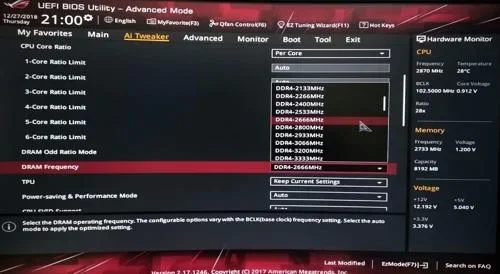
On ASUS boards, you will find XMP or EXPO settings under the Ai Tweaker menu. MSI places these options in the OC or Memory Settings section. Gigabyte calls it the Frequency/Voltage Control area. ASRock uses the A-Tuning section for memory profiles.
Enabling the Profile
Once you locate the memory settings, look for the XMP or EXPO profile option. Select the profile that matches your memory kit’s rated speed. Most kits have multiple profiles, with Profile 1 being the most common choice. After selecting the profile, save your changes and exit the BIOS.
Your system will reboot with the new memory settings active. Run a quick stability test to make sure everything works correctly before moving on to manual adjustments.
Before you start tweaking anything, it is worth checking whether your motherboard supports overclocking. Not all boards allow memory frequency adjustments, especially on budget models. If your board does not support overclocking, you will be limited to the default JEDEC speeds.
Key Settings to Adjust During Manual Tuning
Manual tuning gives you control over several critical memory settings. Understanding what each one does will help you make informed adjustments. Here are the most important settings you will encounter.
DRAM Frequency
This is the base speed of your memory. It is measured in MHz and determines how fast your RAM can transfer data. Increasing this value boosts memory bandwidth, which benefits gaming, video editing, and multitasking.
Start by raising the frequency in small increments, such as 100 MHz at a time. After each increase, run a stress test to check for stability. If your system crashes or shows errors, reduce the frequency slightly until it passes testing.
Memory Voltage (DRAM Voltage)
Voltage provides the electrical power needed for your memory to run at higher speeds. Increasing DRAM voltage can help stabilize higher frequencies, but it also generates more heat. Never exceed the safe voltage limits recommended by your memory manufacturer.
For DDR4 memory, staying below 1.45 volts is generally considered safe. For DDR5, the safe limit is typically around 1.35 volts. Always check your specific memory kit’s specifications before adjusting voltage.
Command Rate
The command rate controls how quickly your memory controller can issue commands to the RAM modules. Common values are 1T and 2T. A 1T command rate is faster but can be harder to stabilize at higher frequencies.
Most modern systems run well at 1T. If you experience instability after raising frequency, try switching to 2T to see if it improves stability.
Subtimings and Secondary Timings
Subtimings are the smaller, more granular timing values that control specific memory operations. Adjusting these can yield meaningful performance improvements, especially when you have already reached the frequency limit of your kit.
Tightening subtimings reduces the time the memory controller waits for data. This lowers latency and improves responsiveness. However, aggressive subtiming adjustments can be unstable, so test thoroughly after each change.
Stability Testing After Overclocking
Overclocking without testing is a recipe for problems. Even small changes to memory settings can cause instability that may not be immediately obvious. Running proper stability tests ensures your system remains reliable under load.
Recommended Stability Testing Tools
Several free tools can help you test memory stability after overclocking. MemTest86 is one of the most trusted options. It runs a comprehensive test of your memory outside of the operating system, catching errors that other tools might miss.
Another excellent option is TestMem5 with the Anta777 profile. This tool is designed specifically for testing memory overclocks and is widely used in the overclocking community. Run it for at least a few hours to ensure your settings are stable.
For real-world testing, run demanding applications and games for extended periods. If you notice crashes, freezes, or blue screens, your overclock may be unstable. Reduce the frequency or loosen the timings slightly and test again.
What to Do If You Encounter Instability
Instability is normal when pushing memory beyond its default settings. If your system crashes during testing, do not panic. Start by lowering the frequency by 100 MHz and testing again. If that does not help, try increasing DRAM voltage slightly or loosening the timings.
Remember that every memory kit is different. Some kits can reach very high frequencies with tight timings, while others prefer lower speeds with looser timings. Patience and incremental changes are the keys to finding your RAM’s sweet spot.
It is also worth noting that overclocking does generate additional heat. While memory modules typically run cool, pushing frequencies very high can increase temperatures. Make sure your system has adequate airflow, and consider whether your RAM needs additional cooling if you are running extreme frequencies.
Common Mistakes to Avoid When Tuning RAM
Manual RAM tuning can be rewarding, but it is easy to make mistakes that cause more harm than good. Here are some common pitfalls to watch out for.
- Skipping stability testing. Always test after every change. Untested overclocks can lead to data corruption or system crashes.
- Setting voltage too high. Excessive DRAM voltage can damage your memory modules over time. Stick to safe limits.
- Changing too many settings at once. Adjust one variable at a time so you can identify exactly what causes any instability.
- Ignoring your CPU memory controller. The CPU plays a big role in memory performance. Different processors handle overclocking differently, so research your specific CPU.
- Forgetting to check your RAM type. DDR4 and DDR5 have different behaviors and safe limits. Always confirm what type of memory you have before making changes.
Taking a careful, methodical approach will save you a lot of frustration. Rushing into aggressive settings without proper testing is the fastest way to an unstable system.
Final Thoughts on XMP and EXPO Manual Tuning
Manual RAM tuning with XMP and EXPO profiles is a fantastic way to improve your PC’s performance without spending any extra money. Whether you are using DDR4 or DDR5 memory, the principles remain the same. Start with a preset profile, test for stability, and then make small manual adjustments to push performance further.
The process may seem intimidating at first, but it becomes much easier with practice. Each time you go through the process, you will learn more about how your specific hardware responds to different settings. Over time, you will develop an intuition for what works and what does not.
Remember that every system is unique. What works perfectly on one build might not work the same way on another. The key is to be patient, test thoroughly, and never exceed safe voltage limits. With the right approach, you can unlock meaningful performance gains from your memory that will benefit gaming, content creation, and everyday computing.
If you are curious about how overclocking affects your overall system, you might want to check whether overclocking your CPU affects its lifespan. Understanding the trade-offs helps you make smarter decisions about which components to push and which to leave alone.
Finally, always make sure your system has proper cooling. Memory modules may not run as hot as CPUs or GPUs, but sustained high frequencies can still generate noticeable heat. Good airflow and case fans go a long way in keeping everything stable and cool.
Frequently Asked Questions
What is the difference between XMP and EXPO?
XMP is Intel’s memory profile standard, while EXPO is AMD’s equivalent. Both serve the same purpose of simplifying RAM overclocking, but they are optimized for different platforms. XMP works best with Intel motherboards, and EXPO is designed for AMD Ryzen systems.
Can manual RAM tuning damage my memory?
Manual tuning is generally safe as long as you stay within safe voltage limits and increase frequency gradually. Excessive voltage or extreme frequencies can reduce component lifespan, but following manufacturer guidelines keeps your memory safe.
Do I need an overclocking motherboard for XMP or EXPO?
Yes, you need a motherboard that supports memory overclocking to use XMP or EXPO profiles. Budget motherboards sometimes lock these features. Check your motherboard specifications or look for the overclocking option in BIOS to confirm support.
How much performance gain can I expect from manual RAM tuning?
The gains vary depending on your workload. Gamers may see 5 to 15 percent improvements in frame rates, while content creators might notice faster rendering and file processing times. The exact improvement depends on your CPU, RAM type, and how much you tune.
What is the safest way to start manual RAM tuning?
Start by enabling your XMP or EXPO profile and running stability tests. Once you confirm the base profile is stable, make small adjustments to frequency or timings one at a time. Test after each change and keep notes so you can revert if needed.
Should I overclock my RAM if I already have XMP or EXPO enabled?
Enabling XMP or EXPO gives you a good baseline. Manual tuning can push performance further, but it is not necessary for everyone. If your current setup is stable and meets your needs, there is no obligation to go further. Only manual tune if you want extra performance and are willing to invest the time in testing.