Definition Of A Computer Component Made Easy To Understand

The definition of a computer component refers to any individual part that makes up a computer system. Each component, from the processor to the hard drive, plays a specific role in helping your PC function properly. Understanding these parts helps you build, upgrade, or troubleshoot your computer with confidence.
A definition of a computer component is simpler than most people think. At its core, a computer component is any single physical part that performs a specific job inside a computer. These parts work together to process data, store information, and display results.
Every computer, whether a desktop or a laptop, is made up of many smaller parts. Each one has a clear purpose. Some parts handle thinking and calculations. Others store your files and programs. And some parts let you see and hear what your computer is doing.
This guide breaks down every major computer component in plain language. You do not need to be a tech expert to understand how your PC works. By the end, you will know exactly what each part does and why it matters.
Key Takeaways
- A computer component is any single part that performs a specific task inside a computer system.
- Core components include the CPU, motherboard, RAM, storage, and power supply unit.
- Peripheral components like keyboards, mice, and monitors allow you to interact with your PC.
- Knowing what each component does helps you make better buying and upgrading decisions.
- Regular maintenance of your components keeps your computer running fast and safely.
- Understanding computer hardware basics saves money and prevents costly mistakes.
📑 Table of Contents
What Is a Computer Component?
A computer component is any physical piece of hardware that is part of a computer system. These parts are also called PC parts or computer hardware. Each component has a specific function that contributes to the overall performance of the machine.
Think of your computer like a human body. The brain processes thoughts. The memory stores information. The eyes and ears take in data. The hands and feet carry out actions. A computer works in much the same way. The central processing unit acts as the brain. The RAM acts as short-term memory. The monitor and keyboard act as your eyes and hands.
Computer components can be divided into two main groups. The first group is internal components. These are the parts inside the system unit or laptop chassis. The second group is external components. These are the devices you plug in or connect to the computer.
Why Understanding Components Matters
Knowing what each part does gives you real power. When something goes wrong, you can troubleshoot faster. When you want to upgrade, you know exactly what to buy. And when you are shopping for a new PC, you can compare specs with confidence.
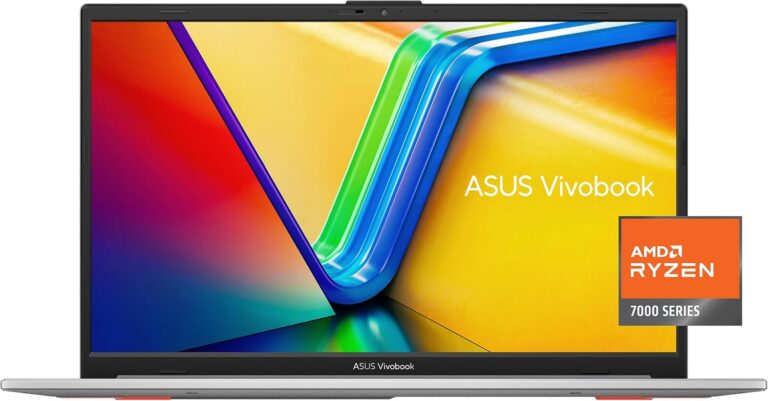
For example, if your laptop feels slow, you might learn that it needs more memory. You could then look into laptops with a lot of RAM or explore how to upgrade the RAM of a laptop. Understanding components turns confusing tech jargon into practical knowledge.
Core Internal Components
The internal components are the heart and soul of any computer. They sit inside the system unit and work together to process and store data. Let us look at each one in detail.
Central Processing Unit (CPU)
The CPU is often called the brain of the computer. It executes instructions from programs and performs calculations. Every click, keystroke, and command goes through the CPU first. It is the most important component for overall system speed.
Modern CPUs have multiple cores. Each core can handle its own set of tasks. This means a multi-core processor can run several programs at the same time without slowing down. When shopping for a PC, the CPU brand and speed are always listed first in the specs.
Motherboard
The motherboard is the main circuit board inside your computer. It connects all the other components together. The CPU, RAM, storage drive, and expansion cards all plug into the motherboard.
Think of the motherboard as a city road system. Data travels along pathways called buses to reach different parts of the computer. The motherboard also houses the chipset, which controls how data moves between components. A good motherboard ensures all your parts communicate smoothly.
Random Access Memory (RAM)
RAM is your computer’s short-term memory. It holds data that the CPU needs right now. When you open a program or a browser tab, it loads into the RAM. This makes access much faster than pulling data from a storage drive.
The amount of RAM you have directly affects how many programs you can run at once. If you open too many apps and your RAM fills up, your computer slows down. For most users, checking how much RAM is good on a laptop is a great first step toward better performance.
Most modern laptops come with 8 GB or 16 GB of RAM. If you find your system struggling, you might want to check the RAM of a laptop to see if an upgrade is possible. The definition of a computer component applies to RAM just as much as any other part. It is a physical piece of hardware with a specific, essential role.
Storage Devices
Storage devices hold your data long-term. They keep your files, programs, and operating system safe even when the computer is turned off. There are two main types of storage used in modern computers.
Hard Disk Drive (HDD): This is the older type of storage. It uses spinning magnetic disks to read and write data. HDDs offer large storage capacities at lower prices. They are still common in budget computers and external drives.
Solid State Drive (SSD): This is the newer and faster option. SSDs use flash memory with no moving parts. They load programs and files much quicker than HDDs. Most modern PCs now come with SSDs as the primary drive.
Graphics Processing Unit (GPU)
The GPU handles everything you see on your screen. It renders images, videos, and animations. For basic tasks like browsing and office work, a simple integrated GPU built into the CPU is enough.
However, if you play games, edit videos, or do 3D modeling, you need a dedicated graphics card. A discrete GPU has its own memory and processor. This takes the visual workload off the CPU and delivers smoother performance. Graphics cards are one of the most important components for creative and gaming PCs.
Power Supply Unit (PSU)
The PSU converts electricity from your wall outlet into power that your computer components can use. It supplies steady, regulated voltage to every part inside the system.
A weak or faulty PSU can cause all kinds of problems. Your computer might crash, freeze, or fail to turn on. When building or buying a PC, always check that the PSU has enough wattage for all your components. A reliable power supply keeps everything running safely.
Cooling System
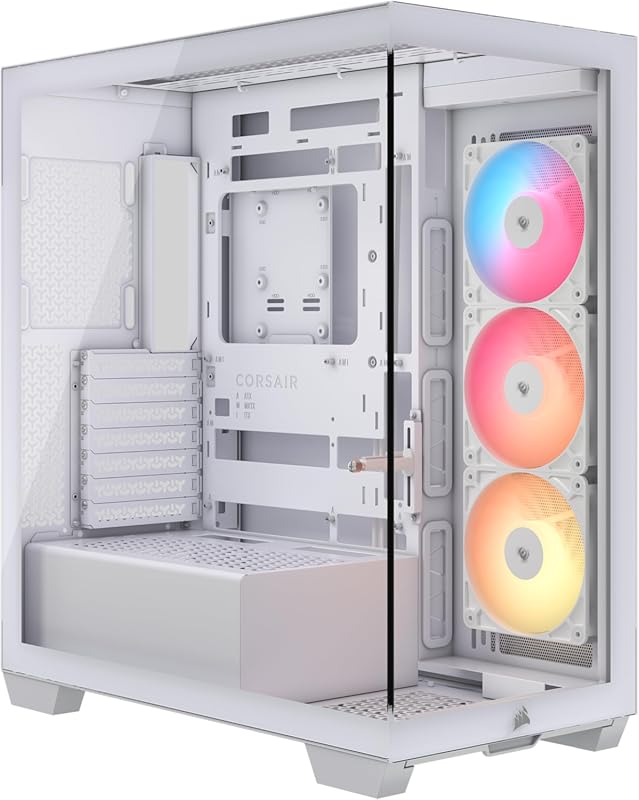
All computer components generate heat when they work. The cooling system keeps temperatures under control. Without proper cooling, a PC can slow down or even suffer permanent damage.
Most desktops use a combination of fans and heatsinks. Some high-performance systems use liquid cooling. Laptops rely on internal fans and heat pipes. If your laptop fan keep running constantly, it may be a sign that your cooling system is working hard. Overheating can reduce component lifespan, so keeping vents clean is important.
External and Peripheral Components
External components are the parts you can see and touch outside the system unit. They let you interact with your computer and extend its capabilities.
Input Devices
Input devices send data to the computer. You use them to give commands and enter information. Common input devices include:
- Keyboard: Used for typing text and triggering shortcuts.
- Mouse: Used for pointing, clicking, and navigating the screen.
- Webcam: Used for video calls and image capture.
- Microphone: Used for voice input and recording audio.
- Scanner: Used to digitize physical documents and images.
Each input device sends signals to the motherboard, which processes them through the CPU. Without input devices, a computer would just sit there doing nothing. They are the bridge between you and your machine.
Output Devices
Output devices display or present the results of your computer’s work. They let you see, hear, and sometimes feel what the computer is doing.
- Monitor: Displays visual output like text, images, and videos.
- Speakers: Produce audio output for music, videos, and alerts.
- Printer: Produces physical copies of digital documents.
Output devices complete the feedback loop. You give input, the computer processes it, and the output devices show you the results. This cycle happens in milliseconds every time you use your PC.
Secondary and Expansion Components
Beyond the core parts, computers also have secondary and expansion components. These add extra capabilities or improve existing ones.
Expansion cards plug into slots on the motherboard. They add features like better audio, faster networking, or additional USB ports. A network interface card, for example, lets your computer connect to Wi-Fi or ethernet.
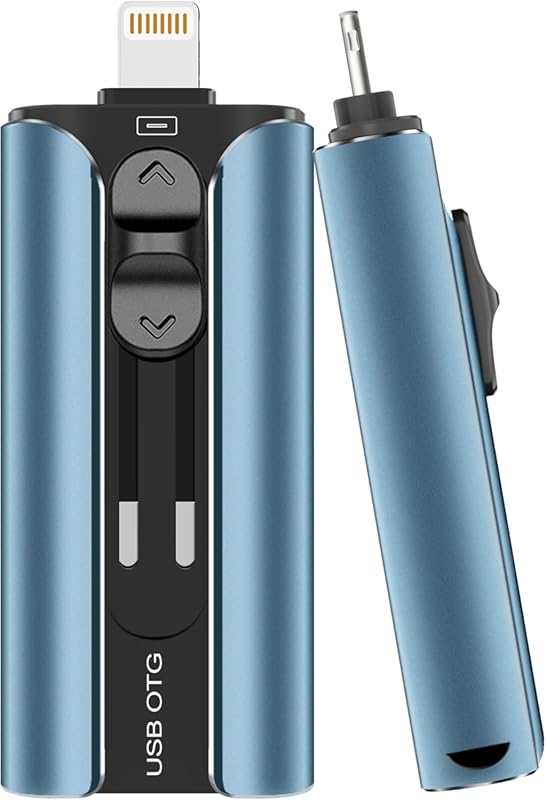
Secondary storage includes external hard drives and USB flash drives. These give you extra space to back up files or carry data between computers. They are not essential for the computer to run, but they are very useful.
How Computer Components Work Together
No single component works alone. The magic of a computer happens when all the parts communicate and cooperate. Here is how the process flows in simple terms.
- You give input through a keyboard or mouse.
- The input travels to the motherboard and then to the CPU.
- The CPU processes the data using instructions from the program.
- It pulls any needed data from the RAM or storage drive.
- The GPU renders the visual output and sends it to the monitor.
- The speakers produce any audio output.
- The PSU ensures all parts receive steady power throughout this process.
This entire cycle happens billions of times per second. It is why your computer feels instant and responsive when everything works well. If one component is weak or failing, the whole experience suffers.
Component Compatibility
Not all components work with every system. When upgrading or building a PC, compatibility is key. The motherboard determines which CPU sockets, RAM types, and expansion slots are supported. Always check compatibility before purchasing new parts.
For instance, if you want 16 GB of RAM in your laptop, you need to confirm that your motherboard supports that amount and the right type of memory module. Similarly, adding a powerful graphics card requires a PSU with enough wattage and a motherboard with a compatible expansion slot.
Common Computer Component Problems
Even the best components can develop issues over time. Knowing the signs of a failing part helps you act quickly and avoid bigger problems.
Signs Your Components May Be Failing
- Frequent crashes or blue screens of death.
- Unusual clicking or grinding noises from the hard drive.
- Random shutdowns or restarts.
- Sluggish performance that does not improve after a restart.
- Artifacts or flickering on the monitor.
- The computer will not turn on at all.
If you notice any of these signs, run diagnostic tests. Many tools can check your RAM health, drive integrity, and CPU temperature. Early detection can save you from costly replacements.
Prevention and Maintenance Tips
Taking care of your components extends their lifespan. Keep your computer clean and dust-free. Update your drivers regularly. Use a surge protector to guard against power spikes. And monitor temperatures to make sure nothing is running too hot.
For laptop users, avoiding extreme heat and keeping vents unobstructed makes a big difference. A well-maintained computer runs faster, lasts longer, and avoids unexpected failures.
How to Choose the Right Components
Whether you are buying a new PC or upgrading an existing one, choosing the right components is critical. Start by identifying what you need the computer for.
For basic tasks like browsing and word processing, a simple setup with a decent CPU and 8 GB of RAM is enough. For gaming or video editing, you need a powerful CPU, a dedicated GPU, at least 16 GB of RAM, and a fast SSD.
Budget also plays a big role. Not everyone needs a top-of-the-line machine. Focus on the components that matter most for your use case. A fast SSD and enough RAM often give more noticeable improvements than a slightly faster CPU.
When in doubt, research each component before buying. Read reviews, compare benchmarks, and make sure everything fits together. A well-balanced system performs much better than one with one super-fast part and several weak ones.
Conclusion
The definition of a computer component is straightforward. It is any individual physical part that performs a specific function inside a computer system. From the CPU and motherboard to the keyboard and monitor, every component plays a vital role.
Understanding these parts empowers you as a user. You can troubleshoot problems, make informed upgrades, and get the most out of your investment. Computer hardware does not have to be intimidating. Once you know what each part does, the whole system starts to make sense.
Take some time to learn about your own computer. Check what components you have. Explore how they work together. This knowledge will serve you well whether you are a casual user, a student, or a tech enthusiast. The more you understand your PC, the more you can do with it.
Frequently Asked Questions
What is the simplest definition of a computer component?
A computer component is any single physical part that performs a specific task inside a computer. Each part has a clear role, whether it is processing data, storing files, or displaying output on screen.
What are the five main components of a computer?
The five main components are the CPU, motherboard, RAM, storage drive, and power supply unit. These core parts handle processing, connectivity, memory, data storage, and power delivery. Together, they form the foundation of any working computer system.
Can I upgrade individual computer components?
Yes, many components can be upgraded. RAM, storage drives, and graphics cards are the most common upgrades. However, compatibility with your motherboard and system is essential before purchasing any new part.
What is the difference between internal and external components?
Internal components are inside the system unit, like the CPU and motherboard. External components are outside the system, like the keyboard, mouse, and monitor. Both types are essential for a complete computer setup.
How do I know if a computer component is failing?
Common signs include frequent crashes, unusual noises, slow performance, and random shutdowns. Running diagnostic tools can help identify which specific component is causing the problem.
Why is the motherboard considered the most important component?
The motherboard connects all other components together. It provides the pathways for data to travel between the CPU, RAM, storage, and expansion cards. Without a functioning motherboard, no other part can communicate.
=== META TITLE ===
Definition of a Computer Component | Easy PC Parts Guide
=== URL SLUG ===
definition-of-a-computer-component-made-easy
=== INTERNAL LINKS USED ===