Ram Compatibility Guide How To Find The Right Match
Ram compatibility is the key to building or upgrading a PC that works flawlessly. This guide walks you through DDR types, motherboard checks, and mixing rules so you pick the right memory every time. Whether you use a laptop or desktop, you will learn exactly what to look for and what to avoid.
Ram compatibility is one of the most important things to get right when you build or upgrade a computer. Picking the wrong memory can cause crashes, blue screens, or even prevent your PC from turning on at all. This guide breaks down everything you need to know in plain language so you can shop with confidence.
Whether you are upgrading an old laptop or building a new desktop from scratch, understanding memory compatibility saves you time, money, and frustration. We will cover DDR types, motherboard checks, mixing rules, and common pitfalls. By the end, you will know exactly how to find the right RAM for your system.
The good news is that checking compatibility is easier than most people think. A few simple steps and a bit of knowledge go a long way. Let us dive in and make sure your next memory purchase is a perfect match.
Key Takeaways
- Match your RAM type to your motherboard: DDR4 and DDR5 are not interchangeable, and using the wrong one will not work.
- Check your motherboard QVL: The Qualified Vendor List tells you exactly which RAM kits are tested and compatible with your board.
- Mixing RAM sizes is possible: You can pair 4GB and 8GB sticks, but matching speed and timing gives the best results.
- Laptop RAM and desktop RAM differ: SODIMM modules fit laptops while DIMMs fit desktops, and they are not cross-compatible.
- Speed and capacity both matter: Your system runs at the slowest module’s speed, so matching specs prevents bottlenecks.
- Dual channel boosts performance: Using two matched sticks in the right slots can improve memory bandwidth significantly.
- Always verify voltage and timing: Wrong voltage can damage modules, and mismatched CAS latency causes instability.
📑 Table of Contents
- What Is Ram Compatibility And Why It Matters
- Understanding Different Ram Types: DDR4 vs DDR5
- How To Check Your Motherboard Ram Compatibility
- Mixing RAM Sticks: What You Need To Know
- Ram Compatibility For Laptops Vs Desktops
- Common Ram Compatibility Problems And How To Fix Them
- How To Choose The Right RAM For Your System
- Conclusion
What Is Ram Compatibility And Why It Matters
Ram compatibility means your memory module works properly with your motherboard, processor, and operating system. Every part of your system has specific requirements for memory type, speed, voltage, and physical size. When all of these align, your PC runs smoothly and efficiently.
When compatibility fails, the results range from mild annoyance to total system failure. You might experience random restarts, freezing during heavy tasks, or simply a black screen on launch. In some cases, the system will not even POST, meaning you get no signal at all.
Understanding ram compatibility also helps you get the most value from your investment. Buying the right module the first time means no returns, no wasted time, and no frustration. It is one of the easiest ways to ensure your PC performs at its best.
Why Matching RAM Speed Matters
RAM speed, measured in megahertz, affects how fast your memory communicates with the rest of your system. If you mix a 3200MHz stick with a 3600MHz stick, both will run at the slower speed. This is called downclocking, and it can limit your performance in demanding tasks.
For gaming and content creation, matching speeds across all modules is especially important. Your system will always default to the slowest stick in the lineup. So if you want consistent performance, buy a matched kit rather than individual sticks.
Understanding Different Ram Types: DDR4 vs DDR5
RAM comes in different generations, and each generation uses a different physical design. This means you cannot plug DDR5 into a DDR4 slot or vice versa. The notches on the module and the slot are placed differently to prevent this mistake. Always make sure you know which generation your motherboard supports before buying.
DDR4 has been the standard for several years and still powers millions of systems. It offers solid performance at reasonable prices. DDR5 is the newer generation and brings higher speeds, better efficiency, and improved bandwidth. However, DDR5 motherboards and modules still cost more than their DDR4 counterparts.
If you are wondering whether you can use DDR5 RAM on a DDR4 motherboard, the answer is no. The physical slots are completely different. For a deeper look at this topic, check out our guide on DDR5 and DDR4 compatibility which covers this in detail.
DDR3, DDR4, and DDR5: Quick Comparison
Each DDR generation brings improvements in speed and efficiency. DDR3 is older and mostly found in legacy systems. DDR4 is the current mainstream standard. DDR5 is the newest generation designed for modern platforms. Here is a simple breakdown of the differences.
- DDR3: Older generation, lower speeds, still found in some older PCs.
- DDR4: Mainstream standard, wide availability, good price-to-performance ratio.
- DDR5: Latest generation, higher speeds, better power efficiency, growing support.
Before you buy any memory, find out which generation your motherboard uses. You can check this in your system specs or your motherboard manual. Knowing the correct DDR type is the first step toward solving ram compatibility issues.
How To Check Your Motherboard Ram Compatibility
Checking your motherboard ram compatibility is simpler than you might think. The motherboard determines which type of RAM it accepts, how many slots it has, and what speeds it supports. Start by finding your motherboard model number. You can usually see this printed on the board itself or check it through your system information.
Once you know your motherboard model, visit the manufacturer website. Look up the memory support list or the Qualified Vendor List, often called the QVL. This list shows every RAM kit that has been tested and confirmed to work with your board. It is the single best resource for ensuring compatibility.
Pay attention to the maximum capacity per slot and the total maximum capacity for the board. Some motherboards support up to 64GB or even 128GB of memory, while others cap at 32GB. Also check the supported RAM speeds. If you buy faster modules than your board supports, they will simply run at the lower supported speed.
If you want to learn more about identifying your current RAM type before shopping, our article on finding your RAM DDR type can help you confirm what you already have installed.
Using CPU and Motherboard Databases
Several free tools and websites can help you check compatibility. PCPartPicker is a popular option that flags mismatches before you buy. The motherboard manufacturer’s support page is another reliable source. Simply enter your model number and look for the memory support section.
Do not rely on Amazon or retailer listings alone. They do not always specify which boards a kit works with. Always cross-reference with the official QVL from your motherboard maker. This small step prevents compatibility headaches down the road.
Mixing RAM Sticks: What You Need To Know
One of the most common questions about ram compatibility is whether you can mix different RAM sticks. The short answer is yes, but with caveats. Mixing modules of different sizes, speeds, or timings is possible, but it comes with trade-offs. Your system will adjust to the slowest and most basic module in the mix.
For example, if you pair a 4GB stick with an 8GB stick, you can use all 12GB of memory. However, if the 4GB stick runs at 2666MHz and the 8GB stick runs at 3200MHz, both will operate at 2666MHz. You lose some of the faster module’s potential.
If you are considering mixing different sizes, our guide on mixing 4GB and 8GB RAM together explains the pros and cons in more detail.
Best Practices For Mixing RAM
When you must mix RAM, follow these best practices to minimize problems. First, try to match the speed and timing of both modules as closely as possible. Second, install matched pairs in the correct slots for dual channel mode. Third, check your motherboard manual for the recommended slot configuration.
Using two identical sticks in matching slots activates dual channel mode, which doubles the data throughput. This can noticeably improve performance in games and memory-intensive applications. If you cannot buy a matched kit, try to find sticks from the same manufacturer with the same part number.
Keep in mind that mixing brands is generally fine as long as the specs align. The real problems arise when you mix different DDR types, different voltages, or modules with vastly different timings. Stick to similar specifications and you should be in good shape.
Ram Compatibility For Laptops Vs Desktops
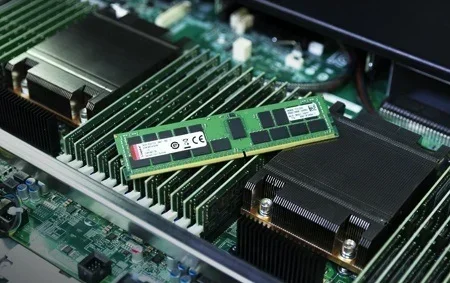
Laptop RAM and desktop RAM are not the same, and this is a crucial point for ram compatibility. Laptops use smaller memory modules called SODIMMs, while desktops use full-sized DIMMs. These two form factors look similar but have different pin layouts and physical dimensions. You cannot swap them between systems.
If you are upgrading a laptop, you need to confirm the correct SODIMM type for your machine. Some older laptops use DDR3 SODIMMs while newer ones use DDR4 or DDR5. The number of RAM slots also varies by model. Some laptops have a single slot while others have two, which affects your upgrade options.
For laptop users looking to upgrade their memory, our RAM upgrade guide for laptops provides step-by-step instructions and tips for finding the right module.
Understanding SODIMM vs DIMM
SODIMM stands for Small Outline Dual Inline Memory Module. It is the compact version of desktop RAM designed to fit inside laptops and mini PCs. DIMM stands for Dual Inline Memory Module and is the standard for desktop computers. Both serve the same purpose but differ in size and pin count.
Always verify the form factor before purchasing. Buying a DIMM for a laptop or a SODIMM for a desktop will not work regardless of the DDR generation. The physical connector is different, so there is no way to force a mismatch. Check your system specifications or open your device to confirm what you need.
Common Ram Compatibility Problems And How To Fix Them
Even with careful planning, you can run into ram compatibility issues. The good news is that most of these problems have simple solutions. Understanding what goes wrong helps you troubleshoot faster and avoid costly mistakes.
One common issue is the system not recognizing all installed memory. This often happens when modules are not seated properly or when mismatched sticks confuse the memory controller. Another issue is blue screens during memory-intensive tasks, which can point to speed or voltage incompatibility.
Here are some of the most frequent ram compatibility problems and their solutions.
- System does not boot after installing new RAM: Reseat the modules and make sure they click into place. Check that the DDR type matches your motherboard slot.
- Blue screen of death during heavy use: Try lowering the RAM speed or adjusting the voltage in BIOS. Mismatched speeds often cause this issue.
- System shows less memory than installed: Some operating systems have limits. For example, 32-bit Windows can only use around 3.5GB of RAM regardless of how much you install.
- RAM runs at a slower speed than rated: Your motherboard may be defaulting to a lower JEDEC speed. Check your BIOS settings and enable the XMP or EXPO profile.
- Random crashes or freezes: This can indicate incompatible timings or voltage. Try running each stick individually to isolate the problem module.
When To Seek Professional Help
Most ram compatibility issues can be resolved with basic troubleshooting. However, if you have tried multiple modules and still experience problems, there may be a deeper hardware issue. A faulty motherboard memory slot or an incompatible CPU memory controller can cause persistent failures.
In these cases, it is worth consulting a professional or contacting your motherboard manufacturer’s support team. They can help identify whether the issue is with the RAM, the motherboard, or another component. Do not keep swapping modules blindly without diagnosing the root cause.
How To Choose The Right RAM For Your System
Choosing the right RAM comes down to matching the right specifications to your needs. Start by identifying what your system supports. Then decide how much capacity you need based on your usage. Finally, pick a speed and timing profile that fits your budget and performance goals.
For most everyday users, 8GB or 16GB of DDR4 RAM is more than enough. Gamers and content creators often benefit from 32GB or more. If you are working with video editing, 3D rendering, or machine learning tasks, higher capacity and faster speeds make a noticeable difference. For more on this, check out our article on whether 16GB RAM is enough for architecture work.
Always buy from reputable brands like Corsair, Kingston, G.Skill, Crucial, or Samsung. These manufacturers offer reliable modules with solid warranties. Avoid unknown brands that may use low-quality components or misleading speed ratings. Quality RAM lasts longer and runs more stable.
Before you finalize your purchase, double-check three things. Confirm the DDR type matches your motherboard. Verify the maximum supported capacity per slot. Make sure the speed is within your board’s supported range. Getting these three details right guarantees a smooth and compatible install every time.
Quick Tips For A Successful RAM Upgrade
Here are some quick tips to make your RAM upgrade hassle free. First, always ground yourself before touching any components to prevent static damage. Second, watch the notch on the RAM stick and align it with the slot key. Third, press firmly and evenly until the clips click on both sides. Fourth, test each stick individually before installing all modules at once. This helps you identify a faulty module quickly if one exists.
Following these simple steps ensures a clean install and helps you avoid the most common ram compatibility mistakes. A little preparation goes a long way toward a successful upgrade.
Conclusion
Ram compatibility does not have to be confusing. By understanding your DDR type, checking your motherboard support list, and following the mixing guidelines in this guide, you can confidently choose the right memory for any system. The key is to match the type, speed, and form factor before you click buy.
Take the time to verify your specifications and use the QVL whenever possible. This small effort protects your investment and keeps your system running at its best. Whether you are upgrading a laptop or building a desktop, the right RAM makes all the difference.
Now that you know how to find the right match, you are ready to shop with confidence. Keep these tips in mind, share them with friends, and enjoy a smoother, faster PC experience every single day.
Frequently Asked Questions
Can I mix DDR4 and DDR5 RAM in the same system?
No, you cannot mix DDR4 and DDR5 RAM. They use different physical slots and electrical specifications. Your motherboard only supports one DDR generation, so always match the RAM type to your board.
What happens if I install RAM with the wrong voltage?
Installing RAM with incorrect voltage can cause instability or prevent the system from booting. In rare cases, it may damage the memory module. Always check your motherboard manual for the recommended voltage before installing new RAM.
Do I need to install RAM in pairs?
Installing RAM in pairs enables dual channel mode, which improves memory bandwidth and performance. While you can use a single stick, matching pairs in the correct slots give you the best results for most tasks.
Can I upgrade my laptop RAM if it is soldered?
Some laptops have soldered RAM that cannot be upgraded. Before purchasing a laptop for future upgrades, check whether the RAM is removable or soldered to the motherboard. Look for models with accessible RAM slots if upgradeability matters to you.
How do I know if my RAM is running in dual channel mode?
You can check if your RAM is running in dual channel mode through the Task Manager on Windows. Go to the Performance tab and look at Memory. It will display whether you are running single channel or dual channel. For the best experience, install matched pairs in the correct slots.
What is the difference between RAM speed and RAM frequency?
RAM speed and RAM frequency refer to the same thing. Both are measured in megahertz and indicate how fast the memory transfers data. A higher frequency means faster data transfer, but your system can only run as fast as your motherboard and CPU support.