Using Sim Card in Laptop
Using a SIM card in your laptop lets you access mobile data anywhere without Wi-Fi. You can stay connected for work, streaming, and browsing on the move. This guide covers everything from inserting your SIM to setting up network settings and choosing the right data plan.
Using a SIM card in your laptop opens up a world of connectivity. You no longer need to hunt for Wi-Fi hotspots or rely on someone else’s network. With a SIM card inserted, your laptop becomes a portable internet powerhouse. Whether you are working from a cafe, traveling abroad, or sitting in a park, you stay online. This guide walks you through every step of using a SIM card in your laptop.
Many people do not realize that laptops with SIM card support are more common than you think. Some brands build SIM slots right into the device. Others need a simple adapter. And newer models use eSIM technology, which is even more convenient. No matter which type you have, setting things up is easier than you might think.
In this article, we will cover how SIM cards work in laptops, how to insert one, how to set up your network, and how to pick the right data plan. We will also share tips to boost your signal and avoid common mistakes. By the end, you will feel confident using mobile data on your laptop anytime, anywhere.
Key Takeaways
- Built-in SIM slots: Many modern laptops come with a SIM card slot for direct cellular connectivity.
- eSIM technology: Newer laptops support eSIM, letting you activate a plan without a physical card.
- Easy setup: Connecting a SIM card to your laptop is simple and takes just a few minutes.
- Power impact: Using a SIM card for data can affect battery life, so manage settings wisely.
- Data plans matter: Choose the right plan based on your usage habits and coverage needs.
- Troubleshooting is simple: Most SIM card issues in laptops have easy fixes.
📑 Table of Contents
- What Is a SIM Card in a Laptop?
- How to Insert a SIM Card in Your Laptop
- Setting Up Your SIM Card for Internet Access
- Choosing the Right Data Plan for Your Laptop
- Benefits of Using a SIM Card in Your Laptop
- Common Issues and How to Fix Them
- Upgrading Your Laptop for Better Connectivity
- Final Thoughts
What Is a SIM Card in a Laptop?
A SIM card, or Subscriber Identity Module, is a small chip that connects your laptop to a cellular network. It stores your unique identity and links you to a mobile network provider. When you insert a SIM card into your laptop, you gain access to cellular data just like your phone does.
There are two main types of SIM cards used in laptops today. The first is the physical SIM card, which comes in sizes like nano SIM and micro SIM. The second is the eSIM, or embedded SIM. An eSIM is built into the laptop and does not need a physical card. Both options give you mobile broadband access, but eSIM is more convenient because you can switch plans without swapping cards.
How Does Laptop SIM Connectivity Work?
When you insert a SIM card into the SIM card slot on your laptop, the device communicates with the nearest cell tower. The network provider authenticates your SIM and grants you access to their data network. Your laptop then uses this connection to browse the web, stream videos, and run apps. Think of it like having a phone inside your laptop, but without the calling feature.
Most laptops that support SIM cards also let you share the connection. You can turn your laptop into a portable hotspot or use tethering to connect other devices. This is incredibly useful when you are traveling or when Wi-Fi is unavailable.
How to Insert a SIM Card in Your Laptop
Inserting a SIM card into your laptop is a straightforward process. But the exact steps depend on your laptop model. Here is a general guide that works for most devices.
Step-by-Step SIM Insertion Guide
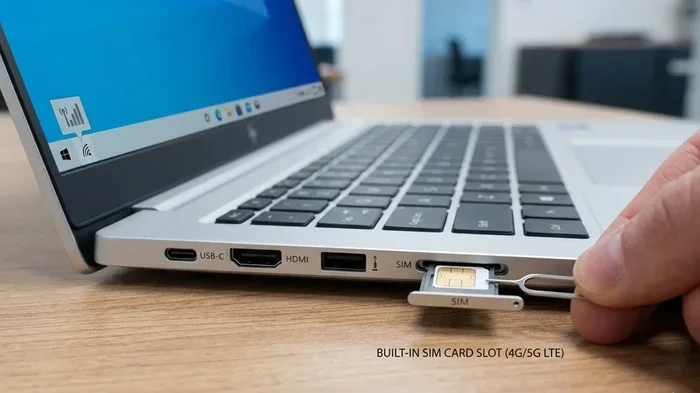
- Find the SIM card slot: Look on the side or back of your laptop. Some laptops have a small tray with a tiny hole next to it. This is your SIM card slot.
- Prepare your SIM card: Make sure your nano SIM or micro SIM is the right size. If it is too big, use a SIM adapter to fit it properly.
- Insert the SIM: Gently push the SIM card into the tray with the gold contacts facing down. Slide the tray back into the slot until it clicks.
- Power on and detect: Turn on your laptop. Windows or your operating system should detect the new SIM card automatically.
- Install drivers if needed: Some laptops need a simple driver or software update to recognize the SIM card. Check the manufacturer’s website for support files.
Tips for a Smooth Insertion
- Always power off your laptop before inserting the SIM card.
- Do not force the SIM card into the slot. It should slide in gently.
- Keep the SIM card clean and free of dust or fingerprints.
- If your laptop does not have a SIM slot, consider a USB modem or dongle instead.
For more tips on laptop hardware installation, check out our guide on how to install an M.2 NVMe SSD in a laptop. The process is similar in terms of handling internal components carefully.
Setting Up Your SIM Card for Internet Access
Once the SIM card is in place, you need to set it up for internet use. The setup process is simple, but a few settings need attention.
Configuring Network Settings
After inserting the SIM card, go to your laptop’s network settings. In Windows, click the network icon in the taskbar and select the cellular network. Your laptop should show available networks from your provider. Select your network and enter the password if required.
You may also need to check your APN settings. APN stands for Access Point Name. These settings tell your laptop how to connect to the internet through your provider. Most of the time, APN settings are automatic. But if your connection fails, you can find the correct APN settings on your network provider’s website or by calling their support team.
Activating Mobile Data
Make sure mobile data is turned on in your settings. In Windows, go to Settings > Network & Internet > Mobile Hotspot or Cellular. Toggle mobile data to on. You should see a data icon appear in your taskbar once the connection is active.
For laptops with eSIM support, the process is even simpler. Go to Settings > Network & Internet > Mobile Hotspot > Add a new SIM. Scan the QR code provided by your carrier, and your eSIM activates instantly. No physical card needed.
Choosing the Right Data Plan for Your Laptop
Not all data plans are the same. Choosing the right one depends on how you use your laptop and how much data you need each month.
Types of Data Plans
- Pay-as-you-go: You buy data in small amounts and top up when needed. Great for occasional users.
- Monthly plans: A fixed amount of data each month. Ideal for regular users who need consistent connectivity.
- Unlimited plans: You get as much data as you want. Best for heavy users who stream or download often.
- Travel plans: Designed for international use. These plans offer data in multiple countries at affordable rates.
How Much Data Do You Actually Need?
Light users who browse the web and check emails need about 1 to 2 GB per month. Moderate users who stream music and use social media need 5 to 10 GB. Heavy users who watch videos or work with large files should go for 20 GB or more. Using a SIM card in laptop for constant streaming will eat through data fast, so plan accordingly.
Benefits of Using a SIM Card in Your Laptop
There are many reasons to use a SIM card in your laptop. Here are the biggest advantages.
1. Internet Anywhere
You are no longer tied to Wi-Fi networks. Whether you are on a train, in a taxi, or at a remote location, your laptop stays connected. This is a game-changer for remote workers and digital nomads.
2. Faster and More Reliable
Wi-Fi connections can be slow or unstable. A cellular data connection through a SIM card is often faster and more reliable, especially in areas with strong network coverage.
3. Enhanced Privacy and Security
Public Wi-Fi networks are convenient but risky. They can expose your data to hackers. Using your own SIM card connection keeps your data private and secure. You do not have to worry about someone snooping on your traffic.
4. Cost Savings Over Time
Relying on paid Wi-Fi at cafes, airports, and hotels adds up fast. A SIM card data plan can save you money in the long run. Plus, you get unlimited access without watching the clock.
Common Issues and How to Fix Them
Using a SIM card in your laptop is not always smooth sailing. Here are common problems and their solutions.
SIM Card Not Detected
If your laptop does not recognize the SIM card, try removing it and reinserting it. Make sure the SIM card is clean and properly seated in the slot. You may also need to update your network drivers. Go to Device Manager > Network Adapters and look for any yellow warning signs.
No Internet Connection After Setup
Check your APN settings first. Incorrect APN settings are the most common reason for connection failures. Also, make sure your data plan is active and you have not run out of data. Restarting your laptop often fixes temporary glitches.
Weak Signal or Slow Speeds
Your signal depends on your location and your network provider. Move to a different spot if possible. You can also check your network settings and switch to a different band if your laptop supports it. Using a SIM card in laptop in a basement or far from a window can weaken your signal significantly.
Using mobile data on your laptop does consume more power than Wi-Fi. If you notice your battery draining fast, consider your power settings. For more on how much power your laptop uses, see our article on how much power does a laptop use when plugged in.
Upgrading Your Laptop for Better Connectivity
Sometimes the best way to improve your SIM card experience is to upgrade other parts of your laptop. More RAM and faster storage help your laptop handle data-heavy tasks smoothly.
If your laptop feels slow when using mobile data, consider upgrading its memory. Adding more RAM helps your laptop manage multiple tasks at once. You can also look into upgrading your storage with an SSD for faster performance. For guidance on upgrading your laptop’s memory, check out our article on whether you can upgrade RAM in a laptop and learn what options are available for your device.
Using a SIM card in laptop is just one part of the equation. A well-optimized laptop makes the entire experience better. Fast storage, enough RAM, and a good network card all work together to keep you connected and productive.
Final Thoughts
Using a SIM card in your laptop is one of the best ways to stay connected in today’s fast-moving world. It gives you freedom from Wi-Fi dependence, better security, and reliable internet wherever you go. The setup process is simple, and with the right data plan, you can browse, stream, and work without interruptions.
Whether you choose a physical SIM card or go with eSIM technology, the benefits are clear. You get mobile broadband access on your terms. You control your data usage, your network provider, and your connectivity. So go ahead, insert that SIM card, and enjoy seamless internet on your laptop. Stay connected, stay productive, and never worry about losing your internet connection again.
Frequently Asked Questions
Can any laptop use a SIM card?
Not all laptops support SIM cards. You need a laptop with a built-in SIM card slot or eSIM capability. Check your laptop’s specifications or look for a SIM tray on the side or back of the device.
Is using a SIM card in a laptop expensive?
The cost depends on your data plan. Many carriers offer affordable monthly plans starting around $10 to $30. Pay-as-you-go options can be even cheaper for light users. Compare plans from different providers to find the best deal.
Can I use my phone’s SIM card in my laptop?
Yes, you can use the same SIM card in your laptop if it fits the SIM card slot. However, check with your network provider to make sure your plan supports data use in laptops. Some plans may need a small adjustment or add-on.
What is the difference between a SIM card and an eSIM?
A physical SIM card is a small removable chip you insert into your laptop. An eSIM is built into the laptop and activated digitally. eSIMs are more convenient because you can switch plans without swapping cards.
Does using a SIM card drain laptop battery faster?
Yes, using cellular data can drain your battery faster than Wi-Fi. To save power, turn off mobile data when you do not need it and reduce screen brightness. Managing your network settings helps extend battery life.
Can I turn my laptop into a hotspot with a SIM card?
Absolutely. Most laptops let you share your SIM card connection with other devices. Go to your network settings and enable the mobile hotspot feature. Other devices can then connect to your laptop’s internet connection.