What Is My Internal Ip Address
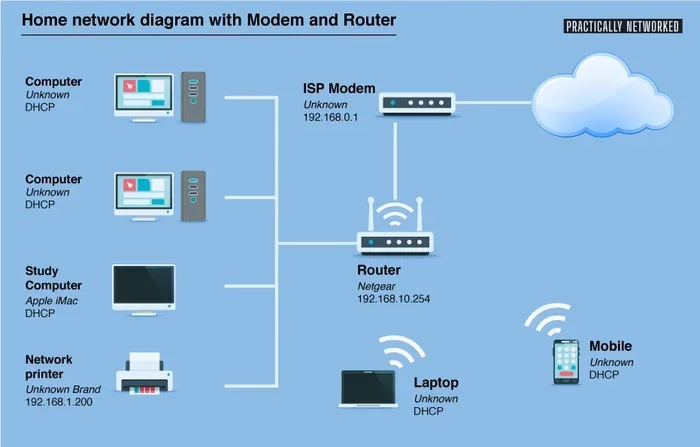
Your internal IP address is the unique number your laptop uses to communicate on your local network. It’s different from your external IP address, which the internet sees. Finding your internal IP address is simple and can help you troubleshoot network issues, set up file sharing, or configure your router.
Every device connected to your home or office network has a special number that helps it talk to other devices. This number is called your internal IP address. It’s like your laptop’s home address on your local network. Without it, your laptop couldn’t connect to your printer, share files, or access the internet through your router.
Many people confuse their internal IP address with their external IP address. Your external IP is what websites see when you visit them. Your internal IP is what your own network sees. Understanding this difference matters. It helps you fix connection problems, set up smart home devices, and keep your network running smoothly.
In this guide, we’ll walk you through everything you need to know. You’ll learn what an internal IP address is, how to find it on your laptop, and why it’s important. We’ll also cover common problems and how to fix them. Whether you’re a beginner or a seasoned user, this guide has something for you.
Key Takeaways
- Internal IP Address Defined: A unique number assigned to your laptop within your local network
- Easy to Find: You can locate your internal IP in just a few steps on any operating system
- Different From External IP: Your internal IP is private to your network, while your external IP is visible to the internet
- Troubleshooting Tool: Knowing your internal IP helps solve network connectivity problems
- Can Be Changed: You can assign a static internal IP for consistent network access
- Common Issues: IP conflicts and DHCP errors are frequent problems that your internal IP address knowledge can help resolve
📑 Table of Contents
What Is an Internal IP Address?
An internal IP address is a unique number assigned to your laptop by your router. It works within your local network only. Think of it as your laptop’s name tag on your home network. No two devices on the same network can have the same internal IP address.
How Internal IP Addresses Work
When you connect to your Wi-Fi, your router hands out IP addresses. This process is called DHCP. Your router keeps track of which device has which number. Your laptop uses this number to send and receive data within your network.
Internal IP addresses usually start with 192.168.x.x or 10.0.x.x. These are private IP ranges. They’re not visible to the outside world. This adds a layer of security to your network. Your router acts as a shield between your internal network and the internet.
Public vs Private IP Addresses
Your public IP address is assigned by your internet service provider. It’s what the rest of the internet sees. Your private IP address is what your local network uses. They serve different purposes but work together to keep you connected.
Here’s a simple way to think about it:
- Internal IP: Used within your home or office network
- External IP: Used on the wider internet
- Private IP: Another term for internal IP
- Local IP: Yet another way to say internal IP
How To Find Your Internal IP Address
Finding your internal IP address is easier than you might think. The process is slightly different depending on your operating system. But in most cases, it takes less than a minute. Let’s walk through the steps for Windows and Mac laptops.
Finding Your IP on Windows
On a Windows laptop, you have several ways to find your internal IP. The quickest method uses the Command Prompt:
- Press the Windows key and type “cmd”
- Open the Command Prompt app
- Type “ipconfig” and press Enter
- Look for “IPv4 Address” in the results
The number listed there is your internal IP address. It will look something like 192.168.1.5. Write it down if you need it later.
Finding Your IP on Mac
Mac users have a straightforward process too:
- Click the Apple menu in the top left corner
- Select “System Settings” or “System Preferences”
- Click on “Network”
- Select your active connection (Wi-Fi or Ethernet)
- Your internal IP address will be displayed
You can also find it through the Terminal app. Open Terminal and type “ifconfig”. Look for “inet” under your active connection. This method works well if you’re comfortable with command-line tools.
Using Your Router’s Admin Page
Another way to see your internal IP is through your router. You can log into your router’s admin page and view all connected devices. Each device will show its internal IP address. This is helpful if you want to see the full picture of your network.
For those interested in finding IP addresses on network-connected cameras, you might want to check out our guide on how to find the IP address of your IP camera. The process shares similarities with finding your laptop’s internal IP.
Why Your Internal IP Address Matters
You might wonder why you need to know your internal IP address. There are several practical reasons. Understanding these can help you manage your network better.
Troubleshooting Network Issues
When your laptop can’t connect to the internet, your internal IP address is often the first thing to check. If your laptop shows an IP address starting with 169.254, something is wrong. This means your laptop didn’t get a proper IP from your router.
Sometimes network problems affect other devices too. For example, if your mouse isn’t connecting to your laptop, it could be a broader connectivity issue. You can read more about why your mouse might not be connecting to your laptop and how to fix it.
Setting Up File Sharing
Want to share files between your laptop and another computer? You need to know both devices’ internal IP addresses. File sharing uses these addresses to find the right destination. Without the correct internal IP, your shared files won’t reach the other device.
Configuring Your Router
When you set up port forwarding or configure parental controls, you need to know your laptop’s internal IP. Your router uses this address to direct traffic to the right device. If your IP changes, your settings might stop working.
Running a Local Server
If you run a local web server or game server on your laptop, other devices need your internal IP to connect. They type this address into their browser or app. Without it, they can’t access your server.
Common Internal IP Address Problems
Like any technology, internal IP addresses can cause problems. Most of these issues are easy to fix once you know what’s happening.
IP Address Conflicts
An IP conflict happens when two devices on the same network have the same internal IP address. This causes connection problems for both devices. Your laptop might show a warning about an IP conflict.
The fix is usually simple. You can restart your router, which will reassign IP addresses. Or you can manually release and renew your IP address using the ipconfig command on Windows.
IP Address Keeps Changing
By default, most routers assign IP addresses dynamically. This means your internal IP can change each time you connect. This is called a dynamic IP. For most home users, this isn’t a problem.
But if you’re running a server or need consistent access, a changing IP is frustrating. The solution is to set a static IP address. We’ll cover how to do this in the next section.
Cannot Connect to Network
If your laptop shows “No Internet” or “Limited Connectivity”, your internal IP might not be assigned correctly. This can happen when:
- Your router’s DHCP server is turned off
- Your laptop’s network adapter has a problem
- There are too many devices on your network
- Your router needs a restart
Slow Network Performance
Sometimes a wrong internal IP configuration can slow down your network. If your laptop has an unusual subnet mask or default gateway, data might take longer routes. Checking your IP settings can sometimes improve speed.
How To Change Your Internal IP Address
You can change your internal IP address if you need to. There are two main methods: dynamic and static. Most users stick with dynamic IP addresses. But static IPs have their uses.
Setting a Static Internal IP
A static IP address stays the same every time you connect. This is useful for servers, printers, and devices you access regularly. Here’s how to set one on Windows:
- Open Settings and go to Network & Internet
- Click on your active connection
- Find “IP assignment” and click “Edit”
- Change from “Automatic” to “Manual”
- Enter your desired IP address, subnet mask, and gateway
- Save your settings
On a Mac, you’ll find these settings in System Settings under Network. Click on your connection and select “Configure IPv4”. Choose “Manually” and enter your details.
When setting a static IP, make sure you pick an address outside your router’s DHCP range. Otherwise, two devices might end up with the same IP. Check your router’s manual for the DHCP range details.
Internal IP vs External IP: Key Differences
Understanding the difference between internal and external IP addresses is crucial. Here’s a quick comparison:
| Feature | Internal IP | External IP |
|---|---|---|
| Visibility | Visible only on your local network | Visible to the entire internet |
| Assigned By | Your router | Your internet service provider |
| Format | 192.168.x.x or 10.0.x.x | Any public IP format |
| Changes | Can change with each connection | Usually stays the same for months |
| Security | Protected by your router’s firewall | Exposed to the internet |
Your router uses a process called NAT (Network Address Translation) to bridge these two types of addresses. When your laptop visits a website, it sends the request using its internal IP. Your router then translates this to your external IP before sending it to the internet. When the website responds, your router translates it back to your internal IP.
Knowing both your internal and external IP can be helpful for different tasks. If you need to find your external IP, you can simply search “what is my IP” in Google. But for most laptop networking tasks, your internal IP is what you’ll need most often.
Quick Tips for Managing Your Internal IP Address
Here are some practical tips to help you manage your internal IP effectively:
- Write down your IP: Keep a record of important device IPs for troubleshooting
- Restart your router regularly: This helps keep your network running smoothly
- Use static IPs for key devices: Printers and servers benefit from fixed IPs
- Check for conflicts: If something isn’t working, verify no two devices share an IP
- Update your network drivers: Old drivers can cause IP assignment issues
- Secure your network: Use a strong password to prevent unauthorized devices from joining
Your laptop’s RAM can also affect how well it handles network tasks. If you’re experiencing slow performance, it might be worth checking if your system has enough memory. You can read more about what is good RAM for a laptop to see if an upgrade might help your overall performance.
Conclusion
Your internal IP address is a fundamental part of how your laptop connects to your network. It’s the number that identifies your device on your local network. Without it, you couldn’t share files, print documents, or access your router’s settings.
Finding your internal IP is quick and easy. Whether you use Windows or Mac, the process takes just a few clicks. And understanding why it matters helps you troubleshoot problems faster. You’ll be able to fix connection issues, set up new devices, and optimize your network with confidence.
Remember, your internal IP is different from your external IP. One works within your home, the other works on the wider internet. Both are important, but for most laptop tasks, your internal IP is what you’ll interact with most.
Keep this knowledge handy. You never know when you’ll need it. Whether you’re setting up a new device, troubleshooting a connection problem, or just curious about how your network works, your internal IP address is the key that unlocks it all.
Frequently Asked Questions
What is the difference between my internal and external IP address?
Your internal IP address is the number your laptop uses on your local home network. Your external IP is what the internet sees when you visit websites. Your router translates between the two using a process called NAT.
Can two devices have the same internal IP address?
No, two devices on the same network cannot have the same internal IP address. This causes an IP conflict that stops both devices from connecting properly. Your router will usually detect and fix this automatically.
Why does my internal IP address keep changing?
Your router assigns IP addresses dynamically by default. This means it can give your laptop a different IP each time you connect. This is normal for most home users. If you want a fixed IP, you can set a static address in your network settings.
Is my internal IP address private or public?
Your internal IP address is private. It’s only visible within your local network. This is by design for security. Private IP addresses like 192.168.x.x cannot be accessed from the internet directly.
How do I find my router’s internal IP address?
Your router has its own internal IP address too. On Windows, you can find it by typing “ipconfig” in Command Prompt and looking for “Default Gateway.” On Mac, check your network settings for the router address listed as “Router.”
Will changing my internal IP address fix my internet problems?
Sometimes. If your laptop has an incorrect IP or is experiencing an IP conflict, changing it can help. Try releasing and renewing your IP address first. If that doesn’t work, setting a static IP might solve the problem.