What Is Vlc
Founder & Hardware Reviewer at Ugra Technology Private Limited · Hardware Benchmarking Specialist; PC & Laptop Reviewer · Over 10 years testing laptops, PCs, and hardware components with real-world benchmarks
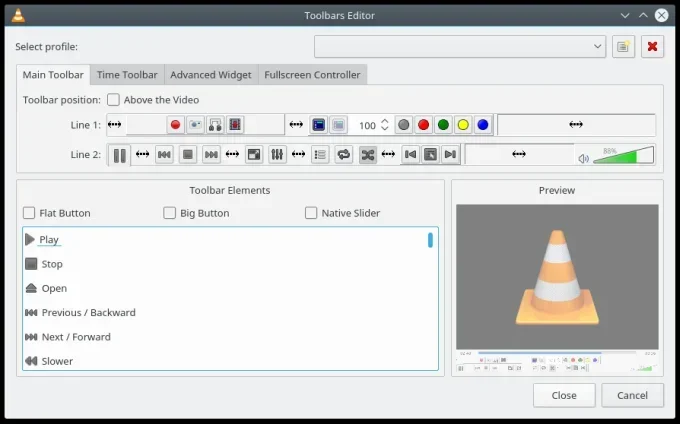
VLC is a free, open-source media player that plays almost every audio and video file on your laptop. It supports hundreds of formats, streams content from the web, and even converts files without extra software. Whether you are a casual viewer or a tech enthusiast, VLC is the most versatile and reliable player you can install.
VLC is one of the most popular media players in the world. It is free, it is fast, and it plays nearly every audio and video file you can throw at it. If you have ever struggled to play a video on your laptop because the format was not supported, VLC solves that problem instantly.
In this guide, we will walk through everything you need to know about what VLC is, how it works, and why it belongs on every laptop. You do not need to be a tech expert to use it. By the end, you will wonder how you ever lived without it.
Key Takeaways
- VLC is completely free: No subscriptions, no hidden fees, and no annoying ads.
- It plays almost any format: From MP4 and MKV to FLAC and AVI, VLC handles them all.
- VLC works on every operating system: Windows, Mac, Linux, and even mobile devices.
- It offers powerful extras: Subtitle support, file conversion, streaming, and screen recording.
- VLC is lightweight: It runs smoothly even on older laptops with limited ram on a laptop.
- Open source means trustworthy: Community-driven updates keep VLC secure and current.
📑 Table of Contents
What Is VLC?
VLC stands for VideoLAN Client. It is a free and open-source multimedia player developed by the VideoLAN project. The project started in 1996 as a student initiative in France and has grown into a global software powerhouse used by millions of people every day.
Unlike other media players that require you to install separate codecs for different file types, VLC comes with its own built-in codec library. This means you download VLC once, and it handles virtually every audio and video format out there. There is no need to search the web for the right codec pack or worry about compatibility issues.
Why VLC Is Different From Other Players
Most media players on your laptop rely on the operating system to provide codecs. If your system does not have the right codec for a specific file, the player fails to play it. VLC bypasses this entirely. It brings its own codecs, so the player just works regardless of the file type.
Here are some key differences that set VLC apart:
- No codec downloads needed: VLC includes everything in one package.
- No ads or paid upgrades: It has always been completely free.
- Cross-platform support: It runs on Windows, macOS, Linux, Android, and iOS.
- Lightweight design: It uses minimal ram for a laptop, so it does not slow down your system.
- Active community: Thousands of developers contribute to regular updates and security patches.
Another reason VLC stands out is its transparency. Because it is open source, anyone can inspect the code. This means there are no hidden trackers, no data collection, and no suspicious background activity. You get a clean, honest media player that respects your privacy.
Key Features Of VLC
VLC is packed with features that go far beyond simple playback. Let us explore what makes this player so powerful.
Universal Format Support
VLC supports over 200 audio and video formats. Some of the most common ones include MP4, AVI, MKV, MOV, FLV, WMV, and WebM for video. For audio, it handles MP3, FLAC, AAC, WAV, OGG, and WMA. If a file plays on your computer at all, VLC can likely play it too.
This universal support is especially helpful when you receive media files from friends or download content from the web. You never have to wonder whether the format will work. Just open it in VLC and go.
Subtitle and Caption Support
VLC has excellent subtitle capabilities. It supports SRT, ASS, SSA, and SUB subtitle files. You can load external subtitles while a video is playing, adjust the timing if they are off, change the font size, and even pick subtitle colors. This makes VLC a favorite for watching foreign films and international content.
Audio and Video Enhancement Tools
VLC includes built-in audio and video filters. You can adjust equalizer settings for better sound, enable spatial audio for a surround-sound experience, and tweak brightness, contrast, and saturation for video. There is also a feature called hardware acceleration that uses your laptop’s graphics card to play videos more smoothly.
Streaming And Network Capabilities
VLC can stream content from the internet or from other devices on your local network. You can watch live streams, access network shares, and even cast media to other devices. This makes VLC not just a player but a full multimedia hub for your laptop.
File Conversion And Recording
One of VLC’s most underrated features is its ability to convert files. You can turn a video into a different format, extract audio from a video file, or even record your screen directly. This eliminates the need for separate conversion tools and saves valuable storage space on your laptop.
How To Download And Install VLC On Your Laptop
Getting VLC set up is quick and straightforward. Follow these simple steps to get started.
Step 1: Visit The Official Website
Go to videolan.org to download VLC. Always use the official site to avoid fake or modified versions that could contain malware. The official website is safe and trusted by millions of users worldwide.
Step 2: Choose Your Operating System
VLC supports all major platforms. Select the version for Windows, macOS, or Linux depending on your system. If you use a tablet or phone, VLC is also available on the App Store and Google Play Store.
Step 3: Install And Launch
Run the installer and follow the on-screen prompts. The default settings work perfectly for most users. Once installed, open VLC and you are ready to play any media file. Simply drag and drop a file into the window, or go to Media and open a file from your folders.
How Much RAM Does VLC Use?
One of the best things about VLC is how little system resources it consumes. On a typical laptop, VLC uses between 50 and 200 megabytes of ram on a laptop during regular playback. This is very modest compared to other media applications.
For high-resolution content like 4K videos, VLC will use more memory, but it still performs well on systems with as little as 4GB of good ram for laptop. This makes VLC an excellent choice for older laptops that might struggle with heavier applications. If you want to check how much ram is good on a laptop for smooth VLC performance, 8GB is more than enough for most users.
VLC also supports hardware acceleration, which offloads video decoding to your graphics card. This reduces the load on your processor and memory, resulting in smoother playback and less battery drain.
Is VLC Safe To Use?
Yes, VLC is one of the safest media players available. Because it is open source, thousands of developers around the world review the code for vulnerabilities. The VideoLAN team releases regular security updates to address any issues quickly.
However, you should always download VLC from the official website or a trusted source. Third-party download sites sometimes bundle unwanted software with VLC installers. Sticking to the official site ensures you get a clean, unmodified version of the software.
Common Uses For VLC On A Laptop
VLC is incredibly versatile. Here are some of the most common ways people use it every day.
- Watching downloaded videos: Play any file you have saved without worrying about format compatibility.
- Listening to music: VLC has a great playlist feature and equalizer for music lovers.
- Converting files: Change a video format to make it compatible with another device.
- Screen recording: Capture your laptop screen for tutorials or presentations.
- Streaming from a NAS: Access media files stored on a home server over your network.
- Watching live streams: Open URLs for live TV, sports, or online broadcasts directly in VLC.
Many people also use VLC as a quick way to check media files before committing to a full playback. If a video stutters or has audio issues in VLC, it is likely a file problem rather than a player problem. This makes VLC a great diagnostic tool for troubleshooting media issues.
VLC Vs Other Popular Media Players
There are several media players available for laptops. Here is how VLC compares to a few alternatives.
| Feature | VLC | Windows Media Player | MPC-HC |
|---|---|---|---|
| Cost | Free | Built-in (Free) | Free |
| Format Support | 200+ formats | Limited without codecs | Good with filters |
| Subtitle Support | Excellent | Basic | Good |
| File Conversion | Yes | No | No |
| Cross-Platform | Yes | Windows only | Windows only |
| Ad Free | Yes | Yes | Yes |
| Regular Updates | Yes | Rarely | Occasionally |
As you can see, VLC leads in almost every category. It is the most complete and user-friendly option for most laptop users. While Windows Media Player works for basic files, it lacks the format support and features that VLC provides out of the box.
If you are concerned about your laptop’s performance, keep in mind that VLC is designed to be efficient. It does not require a powerful machine to run well. Even budget laptops with modest specs handle VLC with ease. This makes it a smart investment for anyone looking to protect the lifespan of PC hardware by using lightweight, efficient software.
Tips And Tricks For Getting The Most Out Of VLC
Here are some handy tips to help you use VLC like a pro.
- Use keyboard shortcuts: Press Space to play or pause, F to go full screen, and J and K to adjust audio speed.
- Enable hardware acceleration: Go to Tools, then Preferences, and select DirectX under the video output section for smoother playback.
- Sync subtitles easily: Press H to move subtitles earlier and G to move them later while a video plays.
- Convert files quickly: Go to Media, then Convert or Save, to change video formats without extra software.
- Record your screen: Use the View menu, then check Advanced Controls, and click the record button to capture your screen.
- Equalizer presets: VLC has built-in equalizer presets like Live, Music, and Movie for quick audio tuning.
These simple tricks can dramatically improve your VLC experience. They take only a few minutes to learn and save a lot of time in the long run.
Final Thoughts
VLC is the best free media player you can install on your laptop. It plays every format, uses very little system resources, and comes packed with features that rival paid software. From casual movie watching to professional media management, VLC handles it all with ease.
If you have not yet installed VLC, now is the perfect time. Head to the official website, download the installer, and start enjoying your media without any hassle. VLC is genuinely the last media player you will ever need.
It is reliable, it is fast, and it is completely free. What more could you ask for in a media player? Give VLC a try and experience the difference for yourself. Your laptop will thank you for it.
Frequently Asked Questions
Is VLC completely free to use?
Yes, VLC is 100% free. There are no hidden charges, no premium versions, and no ads. The VideoLAN project keeps it free through donations and community support.
Can VLC play 4K and high-resolution videos?
Absolutely. VLC supports 4K, 8K, and other high-resolution formats. For the best performance on 4K content, make sure your laptop has at least 8GB of RAM and a compatible graphics card.
Is VLC safe from viruses and malware?
VLC is very safe when downloaded from the official website. Because it is open source, the code is constantly reviewed by developers worldwide. Avoid third-party download sites that may bundle unwanted software with the installer.
Can I use VLC on my phone as well?
Yes, VLC is available for both Android and iOS devices. The mobile version includes most of the same features as the desktop version, making it easy to play media on any device.
How do I convert a video file using VLC?
Open VLC, go to Media, then select Convert or Save. Add your file, choose the output format, and click Start. The conversion process is quick and does not require any additional software.
Does VLC work on older laptops?
Yes, VLC is designed to be lightweight and runs well on older laptops. It uses minimal RAM and processing power, making it an excellent choice for computers with modest specifications.
=== END ===
Similar Posts