Vivint Camera Keeps Going Offline
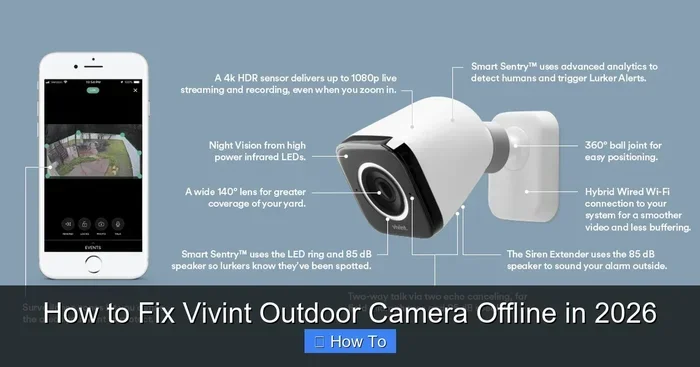
Is your Vivint camera keeps going offline? This frustrating issue can leave your home vulnerable. We will show you why it happens and how to fix it. You will learn simple tricks to stay connected. Let us get your security back on track.
Security cameras give you peace of mind. They watch your home when you cannot. But what happens when they stop working? Many people face this problem. You might see a message saying your device is offline. This is stressful. You want to know why it happens. You also want to fix it fast.
There are many reasons for this issue. It could be your internet. It could be power. It could even be the app itself. The good news is that most fixes are simple. You do not need to be a tech expert. You just need to follow some steps. This guide will help you solve the problem. We will cover the most common causes. We will also show you how to prevent it later.
Key Takeaways
- Check your Wi-Fi signal: Weak internet is the main cause of offline cameras.
- Restart your devices: Power cycling often fixes temporary connection glitches.
- Update your firmware: Old software can cause stability issues.
- Inspect power sources: Loose wires or dead batteries stop recording.
- Reduce network traffic: Too many devices can slow down your camera.
- Contact support: Professional help is available if fixes fail.
- Monitor signal strength: Use app tools to check connection health.
📑 Table of Contents
Why Your Vivint Camera Keeps Going Offline
Understanding the root cause is the first step. When a camera goes offline, it loses connection. It cannot send video to your phone. This breaks your security loop. There are three main areas to check. These are power, internet, and hardware.
Power Supply Issues
Cameras need steady power to work. If the power cuts, the camera stops. This is true for wired and wireless models. For wired cameras, check the cable. Is it loose? Is it damaged? A frayed wire can break the connection. For battery cameras, check the charge. A dead battery will shut the system down. Cold weather can also drain batteries faster.
Sometimes the power adapter fails. These parts can wear out over time. If your camera feels hot, it might be overheating. This can trigger a safety shutdown. Always ensure your camera has a stable power source. This is the most basic check you can do.
Internet Connection Problems
Your camera needs the internet to talk to you. If the signal is weak, it will disconnect. Wi-Fi signals can be blocked by walls. Metal objects can also block signals. Other electronics might cause interference. Microwaves and cordless phones are common culprits.
Network congestion is another factor. If many devices use your Wi-Fi, speed drops. Your camera might not get enough bandwidth. This causes it to go offline. You should check your router placement. Moving it closer can help. You might also need a Wi-Fi extender. A strong signal is key for reliable video.
Hardware Glitches
Sometimes the camera itself has a bug. Software errors can cause crashes. The device might freeze and stop sending data. This is why updates are important. Old firmware can be unstable. Hardware damage is also possible. Water damage or physical impact can break internal parts. If the camera was installed recently, check the setup. Improper installation can lead to future failures.
How to Fix a Vivint Camera That Keeps Going Offline
Now let us look at solutions. You can try these steps in order. Start with the easiest fixes. Most issues resolve quickly.
Restart Your Camera and Router
Restarting clears temporary errors. It is the most effective fix. First, unplug your camera. Wait for ten seconds. Then plug it back in. Watch the lights. They should turn on steady. Next, restart your router. Unplug it too. Wait a moment. Plug it back in. Wait for the internet to come back. This refreshes the network connection. Often, this solves the offline problem instantly.
If you have a battery camera, remove the battery. Put it back in after a minute. This hard reset can help. Make sure the battery is charged before reinstalling. A fresh start often clears software glitches.
Check Your Wi-Fi Signal Strength
You need to know your signal quality. Use your phone to check the Wi-Fi near the camera. Walk to the camera location. Look at the signal bars on your phone. If they are low, the camera struggles too. You might need to move your router. Place it in a central location. Avoid hiding it in cabinets. Walls and metal block signals.
Consider using a Wi-Fi extender. This device boosts your signal range. It helps cameras in far corners of the house. You can also switch to a 5GHz network if available. It is faster but has shorter range. 2.4GHz is better for long distances. Choose the best option for your home layout.
Update Firmware and App
Old software causes many issues. Manufacturers release updates to fix bugs. Check if your camera has an update pending. Go to the settings in your app. Look for firmware version info. Install any available updates. This improves stability.
Update the app on your phone too. An old app version might not connect well. Go to your app store. Check for updates. Install them and restart the app. This ensures you have the latest features. It also fixes known connection bugs.
Inspect Cables and Power Sources
Physical checks are vital. Look at the power cable. Is it plugged in tight? Wiggle it gently. If the camera flickers, the port is loose. You may need a new cable. Check for chew marks if you have pets. Rodents love chewing wires.
For wired systems, check the outlet. Does the outlet work? Plug in a lamp to test it. If the outlet is dead, fix the wiring. For battery cameras, clean the contacts. Dust can stop charging. Use a dry cloth to wipe them. Ensure the battery sits correctly in the slot.
Preventing Future Offline Issues
Fixing the problem is great. Preventing it is better. You want your camera to stay online. Here are some long-term tips.
Optimize Network Settings
Your home network needs care. Change your Wi-Fi password if needed. Secure your network from strangers. Unknown users slow down your speed. Set up a guest network for visitors. Keep your cameras on the main network. This prioritizes their connection.
Reduce interference. Keep routers away from microwaves. Avoid placing them near large metal objects. These steps improve signal quality. You can also limit other device usage during peak times. This leaves more bandwidth for your security system.
Regular Maintenance Checks
Make checking your cameras a habit. Once a month, look at the feed. Ensure it is clear and live. Check the battery levels. Replace batteries before they die completely. Clean the camera lens too. Dirt can block the view. It does not cause offline issues, but it helps monitoring.
Listen for unusual noises. A buzzing sound might mean electrical issues. Smell for burning odors. These are signs of hardware failure. Catching these early saves money. It prevents total system failure.
When to Call Professional Support
Sometimes you cannot fix it alone. If you tried everything, call for help. Vivint support can check your account. They can see if there is a server issue. They might send a technician. This is needed for hardware repairs. Do not try to open the camera yourself. You might void the warranty.
If your camera is old, consider replacement. Technology improves over time. Newer models have better connectivity. They handle interference better. If repairs cost too much, upgrade. It is an investment in safety.
You might also want to check other security devices. Sometimes the issue is with the hub. If the hub fails, cameras go offline. Ensure all parts of your system are healthy. A weak link affects the whole chain.
Understanding Signal Strength and Connectivity
Signal strength is measured in dBm. You do not need to be an engineer. Just know that higher numbers are better. Negative numbers are normal. -30 is excellent. -70 is weak. If your camera is near -70, it will struggle. Most apps show signal quality visually. Look for green or blue indicators. Red means trouble.
Interference comes from many sources. Neighbors’ Wi-Fi can clash with yours. This is common in apartments. Change your Wi-Fi channel to fix this. Most routers have auto settings. Let them choose the best channel. This reduces congestion. It helps your camera stay connected.
Common Mistakes to Avoid
People make mistakes when troubleshooting. Avoid these errors to save time.
- Ignoring updates: Skipping updates leads to bugs.
- Hiding the router: Closets block Wi-Fi signals.
- Using damaged cables: Frayed wires are fire hazards.
- Overloading the network: Too many devices slow everything down.
- Placing cameras poorly: Corners with thick walls weaken signals.
Be careful with power strips. Do not plug cameras into switched outlets. If someone flips the switch, the camera dies. Use dedicated outlets for security gear. This ensures constant power.
Expert Insights on Camera Stability
Experts suggest monitoring temperature. Extreme heat or cold affects batteries. Keep outdoor cameras in shaded spots. This prolongs battery life. Indoor cameras should have airflow. Do not box them in tight spaces.
Backup power is a smart idea. Use a UPS for your router. If power goes out, the internet stays on. This keeps your cameras online during outages. It is a crucial step for serious security.
Key Takeaways
To wrap up, here is what you need to remember. Vivint camera keeps going offline issues are usually fixable. Check power and Wi-Fi first. Restart your devices often. Keep software updated. Protect your cables from damage. If all else fails, call support. Your safety is worth the effort.
Stay proactive with your system. Regular checks prevent big problems. A working camera deters crime. It gives you confidence. Do not let connection issues linger. Fix them today for a safer tomorrow.
Frequently Asked Questions
Why does my Vivint camera disconnect frequently?
Frequent disconnects usually mean weak Wi-Fi or power issues. Check your signal strength and ensure the cable is secure. Restarting the router often solves this quickly.
Can weather affect my outdoor camera connection?
Yes, extreme cold or heat can drain batteries and affect hardware. Rain might also damage wiring if not sealed properly. Protect your camera from harsh elements.
How do I check my camera signal strength?
Open your security app and look for network settings. It usually shows signal quality bars or dBm levels. Green indicates a strong connection, while red means weak.
Does restarting the router help the camera stay online?
Yes, restarting clears network glitches and refreshes the connection. It is the first step you should try when issues arise. This simple fix works most of the time.
What if my camera still goes offline after troubleshooting?
If fixes do not work, contact Vivint support for help. There might be a hardware fault or server issue. A technician can diagnose deeper problems for you.
Can too many devices slow down my camera?
Yes, network congestion can cause cameras to drop offline. Limit other heavy usage when possible. Prioritize your security devices on the network for best results.