What Are the Usb Ports on the Vizio For
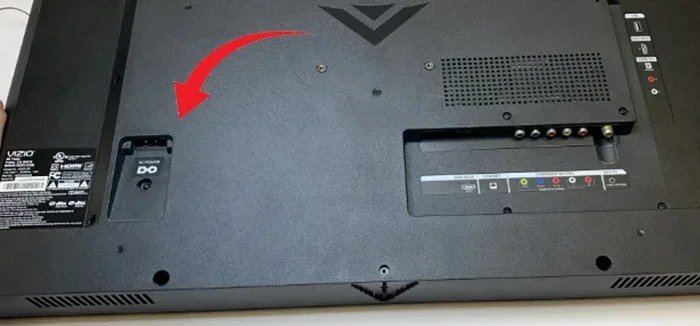
The USB ports on a Vizio TV serve multiple purposes beyond just playing media files. You can connect external hard drives, charge devices, and even hook up compatible audio equipment. Understanding what each port does helps you get the most out of your Vizio smart TV setup.
If you own a Vizio TV, you have probably noticed the USB ports on the back or side of the unit. You might have plugged in a flash drive to watch a movie or charged your phone. But have you ever wondered what else these ports can do? The USB ports on a Vizio TV are more versatile than most people realize. They open up a world of possibilities for how you use your television.
Many Vizio smart TV owners only use the USB port for one thing. They plug in a memory stick with a few movies and call it a day. But the truth is, these ports offer much more. They can connect to external storage, power accessories, and even help with system updates. Knowing what each port does can change how you interact with your TV every single day.
This guide breaks down everything you need to know about the USB ports on your Vizio TV. We will cover the different uses, common problems, and helpful tips. Whether you have a Vizio M-Series, V-Series, or P-Series, this guide applies to most models. Let us dive in and explore every way you can use those USB ports.
Key Takeaways
- Media Playback: Vizio USB ports let you play movies, music, and photos from external drives.
- Device Charging: You can charge phones, tablets, and remote controls through the USB port.
- Audio Connectivity: USB ports can connect to external speakers and audio devices for better sound.
- Firmware Updates: Some Vizio TV models use USB drives for software and firmware updates.
- File Format Support: Vizio TVs support common formats like MP4, MP3, and JPEG through USB.
- Power Output Varies: Not all USB ports on Vizio TVs deliver the same amount of power.
📑 Table of Contents
What Are the USB Ports on a Vizio TV For
The USB ports on a Vizio TV are not just simple input slots. They serve several important functions that enhance your TV viewing experience. Each port can handle different tasks depending on the model and port type. Let us look at the main purposes these ports serve.
Playing Media Files from External Drives
The most common use for a Vizio TV USB port is playing media files. You can plug in a USB flash drive or external hard drive and watch movies, listen to music, or view photos. Vizio smart TVs support a wide range of file formats. This includes MP4 for videos, MP3 for audio, and JPEG for images.
The process is simple. Plug your USB device into the port. Use your remote to navigate to the Media Player or USB input option. Browse your files and select what you want to play. It works just like a DVD player but with much more flexibility.
One thing to keep in mind is file size and format compatibility. Some Vizio models may not support every codec. If a file does not play, try converting it to a more common format. Most modern USB drives work without any issues. Just make sure your drive is formatted to FAT32 or NTFS for best results.
Charging External Devices
You can also use the Vizio TV USB port to charge devices. Your phone, tablet, or even a portable battery pack can draw power from the TV. This is especially handy when you do not have a nearby wall outlet. The USB port delivers a small amount of power, enough for basic charging needs.
Keep in mind that the charging speed is slower than a wall charger. The Vizio USB port typically provides 5V at 0.5A to 1A. This is enough to slowly top up your phone or keep a device running. It is not designed for fast charging. But in a pinch, it works perfectly fine.
Connecting to External Speakers and Audio Gear
Some Vizio TV models allow you to connect external speakers or audio devices through the USB port. This can improve the sound quality of your TV significantly. If you are looking for better audio, you might want to check out what the speakers talking about when it comes to TV audio setups.
You can also connect USB-powered soundbars or USB audio adapters. These devices draw power from the TV and enhance your listening experience. It is a simple way to upgrade your Vizio TV sound without buying new cables or equipment.
If you want to explore speaker options that work well with Vizio TVs, consider checking out what size speakers would fit your setup. Matching the right speaker size to your TV makes a big difference in sound quality.
Updating TV Software and Firmware
Vizio occasionally releases software updates for its smart TVs. These updates add new features, fix bugs, and improve performance. In some cases, you can use a USB drive to install these updates manually. This is helpful if your TV has trouble connecting to Wi-Fi for an update.
To do this, you download the firmware file from the Vizio website onto a USB drive. You plug the drive into your TV and follow the on-screen instructions. The TV installs the update from the USB device. This method works on most Vizio smart TV models and is a reliable backup option.
Powering USB Accessories and Peripherals
The Vizio USB port can power small accessories too. You can connect a USB webcam for video calls on your TV. Some users connect USB microphones for voice commands or karaoke. You can even plug in a USB cooling fan if your TV runs warm in a tight entertainment center.
These are creative uses that many people do not think about. The USB port provides a convenient power source for small devices. Just remember that the power output is limited. Do not connect high-power devices that exceed what the port can handle.
Types of USB Ports on Vizio TVs
Not all USB ports are the same. Vizio TVs come with different types of USB connections, and each one has its own capabilities. Understanding the differences helps you use the right port for the right task.
USB Type-A Ports
The most common USB port on Vizio TVs is the standard USB Type-A. This is the rectangular port you see on almost every device. You plug flash drives, external hard drives, and phone chargers into it. Most Vizio models have at least one or two USB Type-A ports on the back or side panel.
These ports support data transfer and power delivery. They work with most USB storage devices and accessories. The speed depends on the USB version, which is usually USB 2.0 on older models and USB 3.0 on newer ones. USB 3.0 ports transfer data much faster, which is great for large video files.
USB Type-C Ports
Some newer Vizio TV models include USB Type-C ports. These are smaller and reversible, making them easier to plug in. USB Type-C supports faster data transfer and higher power output. This means quicker file access and faster device charging.
If your Vizio TV has a USB Type-C port, you get more flexibility. You can connect modern devices like newer phones, tablets, and USB-C hubs. These ports are becoming more common on mid-range and premium Vizio models.
USB Ports with Audio Output
Certain Vizio TV USB ports are designed specifically for audio output. These ports can send audio signals to external USB-powered speakers or sound systems. If you want to improve your TV sound, these ports are very useful.
For more information on getting the best audio from your Vizio setup, you might want to explore whether monitor speakers are good for listening to music. This can give you insight into how USB-powered speakers compare to other audio options for your TV.
How to Get the Most Out of Your Vizio USB Ports
Now that you know what the USB ports can do, let us talk about how to use them effectively. A few simple tips can make a big difference in performance and convenience.
Use High-Quality USB Drives
Not all USB drives are created equal. Cheap, low-quality drives can cause playback issues or fail to work at all. Look for USB drives from reputable brands like SanDisk, Samsung, or Kingston. These drives offer reliable performance and better compatibility with Vizio TVs.
If you plan to store large video files, go for a drive with at least 32GB of storage. For music and photos, 8GB to 16GB is usually enough. A solid USB drive ensures smooth playback without buffering or file errors.
Format Your USB Drive Correctly
Before using a USB drive with your Vizio TV, make sure it is formatted properly. FAT32 is the most universally compatible format. It works with almost every Vizio model. NTFS is also supported on newer TVs and allows for larger file sizes.
Avoid using exFAT or other formats unless your Vizio TV manual specifically says they are supported. Formatting your drive correctly prevents frustration and ensures your files play without issues.
Keep Your USB Drives Clean and Organized
A cluttered USB drive can slow things down. Create folders for movies, music, and photos. This makes it easier to find what you want on your TV. Delete files you no longer need to free up space.
A clean USB drive also reduces the risk of errors. If your Vizio TV has trouble reading a drive, try removing unnecessary files and plugging it back in. Sometimes a simple cleanup solves the problem.
Protect Your USB Ports
Dust and debris can collect in your Vizio TV USB ports over time. This can cause connection problems or damage the port. Use a soft, dry cloth to gently clean the ports every few months. Do not use liquids or sharp objects.
When the TV is not in use, consider covering the ports with dust caps if they came with your model. This simple step can extend the life of your USB ports and keep them working reliably.
Common USB Port Problems on Vizio TVs and How to Fix Them
Even with proper care, you may run into issues with your Vizio TV USB ports. Here are the most common problems and how to solve them.
USB Port Not Recognizing a Device
This is the most frequent issue Vizio TV owners face. The TV does not detect the USB drive when you plug it in. Try these steps to fix it. First, unplug the device and plug it back in firmly. Sometimes the connection is loose.
If that does not work, try a different USB port on the TV. Some ports may be faulty or designed for specific tasks only. You can also try a different USB drive to rule out a problem with the original device.
Files Not Playing Correctly
If your Vizio TV does not play certain files, the format may not be supported. Vizio TVs support common formats like MP4, MKV, AVI, MP3, and JPEG. If your files use a less common codec, you may need to convert them.
Free tools like VLC Media Converter can help you convert files to compatible formats. This is a quick fix that solves most playback issues. Always check the file format before copying files to your USB drive.
USB Port Providing No Power
If your Vizio TV USB port is not charging devices or powering accessories, the port may be defective. Try connecting a different device to see if the problem is with the port or the device. If no device works, the port itself may need repair.
You can also check your TV settings. Some Vizio models have a USB power setting that can be turned off. Go to the TV settings menu and look for USB power or USB charging options. Make sure it is enabled.
Slow File Transfer Speeds
Slow speeds are usually caused by an older USB 2.0 port or a low-quality USB drive. If your Vizio TV has a USB 3.0 port, use it for faster transfers. USB 3.0 ports are typically blue inside, making them easy to identify.
Using a high-quality USB 3.0 drive on a USB 3.0 port gives you the best speeds. This is especially important when transferring large movie files or photo libraries to your TV.
Expert Tips for Vizio USB Port Usage
Use a USB Hub for Multiple Devices
If you need to connect several USB devices to your Vizio TV, consider using a powered USB hub. This gives you more ports and stable power delivery. Just make sure the hub is self-powered and does not draw too much current from the TV.
Update Your Vizio TV Regularly
Keeping your Vizio TV software up to date ensures the best USB compatibility. Firmware updates often include fixes for USB-related bugs. Check for updates in your TV settings menu at least once a month.
Avoid USB Extension Cables When Possible
USB extension cables can cause signal loss and power drops. If you must use one, keep it as short as possible. A direct connection to the Vizio TV USB port always works best.
Conclusion
The USB ports on your Vizio TV are incredibly useful. They let you play media, charge devices, connect audio gear, and update your TV software. Understanding what each port does helps you get the most from your Vizio smart TV. With a few simple tips, you can avoid common problems and enjoy a seamless experience.
Take a few minutes to explore your Vizio TV USB ports today. Try connecting different devices and testing the features we covered. You will be surprised at how much more you can do with your television. The USB ports on a Vizio TV are a small feature that makes a big difference in your daily viewing experience.
Frequently Asked Questions
Can I use a Vizio TV USB port to connect a keyboard or mouse?
Yes, many Vizio smart TVs support USB keyboards and mice. This is helpful for navigating the TV interface more easily. Just plug the device into the USB port and it should work right away.
What file formats does a Vizio TV USB port support?
Vizio TVs commonly support MP4, MKV, AVI for video. MP3 and WAV for audio. And JPEG for images. If a file does not play, try converting it to a more common format using a free converter tool.
Why is my Vizio TV USB port not working?
Try unplugging and replugging the device. Check if the port is clean and free of dust. Also make sure your USB drive is formatted to FAT32 or NTFS. If the problem continues, the port may need professional repair.
Can I use a USB drive to update my Vizio TV firmware?
Yes, some Vizio TV models allow manual firmware updates via USB. Download the update file from the Vizio website, save it to a USB drive, and follow the on-screen instructions on your TV.
How much power does a Vizio TV USB port provide?
Most Vizio TV USB ports provide 5V at 0.5A to 1A. This is enough to charge phones slowly or power small USB accessories. It is not enough for fast charging or high-power devices.
Can I connect a USB microphone to my Vizio TV?
Yes, you can connect a USB microphone to a Vizio TV for voice commands or video calls. Some Vizio models support USB microphones natively. Check your TV manual for specific compatibility details.
=== CONCLUSION ===
The USB ports on a Vizio TV are far more useful than most people give them credit for. From media playback to device charging and firmware updates, these ports add real value to your smart TV experience. Follow the tips in this guide to get the best performance out of every port. Keep your USB drives formatted correctly, use quality accessories, and explore all the features your Vizio TV has to offer.