Can I Add Ram to My Laptop
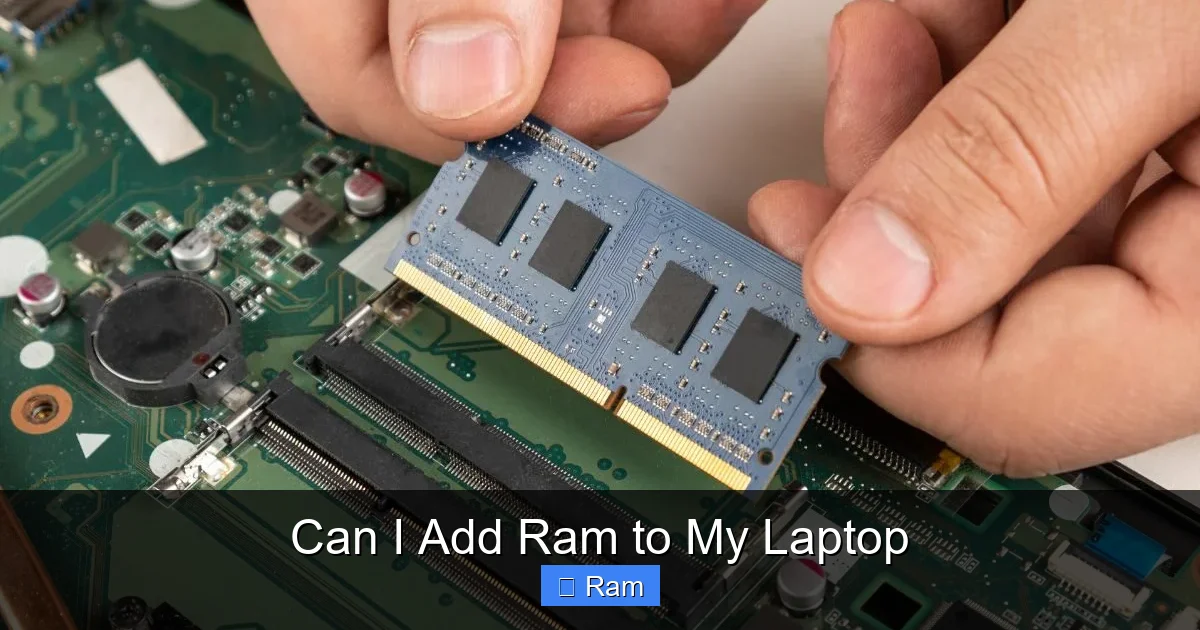
Yes, in most cases you can add RAM to your laptop, but it’s not universal. The ability to upgrade depends entirely on your specific laptop model’s design. Many modern ultrabooks have RAM soldered to the motherboard, making upgrades impossible. For upgradable models, you must match the correct type (DDR3, DDR4, DDR5), speed, and capacity. A quick check of your laptop’s manual or specifications, or a physical inspection, will confirm if an upgrade is possible and what you need. It’s a cost-effective way to breathe new life into a slowing system.
You’re staring at your trusty laptop, but it’s feeling a bit sluggish. You’ve heard that adding more RAM is a magic fix for slow computers. The big question pops into your head: can I add RAM to my laptop? It’s a fantastic question, and the answer, like most things in tech, is: it depends. But don’t worry, that “depends” is actually a very manageable and clear set of rules. This comprehensive guide will walk you through everything you need to know, from the very first compatibility check to the final screw-tightening, so you can confidently decide if and how to upgrade your laptop’s memory.
Let’s start with the core concept. Random Access Memory (RAM) is your computer’s short-term workspace. When you open an application, your operating system loads it from your slow storage drive (SSD/HDD) into the fast RAM. The more RAM you have, the more applications and data you can keep “active” in this workspace at once. If you run out of RAM, your system starts using a portion of your SSD as “virtual memory,” which is orders of magnitude slower and causes that frustrating lag. Adding more RAM directly addresses this bottleneck, allowing for smoother multitasking and better performance in memory-hungry applications like web browsers with dozens of tabs, photo/video editors, and virtual machines.
The journey to more RAM begins not with a purchase, but with an investigation. The single most important fact you must uncover is whether your laptop’s design even allows for a RAM upgrade. This is the non-negotiable first step.
Key Takeaways
- Not All Laptops Are Upgradable: An increasing number of modern, thin-and-light laptops have RAM soldered directly to the motherboard, which cannot be replaced or added to.
- Compatibility Is King: You must match the exact RAM type (DDR generation), form factor (SO-DIMM), speed (MHz), and voltage your laptop supports. Mixing mismatched RAM can cause failure.
- Check Your Current Setup First: Use system tools (like Task Manager in Windows) or third-party software (CPU-Z) to see your current RAM configuration and empty slots before buying new modules.
- Upgrading Is a Simple Hardware Swap: For compatible models, the physical installation typically involves removing a back panel and sliding new RAM modules into slots—no soldering or complex tools required.
- Dual-Channel Performance Matters: For optimal speed, install RAM in matched pairs (e.g., two 8GB sticks) if your laptop supports dual-channel mode. A single 16GB stick will work but may be slightly slower.
- RAM Upgrades Have Clear Limits: Your laptop’s chipset and BIOS impose a maximum RAM capacity. Exceeding this limit, even with compatible modules, will result in the system not recognizing the extra memory.
- It’s One of the Best Performance ROI Upgrades: Adding RAM is often the most cost-effective way to improve multitasking, application loading times, and overall system responsiveness, especially if you regularly run out of memory.
📑 Table of Contents
- Understanding RAM and Its Role in Your Laptop
- Determining Your Laptop’s Upgradeability: The Critical First Check
- Types of Laptop RAM: DDR3, DDR4, DDR5, and SO-DIMMs
- Step-by-Step Guide to Installing Laptop RAM
- How Much Performance Improvement Can You Realistically Expect?
- When Upgrading RAM Isn’t the Answer (or Even Possible)
- Making the Final Decision: Is It Worth It for You?
- Conclusion
Understanding RAM and Its Role in Your Laptop
Before we dive into the “how,” let’s solidify the “why.” Understanding what RAM does makes the upgrade process much clearer. Think of your laptop’s storage (the SSD or hard drive) as a massive, distant warehouse. It holds all your files and programs permanently. RAM is like a small, but incredibly fast, workbench right next to you. The CPU (your laptop’s brain) can only work on data that’s on this workbench. When you launch a program, files are fetched from the warehouse (storage) and placed on the workbench (RAM). If your workbench is too small (low RAM), you’re constantly shuffling items back to the warehouse to make room for new ones, which slows everything down. Adding more RAM is literally adding more space to your workbench.
The Difference Between RAM and Storage
This is a common point of confusion. RAM is volatile memory—it forgets everything when the power goes off. Storage (SSD/HDD) is non-volatile—it remembers your files forever. They are not interchangeable. You cannot “convert” storage into RAM. They work in tandem: storage holds the data, RAM holds the active data the CPU is currently processing. An SSD upgrade makes loading files *from* storage faster. A RAM upgrade makes *working* with those files faster once they’re loaded. The best performance comes from having both plenty of fast storage and plenty of fast RAM.
Signs You Might Need More RAM
How do you know if your slowdown is due to a RAM shortage? Look for these telltale signs:
- Constant Hard Drive Activity: If you hear your SSD/HDD chattering constantly and see its activity light blinking non-stop during normal use, your system is likely swapping data to virtual memory because RAM is full.
- System Lag When Multitasking: Does everything come to a crawl when you have a browser with 20+ tabs, a Word document, a Spotify playlist, and a video call running simultaneously? That’s a classic RAM bottleneck.
- “Your computer is low on memory” Warnings: Windows will literally pop up a warning if your RAM is critically low. Don’t ignore it.
- Programs Crashing or Refusing to Open: Some applications, especially professional creative software, will fail to launch if they detect insufficient available RAM.
You can confirm this by opening Task Manager (Ctrl+Shift+Esc) and going to the “Performance” tab, then clicking “Memory.” Look at the “In use (Compressed)” and “Committed” values. If “Committed” is close to or exceeds your total installed RAM, you’ve found your culprit.
Determining Your Laptop’s Upgradeability: The Critical First Check
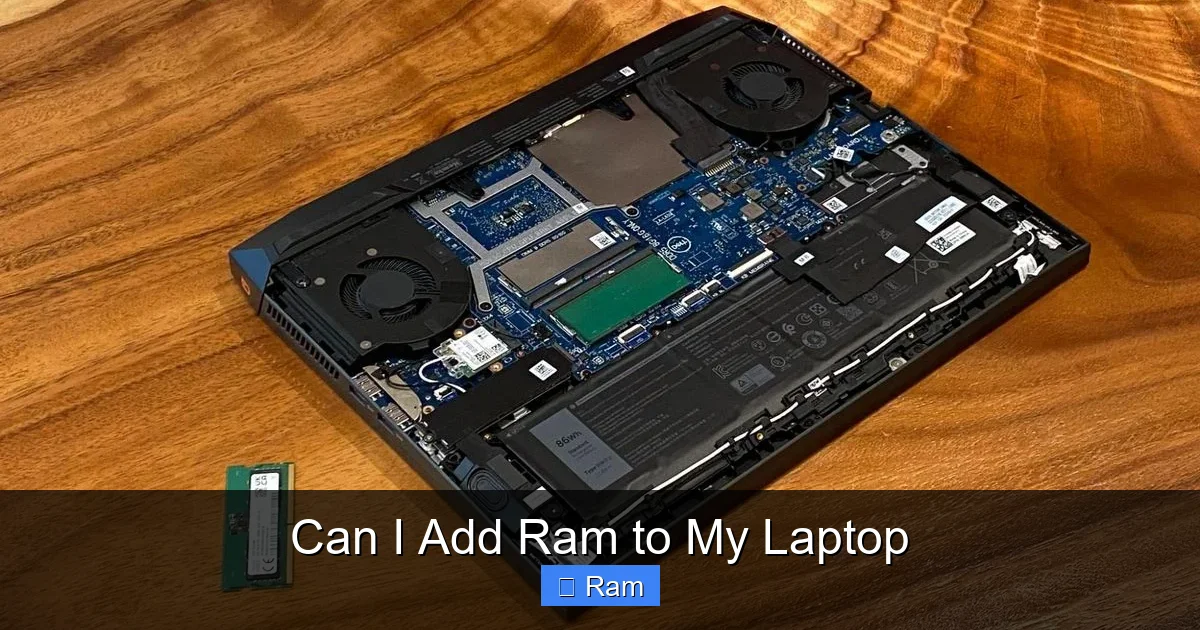
This is the most important chapter. Before you even think about buying RAM, you must answer one question: does my laptop have user-accessible RAM slots? The sad truth is that many modern laptops, especially ultrabooks, 2-in-1s, and premium models from the last 5-6 years, have their RAM soldered directly onto the motherboard. This is done to save space, improve performance slightly, and make devices thinner. If the RAM is soldered, you cannot add more. Your only hope for an upgrade is if your specific model has one soldered stick and one empty SO-DIMM slot—a design that has become rare.
Visual guide about Can I Add Ram to My Laptop
Image source: robots.net
How to Check: Your Step-by-Step Investigation
Follow this checklist in order. Start with the easiest, non-invasive methods.
1. Consult the Manufacturer’s Specifications
Go to the official support page for your exact laptop model (e.g., Dell XPS 13 9310, Lenovo ThinkPad T14 Gen 2). Look for the “Specifications” or “Tech Specs” sheet. Search for terms like “Memory,” “RAM,” or “Upgradable.” Reputable manufacturers will explicitly state the type of RAM, the number of slots, and the maximum supported capacity. If it says “soldered,” “onboard,” or lists only one memory module with no mention of slots, the upgrade path is likely closed. If it says “1x SO-DIMM slot” or “2x SO-DIMM slots,” you’re in business.
2. Use System Information Tools (Software)
On Windows, press `Win + R`, type `msinfo32`, and hit Enter. This opens System Information. Look for “Installed Physical Memory (RAM)” and “Total Physical Memory.” More usefully, scroll down to “Components” and click “Memory.” Here you might see details about the slots. It will say something like “Empty” or “Slot 1: 8192 MB” etc. If it lists two slots and one is empty, you have an upgradeable slot. If it only lists one slot and it’s populated, and there’s no second slot listed, you’re likely at capacity or soldered.
3. The Physical Inspection (If Comfortable)
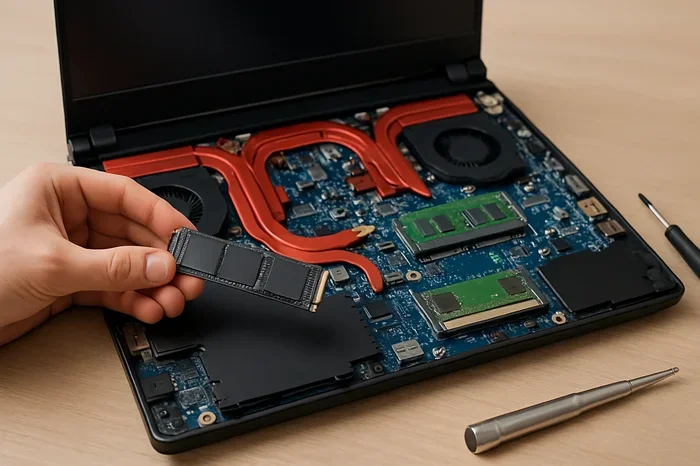
This is the definitive check, but it requires opening your laptop. Always unplug the laptop and remove the battery if possible before opening any case. Turn the laptop over and look for screws around the back edge or bottom panel. Often, there’s a panel marked with a memory chip icon. Remove the screws and gently pry off the panel. Look for one or two long, narrow slots (about 1.5 inches long) with two small notches on one side. These are the SO-DIMM RAM slots. If you see one or two empty slots (the clips on the sides will be open), you can upgrade. If you see no slots and instead see a single, smaller chip soldered to the board next to a heatsink or the CPU, the RAM is soldered and not upgradeable. Take a photo for reference.
Common Upgradable vs. Soldered Models
While there are always exceptions, here are some general trends:
- Typically Upgradable: Most business-class laptops (Dell Latitude, Lenovo ThinkPad T-series, HP EliteBook), many gaming laptops, and most older traditional laptops (pre-2018).
- Often Soldered: Apple MacBooks (all models since ~2015), Microsoft Surface Laptops/Pro, most premium ultrabooks (Dell XPS 13/15, Lenovo Yoga 9i, HP Spectre x360, Asus Zenbook), and many 2-in-1 convertibles.
But the only way to be 100% sure is to check your specific model number, which is usually on a sticker on the bottom of the laptop.
Types of Laptop RAM: DDR3, DDR4, DDR5, and SO-DIMMs
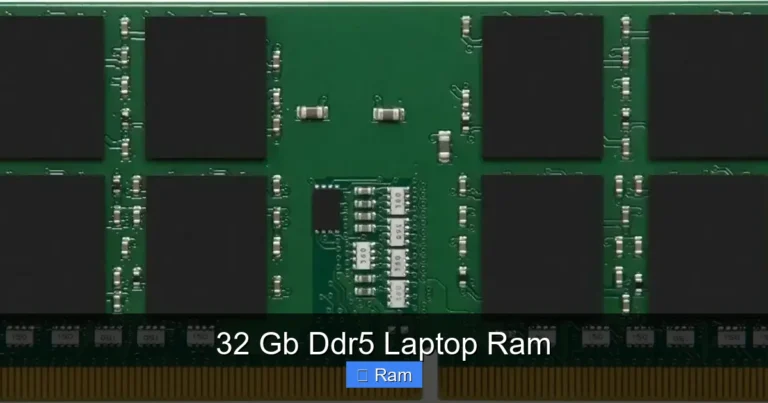
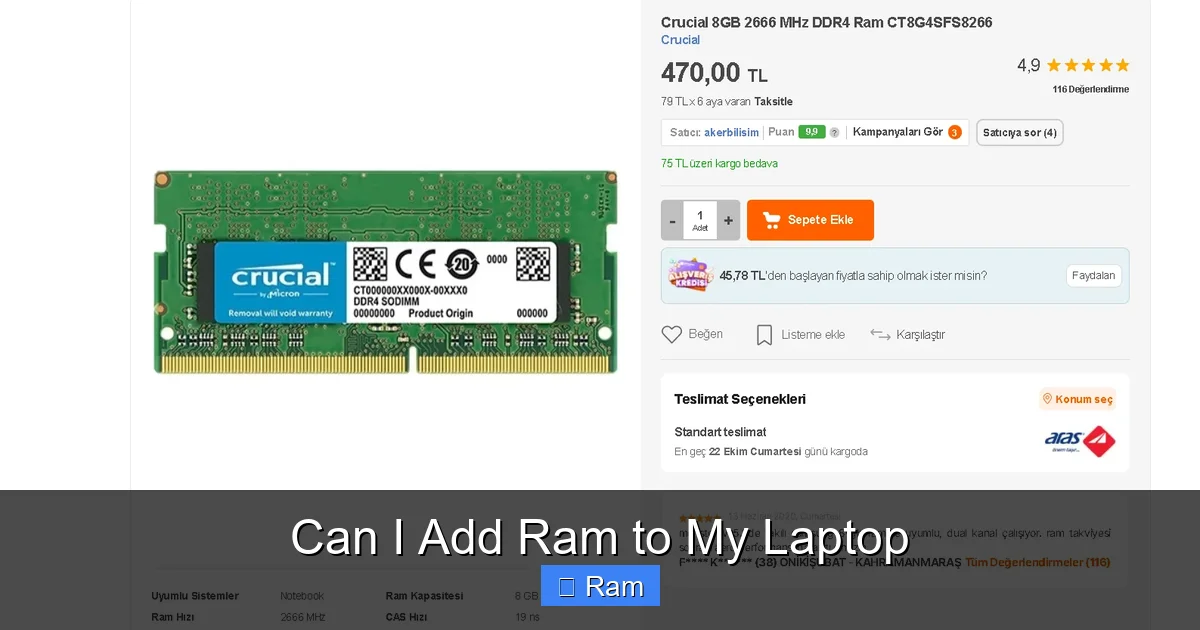
Assuming you have an empty slot, you now need to buy the correct RAM. Laptop RAM uses a different physical format than desktop RAM. It’s called a SO-DIMM (Small Outline DIMM). It’s shorter and has a different notch position to prevent you from accidentally installing desktop RAM. You cannot use desktop RAM in a laptop.
Visual guide about Can I Add Ram to My Laptop
Image source: us.v-cdn.net
The DDR Generation: Compatibility Is Non-Negotiable
The “DDR” (Double Data Rate) generation is the most critical spec. DDR3, DDR4, and DDR5 are not physically compatible. The notch is in a different place, and the electrical requirements are different. You must match the generation your laptop supports. You cannot put DDR4 RAM into a DDR3 slot or vice versa. Your laptop’s documentation or the system information tools mentioned earlier will tell you the current DDR type. If you have a laptop from roughly 2012-2015, it’s likely DDR3. 2015-2021 is mostly DDR4. 2021+ is increasingly DDR5. Mixing generations is impossible.
Speed (MHz) and Timing (CL)
RAM is rated for speed in megahertz (MHz), like 2666MHz, 3200MHz, 4800MHz, etc. Your laptop’s chipset and CPU will support a range of speeds. You can usually install faster RAM than the minimum spec, and it will simply run at the highest speed both the RAM and the laptop support (a negotiation called JEDEC compliance). For example, if your laptop supports up to 3200MHz, installing 4800MHz RAM will likely cause it to run at 3200MHz. It’s safe and common. The timing (CAS Latency, or CL) is a secondary factor; lower CL is better, but speed (MHz) has a more noticeable impact. For most users, matching the speed of any existing RAM stick (if adding a second stick) is ideal for dual-channel stability.
Capacity and Density
Capacity is measured in gigabytes (GB). Common sizes today are 4GB, 8GB, 16GB, and 32GB modules. You must consider two things:
- Maximum Per Slot: Some older chipsets only support 8GB or 16GB per slot, even if a 32GB module physically fits.
- Total Maximum Supported: Your laptop’s BIOS and chipset have a hard limit (e.g., 32GB total, 64GB total). Exceeding this will result in the system not booting or only recognizing part of the RAM.
Again, the manufacturer’s specs are your best source for these maximums. For general use today, 16GB total (2x8GB) is the sweet spot. For heavy multitasking, content creation, or gaming, 32GB total (2x16GB) is excellent.
Step-by-Step Guide to Installing Laptop RAM
So you’ve confirmed you have an empty slot, and you’ve purchased the correct SO-DIMM module. Now, the physical installation. This is a straightforward process that takes 5-15 minutes. The key is care and cleanliness.
Visual guide about Can I Add Ram to My Laptop
Image source: wepc.com
Tools and Preparation You’ll Need
- The new compatible RAM module(s).
Often the one from an eyeglass repair kit works. - A plastic spudger or pry tool. A old credit card can work in a pinch. Avoid metal tools to prevent shorting components.
- A static-free workspace. Clear a large, flat table. Do not work on carpet.
- An anti-static wrist strap (optional but recommended). If you don’t have one, frequently touch the exposed metal chassis of the laptop (with the battery removed) to discharge static.
The Installation Process
- Power Down Completely: Shut down Windows fully. Do not just sleep or hibernate.
- Unplug Everything: Remove the AC adapter, any USB devices, SD cards, etc.
- Remove the Battery (if possible): This is the most important safety step. If your laptop has a removable battery, take it out. If it’s internal, you must open the case to disconnect it, which is a more advanced procedure. For many modern laptops with internal batteries, simply removing the back panel and ensuring the system is unplugged is considered sufficient, but be extra cautious.
- Open the Case: Turn the laptop over. Locate and remove all screws holding the bottom panel. They are often different lengths; keep them organized. Gently insert your pry tool into a seam (often near the hinge or a corner) and work your way around, releasing the plastic clips. Be patient. The panel will pop off.
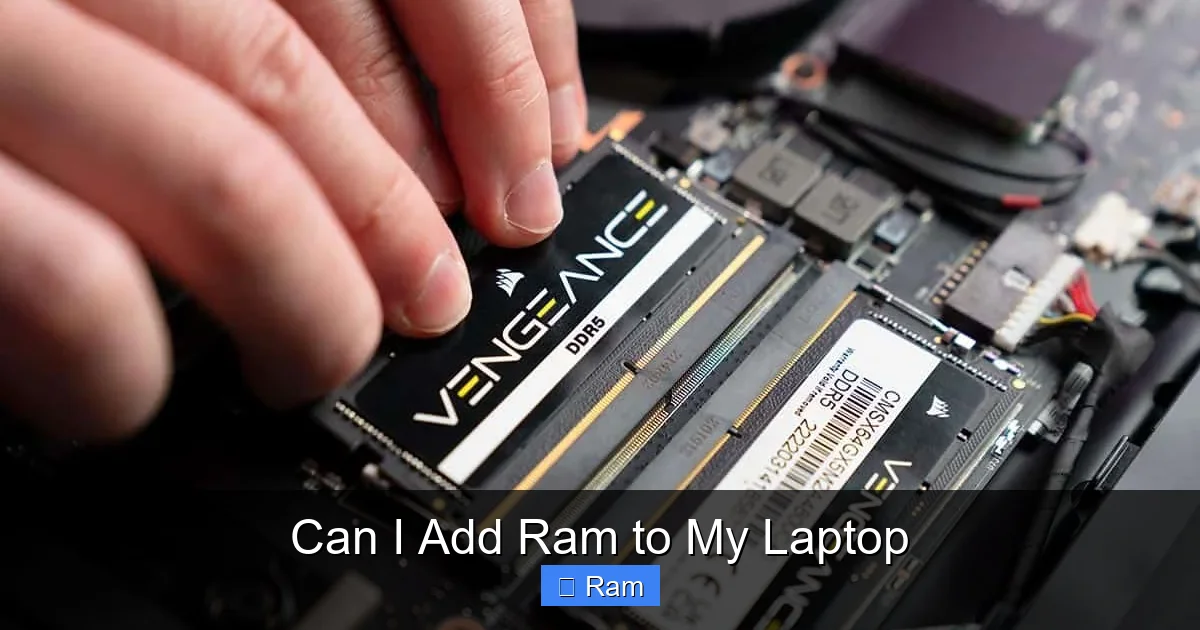
- Locate the RAM Slots: You’ll see one or two small slots with metal clips on either side. If you’re replacing a stick, you’ll see an existing module held down by these clips. If you’re adding to an empty slot, the clips will be open/outward.
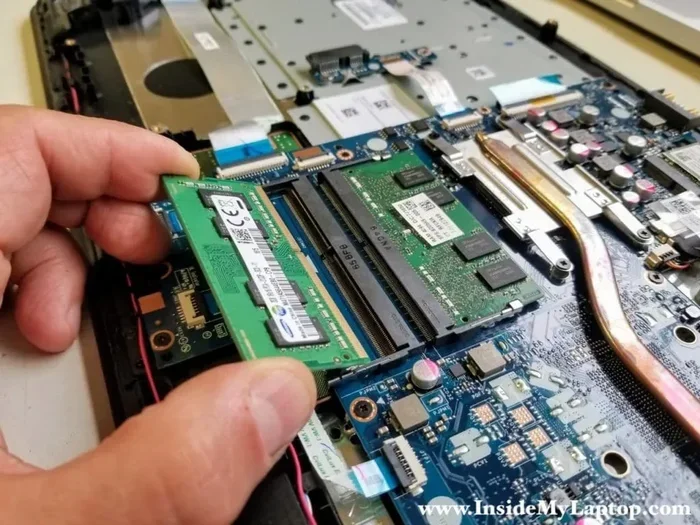
- Remove Old RAM (if applicable): Gently but firmly push the two metal clips on the sides away from the RAM module. They will pivot outward, and the module will pop up at an angle (~30 degrees). Grasp the module by the edges and pull it straight out.
- Install the New RAM: Hold the new SO-DIMM module by the edges. Note the notch on the bottom edge—it must align with the key in the slot. Place the module in the slot at the same angle the old one came out (~30 degrees), ensuring it’s seated evenly. Press down firmly and evenly on the top edge until the two side clips snap into place, locking the module flat. You should hear/feel a click. Do not force it; if it doesn’t go easily, check the notch alignment.
- Reassemble: Double-check the RAM is secure and flat. Reconnect the battery if you disconnected it. Replace the bottom panel and screws. Snug them down, but do not over-tighten and strip the plastic.
- Power On and Verify: Plug in the AC adapter and boot up. Enter the BIOS/UEFI (usually by pressing F2, Del, or F12 during startup) to confirm the new RAM is recognized. Or, go back to Windows Task Manager > Performance > Memory to see the new total capacity.
Common Pitfalls and How to Avoid Them
- Static Electricity: Always ground yourself. Touch the metal chassis frequently.
- Forcing the Module: If it doesn’t click, the notch is misaligned, or you’re using the wrong type (DDR3 vs. DDR4). Double-check.
- Not Disconnecting Power: Never install or remove RAM while the laptop has any residual power. A removable battery is your best safety switch.
- Dust and Debris: Keep the RAM slots clean. Use a can of compressed air to blow out any dust before installing the new module.
How Much Performance Improvement Can You Realistically Expect?
This is the payoff. But it’s crucial to have realistic expectations. A RAM upgrade is not a magic “make everything 10x faster” pill. Its impact is specific and highly dependent on your previous bottleneck.
The Ideal Scenario: Going from “Starved” to “Satisfied”
If your system was constantly swapping to disk because you had, for example, 4GB of RAM and you were regularly using 5-6GB, the upgrade to 8GB or 16GB will feel transformative. Web browsing with many tabs will become smooth, switching between large applications will be instant, and you’ll say goodbye to those “low memory” warnings. This is the most common and noticeable improvement for general users.
The Law of Diminishing Returns
If you already had 16GB of RAM and were rarely using more than 10GB, upgrading to 32GB will have no perceptible impact on everyday tasks like web browsing, office work, or even 1080p video playback. The extra memory will sit idle. The benefits only appear in specific, professional workloads: editing very large 4K/8K video files, working with massive Photoshop projects (hundreds of layers), running multiple virtual machines, or scientific computing with huge datasets. For gaming, 16GB is still the standard; 32GB provides a tiny edge in a few specific, memory-intensive titles but is generally overkill for 90% of gamers.
Benchmarks and Real-World Examples
In synthetic benchmarks like Cinebench or PCMark, you might see a 5-15% score increase after a RAM upgrade if the test was memory-bound. In real-world application launch times, the difference between 8GB and 16GB is often measured in fractions of a second if you weren’t previously swapping. The biggest real-world difference is in smoothness during heavy multitasking. To illustrate: With 4GB, having Chrome with 10 tabs, a Word doc, and Discord open might cause stuttering when switching tabs. With 16GB, that same scenario is buttery smooth. The “speed” of a single application might not change dramatically, but the system’s ability to handle multiple demanding applications without choking improves vastly.
When Upgrading RAM Isn’t the Answer (or Even Possible)
We’ve established that many modern laptops cannot be upgraded. But even if you can, RAM might not be your bottleneck. It’s vital to diagnose the actual source of slowness.
Diagnosing Other Bottlenecks
Before you buy RAM, consider these other common causes of laptop slowness:
- Slow Storage (HDD): If your laptop still has a traditional spinning hard drive (HDD), this is almost certainly the #1 bottleneck. Replacing an HDD with a SATA or NVMe SSD is the single greatest performance upgrade you can make to an older laptop, period. It will make booting, launching programs, and loading files dramatically faster. Check your Task Manager > Performance > Disk. If it’s at 100% activity often, you need an SSD first.
- Outdated or Weak CPU/GPU: If your processor is very old or low-power (like a Celeron or early dual-core i3), or your integrated graphics are struggling, more RAM won’t help with CPU-bound tasks like video encoding or gaming. The CPU/GPU is the limit.
- Overheating and Throttling: If your laptop’s cooling system is clogged with dust, the CPU and GPU will overheat and throttle their performance to cool down. Clean the vents and fans thoroughly. Repasting the CPU/GPU with fresh thermal paste can also help on older machines.
- Bloatware and Malware: A fresh Windows install, free of manufacturer bloatware and any malware, can make an old laptop feel new again. Sometimes a software cleanup is all that’s needed.
- Full or Failing Storage: Ensure your SSD/HDD has at least 10-15% free space. A nearly full drive runs much slower. Also, check the drive’s health with tools like CrystalDiskInfo.
The Ultimate Showstopper: Soldered RAM
We’ve mentioned this, but it bears repeating. If your laptop has all RAM soldered, your upgrade journey ends here. You cannot add more. Your only options are:
- Live with it. Optimize software, add a faster SSD if you have an HDD, and manage your open applications carefully.
- Sell and buy a new, upgradable laptop. This is often the most practical path if you need significantly more performance. Seek out business-class models or gaming laptops, which are more likely to have upgradeable RAM (and other components).
There are no workarounds. No external RAM solutions that provide system memory (there are external GPU enclosures, but not for RAM). The motherboard’s memory controller is physically connected only to the soldered chips.
Making the Final Decision: Is It Worth It for You?
Let’s bring it all together into a decision flowchart.
Ask Yourself These Questions:
- Do I have an empty RAM slot or replaceable modules? (Check via software specs or physical inspection). If NO, stop. Upgrade is not possible.
- Am I consistently using more RAM than I have installed? (Check Task Manager > Memory > “In use” vs “Total”). If NO, a RAM upgrade will have minimal to no noticeable benefit.
- Is my storage an old HDD? If YES, upgrade to an SSD FIRST. This will be a bigger improvement than RAM.
- Is my laptop’s CPU/GPU very old or low-power for my tasks? If YES, RAM won’t fix this. You need a new laptop.
- If I answered YES to 1 and 2, and NO to 3 & 4… Then congratulations! You are a perfect candidate for a RAM upgrade. Purchase the correct compatible SO-DIMM module(s), follow the safe installation steps, and enjoy your faster, more responsive laptop.
The cost of a RAM upgrade is typically very low—often between $30 and $100 for a quality 16GB kit. Compared to the cost of a new laptop, it’s an incredible value if it solves your specific problem. It extends the useful life of a perfectly good machine by 2-3 years or more, making it one of the most eco-friendly and budget-friendly tech upgrades available.
Conclusion
So, can you add RAM to your laptop? The answer is a qualified yes, for many models, but certainly not all. The power to answer that question for your specific machine now lies in your hands. Start with the non-invasive checks: scour your manufacturer’s support page for your exact model number, run `msinfo32`, and peek at Task Manager. If those signs point to upgradeability, you’ve cleared the biggest hurdle. Then, purchase the correct, compatible SO-DIMM memory with confidence. The physical swap itself is a simple, satisfying DIY project that demystifies the inner workings of your device.
Remember, the goal is to eliminate the memory bottleneck. If your system is gasping for RAM, adding more is like giving it a deep breath of fresh air. But if the problem lies elsewhere—in a spinning hard drive, an overheating chassis, or an underpowered processor—no amount of RAM will provide the solution. Diagnose first, upgrade second. Armed with this guide, you are now fully equipped to make that diagnosis and, if applicable, perform one of the most effective and empowering upgrades you can do on your laptop. Good luck, and enjoy the newfound speed!
Frequently Asked Questions
Will adding RAM void my laptop’s warranty?
Usually, no. Opening a panel to access user-accessible RAM slots is an expected user-serviceable action in most business and gaming laptops. However, always check your warranty terms first. For ultrabooks with sealed cases, attempting to open it will almost certainly void the warranty, but those are also the models where RAM is typically soldered and not upgradeable anyway.
Can I mix different RAM sizes or speeds?
You can mix sizes (e.g., 8GB + 16GB), and the system will run in “flex mode,” using the first portion in dual-channel and the remainder in single-channel. Performance will be slightly less optimal than with a matched pair. Mixing speeds is possible; all modules will run at the speed of the slowest stick. Mixing brands is generally fine if the specs (DDR type, voltage) match. For best stability and performance, especially for demanding tasks, use identical modules in a matched pair.
What’s the maximum RAM my laptop can support?
This limit is set by your laptop’s chipset and BIOS. You must find this number from the manufacturer’s official specifications for your exact model. Common limits are 32GB, 64GB, or even 128GB on high-end mobile workstations. Exceeding this limit, even with physically compatible RAM, will result in the system not booting or only recognizing part of the installed memory.
Is there a risk of damaging my laptop during the RAM installation?
The risk is very low if you follow proper safety procedures. The main risks are: 1) Electrostatic discharge (ESD) damaging the RAM or motherboard—prevent this by grounding yourself and working on a non-carpeted surface. 2) Physical damage from forcing the RAM module—if it doesn’t click easily, the notch is misaligned or you have the wrong type of RAM. 3) Forgetting to disconnect power—always remove the battery if possible and unplug the charger.
My laptop has 4GB soldered. Can I add an 8GB stick to make 12GB total?
Possibly, but it’s not guaranteed. You must check if your laptop model has an empty SO-DIMM slot in addition to the soldered 4GB. Some models with soldered RAM have no slot at all. If it does have a slot, you can add a stick. The system will run in asymmetric dual-channel mode for the first 4GB of each stick, then single-channel for the remaining 8GB. It will work, but for best performance, a matched pair (2x8GB) is preferable. However, if you only have 4GB soldered, adding an 8GB stick is a valid and common upgrade path.
How do I know if my RAM upgrade actually worked?
After installation and booting, go to Windows Task Manager (Ctrl+Shift+Esc) > Performance tab > Memory. At the top right, it will show the total “In use (Compressed)” and “Committed” values, and more importantly, the “Speed” and “Size” at the bottom. The “Size” should reflect your new total RAM (e.g., 16.0 GB). You can also enter your BIOS/UEFI during startup (usually by pressing F2, Del, or F12) to see the system summary, which will list installed memory. If the system fails to boot, beep, or show a black screen, power off, re-seat the RAM modules, and ensure they are fully locked in place.