Pcie 4.0 Nvme M 2 Ssd

A pcie 4.0 nvme m 2 ssd delivers blazing-fast storage speeds up to 7000 MB/s, making it the best choice for gamers, creators, and power users. This guide covers everything from how these drives work to key buying tips and installation steps. You will learn why upgrading to a Gen4 NVMe M.2 drive can transform your system performance overnight.
A pcie 4.0 nvme m 2 ssd is one of the fastest storage options available for modern computers. If you have ever waited for a game to load or watched your video render crawl, you know how frustrating slow storage can be. These drives change everything. They slash load times, speed up file transfers, and make your entire system feel snappier.
Whether you are a gamer, a content creator, or just someone who wants a faster PC, understanding PCIe 4.0 NVMe M.2 SSDs is essential. This guide breaks down everything you need to know. We will cover how they work, why they beat older drives, what to look for when buying one, and how to install them. Let us dive in.
Key Takeaways
- Blazing Speeds: PCIe 4.0 NVMe M.2 SSDs offer read speeds up to 7000 MB/s, far faster than SATA drives.
- Easy Upgrade: These drives use the M.2 2280 form factor, making installation simple on compatible motherboards.
- Gen4 vs Gen3: PCIe 4.0 doubles the bandwidth of PCIe 3.0, resulting in noticeably better performance.
- Key Specs Matter: Look for DRAM cache, TLC NAND, and a heatsink for the best experience.
- Compatibility is Key: Always check your motherboard and CPU support before buying a PCIe 4.0 drive.
- Great for Heavy Workloads: Video editing, gaming, and large file transfers benefit the most from Gen4 speeds.
📑 Table of Contents
What Is a PCIe 4.0 NVMe M.2 SSD?
A pcie 4.0 nvme m 2 ssd is a type of solid state drive that plugs directly into your motherboard using the M.2 slot. Unlike traditional hard drives or SATA SSDs, these drives use the NVMe protocol over the PCIe 4.0 bus. This means they can transfer data at incredibly high speeds.
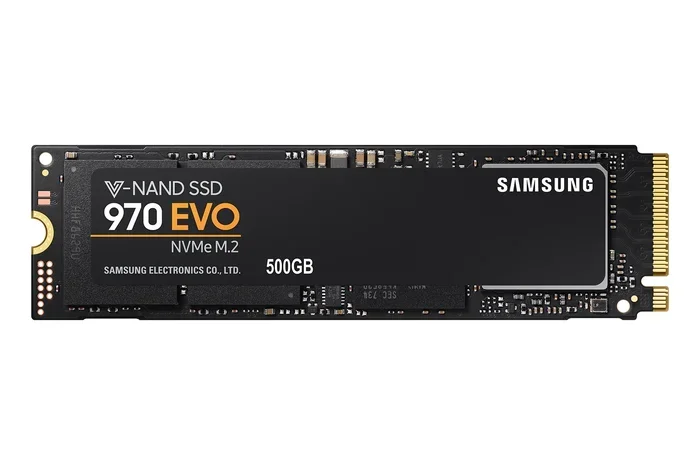
The M.2 form factor is a small, stick-shaped module. It looks like a stick of gum. The most common size is the M.2 2280, which is 22 millimeters wide and 80 millimeters long. These drives connect directly to the motherboard, so there are no cables to manage.
The NVMe protocol is designed specifically for flash storage. It is much more efficient than the AHCI protocol used by SATA SSDs. This efficiency is what allows PCIe Gen4 NVMe drives to reach such impressive speeds.
Why the M.2 Form Factor Matters
The M.2 design saves space inside your computer case. It also reduces cable clutter. Many modern motherboards come with multiple M.2 slots, so you can add several drives easily. This makes the M.2 NVMe SSD a favorite for building clean, compact systems.
How PCIe 4.0 NVMe M.2 SSDs Work
To understand why a pcie 4.0 nvme m 2 ssd is so fast, it helps to know a little about how it communicates with your system. The PCIe (Peripheral Component Interconnect Express) bus is the same technology that connects your graphics card to the motherboard. When a drive uses this bus, it gets a direct, high-speed connection.
PCIe 4.0 doubles the bandwidth of PCIe 3.0. Each lane can move up to 2 GB/s of data. A Gen4 NVMe drive uses four lanes, giving it a theoretical maximum of about 8 GB/s. In real-world use, top drives like the Samsung 970 EVO Plus reach read speeds around 3500 MB/s on PCIe 3.0, while Gen4 drives push past 7000 MB/s.
The NVMe protocol handles how data moves between the drive and the CPU. It uses a streamlined command queue that reduces latency. This means your drive responds faster when you ask it to read or write data.
Inside the Drive: NAND and Controller
Most high-performance Gen4 NVMe M.2 SSDs use TLC (Triple-Level Cell) NAND flash memory. TLC stores three bits of data per cell, offering a good balance of speed, endurance, and price. The drive also has a controller chip that manages how data is written, read, and cached.
Many top-tier drives include a DRAM cache. This small amount of fast memory helps the controller keep track of where data is stored. It significantly boosts performance during heavy workloads. When shopping, look for drives with DRAM support for the best SSD performance.
PCIe 4.0 vs PCIe 3.0: What Is the Difference?
The jump from PCIe 3.0 to PCIe 4.0 is a big deal. Here is a quick comparison:
- PCIe 3.0: Each lane moves about 1 GB/s. A typical Gen3 NVMe M.2 SSD peaks around 3500 MB/s read.
- PCIe 4.0: Each lane moves about 2 GB/s. Gen4 drives can reach 7000 MB/s or more.
- Bandwidth: PCIe 4.0 offers double the bandwidth of PCIe 3.0 per lane.
- Latency: Both generations have low latency, but Gen4 handles more data at once.
In everyday use, you will notice faster game load times, quicker file transfers, and snappier application launches on a PCIe 4.0 NVMe M.2 SSD. For creative professionals working with large video files, the speed difference is even more dramatic.
Do You Really Need PCIe 4.0?
This depends on what you do. If you mainly browse the web and use office apps, a PCIe 3.0 drive will feel plenty fast. But if you game, edit video, or work with large datasets, a Gen4 drive makes a real difference. The SSD upgrade from SATA to PCIe 4.0 NVMe is one of the most impactful changes you can make to a PC.
Top Benefits of Upgrading to a PCIe 4.0 NVMe M.2 SSD
Upgrading to a pcie 4.0 nvme m 2 ssd brings several clear advantages. Here are the biggest reasons to make the switch.
1. Lightning-Fast Read and Write Speeds
Gen4 NVMe drives offer sequential read speeds of 5000 to 7000 MB/s. Write speeds are similarly impressive. This means copying a 50 GB game file takes seconds instead of minutes. Your system boots up in a flash, and applications launch almost instantly.
2. Better Gaming Performance
Gamers benefit the most from PCIe Gen4 M.2 SSDs. Faster load times mean less waiting and more playing. Open-world games that stream assets from the drive feel smoother. Some modern titles actually require or recommend NVMe storage for the best experience.
3. Improved Productivity for Creators
Video editors, 3D modelers, and photographers work with huge files. A Gen4 drive cuts down export times and makes scrubbing through timelines much smoother. The storage performance boost is immediately noticeable in demanding creative apps.
4. No Cables, Clean Build
The M.2 form factor eliminates the need for SATA cables and power connectors. This makes cable management easier and keeps your build looking clean. It also reduces airflow obstructions inside your case.
5. Future-Proof Your System
PCIe 4.0 is widely supported on modern motherboards and CPUs. Investing in a Gen4 NVMe M.2 SSD now ensures your system stays compatible with future hardware. As more devices adopt Gen4 and Gen5 standards, having a PCIe 4.0 drive keeps you ready.
What to Look for When Buying a PCIe 4.0 NVMe M.2 SSD
Not all Gen4 drives are the same. Here are the key factors to consider before you buy.
1. Read and Write Speeds
Check the advertised read and write speeds. Top drives offer 7000 MB/s read and 5000 MB/s write or higher. Keep in mind that real-world speeds can vary based on the workload and whether the drive has a DRAM cache.
2. NAND Type
TLC NAND is the sweet spot for most users. It offers great speed and endurance. QLC (Quad-Level Cell) drives are cheaper but slower and less durable over time. For a reliable solid state drive, stick with TLC.
3. DRAM Cache
A DRAM cache helps maintain consistent performance during sustained writes. Drives without DRAM may slow down when the cache fills up. If you do heavy workloads, prioritize models with DRAM support.
4. Heatsink Compatibility
PCIe 4.0 drives generate more heat than Gen3 drives. Many models come with a built-in heatsink. If your motherboard M.2 slot has a heatsink, make sure the drive fits properly. Overheating can cause thermal throttling, which reduces speeds.
5. Capacity Options
Gen4 NVMe M.2 SSDs come in sizes from 500 GB to 4 TB and beyond. For gaming, 1 TB to 2 TB is a good range. For creative work, consider 2 TB or more to store large project files. Check SSD prices and pick the capacity that fits your needs and budget.
6. Endurance (TBW Rating)
TBW stands for Terabytes Written. It tells you how much data you can write to the drive over its warranty period. Higher TBW means the drive will last longer. Look for at least 600 TBW for a 1 TB drive if you do heavy writing tasks.
How to Install a PCIe 4.0 NVMe M.2 SSD
Installing a pcie 4.0 nvme m 2 ssd is one of the easiest PC upgrades you can do. You do not need any special tools or technical skills. Here is how to do it step by step.
Step 1: Check Compatibility
Before buying, confirm that your motherboard has an M.2 slot that supports PCIe 4.0. Check your motherboard manual or the manufacturer’s website. Also make sure your CPU supports Gen4. Popular platforms like AMD Ryzen 5000 and Intel 11th Gen and newer fully support PCIe 4.0.
Step 2: Gather Your Tools
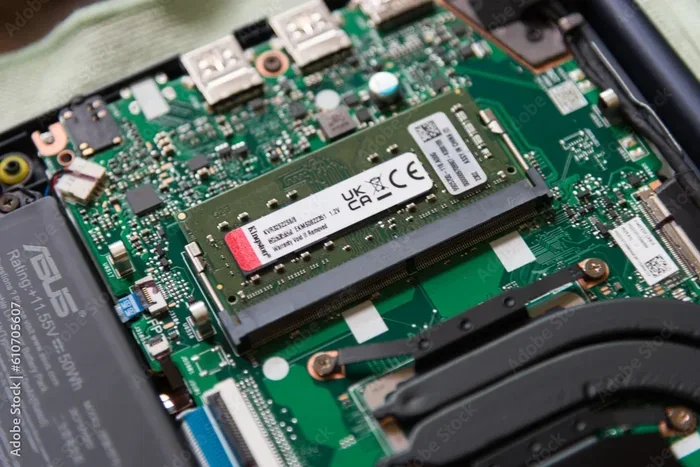
You will need a Phillips-head screwdriver and the M.2 SSD itself. Some motherboards come with the M.2 slot already open. Others require you to remove a small cover first.
Step 3: Locate the M.2 Slot
Find the M.2 slot on your motherboard. It is usually located near the CPU socket or along the bottom edge. If there is a heatsink covering the slot, remove the screws carefully.
Step 4: Insert the SSD
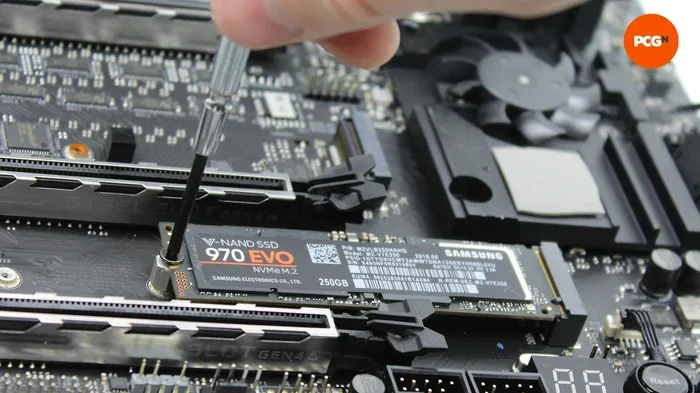
Hold the M.2 drive at a 30-degree angle and insert it into the slot. Gently push it down and secure it with the small screw. Do not overtighten. The drive should sit flat and snug against the slot.
Step 5: Reassemble and Boot
Replace any heatsink or case panels you removed. Power on your PC and enter the BIOS to confirm the drive is detected. You can then install your operating system or format the drive through your OS disk management tools.
Quick Installation Tips
- Always handle the M.2 SSD by the edges to avoid touching the contacts.
- Do not force the drive into the slot. It should slide in smoothly.
- If the drive gets hot under heavy use, consider adding an aftermarket M.2 heatsink.
- Keep your motherboard BIOS updated for the best M.2 NVMe compatibility.
For more details on compatible drives and performance benchmarks, check out our SSD NVMe PCIe M.2 guide and our PCIe NVMe M.2 SSD drives overview for options that work great with Gen4 platforms.
Common Mistakes to Avoid
Even with a simple upgrade like this, people sometimes make mistakes. Here are a few to watch out for.
- Ignoring BIOS Settings: Some motherboards need the M.2 slot enabled in BIOS. Check before assuming the drive is dead.
- Skipping the Heatsink: Gen4 drives run hotter than Gen3. Without proper cooling, they may throttle and lose speed.
- Buying the Wrong Slot: Not all M.2 slots support PCIe 4.0. Some only support PCIe 3.0 or SATA. Always double-check.
- Overlooking Drive Alignment: Inserting the drive at the wrong angle can damage the slot. Follow the 30-degree insertion method.
- Forgetting to Update Drivers: Keep your NVMe drivers and motherboard firmware up to date for optimal SSD performance.
Final Thoughts
A pcie 4.0 nvme m 2 ssd is a game-changer for anyone who wants faster storage. The speed gains over older SATA and PCIe 3.0 drives are significant. From booting your PC in seconds to loading games in moments, the difference is easy to feel every single day.
When you choose a Gen4 NVMe M.2 drive, you are investing in a faster, more responsive computing experience. Just make sure your system supports PCIe 4.0, pick a drive with TLC NAND and DRAM cache, and do not forget a heatsink if needed.
Whether you are building a new PC or upgrading an existing one, a PCIe 4.0 NVMe M.2 SSD is one of the best upgrades you can make. The performance boost is real, the installation is easy, and the price has come down significantly. Make the switch and feel the difference for yourself.
Looking for the best options on the market? Explore our Samsung 970 EVO Plus NVMe M.2 SSD review and our Crucial T705 PCIe Gen5 NVMe M.2 SSD page for top picks across different budgets and needs.
Frequently Asked Questions
What is a PCIe 4.0 NVMe M.2 SSD?
A PCIe 4.0 NVMe M.2 SSD is a high-speed solid state drive that uses the M.2 form factor and connects to the motherboard via the PCIe 4.0 bus using the NVMe protocol. It offers much faster read and write speeds compared to SATA SSDs and older PCIe 3.0 drives.
How fast is a PCIe 4.0 NVMe M.2 SSD?
Top PCIe 4.0 NVMe M.2 SSDs deliver sequential read speeds of 5000 to 7000 MB/s and write speeds of 4000 to 5000 MB/s. These speeds are roughly double what PCIe 3.0 NVMe drives offer, making them ideal for gaming, video editing, and large file transfers.
Do I need a PCIe 4.0 motherboard to use a Gen4 NVMe drive?
Yes. To get the full PCIe 4.0 speeds, your motherboard and CPU must both support PCIe 4.0. If you plug a Gen4 drive into a PCIe 3.0 slot, it will still work but will run at PCIe 3.0 speeds. Always check your motherboard specifications before purchasing.
Is a PCIe 4.0 NVMe M.2 SSD worth the upgrade?
Absolutely. If you currently use a SATA SSD or hard drive, upgrading to a PCIe 4.0 NVMe M.2 SSD will dramatically improve load times, boot speeds, and overall system responsiveness. Gamers, creators, and power users will see the biggest benefits.
Do PCIe 4.0 NVMe M.2 SSDs need a heatsink?
Many Gen4 NVMe drives run warmer than Gen3 drives. A heatsink helps maintain peak performance by preventing thermal throttling. Some drives come with a built-in heatsink, and many motherboards include M.2 heatsinks on their slots. It is a good idea to use one, especially in compact cases with limited airflow.
What is the difference between M.2 NVMe and M.2 SATA SSDs?
M.2 NVMe SSDs use the PCIe bus and NVMe protocol, offering speeds up to 7000 MB/s on PCIe 4.0. M.2 SATA SSDs use the SATA III interface and max out around 550 MB/s. NVMe M.2 drives are significantly faster, making them the preferred choice for modern systems.