What Happens When a Cmos Battery Dies
A dead CMOS battery causes your computer to lose BIOS settings, reset the system clock, and sometimes refuse to boot. You may also see CMOS checksum errors, lose custom hardware configurations, and deal with recurring startup warnings. Replacing the battery is cheap, easy, and usually takes just a few minutes.
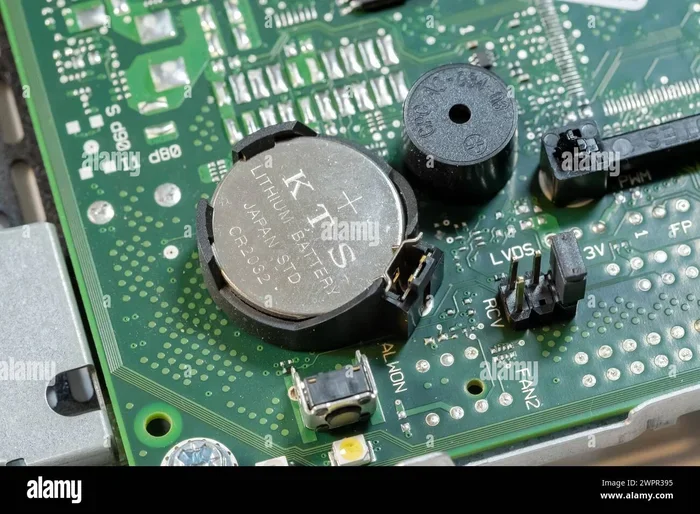
Your computer has a tiny coin-cell battery sitting quietly on the motherboard. Most people never think about it until something goes wrong. When that little battery dies, it triggers a chain of frustrating problems that can make your PC feel broken.
The CMOS battery powers the BIOS firmware when your computer is unplugged. It keeps your system clock ticking and preserves hardware settings. Without it, your machine still works — but not the way you expect. Let us walk through exactly what happens and how to fix it.
Key Takeaways
- System clock resets: Your computer loses the correct date and time every time you power it off.
- BIOS settings get wiped: Custom configurations like boot order and fan profiles disappear.
- Startup errors appear: You may see CMOS checksum error messages or be forced into BIOS setup.
- Hardware quirks occur: Components like RAM or storage drives may not be recognized properly.
- Replacement is simple: A new CR2032 battery costs just a few dollars and swaps in under five minutes.
- No data loss: A dead CMOS battery does not erase your files, programs, or operating system.
📑 Table of Contents
- What the CMOS Battery Does
- Common Signs Your CMOS Battery Is Dying
- What Happens in Detail When the CMOS Battery Dies
- Does a Dead CMOS Battery Cause Data Loss?
- How to Replace the CMOS Battery
- How Often Should You Replace the CMOS Battery?
- Preventing CMOS Battery Problems
- When to See a Professional
- Conclusion
What the CMOS Battery Does
The CMOS battery might be small, but it plays a big role. CMOS stands for Complementary Metal-Oxide Semiconductor. It stores the BIOS settings that tell your computer how to start up and talk to its hardware.
Think of it like a tiny memory keeper. When your PC is powered off and unplugged, this battery keeps the motherboard alive with information. It holds onto things like:
- System date and time
- Boot order preferences
- Fan speed profiles
- Overclocking settings
- Hardware detection data
Without the CMOS battery, all of this information vanishes the moment you cut power. Your computer then has to rebuild those settings from scratch every time it starts up. That is where the problems begin.
Common Signs Your CMOS Battery Is Dying
A failing CMOS battery does not shut your computer off instantly. It gives you warning signs first. Catching them early saves you from sudden surprises.
1. The System Clock Keeps Resetting
This is the most obvious symptom. Every time you turn on your PC, the date and time are wrong. Your computer shows a date from years ago, like January 1, 2000 or January 1, 2015. Your operating system tries to correct it, but it resets again after a full shutdown.
If you find yourself constantly fixing the clock, the CMOS battery is likely on its way out.
2. BIOS Settings Keep Reverting
Have you ever set a custom boot order or changed a fan curve, only to find it gone the next time you restart? A weak CMOS battery cannot hold those settings. Your motherboard defaults kick in every time power is removed.
This also means any overclocking profiles or custom configurations you saved will disappear.
3. CMOS Checksum Error Messages
When the BIOS detects that stored data is corrupted or missing, it throws a checksum error. You might see messages like:
- “CMOS Checksum Error – Defaults Loaded”
- “CMOS Battery Failure”
- “CMOS Date/Time Not Set”
These errors pop up during startup and may briefly pause your boot process. They are annoying but not usually dangerous.
4. Your PC Won’t Boot Properly
In severe cases, a completely dead CMOS battery prevents your computer from starting. The motherboard cannot initialize hardware without the BIOS settings it stores. You may get stuck on a black screen or be forced into the BIOS setup utility every single time.
Sometimes this looks like a hardware failure when it is really just a dead battery. That is why checking the CMOS battery should be one of your first troubleshooting steps.
5. Peripherals and Ports Act Strange
A dead CMOS battery can cause USB ports, audio jacks, or built-in peripherals to behave unpredictably. The motherboard loses track of which hardware is connected. You might find that your keyboard does not work during boot or your audio device disappears from the sound settings.
These issues often look like driver problems, but the root cause is actually a dead battery on the motherboard.
What Happens in Detail When the CMOS Battery Dies
Let us break down exactly what goes wrong inside your computer when the CMOS battery gives out completely.
Your System Clock Stops Updating
The most immediate effect is a frozen clock. Since the CMOS battery keeps the real-time clock running when the PC is off, a dead battery means the clock stops entirely. When you power back on, your operating system sees a date that is years in the past.
This can cause real problems with software that checks licenses or certificates. Some programs may refuse to run because they think your computer has an invalid date. Secure websites might also flag your connection as unsafe.
BIOS Settings Return to Factory Defaults
Every custom setting you made in the BIOS or UEFI firmware gets wiped. This includes:
- Boot priority order — your favorite drive might no longer be first
- Secure Boot settings — you may need to re-enable them
- Virtualization support — needed for VMs and some Linux distros
- CPU and RAM voltage settings — overclocking profiles vanish
You will need to re-enter the BIOS and set everything up again. It takes a few minutes but can be frustrating if you are not prepared.
Your Computer May Not Recognize Hardware
The BIOS uses stored data to detect and configure hardware during startup. When the CMOS battery dies, this detection process can fail or behave inconsistently. You might see:
- Hard drives or SSDs not showing up in the boot menu
- RAM not being fully detected or running at slower speeds
- Integrated graphics not activating when a dedicated GPU is present
Interestingly, issues with RAM detection can sometimes be confused with actual memory problems. Before replacing any hardware, check if the CMOS battery is the real culprit.
Passwords and Security Settings Get Lost
If you set a BIOS password or configured any security features, a dead CMOS battery wipes those too. You might find yourself locked out of your own BIOS setup utility. In most cases, clearing the CMOS resets these settings back to default, but it is an extra hassle you do not need.
This is different from a full hardware failure — no data on your drives is at risk. Your files, programs, and operating system remain untouched.
Does a Dead CMOS Battery Cause Data Loss?
Here is some good news. A dead CMOS battery does not erase your personal files. Your photos, documents, games, and applications stay exactly where they are. The CMOS battery only affects the motherboard’s firmware settings, not your storage drives.
However, if your computer cannot boot because of lost BIOS settings, you might think your data is gone. It is not. Once you replace the battery and restore your BIOS configuration, everything will work normally again.
It is worth noting that hardware troubleshooting should always start with the simplest possible cause. A dead CMOS battery is one of the easiest fixes on this list, so always check it before assuming something more serious is wrong.
Also, if your computer has been running hot for a long time, you might want to check if can a laptop explode from overheating is a risk worth monitoring alongside your CMOS battery health.
How to Replace the CMOS Battery
Replacing a CMOS battery is one of the easiest computer repairs you can do. You do not need special tools or technical expertise. Here is how to do it step by step.
What You Need
- A CR2032 battery — this is the standard size used in most motherboards
- A small Phillips-head screwdriver
- An anti-static wrist strap (optional but recommended)
Step-by-Step Process
- Power off your computer and unplug it from the wall.
- Press the power button for 15 seconds to discharge any remaining electricity.
- Open your computer case. Most desktops have side panels held by one or two screws.
- Locate the CMOS battery on the motherboard. It looks like a small silver coin cell sitting in a metal or plastic holder.
- Press the small latch on the holder to release the old battery. It will pop up slightly.
- Remove the old battery and note which side faces up. The positive side (labeled +) should face up.
- Insert the new CR2032 battery the same way. Push it gently until the latch clicks into place.
- Close your case, plug everything back in, and power on your computer.
- Enter the BIOS and verify your date, time, and settings are correct.
That is it. The whole process takes about five minutes. Your BIOS settings may still need to be reconfigured, but the new battery will hold them going forward.
How Much Does a Replacement Cost?
A CR2032 battery costs between one and five dollars at most stores. You can find them at pharmacies, grocery stores, and online retailers. Some people even have spare ones lying around at home from remote controls or watches.
Compared to calling a technician or replacing a motherboard, this is an incredibly affordable fix. If you are comfortable opening your PC case, there is no reason to pay anyone else to do this.
For comparison, replacing components like the RAM in a laptop follows a similarly simple process, and many people handle both upgrades themselves at home.
How Often Should You Replace the CMOS Battery?
CMOS batteries typically last between three and five years. However, lifespan varies depending on your computer usage and motherboard quality. Laptops tend to drain the battery faster because they are used more frequently without being plugged in.
If your computer is more than four years old and you are noticing any of the symptoms we discussed, it is a good idea to replace the battery proactively. It is a cheap insurance policy against unexpected boot failures.
Some people also wonder about other small hardware failures. For example, if an NVMe SSD disconnects during use, similar hardware troubleshooting principles apply — check connections first, then move to component replacement.
Preventing CMOS Battery Problems
You cannot make a CMOS battery last forever, but you can take steps to avoid premature failure.
- Keep your computer plugged in when possible. Frequent full power cycles drain the battery faster.
- Avoid extreme temperatures. Heat accelerates battery degradation. Keep your PC in a well-ventilated area.
- Replace the battery proactively every three to four years if you notice any warning signs.
- Write down your BIOS settings somewhere safe. If the battery dies, you will know exactly what to restore.
Taking these simple precautions keeps your motherboard running smoothly and prevents those annoying startup errors.
When to See a Professional
Replacing a CMOS battery is straightforward for most desktop computers. Laptops can be trickier because the battery is often soldered or harder to access. If you are uncomfortable opening your laptop, it is worth visiting a repair shop.
Also, if you replace the battery and still experience startup errors, there may be a deeper motherboard issue. In that case, a professional diagnostic is a smart next step. Sometimes what looks like a dead CMOS battery is actually a failing motherboard component.
Similarly, if you are dealing with overheating issues alongside CMOS battery symptoms, checking whether can a laptop explode from overheating is a concern worth investigating for overall system health.
Conclusion
A dead CMOS battery is one of the most common and easily fixable hardware problems you will encounter. It causes clock resets, BIOS setting loss, startup errors, and strange hardware behavior. But it does not destroy your data or require expensive repairs.
The fix is simple. Grab a CR2032 battery, open your case, swap out the old one, and reboot. Within minutes, your computer will be back to normal with all settings restored.
Do not ignore the warning signs. If your clock keeps resetting or you see checksum errors at startup, check that little battery on your motherboard. A five-dollar part and a few minutes of your time can save you hours of frustration and unnecessary worry.
Stay on top of your computer’s small components, and your system will run smoother for years to come.
Frequently Asked Questions
Can a dead CMOS battery cause a PC not to turn on?
Yes, in some cases a completely dead CMOS battery can prevent your computer from booting at all. The motherboard needs BIOS settings to initialize hardware during startup. When the battery dies and settings are lost, the system may fail to start properly. Replacing the battery usually fixes this immediately.
How do I know if my CMOS battery is dead or my motherboard is failing?
A dead CMOS battery causes specific symptoms like clock resets, BIOS checksum errors, and lost settings. If those issues go away after replacing the battery, your motherboard is fine. If problems persist even with a new battery, then a deeper motherboard issue may be the cause.
Is it safe to replace a CMOS battery while the computer is plugged in?
No, you should always power off and unplug your computer before replacing the CMOS battery. Working on a powered motherboard can damage components or shock you. Always discharge residual power by holding the power button for 15 seconds after unplugging.
How long does a CMOS battery last?
Most CMOS batteries last between three and five years. The exact lifespan depends on usage patterns, motherboard quality, and environmental factors like heat. Laptops tend to drain the battery faster than desktops because they are used more frequently without being plugged in.
Will replacing the CMOS battery erase my files?
Absolutely not. The CMOS battery only affects BIOS firmware settings stored on the motherboard. Your files, programs, and operating system live on your storage drives, which are completely separate. No personal data is at risk when replacing a CMOS battery.
Can I use any CR2032 battery as a replacement?
Yes, any standard CR2032 battery works as a CMOS battery replacement. You do not need a brand-specific or high-end version. Generic batteries from drugstores or online retailers work perfectly fine. Just make sure the positive side faces up when you install it.