What Is an Onboard Lan
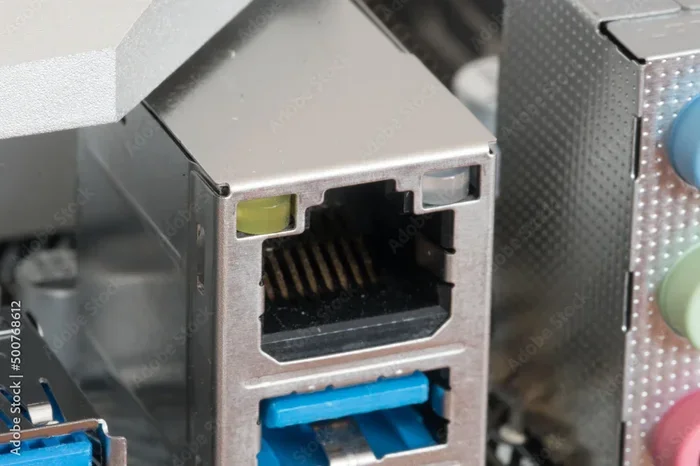
An onboard LAN is a built-in network connection on your computer’s motherboard that lets you plug in an Ethernet cable and access the internet without any extra hardware. Most modern computers come with this feature already included, offering reliable wired connections with low latency and strong network performance. Understanding your onboard LAN helps you troubleshoot issues and decide if you need an upgrade.
Key Takeaways
- Built-In Network Access: An onboard LAN is a network chip soldered directly onto your motherboard, giving you instant Ethernet connectivity right out of the box.
- Speed and Performance: Most onboard LAN chips support gigabit Ethernet speeds up to 1 Gbps, which is fast enough for everyday browsing, streaming, and even light gaming.
- No Extra Hardware Needed: Because the LAN controller is integrated, you don’t need to buy or install a separate network card for basic internet use.
- Upgrade Options Exist: If your onboard LAN is slow or damaged, you can add a dedicated network card or USB Ethernet adapter for better speeds and features.
- Common Issues Are Fixable: Problems like missing network icons or slow speeds can often be solved with driver updates or simple troubleshooting steps.
- Laptops and Desktops Both Have Them: Nearly every modern computer, whether a desktop or laptop, includes an onboard LAN as a standard feature.
📑 Table of Contents
What Is an Onboard LAN?
If you have ever looked at the back of your computer and spotted a rectangular port labeled “Ethernet,” you have already used an onboard LAN. But what exactly does that mean? An onboard LAN, short for onboard local area network, is a network connection built directly into your computer’s motherboard. You do not need to buy anything extra. Just plug in an Ethernet cable, and you are online.
The technical name for this component is a network interface controller, or NIC. The NIC handles all the work of sending and receiving data over a wired network. It converts digital signals from your computer into electrical signals that travel through the Ethernet cable, and vice versa. This tiny chip is one of the most important parts of any modern computer, even though most people never think about it.
Onboard LAN chips have been a standard feature on motherboards for many years now. In the early days of personal computing, you had to buy a separate expansion card to connect to a network. Today, that is no longer necessary. The network controller is already there, ready to go, right on the board. This makes setup simple and keeps costs down for manufacturers and buyers alike.
Most onboard LAN chips support speeds of 1 gigabit per second, also known as 1 Gbps. That is fast enough for streaming high-definition video, video calls, online gaming, and large file downloads. For the average user, the onboard LAN provides more than enough speed and reliability for daily tasks.
How Does an Onboard LAN Work?
Understanding how an onboard LAN works is easier than you might think. The process starts when you plug an Ethernet cable into the LAN port on the back of your computer. The cable carries data signals from your router or modem to the onboard NIC on the motherboard.
The NIC then translates those signals into data your computer can understand. At the same time, it takes data your computer wants to send and converts it into signals that travel back through the cable. This two-way communication happens almost instantly, which is why wired connections feel so fast and responsive.
Here is a simple breakdown of how the process works:
- Step 1: Your router sends data through the Ethernet cable.
- Step 2: The cable carries the signal to the Ethernet port on your computer.
- Step 3: The onboard LAN chip receives the signal and converts it into digital data.
- Step 4: Your computer processes the data and displays it on your screen.
- Step 5: When you send data back, the process reverses, sending your information out through the cable to the router.
The onboard LAN connects directly to the motherboard’s chipset, which manages communication between all the parts inside your computer. This direct connection helps keep network traffic fast and efficient. The speed you get depends on several factors, including the quality of the LAN chip, the type of Ethernet cable you use, and the capabilities of your router.
For most people, using a standard Cat5e or Cat6 Ethernet cable with an onboard LAN gives excellent results. These cables support gigabit speeds and are widely available at low cost. If you want the best possible performance, a Cat6a or Cat7 cable can reduce interference and improve signal quality even further.
Onboard LAN vs. Dedicated Network Cards
While an onboard LAN covers most users’ needs perfectly, there are situations where a dedicated network card might be a better choice. A dedicated network card is a separate piece of hardware that you install in a PCIe slot on your motherboard. It has its own processor and memory, which takes the networking workload off the main chipset.
So when should you consider stepping away from the onboard LAN? Let us look at the key differences.
Speed and Bandwidth
Most onboard LAN chips cap out at 1 Gbps. For general use, that is plenty fast. But if you work with large files, run a home server, or do competitive online gaming, a dedicated network card can offer 10 Gbps or even faster speeds. The extra bandwidth reduces bottlenecks and keeps your network running smoothly under heavy loads.
Latency and Stability
Dedicated network cards often provide lower latency and more stable connections. They handle network traffic more efficiently, which matters for real-time applications like video conferencing, competitive gaming, and live streaming. The onboard LAN is stable for everyday use, but a dedicated card gives you an edge when every millisecond counts.
Features and Compatibility
Higher-end dedicated network cards come with extra features. Some support advanced Wake-on-LAN functionality, better energy efficiency, or specialized software for network monitoring. If your onboard LAN does not support a feature you need, a dedicated card fills that gap.
When you are building or upgrading a PC, it is worth considering your networking needs alongside other components. For example, if you are investing in a fast NVMe SSD for blazing-fast storage, pairing it with a strong network setup ensures your whole system works in harmony. The same goes for ensuring your laptop RAM and other components are up to par for the best overall experience.
Quick Comparison Table
| Feature | Onboard LAN | Dedicated Network Card |
|---|---|---|
| Speed | Up to 1 Gbps | 1 Gbps to 10 Gbps+ |
| Cost | Free (included) | $20 to $200+ |
| Installation | None needed | PCIe slot or USB |
| Latency | Good for most uses | Lower and more consistent |
| Extra Features | Basic | Advanced options available |
| Best For | Everyday use | Heavy workloads and gaming |
Common Onboard LAN Problems and How to Fix Them
Even though onboard LANs are reliable, you may run into issues from time to time. The good news is that most problems are easy to fix without calling a technician. Let us walk through the most common issues and their solutions.
No Network Connection
If your computer does not recognize the Ethernet connection, the first thing to check is the cable. Make sure it is firmly plugged in on both ends. Try a different Ethernet cable if the first one is damaged. A loose or faulty cable causes many connection problems that people mistakenly blame on the network card.
Next, check your network drivers. The onboard LAN needs software called a driver to communicate with your operating system. If the driver is outdated or corrupted, your computer may not detect the connection. You can update drivers through your device manager or download the latest version from your motherboard manufacturer’s website.
Slow Network Speeds
Slow speeds are frustrating but usually easy to diagnose. First, check which Ethernet cable you are using. An older Cat5 cable limits your speed to 100 Mbps, even if your onboard LAN supports gigabit speeds. Upgrading to a Cat5e or Cat6 cable often solves this problem immediately.
Also check your router settings. Make sure the router port and the onboard LAN are both set to auto-negotiate or set to the same speed. A mismatch between the two can cause speeds to drop significantly.
Intermittent Connection Drops
If your connection keeps dropping in and out, the issue could be a faulty port, a bad cable, or driver conflicts. Try plugging the cable into a different port if your motherboard has more than one Ethernet port. Update or reinstall your network drivers. If the problem persists, a dedicated network card can replace the onboard LAN and solve the issue permanently.
Expert Tip: When troubleshooting onboard LAN issues, always start with the simplest fixes first. A new cable or a driver update solves the problem more often than you would expect. Save the complex solutions for last.
Do You Need an Onboard LAN?
The short answer is yes, for almost everyone. An onboard LAN is essential for any computer that needs a wired network connection. Whether you are browsing the web, working from home, or streaming your favorite shows, the onboard LAN gives you a reliable and fast connection without any extra cost or effort.
Wireless connections like Wi-Fi are convenient, but they come with trade-offs. Wi-Fi signals can be interrupted by walls, other devices, and even microwave ovens. A wired connection through the onboard LAN is far more stable and consistent. For tasks that demand a steady connection, like online gaming or video conferencing, the onboard LAN is the clear winner.
If you are buying a new computer or building a PC, you do not need to worry about the onboard LAN. It is already there, and it works well. Just make sure your motherboard has an Ethernet port, which nearly all modern boards do. You can always add a dedicated network card later if your needs change.
One thing to keep in mind is that laptops often have weaker onboard LAN chips compared to desktops. If you are using a laptop and experience slow speeds, a USB Ethernet adapter can boost your performance. These small adapters plug into a USB port and give your laptop a better network connection without any complicated installation.
When planning your setup, consider the overall balance of your system. A great onboard LAN works best when paired with strong components like solid RAM, a fast storage drive, and a capable processor. Think of your network connection as one piece of the puzzle that contributes to your computer’s overall performance and user experience.
Final Thoughts on Onboard LAN
The onboard LAN is one of those features that you probably never think about until something goes wrong. But it plays a vital role in your daily computing experience. It gives you fast, stable, and reliable wired internet access without costing you anything extra.
For the vast majority of users, the onboard LAN on your motherboard is more than enough. It handles streaming, gaming, work, and browsing with ease. Only in specialized situations, like high-end gaming setups or professional servers, does a dedicated network card become necessary.
Now that you understand what an onboard LAN is, how it works, and how to troubleshoot common issues, you are better equipped to get the most out of your computer’s network connection. Keep your drivers updated, use quality cables, and enjoy the fast and reliable wired connection that your onboard LAN provides.
If you are looking to improve your overall PC setup, consider investing in quality components across the board. A well-rounded system with strong networking, fast storage, and plenty of memory delivers the best experience for work, play, and everything in between.
Frequently Asked Questions
What is the difference between onboard LAN and Wi-Fi?
An onboard LAN uses a physical Ethernet cable to connect to your network, while Wi-Fi uses wireless radio signals. Wired connections through the onboard LAN are generally faster, more stable, and have lower latency than wireless connections. However, Wi-Fi offers the convenience of not needing a cable.
Can I use my onboard LAN for gaming?
Yes, the onboard LAN works well for most gaming. It provides a stable and low-latency connection that is ideal for online gaming. Competitive gamers who need the absolute fastest and most consistent connection may prefer a dedicated network card, but for casual and moderate gaming, the onboard LAN is perfectly fine.
How do I know if my computer has an onboard LAN?
Look at the back of your computer for an Ethernet port. If you see a rectangular port labeled “Ethernet” or “LAN,” your computer has an onboard LAN. You can also check your device manager under “Network adapters” to see the name of your onboard network chip.
Do I need to install drivers for my onboard LAN?
Most modern operating systems install the onboard LAN drivers automatically. However, if you experience connection issues, you may need to download the latest drivers from your motherboard manufacturer’s website. Updated drivers often fix bugs and improve network performance.
Can I disable the onboard LAN on my motherboard?
Yes, you can disable the onboard LAN in your BIOS or UEFI settings. Some people do this to free up system resources or to avoid conflicts with a dedicated network card. You can also disable it through your operating system’s device manager if you prefer not to use it.
Is an onboard LAN slower than a dedicated network card?
For most users, the onboard LAN is not noticeably slower than a dedicated network card. Both can support gigabit speeds. Dedicated cards shine in situations that demand very high speeds, ultra-low latency, or advanced features. For everyday use, the onboard LAN delivers excellent performance.