What Happens When You Format a Memory Stick
Formatting a memory stick erases all stored data and prepares the drive for a fresh file system. You can choose between a quick format that deletes references to files or a full format that scans for bad sectors. Understanding the process helps you avoid permanent data loss and keep your USB drive running smoothly.
Have you ever plugged in a memory stick and wondered what formatting it really does? Maybe your drive is acting strange, or you want to start fresh. Either way, understanding what happens when you format a memory stick is important before you click that button.
Formatting a memory stick is one of the most common things people do with their USB drives. Yet many users do it without fully understanding the consequences. The process wipes all your files, changes how the drive organizes data, and can even fix hidden errors. This guide walks you through every step of what actually happens behind the scenes.
Whether you have a tiny 8GB stick or a bulky 256GB drive, the formatting process works the same way. Let us break it down so you feel confident and informed the next time you need to format your device.
Key Takeaways
- All data gets wiped: Formatting removes every file on the memory stick, though recovery may still be possible.
- Two types of formatting exist: Quick format removes file references instantly, while full format also checks for damaged sectors.
- File system choice matters: FAT32, exFAT, and NTFS each offer different benefits for compatibility and file size limits.
- Back up first: Always save important files before formatting to prevent irreversible loss.
- Formatting fixes errors: It can repair corrupted drives and remove write protection issues.
- It is not the same as deleting: Formatting resets the entire drive structure, not just individual files.
📑 Table of Contents
- What Does Formatting a Memory Stick Actually Do?
- Quick Format vs Full Format
- File Systems: FAT32, exFAT, and NTFS
- Will You Lose Your Data After Formatting?
- Why People Format Their Memory Sticks
- How to Format a Memory Stick Safely
- Common Mistakes People Make When Formatting
- Can You Recover Data After Formatting?
- Final Thoughts
What Does Formatting a Memory Stick Actually Do?
When you format a memory stick, you are essentially resetting the drive from the ground up. The operating system removes the existing file system and creates a new one. Think of it like erasing a whiteboard and drawing a fresh grid on it. The old information is still there physically, but the system no longer knows how to find it.
Here is what happens at a deeper level:
- The file allocation table gets deleted. This table is like a map that tells your computer where each file lives on the stick.
- All file references are removed. Your photos, documents, and videos are still physically present, but the system marks that space as available.
- A new file system is created. This determines how files are stored, named, and organized going forward.
- Drive errors get flagged and repaired. Bad sectors are identified and marked as unusable during a full format.
Many people confuse formatting with simply deleting files. When you delete a file normally, the system removes the reference but leaves the data intact until something new overwrites it. Formatting goes much further by resetting the entire organizational structure of the drive.
For comparison, think about what happens when a storage device disconnects unexpectedly. In that case, the file system can become corrupted because the write process was interrupted. Formatting helps fix that kind of damage by rebuilding the file system from scratch.
Quick Format vs Full Format
When you right-click a memory stick and choose to format, you usually get two options: quick format and full format. These two choices behave very differently, and understanding the difference matters.
What Is a Quick Format?
A quick format is fast because it only deletes the file system structure. It does not scan the drive for bad sectors or physically check the memory cells. The process takes seconds, and your computer is ready to use again almost immediately.
Quick format is perfect when:
- You want to erase files and start fresh
- The drive is working normally without errors
- You need to change the file system quickly
- You are selling or giving away the device
What Is a Full Format?
A full format does everything a quick format does, plus it scans every sector on the drive for errors. It writes zeros to each sector, which takes much longer. This process can take hours depending on the size of the memory stick.
Choose a full format when:
- The drive is corrupted or behaving strangely
- You suspect bad sectors or physical damage
- You want to securely erase all data beyond recovery
- The drive has been infected with malware
It is worth noting that a full format makes data recovery nearly impossible. Unlike a quick format, where specialized software can often retrieve lost files, a full format overwrites the data completely. This is similar to what happens when a NVMe SSD falls out of its slot and the file system becomes severely damaged. In both cases, the damage affects how data is organized and accessed.
File Systems: FAT32, exFAT, and NTFS
When you format a memory stick, you must choose a file system. This choice determines how your files are stored and which devices can read the drive. Here is a simple breakdown of the three main options.
FAT32
FAT32 is the oldest and most compatible file system. It works with virtually every device, including Windows, Mac, Linux, gaming consoles, and car stereos. However, it has a major limitation: individual files cannot exceed 4GB. If you try to copy a large video file, the format will reject it.
exFAT
exFAT was designed specifically for flash drives and external storage. It has no 4GB file size limit and works with both Windows and Mac computers. This makes it the best choice for most memory sticks, especially if you need to transfer large files between different devices.
NTFS
NTFS is Windows’ modern file system. It supports huge file sizes and includes advanced features like file permissions and encryption. However, Mac computers can only read NTFS drives, not write to them. This makes NTFS a poor choice for a memory stick you need to use across different operating systems.
| Feature | FAT32 | exFAT | NTFS |
|---|---|---|---|
| Max File Size | 4GB | 16EB | 16EB |
| Windows Support | Yes | Yes | Yes |
| Mac Support | Read/Write | Read/Write | Read Only |
| Best For | Small files, wide compatibility | Flash drives, large files | Windows-only internal drives |
For most users, exFAT is the best choice for a memory stick. It balances compatibility with modern file size needs perfectly.
Will You Lose Your Data After Formatting?
The short answer is yes. Formatting a memory stick removes all your files. But the longer answer is more nuanced.
After a quick format, the actual data remains on the flash memory until something new overwrites it. This means data recovery software can often restore your lost files if you act quickly. Tools like Recuva, Disk Drill, or EaseUS Data Recovery can scan the stick and piece together the remaining data.
After a full format, the data gets overwritten with zeros. Recovery becomes extremely difficult and expensive. Professional data recovery services might still retrieve some fragments, but success rates drop significantly.
Here are some tips to protect your data before formatting:
- Copy everything to your computer or an external hard drive first
- Use cloud storage as a backup for important files
- Double-check your backup by opening a few files to confirm they work
- Wait until the backup is complete before starting the format
If you accidentally formatted the wrong drive, stop using it immediately. Every new file you save could overwrite the recoverable data. The sooner you use recovery software, the better your chances of getting everything back.
Why People Format Their Memory Sticks
People format memory sticks for many different reasons. Understanding these scenarios can help you decide if formatting is the right move for your situation.
Fixing a Corrupted Drive
Memory sticks can become corrupted due to improper removal, power outages, or physical damage. Symptoms include error messages, missing files, or the drive not showing up at all. Formatting often fixes these issues by rebuilding the file system structure. Think of it like restarting a computer when it freezes. Sometimes a fresh start is all the system needs to work properly again.
Removing Write Protection
Some memory sticks become write-protected, meaning you cannot add or delete files. This can happen due to a physical switch on the stick, a registry issue, or a corrupted file system. Formatting the drive usually removes write protection and restores full access.
Preparing a Drive for a New Use
Maybe you are giving your old memory stick to a family member. Or you want to use it with a different device that requires a specific file system. Formatting ensures the drive is clean, compatible, and ready for its new purpose.
Improving Performance
Over time, memory sticks can slow down as they fill up and files become fragmented. Formatting gives the drive a clean slate and can improve read and write speeds. This is especially noticeable on older drives that have been used heavily for years.
It is also worth noting that system memory works differently than storage memory. Your computer’s RAM handles active tasks while your memory stick stores files long-term. If you are curious about how RAM affects performance, you might enjoy learning about what RAM does on a laptop and how it complements your storage devices.
How to Format a Memory Stick Safely
Now that you understand what formatting does, here is how to do it safely on different devices.
On Windows
- Plug the memory stick into a USB port
- Open File Explorer and find the drive
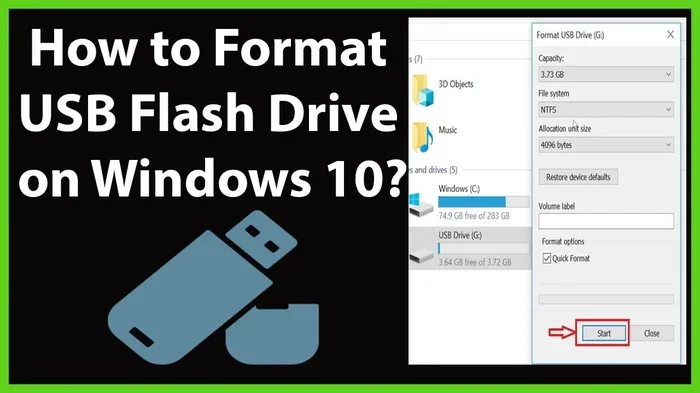
- Right-click the drive and select Format
- Choose your file system (exFAT recommended)
- Select Quick Format or Full Format
- Click Start and wait for the process to finish
On Mac
- Insert the memory stick into a USB port
- Open Disk Utility from Applications > Utilities
- Select your memory stick from the left sidebar
- Click Erase at the top of the window
- Choose a format (MS-DOS for FAT32 or ExFAT)
- Click Erase and confirm your choice
On Linux
- Insert the memory stick
- Open a terminal window
- Type
sudo mkfs.vfat /dev/sdX1(replace X with your drive letter) - Press Enter and wait for completion
Always safely eject your memory stick after formatting. On Windows, click the eject icon next to the drive name. On Mac, drag the drive icon to the trash. This ensures all write operations complete before you remove the stick.
Common Mistakes People Make When Formatting
Formatting is simple, but people still make avoidable mistakes. Here are the most common ones:
- Formatting the wrong drive. Always double-check the drive letter before clicking Start. Formatting your main hard drive instead of the memory stick would be catastrophic.
- Skipping the backup. Even if you think you do not need the files, back them up first. You never know what might matter later.
- Choosing the wrong file system. FAT32 will reject files over 4GB. NTFS will not work properly on Macs. Choose wisely based on how you will use the stick.
- Removing the stick during formatting. This can permanently damage the drive and make it completely unusable.
- Using a cheap or unreliable card reader. A poor connection during formatting can corrupt the drive further.
Can You Recover Data After Formatting?
Yes, in many cases you can recover data after formatting, especially if you used a quick format. Data recovery software scans the raw memory sectors and looks for file signatures that still exist on the stick.
The key factors that affect recovery success include:
- How soon you try recovery after formatting
- Whether new data has been saved to the stick since formatting
- The type of format performed (quick vs full)
- The physical condition of the memory stick
If the data is extremely important and recovery software fails, consider professional data recovery services. These specialists work in clean room environments and can sometimes retrieve data from physically damaged drives. However, this service can be expensive, often costing several hundred dollars.
Final Thoughts
Formatting a memory stick is a straightforward process with powerful results. It erases all your data, rebuilds the file system, and can fix hidden errors that slow down your drive. Whether you choose a quick format or a full format depends on your specific needs and the condition of your device.
Always remember to back up your files first. The formatting process is designed to be irreversible, and while recovery tools exist, prevention is always better than cure. Choose the right file system for your needs, follow the steps carefully, and your memory stick will be fresh and ready for action.
Understanding what happens behind the scenes gives you control. You no longer have to worry about what formatting does or whether your files are truly gone. You know exactly what to expect and how to protect yourself. Format with confidence, back up regularly, and your memory stick will serve you well for years to come.
Frequently Asked Questions
Does formatting a memory stick delete everything permanently?
After a quick format, the data is not immediately gone. It remains on the flash memory until overwritten by new files. Recovery software can often retrieve it. After a full format, the data is overwritten with zeros, making recovery extremely difficult and expensive.
How long does it take to format a memory stick?
A quick format takes just a few seconds, regardless of the drive size. A full format can take anywhere from a few minutes to several hours depending on the capacity of the memory stick and the speed of your USB port.
Can I format a memory stick on my TV or car stereo?
Many TVs and car stereos have a format option built into their settings menu. However, they usually only support FAT32 or exFAT. Check your device manual for the recommended format before proceeding.
Is it safe to format a memory stick that is write-protected?
If the write protection is caused by a software issue or a corrupted file system, formatting will usually remove it. If there is a physical write-protect switch on the stick, you must slide it to the unlock position before formatting will work.
How often should I format my memory stick?
You do not need to format your memory stick regularly. Only format it when you are experiencing errors, switching file systems, selling the device, or want to start completely fresh. Frequent formatting does not improve performance and wears on the flash memory slightly.
What is the difference between formatting a memory stick and deleting files?
Deleting files removes individual references to specific files while leaving the rest of the file system intact. Formatting wipes the entire file system and rebuilds it from scratch. Formatting affects the whole drive, while deleting only removes selected files.