What Is Custom Animation in Powerpoint
Custom animation in Powerpoint lets you add dynamic movement to text, images, and objects on your slides. You can control entrance, emphasis, exit, and motion path effects to make your presentations more engaging. This guide covers everything from basic animation types to advanced timing techniques that will level up your slide design.
Have you ever watched a presentation where elements on the slide moved in a way that caught your attention? Maybe text flew in from the side, or images popped up one by one. That is the magic of custom animation in Powerpoint. It is a powerful feature that lets you bring your slides to life.
Many people think animations are just for flashy presentations. But the truth is, custom animation in Powerpoint serves a real purpose. It helps guide your audience’s attention. It makes complex ideas easier to understand. And it keeps people engaged from start to finish. Whether you are building a business pitch, a school project, or a training deck, knowing how to use animations can make a huge difference.
In this guide, we will walk you through everything you need to know. We will cover the types of animations available, how to apply them step by step, and tips to avoid common mistakes. By the end, you will feel confident creating polished, professional presentations that actually impress your audience.
Key Takeaways
- Custom animations give you full control over how elements appear and move on each slide.
- Four main animation types include entrance, emphasis, exit, and motion paths.
- The Animation Pane is your best tool for managing and sequencing multiple effects.
- Timing and triggers let you create interactive, non-linear presentations.
- Less is more when it comes to animation overuse and audience distraction.
- You can animate any object including text boxes, images, shapes, and charts.
📑 Table of Contents
What Is Custom Animation in Powerpoint?
Custom animation in Powerpoint refers to the ability to add specific movement effects to individual objects on a slide. These objects can be text boxes, images, shapes, charts, tables, or even embedded media. Unlike preset slide transitions, which affect the entire slide, custom animations target specific elements.
Think of it this way. A slide transition is like turning a page in a book. Custom animation is like adding special effects to the words and pictures on that page. You decide what appears, when it appears, and how it moves.
Powerpoint has evolved a lot over the years. The animation tools available today are far more advanced than what existed even five years ago. You now have access to smooth motion paths, precise timing controls, and trigger-based animations. These features make custom animation in Powerpoint a valuable skill for anyone who creates presentations regularly.
Why Use Custom Animations?
There are several reasons why custom animation in Powerpoint is worth learning:
- Attention control: Animations guide your audience’s eyes to the most important parts of each slide.
- Better storytelling: Movement helps you reveal information in a logical sequence rather than overwhelming viewers with everything at once.
- Professional look: Well-designed animations make your presentation feel polished and intentional.
- Improved retention: Visual movement helps people remember key points long after the presentation ends.
- Engagement: Audiences are more likely to stay focused when slides have dynamic elements.
The Four Types of Custom Animations
Custom animation in Powerpoint comes in four main categories. Each type serves a different purpose. Let us break them down so you can understand when to use each one.
Entrance Effects
Entrance effects control how an object first appears on the slide. This is the most commonly used animation type. Popular entrance options include Fade In, Fly In, Float In, and Wipe. For example, you might have a title text fade in smoothly while a chart flies in from the bottom.
Entrance animations are perfect for revealing content step by step. Instead of showing a full slide with all elements at once, you can introduce each piece one at a time. This keeps your audience focused on what you are discussing right now.
Emphasis Effects
Emphasis animations draw attention to an object that is already visible on the slide. They do not make the object appear or disappear. Instead, they make it stand out. Common emphasis effects include Pulse, Spin, Grow/Shrink, and Change Color.
Use emphasis animations when you want to highlight a specific data point or key phrase. For instance, you could pulse a number on a chart to make sure your audience notices the most important figure. Custom animation in Powerpoint gives you fine control over how dramatic or subtle these emphasis effects feel.
Exit Effects
Exit effects determine how an object leaves the slide. Fade Out, Fly Out, and Disappear are popular choices. Exit animations are useful when you want to remove old information before introducing new content on the same slide.
A smart use of exit animations is in Q&A sections. You can have a question fade out after you answer it, then reveal the next question with an entrance effect. This creates a clean, organized flow.
Motion Paths
Motion paths are the most versatile and creative animation type. They let you move an object along a custom route on the slide. You can draw straight lines, curves, or freeform paths. You can even make objects follow a circular or zigzag trajectory.
Motion paths are excellent for showing processes or workflows. Imagine moving a small icon along a path that represents a customer journey from awareness to purchase. This kind of visual storytelling makes complex ideas much easier to grasp. Custom animation in Powerpoint motion paths give you the freedom to design movement that matches your exact narrative.
How to Apply Custom Animations Step by Step
Applying custom animation in Powerpoint is straightforward once you know the process. Here is a clear walkthrough you can follow.
Step 1: Select the Object
Click on the text box, image, shape, or chart you want to animate. Make sure it is selected before you do anything else. You will know it is selected when you see sizing handles around the object.
Step 2: Open the Animations Tab
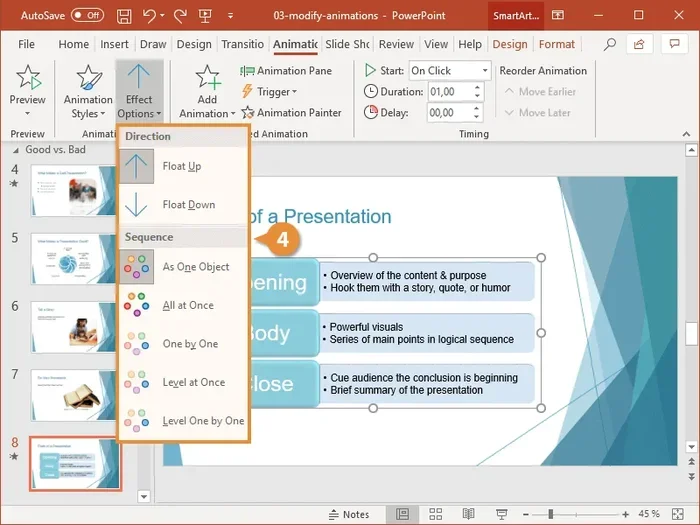
Go to the Animations tab on the ribbon at the top of Powerpoint. You will see galleries of available animation effects. The tab also shows a preview of how the animation will look.
Step 3: Choose an Animation Effect
Click on any animation in the gallery to apply it. You can browse through Entrance, Emphasis, Exit, and Motion Path categories. Hover over an effect to see a live preview on your slide.
Step 4: Open the Animation Pane
The Animation Pane is one of the most important tools for working with custom animation in Powerpoint. Click “Animation Pane” in the Advanced Animation group. This opens a panel on the right side of your screen that shows a timeline of all animations on the current slide.
The Animation Pane lets you see the order of animations, adjust timing, and reorder effects by dragging and dropping. It is essential for creating smooth, well-sequenced presentations.
Step 5: Adjust Timing and Duration
Click on any animation in the Animation Pane and use the Timing group on the ribbon. You can set when the animation starts:
- On Click: The animation plays when you click the mouse.
- With Previous: The animation starts at the same time as the previous animation.
- After Previous: The animation starts immediately after the previous one finishes.
You can also set the duration (how long the animation takes) and add a delay before the animation begins. These small adjustments make a big difference in how professional your presentation feels.
Advanced Animation Techniques
Once you understand the basics, you can explore more advanced techniques that take your custom animation in Powerpoint skills to the next level.
Using Triggers
Triggers let you control animations based on user interaction. For example, you can set it so that clicking on one shape triggers an animation on a different shape. This is incredibly useful for creating interactive presentations and clickable menus.
To set a trigger, go to the Animation Pane, right-click on an animation, and choose “Trigger.” You can then select which object will activate the animation. Triggers give your presentations a feel of interactivity without needing any programming knowledge.
Animation Sequencing
Sequencing means arranging animations in a specific order so they play one after another in a logical flow. Good sequencing is what separates a beginner presentation from a professional one.
Use the Animation Pane to drag animations into the correct order. You can also set animations to start “With Previous” or “After Previous” to create seamless chains of movement. When done well, animation sequencing helps you tell a story slide by slide, element by element.
Reusing Animations Across Slides
If you find an animation effect you love, you do not have to recreate it on every slide. Powerpoint lets you copy and paste animations between objects and slides. Simply select the animated object, go to the Animation Painter tool in the Animations tab, and then click on the object you want to apply the same animation to.
This saves a ton of time, especially in longer presentations. It also ensures consistency across your entire deck, which makes your custom animation in Powerpoint look cohesive and intentional.
Optimizing Performance
Here is something many people overlook. Too many animations can slow down your presentation, especially on older hardware. If your laptop or computer struggles to run animations smoothly, consider reducing the number of effects on each slide.
Running Powerpoint with heavy animations requires decent system resources. If you are working on a laptop, having enough memory makes a big difference. For smooth performance, check that your device has adequate RAM to handle multimedia tasks. You can also look into upgrading storage with a fast drive to reduce load times for large files with lots of animations and media.
As a general rule, aim for animations that serve a purpose. Every movement on your slide should either guide attention, reveal information, or enhance understanding. If an animation does not do any of those things, consider removing it.
Common Mistakes to Avoid with Custom Animations
Learning what to avoid is just as important as learning what to do. Here are the most common mistakes people make with custom animation in Powerpoint:
Using Too Many Different Effects
It is tempting to use a different animation for every element on every slide. Resist that urge. Stick to two or three animation styles throughout your entire presentation. This creates a consistent, professional feel. Mixing too many effects makes your deck look chaotic and amateur.
Ignoring Animation Timing
Animations that are too fast can confuse your audience. Animations that are too slow can bore them. Always preview your animations and adjust the duration to a comfortable pace. A good starting point is around 0.5 to 1 second for most effects.
Animating Everything
Not every element on a slide needs an animation. Over-animating distracts from your message. Focus animations on the key points you want your audience to notice. Let supporting content appear simply or not at all.
Forgetting to Test on Different Devices
Animations can look different on different computers and projectors. Always test your presentation on the device you will actually be using. This is especially important if you are presenting from a laptop with limited RAM or older hardware, as animations may not render smoothly.
Neglecting Accessibility
Some audience members may have visual impairments or be sensitive to motion. Use animations that are subtle and not overly distracting. Avoid rapid flashing or spinning effects that could cause discomfort. Keep your animations smooth and purposeful.
Tips for Creating Stunning Animated Presentations
Want your custom animation in Powerpoint to really stand out? Follow these practical tips:
- Start simple: Master the basics before trying advanced motion paths or triggers.
- Use the Morph transition: Introduced in newer versions of Powerpoint, Morph creates seamless movement between slides with minimal effort.
- Keep durations consistent: Use the same animation speed across similar elements for a cohesive feel.
- Practice your timing: Rehearse your presentation multiple times to ensure animations sync with your speaking pace.
- Save custom animation presets: If you create a great animation setup, save it as a template for future presentations.
- Watch tutorials: Even short video tutorials can teach you tricks and shortcuts that save hours of experimentation.
- Consider your audience: A corporate board meeting calls for subtle, clean animations. A creative pitch can handle more flair.
Final Thoughts on Custom Animation in Powerpoint
Custom animation in Powerpoint is a skill that can transform your presentations from ordinary to memorable. The key is to use animations with intention. Every entrance, emphasis, exit, and motion path should serve your message. When used wisely, animations help you communicate more clearly and connect with your audience on a deeper level.
Start by experimenting with the basic animation types we covered. Practice in the Animation Pane. Learn how timing and sequencing work. As you grow more comfortable, explore triggers and advanced techniques. Over time, you will develop your own style and workflow.
Remember, the goal of any animation is to enhance your message, not distract from it. Keep things clean, keep things purposeful, and keep your audience in mind. With the tips and techniques in this guide, you are well on your way to creating presentations that truly stand out.
Frequently Asked Questions
What is the difference between slide transitions and custom animations in Powerpoint?
Slide transitions affect the entire slide and control how one slide moves to the next. Custom animations target specific objects on a slide, such as text, images, or shapes. Transitions are about moving between slides, while custom animations are about moving elements within a slide.
Can I combine multiple custom animations on a single object?
Yes, you can apply multiple animations to one object. For example, you can make text fly in, then pulse, and then fade out. Just add each animation separately in the Animation Pane and adjust the timing so they play in the order you want.
Do custom animations make my Powerpoint file larger?
They can, especially if you use many motion paths or embed media. Animations add data to the file. If you notice large file sizes, consider optimizing images and using a fast storage drive like a large NVMe SSD to keep your files running smoothly.
Is it hard to learn custom animation in Powerpoint?
Not at all. The basics are very easy to learn. You can start with simple entrance and exit effects and build from there. The Animation Pane makes it easy to manage and adjust effects. Most people feel comfortable with the fundamentals within an hour of practice.
Can I use custom animations in Powerpoint for online presentations?
Yes, custom animations work in both in-person and online presentations. However, keep in mind that online presentations may have slight rendering differences depending on the platform. Always test your animations in the video or sharing mode you plan to use.
What is the best way to preview custom animations before presenting?
Use the Preview button on the Animations tab to see how each animation looks individually. You can also click “From Current Slide” in the Slide Show view to test the full sequence of animations as your audience will see them.