What Is a Firewire Card
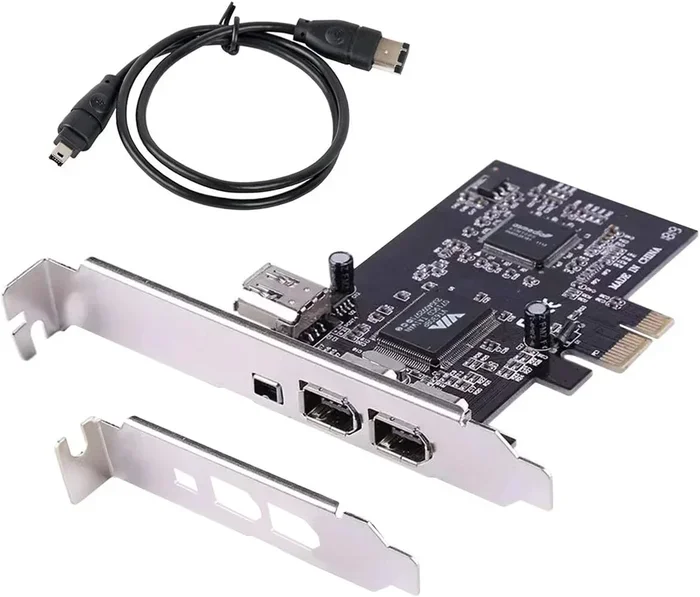
A Firewire card is an expansion card that adds Firewire connectivity to your computer. It uses the IEEE 1394 standard to transfer data at high speeds, up to 800 Mbps with Firewire 800. These cards were essential for video editing, audio recording, and connecting digital cameras before USB 3.0 and Thunderbolt took over. If you work with legacy audio gear or older cameras, a Firewire card can still be a useful tool.
A Firewire card is one of those tech components that once ruled the professional world. If you have ever worked with digital video cameras, professional audio gear, or older external hard drives, you have probably seen a Firewire port. But what exactly does a Firewire card do? And why do people still use them today?
This guide breaks everything down in simple terms. You will learn how a Firewire card works, what it is used for, and whether you need one. We will also compare it to modern connection types so you can make an informed decision. Let us get started.
Key Takeaways
- What it is: A Firewire card is an expansion card that adds IEEE 1394 connectivity to a computer for fast data transfer.
- Speed matters: Firewire 400 offers up to 400 Mbps, while Firewire 800 doubles that to 800 Mbps for heavy data tasks.
- Best uses: Video editing, audio interfaces, digital cameras, and external hard drives benefit most from Firewire connections.
- Compatibility: You need a compatible motherboard slot and the right drivers. Check your system before buying.
- Legacy but relevant: While newer standards like USB 3.0 and Thunderbolt exist, Firewire cards still serve niche professional needs.
- Setup is simple: Installing a Firewire card is straightforward and does not require advanced technical skills.
📑 Table of Contents
What Is a Firewire Card?
A Firewire card is an expansion card that plugs into your computer’s motherboard. It adds Firewire ports to your system. Firewire is also known by its technical name, IEEE 1394. Apple developed this technology in the 1990s, and it became very popular in video and audio production.
The card gives your computer a new way to connect to external devices. Think of it like adding a new door to your computer. Through that door, data can flow in and out at high speed. A Firewire cable plugs into the card, and then you connect your device to the other end.
There are two main versions of Firewire technology. Firewire 400 was the original version. It transfers data at up to 400 megabits per second. Firewire 800 came later and doubled the speed to 800 Mbps. Both versions use the same basic card, but Firewire 800 requires a different port and cable.
How Does a Firewire Card Work?
A Firewire card connects directly to your computer’s motherboard through a PCI or PCIe slot. Once installed, the operating system recognizes it as a new data bus. A data bus is simply a pathway that information travels on inside your computer.
When you plug in a device using a Firewire cable, the card handles the data transfer. It manages the flow of information between your computer and the external device. One great feature of Firewire is peer-to-peer transfer. This means two Firewire devices can talk to each other without needing the computer as a middleman.
For example, you could connect a digital camera directly to an external hard drive using Firewire. The data would move between them without touching your computer’s processor. This saves time and keeps your system free for other tasks.
What Is a Firewire Card Used For?
Firewire cards serve several important purposes. Here are the most common uses:
- Video Editing: Professional video editors used Firewire to connect digital camcorders. The high transfer speed made importing video clips smooth and fast.
- Audio Recording: Many professional audio interfaces use Firewire connections. Musicians and producers rely on these interfaces for low-latency recording.
- Digital Cameras: Early digital cameras and camcorders used Firewire ports for transferring photos and video to a computer.
- External Storage: Hard drives and RAID arrays often used Firewire for fast backup and data access.
- Networking: Firewire can connect two computers directly for file sharing without a router.
If you work with older professional audio gear, a Firewire card may still be essential. Many audio interfaces from brands like Focusrite and M-Audio use Firewire connections. These devices offer excellent sound quality that professionals still value today.
Firewire Card vs USB and Thunderbolt
It is easy to wonder how Firewire compares to modern connections. Let us look at how it stacks up against USB and Thunderbolt.
Firewire vs USB
USB is the most common connection type today. USB 2.0 offers speeds of about 480 Mbps. That is close to Firewire 400 but not as consistent. USB 3.0 jumps to 5 Gbps, which is much faster than Firewire 800.
However, Firewire had some advantages over older USB versions. USB used a shared bandwidth model. This means if you plugged multiple devices into one USB hub, they shared the speed. Firewire gave each device its own dedicated bandwidth. This made it more reliable for time-sensitive tasks like video capture.
That said, modern USB standards have largely closed this gap. USB 3.0 and USB-C offer plenty of speed for most users. For everyday tasks, USB is now the better choice.
Firewire vs Thunderbolt
Thunderbolt is the newest high-speed connection standard. Thunderbolt 3 offers speeds of 40 Gbps. That is about 50 times faster than Firewire 800. Thunderbolt also supports video output and device daisy-chaining.
Firewire cards are now considered legacy technology. Thunderbolt is the go-to choice for professionals who need maximum speed. However, Thunderbolt hardware is more expensive than Firewire alternatives.
Quick Comparison Table
Here is a simple comparison of the three connection types:
- Firewire 400: 400 Mbps, good for video and audio
- Firewire 800: 800 Mbps, better for large files
- USB 2.0: 480 Mbps, widely compatible
- USB 3.0: 5 Gbps, fast and modern
- Thunderbolt 3: 40 Gbps, the fastest option
For most people today, USB 3.0 or Thunderbolt will serve them better than a Firewire card. But for those with older professional gear, Firewire remains relevant.
How to Install a Firewire Card
Installing a Firewire card is not very difficult. Most people can do it with basic tools. Here is a simple step-by-step guide.
Step 1: Check Your Motherboard Compatibility
Before you buy a Firewire card, check your motherboard. You need an available PCI or PCIe slot. Most desktop computers from the last 20 years have at least one free slot. Laptops are trickier, and many do not support expansion cards at all.
If you are unsure about your system, check the specifications online or open your computer case and look inside. A PCIe slot looks like a long, thin connector on the motherboard.
Step 2: Purchase the Right Card
Buy a Firewire card that matches your needs. Choose Firewire 400 if you only have older devices. Choose Firewire 800 if you want faster speeds. Some cards offer both ports on the same card, which gives you the most flexibility.
Make sure the card comes with the right drivers. Most cards work with Windows and macOS, but always check the product details. The driver software is what tells your operating system how to talk to the card.
Step 3: Install the Card
Turn off your computer and unplug it. Open the case and find an available expansion slot. Remove the metal bracket covering the slot. Gently push the Firewire card into the slot until it clicks into place. Secure it with a screw. Close the case and plug in your computer.
Turn on the computer and install the drivers if they did not install automatically. Once the drivers are set up, your operating system should recognize the new Firewire ports. You can now plug in your Firewire devices.
Quick Tips for Installation
- Always ground yourself before touching internal components to avoid static damage.
- Keep your computer manual handy in case you need to reference slot locations.
- If the card does not work, try installing the drivers from the manufacturer’s website.
- Make sure your operating system is up to date before installing new hardware.
Do You Still Need a Firewire Card?
This is the question many people ask. The short answer is: it depends on what equipment you use.
If you work with modern cameras, external drives, and audio gear, you probably do not need a Firewire card. USB 3.0 and Thunderbolt offer better speeds and wider compatibility. Most new devices use these modern standards.
However, if you have professional audio interfaces or older video equipment, a Firewire card can be very useful. Many studios still use Firewire-connected audio gear because of its stable, low-latency performance. Replacing this gear can be expensive, so keeping a Firewire card makes sense.
Another reason to keep a Firewire card is for working with old digital cameras. Some vintage camcorders and cameras only have Firewire outputs. If you do video preservation or archival work, you will need this connection type.
Also, if you have ever wondered about system monitoring, you might want to check what a good idle GPU temperature looks like. Just like expansion cards, your GPU needs proper cooling to perform well. A Firewire card does not generate much heat, but keeping your system well-ventilated is always a good practice.
Common Problems with Firewire Cards
Like any hardware, Firewire cards can have issues. Here are some common problems and how to fix them.
Device Not Recognized
If your computer does not recognize a Firewire device, the first thing to check is the drivers. Make sure you have the latest driver software installed. You can usually find this on the card manufacturer’s website. Restarting your computer after driver installation often solves the problem.
Slow Transfer Speeds
If your data transfer is slower than expected, check your cable. Old or damaged Firewire cables can reduce speeds. Also, make sure you are using the right port. Plugging a Firewire 800 device into a Firewire 400 port will limit the speed to 400 Mbps.
Connection Drops
Intermittent connection drops can happen with Firewire cards. This is often caused by driver conflicts or outdated software. Update your drivers and make sure your operating system is fully patched. If the problem continues, try a different Firewire cable or port.
No Sound or Video Input
For audio and video users, connection issues can be frustrating. Make sure your audio interface or camera is set to the correct input mode. Some devices need to be in “DV mode” or “PCM mode” for Firewire to work correctly. Check the device manual for guidance.
Final Thoughts
A Firewire card is a useful piece of hardware for people who work with older professional equipment. It provides fast, reliable data transfer for video, audio, and storage devices. While newer connection standards have taken over the mainstream market, Firewire still holds a special place in professional audio and video workflows.
If you have the right equipment, adding a Firewire card to your system can breathe new life into older gear. The installation process is simple, and the performance is solid for its intended purposes. Just remember that for most everyday tasks, modern USB or Thunderbolt connections will serve you better.
Before you buy any expansion card, make sure your system has the right slots and supports the hardware. Check your motherboard specifications and driver compatibility. With the right setup, a Firewire card can be a dependable tool in your tech arsenal for years to come.
Frequently Asked Questions
What is a Firewire card used for?
A Firewire card is used to add Firewire ports to your computer. It is mainly used for connecting digital cameras, audio interfaces, and external hard drives. Video editors and musicians often use Firewire cards for reliable, high-speed data transfer.
Is a Firewire card still relevant today?
Yes, for certain professional workflows. Audio engineers and video editors who use older gear still rely on Firewire connections. However, for most general users, USB 3.0 or Thunderbolt is now the better choice.
Can I install a Firewire card in a laptop?
Most laptops do not have expansion slots for Firewire cards. Desktop computers are much easier to upgrade. Some laptops may support ExpressCard or Thunderbolt adapters that provide Firewire connectivity, but this varies by model.
What is the difference between Firewire 400 and Firewire 800?
Firewire 400 transfers data at up to 400 Mbps. Firewire 800 doubles that speed to 800 Mbps. They use different cables and ports, but the same basic card can support both if it has dual ports.
Do I need special drivers for a Firewire card?
Most Firewire cards come with drivers that install automatically when you plug in the card. However, it is always a good idea to visit the manufacturer’s website and download the latest drivers for the best performance and compatibility.
Can a Firewire card improve audio quality?
A Firewire card itself does not improve audio quality. However, it enables connections to professional audio interfaces that deliver high-quality sound. The low latency and stable connection of Firewire make it ideal for studio recording setups.