Upgrading Laptop Ram from 8gb to 16gb
Upgrading your laptop RAM from 8GB to 16GB is one of the easiest and most affordable ways to breathe new life into an aging machine. This guide walks you through everything you need to know, from checking compatibility and choosing the right module to installing it yourself. You will learn the performance benefits, potential costs, and common pitfalls so you can upgrade with confidence.
This is a comprehensive guide about Upgrading Laptop Ram From 8gb To 16gb.
Key Takeaways
- Easy Performance Boost: Doubling your RAM from 8GB to 16GB significantly improves multitasking, speed, and overall laptop responsiveness.
- Affordable Upgrade: A 16GB RAM upgrade typically costs between $20 and $60, making it one of the cheapest ways to extend your laptop’s life.
- Simple Installation: Most laptops allow RAM upgrades in under 30 minutes with basic tools like a screwdriver and an anti-static wrist strap.
- Check Compatibility First: Always verify your laptop’s maximum RAM support, RAM type (DDR4 or DDR5), and available slots before purchasing.
- Dual Channel Matters: Installing two 8GB sticks in matching slots can double your memory bandwidth and improve performance over a single 16GB stick.
- Know When to Stop: If your laptop has soldered RAM or only one slot, you may need to explore other options like external storage or cloud solutions.
[FEATURED_IMAGE_PLACEHOLDER]
Upgrading your laptop RAM from 8GB to 16gb is one of the simplest and most cost-effective ways to make your computer feel brand new again. Whether you are dealing with slow performance, constant freezing, or just want to run more apps at once, adding memory can make a huge difference. Many people throw away perfectly good laptops because they think the machine is too slow. But in most cases, a simple memory upgrade solves the problem entirely.
This guide covers everything you need to know about upgrading your laptop RAM from 8GB to 16GB. We will walk you through checking compatibility, choosing the right module, and installing it yourself. By the end, you will feel confident enough to do it on your own and save money on professional repairs.
Why Upgrade Your Laptop RAM from 8GB to 16GB?
Random Access Memory, or RAM, is the short-term memory your laptop uses to handle active tasks. When you open a browser, a game, or a video editor, all of that runs in your RAM. If your RAM fills up, your laptop starts using your hard drive as temporary storage. This process is called paging or swapping, and it slows everything down dramatically.
8GB of RAM was considered standard just a few years ago. But today, modern operating systems, web browsers, and applications use much more memory. Windows 11, for example, uses around 3 to 4GB of RAM just idling. Add a few browser tabs, a music app, and a background program, and you are already pushing past 8GB. This is exactly why so many users are looking to upgrade their laptop RAM from 8GB to 16GB.
With 16GB of RAM, you can comfortably run multiple applications at the same time without slowdowns. You can edit photos, stream video, browse with dozens of tabs open, and even run lightweight games. For students, remote workers, and casual gamers, 16GB hits the sweet spot between performance and price.
Who Benefits Most from a RAM Upgrade?
Not everyone needs more RAM, but certain users will see a massive improvement. Here are the groups that benefit the most:
- Multitaskers: If you routinely switch between Word, Excel, a browser with many tabs, and a video call, 16GB will keep everything running smoothly.
- Students: Running research tools, writing apps, and streaming lectures at the same time becomes effortless with extra memory.
- Remote Workers: Video conferencing, cloud apps, and large spreadsheets all demand more RAM than older 8GB setups can handle.
- Casual Gamers: Many modern games recommend 16GB of RAM. Upgrading from 8GB can mean the difference between smooth gameplay and constant stuttering.
- Content Creators: Even basic photo or video editing software runs much faster with 16GB of available memory.
For more details on how 8GB and 16GB compare in real-world use, check out our article on 8GB RAM vs 16GB RAM laptop comparisons.
Before You Buy: Check Your Laptop’s Compatibility
Not every laptop can accept a RAM upgrade. Some models have soldered memory that cannot be replaced or expanded. Before you spend a single dollar, you need to confirm that your laptop supports RAM upgrades.
How to Check if Your Laptop Supports RAM Upgrades
Start by finding out what model of laptop you have. You can usually find this information on a sticker on the bottom of the machine or by searching for your system information in Windows. Once you know the model, visit the manufacturer’s website and look up the specifications.
Look for three key details:
- Maximum RAM Supported: Many older laptops support up to 16GB, while some newer ones can handle 32GB or even 64GB.
- RAM Type: Most modern laptops use DDR4 SODIMM modules. Some older ones use DDR3, and the newest ones use DDR5. Make sure you buy the correct type.
- Available Slots: Some laptops have one RAM slot, while others have two. If you have one slot and it already has an 8GB stick, you will need to replace it with a 16GB stick. If you have two slots, you can add a second 8GB stick alongside the existing one.
Using Free Tools to Check Your Current RAM
You do not need to open your laptop to check your current RAM setup. Windows has built-in tools that make this easy. Open Task Manager by pressing Ctrl + Shift + Esc, then click on the Performance tab. Select Memory from the left sidebar. You will see how much RAM you have, what type it is, and how many slots are being used.
Another great tool is Crucial’s System Scanner. It is a free online tool that analyzes your laptop and recommends compatible RAM modules. This takes the guesswork out of shopping for the right memory.
If you want a deeper dive into removing your existing RAM safely, see our guide on how to remove RAM from a laptop.
Choosing the Right 16GB RAM Module
Once you confirm your laptop supports RAM upgrades, the next step is choosing the right module. The market offers many options, and picking the wrong one can cause compatibility issues.
DDR4 vs DDR5: What You Need to Know
The vast majority of laptops on the market today use DDR4 RAM. DDR5 is newer and faster, but it is still limited to high-end and very recent models. If your laptop uses DDR4, buy DDR4. If it uses DDR5, buy DDR5. Mixing types is not possible.
Single Stick vs Dual Channel Configuration
Here is an important detail that many people overlook. Installing two 8GB sticks in dual channel mode performs better than a single 16GB stick. Dual channel doubles the data bandwidth between your RAM and your processor. This means faster loading times, smoother multitasking, and better overall performance.
If your laptop has two slots and currently has one 8GB stick, the best move is to buy a matching 8GB stick. This gives you 16GB in dual channel mode for a lower cost than buying a single 16GB module.
Speed and Latency: Do They Matter?
RAM speed is measured in megahertz (MHz), and latency is measured in CAS latency (CL). Higher speed numbers mean faster data transfer, but the real-world difference is often small for everyday tasks. For most users upgrading from 8GB to 16GB, the jump in capacity matters far more than any speed difference. Look for DDR4-3200 or DDR4-3600 modules, as these are well-supported and affordable.
Popular brands like Crucial, Kingston, Corsair, and Samsung all make reliable laptop RAM modules. Stick with reputable brands to avoid compatibility headaches.
How to Upgrade Your Laptop RAM: Step-by-Step
Now for the fun part. Installing RAM is straightforward, and most people can do it in 15 to 30 minutes. You do not need to be a tech expert. Here is a complete walkthrough.
What You Will Need
- A small Phillips-head screwdriver
- An anti-static wrist strap (optional but recommended)
- A clean, flat workspace
- Your new 16GB RAM module (or two 8GB sticks)
Step 1: Power Down and Unplug
Shut down your laptop completely. Unplug the power cable and disconnect any peripherals like USB drives, mice, or external monitors. If your laptop has a removable battery, take it out. If the battery is internal, just make sure the laptop is fully powered off.
Step 2: Ground Yourself
Static electricity can damage sensitive electronic components. Touch a metal part of the laptop chassis to discharge any static. Wearing an anti-static wrist strap is a good habit, but even just touching a metal doorknob before you start helps.
Step 3: Open the RAM Panel
Flip your laptop over and locate the RAM access panel. It is usually a small rectangular cover on the bottom, held in place by one or two screws. Remove the screws carefully and set them aside. Gently lift off the panel.
If you are unsure where your RAM panel is, consult your laptop’s user manual or search for a teardown video on YouTube using your specific model number.
Step 4: Remove the Existing RAM (If Necessary)
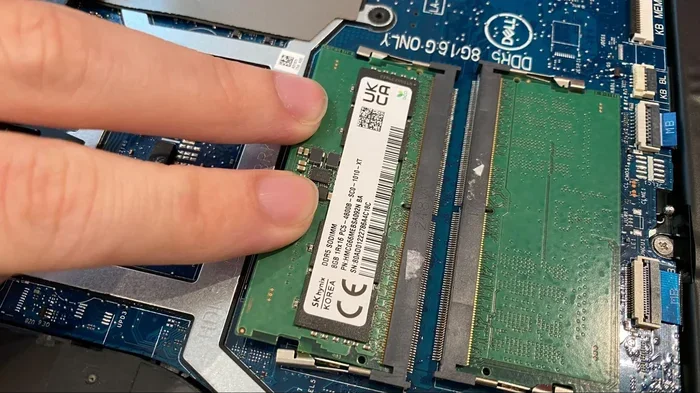
If you are replacing an 8GB stick with a 16GB one, you need to remove the old module first. Push the metal clips on either side of the RAM stick outward. The stick will pop up at an angle. Gently pull it straight out and set it aside.
If you are adding a second stick and there is an open slot, simply skip this step and move on.
Step 5: Install the New RAM
Take your new RAM module out of its anti-static bag. Align the notch on the bottom of the module with the ridge inside the slot. Insert the stick at a 45-degree angle and press it firmly down until the metal clips click into place on both sides. The module should sit flat and feel secure.
Step 6: Close Up and Test
Replace the RAM access panel and screw it back in. Plug in your power cable and turn on the laptop. Once it boots up, open Task Manager and check the Performance tab again. You should now see 16GB of RAM listed. If the system shows the correct amount, congratulations. Your upgrade was successful.
For a more detailed walkthrough with visuals, our complete guide on how to upgrade the RAM of a laptop covers every scenario in depth.
What to Expect After Upgrading to 16GB RAM
The difference after upgrading is immediate and noticeable. Here is what you can expect:
- Faster Multitasking: You can run many apps at once without the system slowing down or freezing.
- Smoother Browser Experience: Even with 20 or more browser tabs open, your laptop stays responsive.
- Better Gaming Performance: Many modern games run more smoothly and load faster with 16GB of RAM.
- Quicker File Operations: Copying, moving, and opening large files happens faster because the system has more memory to work with.
- Longer Battery Life: Ironically, having enough RAM can reduce the strain on your processor and improve battery efficiency.
If you pair your new 16GB RAM with a solid state drive, the performance gains are even more dramatic. A laptop with 16GB RAM and an SSD handles everything from booting up to running heavy applications with ease. For more on this combination, see our article on laptop with 16GB RAM and SSD configurations.
Common Mistakes to Avoid When Upgrading RAM
Even though upgrading RAM is simple, people do make mistakes. Here are the most common ones and how to avoid them:
- Buying the Wrong RAM Type: DDR3 and DDR4 modules are not interchangeable. Always double-check your laptop’s RAM type before purchasing.
- Ignoring Slot Configuration: If your laptop has two slots and one is already occupied, make sure the new stick matches the existing one in speed and type for best results.
- Forcing the Module: RAM should slide in with firm, even pressure. If it does not go in easily, check the alignment. Forcing it can bend the pins and damage the module or the slot.
- Skipping the BIOS Update: In rare cases, a BIOS update can improve RAM compatibility. Check your laptop manufacturer’s website for any available updates before installing new RAM.
- Not Testing Before Closing Up: Always boot up and verify the new RAM is recognized before you put the panel back on. This saves you from having to reopen the laptop if something goes wrong.
How Much Does It Cost to Upgrade Laptop RAM?
The cost of upgrading from 8GB to 16GB is surprisingly low. A single 16GB DDR4 SODIMM module typically costs between $30 and $50. If you choose the dual channel route with two 8GB sticks, the total cost is often similar or even slightly less. Compare this to the price of a new laptop, and the value of a RAM upgrade becomes obvious.
Here is a quick price comparison:
- 16GB DDR4 SODIMM (single stick): $30 to $50
- Two 8GB DDR4 SODIMM sticks (dual channel): $35 to $55
- Professional installation at a repair shop: $50 to $100 (if you do not want to DIY)
For most users, the DIY route is the clear winner. You save money and learn a useful skill in the process.
When a RAM Upgrade Is Not Enough
While upgrading RAM from 8GB to 16gb solves many performance problems, it is not a magic fix for everything. If your laptop has a traditional hard drive, upgrading the RAM will help, but replacing the hard drive with an SSD will have an even bigger impact on speed. Similarly, if your processor is very old, no amount of RAM will make it run modern software smoothly.
Also, some laptops have soldered RAM that cannot be upgraded. In these cases, you are limited to what the machine came with. Before buying a new laptop, check whether your current model supports RAM upgrades. It might save you hundreds of dollars.
In conclusion, upgrading your laptop RAM from 8GB to 16GB is one of the best investments you can make for your computer. It is affordable, easy to do, and delivers immediate results. Whether you use your laptop for work, school, or entertainment, the extra memory will make everything faster and smoother. Follow the steps in this guide, avoid the common mistakes, and enjoy your upgraded laptop.
Do not let a slow laptop hold you back. Take 30 minutes, grab a screwdriver, and give your machine the boost it deserves. Your future self will thank you every time you open a new tab without a single pause.
Frequently Asked Questions
Can I upgrade my laptop RAM from 8GB to 16GB myself?
Yes, in most cases you can. The process involves opening the RAM panel on the bottom of your laptop, removing the existing module, and installing the new one. It typically takes 15 to 30 minutes and requires only a small screwdriver.
Will upgrading from 8GB to 16GB RAM make my laptop faster?
Absolutely. More RAM allows your laptop to handle multiple applications and browser tabs without slowing down. You will notice faster multitasking, smoother performance, and reduced freezing or stuttering.
How much does a 16GB RAM upgrade cost?
A 16GB DDR4 laptop RAM module costs between $30 and $50. If you buy two 8GB sticks for dual channel mode, the total is usually around $35 to $55. This is far cheaper than buying a new laptop.
What happens if I install the wrong type of RAM?
If you install the wrong RAM type, such as DDR3 in a DDR4 slot, the module will not fit. The notch on the module and the ridge in the slot prevent incorrect installation. Always verify your laptop’s RAM type before purchasing.
Do I need to remove the old 8GB RAM if I have an empty slot?
No. If your laptop has two slots and one is already occupied with an 8GB stick, you can simply add a second 8GB stick to the empty slot. This gives you 16GB in dual channel mode, which is the best configuration.
Is 16GB of RAM enough for gaming?
Yes, 16GB is the recommended amount of RAM for most modern games. It provides smooth gameplay, faster loading times, and enough memory to run background apps like Discord or a web browser while gaming.