What Is a Synaptics Pointing Device Driver
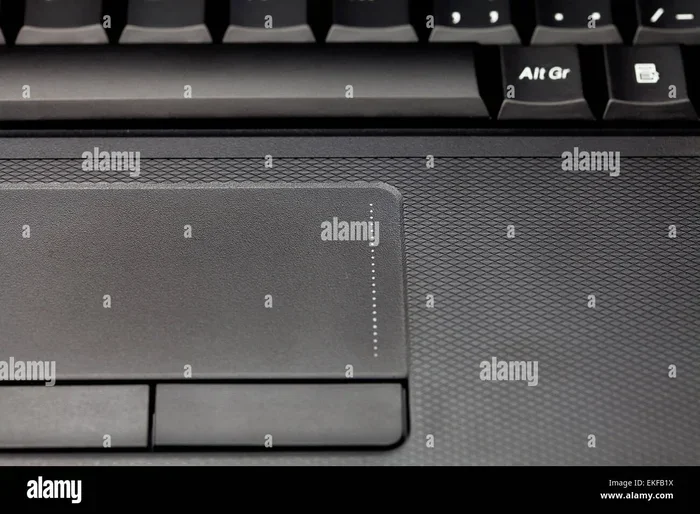
A Synaptics pointing device driver is the essential software that lets your laptop touchpad communicate with your computer’s operating system. It translates your finger movements into cursor actions, making laptop navigation smooth and precise. Without this driver, your laptop’s pointing device simply would not work.
If you use a laptop every day, you rely on the touchpad more than you probably realize. You glide your finger across it to open apps, scroll through pages, and select text. But what makes all of this possible? The answer lies in a small but crucial piece of software. This software is called the Synaptics pointing device driver. It acts as the invisible bridge between your physical touchpad and your computer. Without this driver, your laptop would not understand your finger movements. Let us explore exactly what this driver does and why it is so important for your daily computing tasks.
Key Takeaways
- Core Function: The driver acts as a translator between your touchpad and the laptop operating system.
- Gesture Support: It enables multi-touch gestures like scrolling and zooming on your laptop.
- Easy Updates: You can update the driver through Device Manager or the Synaptics official website.
- Common Issues: Outdated drivers often cause touchpad unresponsiveness or cursor jumping.
- System Compatibility: Having the right system resources ensures the driver runs without lag.
📑 Table of Contents
Understanding the Synaptics Pointing Device Driver
The Synaptics pointing device driver is a specialized software program. It is designed specifically for laptop touchpads. When you touch the pad, the hardware sends a signal to the computer. The driver receives this signal and translates it into a command the computer understands. This command usually moves the cursor on your screen. Think of the driver as a translator. Your finger speaks touch, and the computer speaks digital commands. The driver makes sure both languages understand each other perfectly.
How the Driver Interacts with Your Hardware
The driver talks directly to the touchpad hardware. It reads the pressure and movement of your finger. Then, it sends this data to the Windows operating system. This entire process happens in just a few milliseconds. You never notice it because the driver works so fast. If the driver is missing or corrupted, the touchpad stops working entirely. You might see an error message in the Device Manager. Sometimes, the laptop will just ignore your taps and swipes. This is a clear sign that the driver needs attention. The what the mouse on a laptop is called might be a touchpad, but the driver is what gives it life.
Key Features of the Synaptics Driver
Why do we need a special driver just for the touchpad? Why not just use a generic mouse driver? The answer lies in the advanced features. Synaptics drivers are designed specifically for laptop touchpads. They support complex gestures that a regular mouse simply cannot do. These features make navigating your laptop much faster and easier.
Multi-Touch Gesture Support
Modern laptops support multi-touch gestures. You can pinch two fingers to zoom in on a photo. You can swipe three fingers to switch between open windows. All of these cool tricks rely on the Synaptics driver. The driver recognizes the unique pattern of your fingers. It then tells the laptop to perform the specific action. Without the driver, you would only be able to click and drag. You would lose all the fancy shortcuts that make using a laptop so convenient. Gesture controls are a huge part of the modern laptop experience. The driver makes sure these gestures work flawlessly every single time.
Customization Options for Your Touchpad
Another great feature is customization. You can open the Synaptics settings panel and change how the touchpad behaves. Do you want a slow or fast cursor speed? You can adjust that easily. Do you like tapping to click, or do you prefer using the physical button? You can set that preference too. The driver gives you full control over your pointing device. This level of control makes your laptop feel personal and easy to use. You can also adjust the scroll speed and the sensitivity of the pad. These small tweaks can make a big difference in your daily workflow.
Common Problems with the Synaptics Driver
Like any software, the Synaptics driver can run into issues. These problems usually happen after a Windows update or a virus attack. Sometimes, a simple restart fixes the issue. Other times, you need to dig deeper into your system settings. Do not panic if your touchpad starts acting weird. Most issues are easy to fix with a little patience.
Touchpad Not Responding at All
The most common problem is a completely unresponsive touchpad. You tap and swipe, but nothing happens on the screen. This usually means the driver has stopped working. It might have crashed in the background. Or, a recent update might have broken the connection. You can check this by opening the Device Manager. Look for the “Mice and other pointing devices” section. If you see a yellow warning triangle, the driver needs your attention. A non-responsive touchpad can be very frustrating, especially if you do not have an external mouse plugged in.
Cursor Jumping or Freezing on Screen
Another annoying issue is the cursor jumping around on its own. You might be typing an email, and suddenly the cursor jumps to a different part of the screen. This often happens when the driver is outdated. Old drivers sometimes struggle with new operating systems. Updating the driver usually fixes the jumping problem. It also helps to keep your laptop clean. Dust and dirt on the touchpad can confuse the sensor. This makes the driver think you are tapping when you are not. Regular cleaning can prevent these false inputs and keep your pointing device working smoothly.
How to Update or Reinstall the Driver
Fixing driver issues is usually very simple. You do not need to be a computer expert. Anyone can follow these steps to get their touchpad working again. A quick driver update can save you hours of frustration.
Using Device Manager to Update
The easiest way to update the driver is through Device Manager. First, right-click the Start button on your laptop. Select Device Manager from the menu. Next, expand the “Mice and other pointing devices” category. Right-click your Synaptics device and choose “Update driver.” Windows will search online for the latest software. Follow the on-screen prompts to finish the installation. This method works well for most users. It keeps your system running smoothly without much effort.
Downloading from the Manufacturer Website
Sometimes, Device Manager does not have the newest version available. In that case, you should visit the laptop manufacturer’s website. They often have a dedicated support page for all drivers. Enter your laptop model number, and download the latest Synaptics driver. Before you start the installation, make sure your laptop has a good amount of ram for a laptop to handle the installation smoothly. Having enough memory ensures the installation process does not freeze. Once downloaded, run the installer and restart your computer. Your touchpad should be back to normal after the reboot.
Uninstalling a Faulty Driver Completely
If updating does not work, you might need to uninstall the driver. Go back to Device Manager. Right-click the Synaptics device and select “Uninstall device.” Make sure to check the box that says “Delete the driver software for this device.” After you uninstall, restart your laptop. Windows will automatically reinstall a fresh copy of the driver during the boot process. This often fixes stubborn issues that simple updates cannot. It is a clean way to reset your pointing device software.
System Requirements and Compatibility
To run the Synaptics driver properly, your laptop needs to meet certain requirements. The driver is lightweight, so it does not take up much space. However, it does rely on your laptop’s core hardware to function correctly.
Operating System Support
The Synaptics driver works with most modern Windows versions. It supports Windows 10 and Windows 11 perfectly. Older versions like Windows 7 might still work, but you should check for older driver versions on the Synaptics website. If you use a Mac laptop, you might not use Synaptics at all. Apple uses its own trackpad drivers. Synaptics is mostly found on Windows-based laptops. Always check your laptop specifications before downloading any new driver. Compatibility is key to avoiding system conflicts.
Hardware Considerations for Performance
The driver works hand-in-hand with your laptop’s memory and processor. The driver itself does not use much memory. But it needs enough system resources to process your finger movements quickly. If your laptop is low on memory, the touchpad might feel slow or unresponsive. You can check your system specs to see if your laptop is running efficiently. Having enough memory ensures that your pointing device responds instantly to your touch. If you are unsure about your laptop’s memory, you can check how much ram is in your system. This will help you determine if a hardware upgrade is needed for smoother performance. Making sure you have compatible ram for your laptop can also improve overall system stability.
Synaptics vs. Other Pointing Device Drivers
There are other pointing device drivers out there on the market. ELAN and Windows HID are common alternatives. How does Synaptics compare to these other options? Understanding the differences can help you troubleshoot issues.
Synaptics Compared to ELAN Drivers
ELAN is another popular touchpad manufacturer. Many laptops use ELAN drivers instead of Synaptics. Both drivers serve the same basic purpose. They translate touch into cursor movement. However, Synaptics is often found on older or specific business laptops. ELAN is very common on modern budget laptops. Both drivers support multi-touch gestures. The setup process is similar for both. If you are unsure which driver you have, you can check Device Manager. Look at the device name under the mice category. Both brands aim to provide a smooth and responsive touchpad experience.
Synaptics Compared to Windows HID
Windows HID (Human Interface Device) is a generic driver. It comes built into Windows. It allows basic mouse and touchpad functions. However, it does not support advanced gestures. If you use the HID driver, you lose the ability to pinch-to-zoom or use three-finger swipes. The Synaptics driver unlocks these features. It gives your laptop a much better user experience than the generic driver. Whenever possible, it is best to use the manufacturer-specific driver. It provides more features and better compatibility for your laptop.
Conclusion
The Synaptics pointing device driver is a small but mighty piece of software. It makes sure your laptop touchpad works exactly the way you want it to. From basic clicking to advanced gestures, this driver handles it all. Keeping the driver updated is one of the best ways to maintain your laptop. A quick update can save you from frustrating cursor problems. Take a few minutes to check your driver today. Your fingers will thank you for the smooth and responsive experience.
Frequently Asked Questions
What is a Synaptics pointing device driver used for?
This driver translates your finger movements on the laptop touchpad into cursor actions on the screen. It also enables advanced features like multi-touch gestures and customization settings for your laptop.
How do I know if my Synaptics driver is working?
You can check Device Manager on your laptop. Look under “Mice and other pointing devices” for the Synaptics device. If there is no yellow warning triangle, the driver is likely working correctly.
Can I use my laptop without the Synaptics driver?
Yes, but you will lose advanced features. Your laptop might fall back to a generic Windows driver. This means you can still click and move the cursor, but gestures like pinch-to-zoom will not work.
Is it safe to update the Synaptics driver?
Absolutely. Updating the driver is very safe and often fixes touchpad problems. Always download the driver from the official Synaptics website or your laptop manufacturer’s support page to stay safe.
Why is my Synaptics touchpad not working after a Windows update?
Windows updates can sometimes replace or conflict with the current driver. This is a common issue. You can fix it by rolling back the driver in Device Manager or installing the latest version from the manufacturer.
Does the Synaptics driver take up a lot of space?
No, the driver is very lightweight. It uses minimal system resources and does not take up much storage space on your laptop or computer.