What Is Access to Sql Server Migration
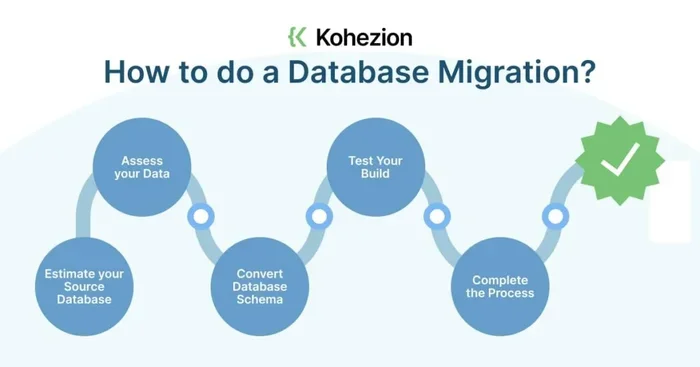
Access to SQL Server migration is the process of moving data and database objects from Microsoft Access to SQL Server. This transition helps improve performance, security, and scalability for growing applications. Whether you are a developer or a business owner, understanding the migration steps ensures a smoother upgrade with minimal downtime.
If you have been working with Microsoft Access for a while, you might have noticed its limits. As your data grows, Access can slow down. It struggles with many users at the same time. This is where Access to SQL Server migration becomes a smart move. In this guide, we will walk you through everything you need to know about moving your Access database to SQL Server. You will learn what the process involves, why it matters, and how to do it right.
Database migration is not just a tech upgrade. It is a business decision that can improve how your team works. Whether you run a small business or manage a larger operation, understanding database migration helps you make informed choices. Let us break it all down in simple terms so you feel confident about the process.
Key Takeaways
- Access to SQL Server migration boosts database performance and handles larger workloads with ease.
- You can use built-in tools like the SQL Server Migration Assistant (SSMA) to simplify the process.
- Planning your migration carefully reduces downtime and prevents data loss during the transfer.
- SQL Server offers better security features, concurrent user support, and advanced query optimization.
- Testing your migrated database thoroughly is essential before going live with the new setup.
- The right hardware, including sufficient RAM, plays a key role in running SQL Server smoothly.
- Post-migration maintenance keeps your database fast, secure, and up to date over time.
📑 Table of Contents
- What Is Access to SQL Server Migration?
- Preparing for Access to SQL Server Migration
- Tools You Need for Access to SQL Server Migration
- How to Perform the Migration
- Common Challenges During Access to SQL Server Migration
- Best Practices for a Smooth Migration
- Why SQL Server Is Worth the Effort
- Conclusion
What Is Access to SQL Server Migration?
Access to SQL Server migration means moving your Access database files (.mdb or .accdb) to a SQL Server database. SQL Server is a powerful relational database management system made by Microsoft. It handles large amounts of data, supports many users, and offers advanced features that Access simply cannot match.
When you migrate, you are not just copying data. You also move tables, queries, forms, reports, and macros. The goal is to keep everything working the same way but with better speed and reliability. Think of it like moving from a small apartment to a bigger house. All your stuff fits, but now you have more room to grow.
Why Do People Migrate from Access to SQL Server?
There are several reasons why businesses choose to migrate. Here are the most common ones:
- Better Performance: SQL Server handles large datasets much faster than Access. Queries that took minutes in Access can run in seconds on SQL Server.
- More Users: Access works best with a small number of users. SQL Server supports hundreds or even thousands of concurrent connections.
- Stronger Security: SQL Server offers advanced security features like encryption, role-based access, and audit logging.
- Scalability: As your business grows, SQL Server grows with it. You can add more data without worrying about slowdowns.
- Reliability: SQL Server has better backup and recovery options, reducing the risk of data loss.
Preparing for Access to SQL Server Migration
Before you start the migration, preparation is key. Rushing into it without a plan can cause problems. Take time to assess your current Access database and define your goals.
Step 1: Assess Your Current Access Database
Start by reviewing your Access database. Look at the size of your data, the number of tables, and how many users access it daily. Identify any messy or redundant data. Cleaning up before migration makes the process smoother.
Also, check your hardware. SQL Server needs more resources than Access. Make sure your laptop or server has enough RAM and processing power. If you are unsure about compatibility, you can learn more about how to know what RAM is compatible with your laptop before making any upgrades.
Step 2: Choose the Right SQL Server Version
SQL Server comes in several editions. For small businesses, SQL Server Express is a free option that works well. For larger organizations, Standard or Enterprise editions offer more features. Pick the version that matches your needs and budget.
Step 3: Back Up Your Access Database
Always create a backup before you begin. Export a copy of your Access file and store it safely. If anything goes wrong during migration, you can start over without losing any data. This is a simple step that saves a lot of headaches.
Tools You Need for Access to SQL Server Migration
You do not need to do this migration manually. Microsoft provides tools that make the process easier. Using the right migration tools saves time and reduces errors.
SQL Server Migration Assistant (SSMA)
The SQL Server Migration Assistant is the most popular tool for this job. It is a free tool from Microsoft that automates much of the migration process. SSMA can convert Access schemas, data, and queries into SQL Server format.
Here is how SSMA works in simple steps:
- Connect SSMA to your Access database.
- Connect SSMA to your SQL Server instance.
- Let SSMA convert the Access schema to SQL Server tables and views.
- Migrate the data from Access tables to SQL Server tables.
- Review the conversion report for any issues.
Other Migration Tools Worth Knowing About
Besides SSMA, there are other options available. Some third-party tools offer a more user-friendly interface. These tools often include guided wizards that walk you through each step. If you prefer a hands-off approach, these can be a great choice. You can also use ODBC connections to link Access tables directly to SQL Server during the transition phase.
How to Perform the Migration
Now that you have your tools ready, let us look at the actual migration process. This section breaks down each phase so you know exactly what to expect.
Phase 1: Schema Conversion
Schema conversion is the first technical step. During this phase, SSMA converts your Access table structures into SQL Server table structures. It also converts queries, views, and stored procedures where possible.
After conversion, review the SSMA report carefully. It will flag any objects that could not be converted automatically. You may need to adjust some queries or data types manually. This is normal and part of the process.
Phase 2: Data Migration
Once the schema is ready, you move the actual data. SSMA can transfer data from Access tables to the new SQL Server tables. This step can take time depending on how much data you have.
For large databases, consider migrating in batches. This approach reduces the load on your system and makes it easier to troubleshoot if issues arise. Also, make sure to verify the data after migration. Check that record counts match and that no data was corrupted during the transfer.
Phase 3: Update Your Application
After the data is in SQL Server, you need to update your application to connect to the new database. If you were using Access as your front-end, you can relink the tables to point to SQL Server instead.
This step involves setting up SQL Server authentication and configuring connection strings. Make sure your application can communicate with SQL Server properly. Test every feature that relies on the database before going live.
Common Challenges During Access to SQL Server Migration
Migration is not always a smooth ride. You will likely face some challenges along the way. Being prepared helps you handle them confidently.
Data Type Mismatches
Access and SQL Server use different data types. For example, Access uses the “AutoNumber” type, which maps to an “Identity” column in SQL Server. Some Access data types do not have direct equivalents in SQL Server. You will need to find suitable replacements.
Query Compatibility Issues
Access SQL and T-SQL (SQL Server’s language) are not identical. Some Access-specific functions and syntax will not work in SQL Server. You may need to rewrite certain queries to be compatible with SQL Server syntax.
Performance Tuning After Migration
Even after a successful migration, your database might not perform at its best right away. SQL Server needs proper indexing, statistics updates, and query optimization. Take time to tune your database after the move. This step ensures you get the full performance benefits of SQL Server.
Hardware Considerations
SQL Server runs best on a well-equipped machine. If you are running it on a laptop, make sure you have enough memory and storage. Investing in the right hardware is one of the best investments for the lifespan of your PC. A system with strong specs will handle SQL Server workloads without breaking a sweat.
Best Practices for a Smooth Migration
Follow these tips to make your database migration as painless as possible.
- Start with a test environment. Practice the migration on a copy of your database first. This lets you experiment without risking your live data.
- Document everything. Keep notes on every step you take. If something goes wrong, you will have a clear record of what you tried.
- Involve your team early. Let users know about the migration plan. Their feedback can help you catch issues before they become big problems.
- Plan for downtime. Even with careful planning, migration takes time. Schedule it during off-hours to minimize disruption.
- Verify everything after migration. Run tests on all database features. Check data accuracy, query speed, and application functionality.
- Keep your old Access file until you are sure. Do not delete the original Access database until you have fully validated the SQL Server version.
Quick Tips for Success
Here are some quick tips to keep in mind throughout the process:
- Use SQL Server Management Studio to monitor your database after migration.
- Set up automatic backups so you never lose data.
- Keep your SQL Server updated with the latest patches.
- Train your team on the new system before going live.
Why SQL Server Is Worth the Effort
After migration, you will notice the difference immediately. Queries run faster. Your application feels more responsive. Multiple users can work at the same time without conflicts or slowdowns.
SQL Server also integrates well with other Microsoft products. You can connect it to Power BI for reporting, or use it with Excel for data analysis. This creates a powerful ecosystem that grows with your business. If you are wondering whether your current laptop can handle the upgrade, check out our guide on what is good RAM for a laptop to make sure your system is ready.
The Access to SQL Server migration process requires effort, but the payoff is significant. You get a more reliable, faster, and secure database system. It is one of the best upgrades you can make for your business infrastructure.
Conclusion
Access to SQL Server migration is a valuable step for any business that has outgrown Microsoft Access. It opens the door to better performance, stronger security, and room to grow. By following the steps outlined in this guide, you can plan and execute your migration with confidence. Remember to prepare thoroughly, use the right tools, and test everything before going live. With the right approach, your database migration can be smooth and successful. Take the leap, and your future self will thank you.
Frequently Asked Questions
What is Access to SQL Server migration?
Access to SQL Server migration is the process of moving a Microsoft Access database to SQL Server. It involves converting your database schema, transferring data, and updating your application to connect to the new SQL Server database.
Why should I migrate from Access to SQL Server?
SQL Server offers better performance, supports more users, and provides stronger security features. It also scales much better than Access, making it ideal for growing businesses with larger data needs.
Do I need special tools to migrate from Access to SQL Server?
The SQL Server Migration Assistant (SSMA) is the most popular free tool for this job. It automates schema conversion and data transfer, making the process much faster and more reliable than doing it manually.
How long does Access to SQL Server migration take?
The time depends on the size of your database and the complexity of your setup. Small databases can be migrated in a few hours, while larger ones may take several days including testing and optimization.
Can I keep using Access forms after migration?
Yes, you can keep your Access front-end and simply relink the tables to SQL Server. This lets you continue using Access forms and reports while benefiting from SQL Server’s backend power.
What should I do after completing the migration?
After migration, verify all data, test your application thoroughly, set up regular backups, and monitor performance. Ongoing maintenance keeps your SQL Server database running smoothly and securely over time.