What Is a Tab in Computer
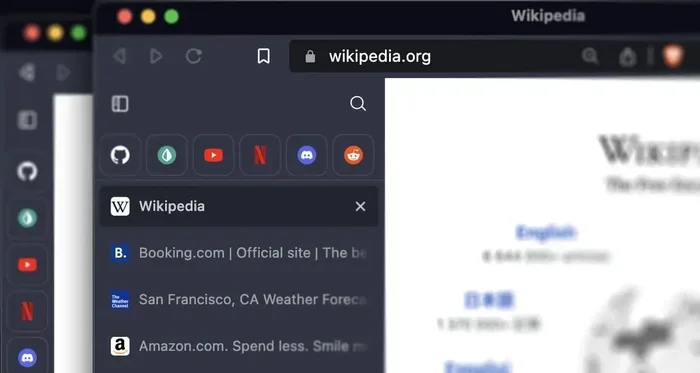
A tab in a computer is a small labeled section inside a web browser that lets you open and switch between multiple pages without opening a new window. Tabs are a core part of how we browse the internet today, making it easy to keep research, shopping, and entertainment all in one place. Understanding how tabs work helps you browse faster and keep your laptop running smoothly.
Key Takeaways
- What a tab is: A tab is a clickable label in your browser that represents a single open webpage.
- How tabs work: Each tab runs as a separate page within one browser window, sharing the same browser process.
- Why tabs matter: They save time, keep your workspace organized, and let you switch between tasks quickly.
- Performance impact: Too many open tabs can slow down your laptop, especially if your computer RAM is low.
- Tab management: Using tab groups, closing unused tabs, and using extensions can keep your browser fast and clean.
- Browser support: All major browsers like Chrome, Firefox, Edge, and Safari support tabs with similar basic features.
📑 Table of Contents
What Is a Tab in a Computer?
If you have ever used a web browser, you have seen tabs. They sit right at the top of your browser window, just below the address bar. Each tab shows the name of the webpage you have open. You click on a tab to see that page, and you can click between tabs to move from one page to another.
But what exactly is a tab in a computer? Simply put, a tab is a single-page view inside your web browser. It lets you open more than one website at the same time without creating a whole new browser window. Think of it like a folder divider in a filing cabinet. Each divider separates different sections, but everything stays in the same cabinet. That is exactly what a tab does inside your browser.
Before tabs existed, you had to open a new window for every website you wanted to visit. This was messy and hard to manage. Tabs changed everything. They gave us a clean, simple way to juggle multiple pages at once. Today, tabs are so common that most people cannot imagine browsing without them.
A tab usually shows a small icon and a short title. For example, if you open YouTube, the tab might show a little play button and the word “YouTube.” If you open a news site, the tab shows that site’s icon and name. This makes it easy to spot the page you want at a glance.
Tabs are built into every major browser. Whether you use Google Chrome, Mozilla Firefox, Microsoft Edge, or Apple Safari, you will find tabs working the same basic way. They are a universal part of the web browsing experience on both laptops and desktop computers.
How Do Browser Tabs Work?
Tabs might look simple, but there is a lot going on behind the scenes. Each tab you open runs as its own separate page inside the browser. However, all the tabs share the same browser window and many of the same background resources.
The Role of RAM in Tab Management
Every tab you open uses a portion of your laptop’s memory. This memory is also called RAM (Random Access Memory). When you open a new tab, your browser assigns a small amount of RAM to keep that page active. If the page has videos, animations, or heavy scripts, it uses even more memory.
This is why your laptop might slow down when you have too many tabs open. Each tab adds to the memory load. If your RAM is limited, opening lots of tabs can make everything feel sluggish. Your browser might freeze, or pages might take longer to load.
To understand this better, think of RAM as your desk space. A single tab is like one piece of paper on your desk. Five tabs are five papers. But if you try to spread out fifty papers on a small desk, things get cluttered and hard to manage. The same idea applies to your computer’s memory.
What is RAM good for in a laptop? It handles active tasks like running your browser, switching between tabs, playing videos, and loading web apps. The more RAM you have, the more tabs you can comfortably keep open without slowing things down.
How Browsers Handle Multiple Tabs
Modern browsers use clever techniques to manage many tabs at once. When you have a tab open but not looking at it, the browser may reduce the amount of memory it uses for that tab. This is called “sleeping” or “suspending” a tab. It helps free up resources for the tab you are actually using.
Some browsers also use a process called “tab discarding.” If your computer is running low on memory, the browser may temporarily remove a tab from memory but keep it visible in the tab bar. When you click back on that tab, the browser reloads the page from scratch. This saves memory but takes a few seconds to restore the page.
Understanding how your browser handles tabs can help you make better decisions about how many tabs to keep open. It also explains why having enough RAM on your laptop is so important for smooth browsing.
Why Are Tabs So Useful?
Tabs are one of the most useful features in any web browser. They solve a real problem that everyone faces when browsing the internet. Here is why tabs matter so much in everyday computer use.
Keep Multiple Pages Open at Once
Imagine you are shopping online. You have a product page open in one tab. In another tab, you have a comparison site. In a third tab, you have your email open to check a discount code. Without tabs, you would need three separate browser windows. Your screen would be cluttered and hard to manage.
Tabs let you keep all of these pages organized in one window. You can click between them instantly. This makes multitasking on your computer much easier and faster.
Faster Switching Between Pages
Switching between tabs is quick and easy. You just click the tab you want. Most browsers also let you use keyboard shortcuts to move between tabs. For example, pressing Ctrl and Tab together on Windows switches to the next tab. On a Mac, you press Command and the right arrow key.
This fast switching is one of the biggest reasons tabs became so popular. You do not have to search through a cluttered taskbar or minimize windows. Everything is right there at the top of your browser.
Better Research and Learning
If you have ever done research online, you know how many pages you might need to open. Tabs let you keep your sources, notes, and main reading all visible at the same time. Students, researchers, and writers rely heavily on tabs to stay organized while working on projects.
Easy Drag-and-Drop Organization
You can drag and drop tabs to rearrange them. You can also drag a tab out of the window to create a new window with just that tab. This gives you flexible control over how you organize your browsing sessions.
How Many Tabs Should You Keep Open?
This is a question many people ask. The truth is, there is no perfect number. It depends on your laptop, your browser, and how much RAM you have.
As a general rule, keeping 10 to 20 tabs open is fine for most modern laptops with at least 8GB of RAM. If your laptop has 16GB or more, you can push that number higher. But if you have only 4GB of RAM, you might start noticing slowdowns with even 10 or 15 tabs open.
Here are some signs that you have too many tabs open:
- Your browser feels slow or unresponsive.
- Pages take a long time to load or switch between.
- Your laptop’s fan kicks in more often than usual.
- Your computer uses a lot of memory even when you are not actively clicking.
- Tabs start crashing or freezing regularly.
If you notice these issues, it is time to close some tabs. You can also use tab management tools that help you organize and save tabs for later. Many browsers now include built-in features like tab groups, which let you color-code and label groups of related tabs.
Remember, having a good amount of RAM makes a big difference in how many tabs you can comfortably use. If you find yourself always running out of memory, it might be worth upgrading your laptop’s RAM or checking what RAM size works best for your needs.
Tips for Managing Tabs Like a Pro
Managing tabs well can make your browsing experience much better. Here are some practical tips that work for everyday computer users.
Use Tab Groups
Most modern browsers let you group tabs together. You can right-click on a tab and select “Add tab to group.” Then you can name the group and pick a color. This is great for keeping work tabs, shopping tabs, and entertainment tabs separate and organized.
Bookmark Instead of Keeping Tabs Open
If you find yourself saving tabs “for later,” try bookmarking them instead. A bookmark saves the link without using any memory. You can create folders for different topics and find your saved pages easily whenever you need them.
Use the “Read Later” Feature
Many browsers and extensions offer a “read later” or “reading list” feature. This lets you save articles and pages to read at a different time. It keeps your tab bar clean while making sure you do not lose the content you want to revisit.
Install a Tab Manager Extension
If your browser’s built-in tab tools are not enough, you can add an extension. Popular tab managers let you search through open tabs, save tab sessions, and even automatically close tabs you have not used in a while.
Close Tabs You Are Not Using
This sounds obvious, but it is worth saying. Make it a habit to close tabs you are done with. It frees up memory and keeps your browser running fast. A clean tab bar also makes it easier to find the page you actually need.
Use Tab Search
If you have many tabs open, you can use the tab search feature built into most browsers. Click the small search icon in the tab bar to find a specific tab by name or keyword. This saves you from scrolling through a long row of tiny tabs.
How Tabs Affect Laptop Performance
Tabs are convenient, but they do come with a cost. Every open tab uses a share of your laptop’s resources. Understanding this helps you make smarter choices about how you browse.
When you open a tab, your browser does several things in the background. It loads the webpage, runs any scripts on the page, and keeps the page active in memory. Even if you are not looking at that tab, your browser is still using some resources to keep it ready.
Here is how tabs can affect your laptop:
- Memory usage: More tabs means more RAM used. This can slow down your whole system.
- Battery life: Active tabs use CPU power, which drains your battery faster.
- Browser speed: Too many tabs can make your browser lag, especially when switching between pages.
- Startup time: Some browsers restore all your tabs when you reopen them. This can slow down startup if you had many tabs open last time.
The good news is that modern browsers are getting better at handling tabs efficiently. Features like tab sleeping, memory management, and built-in task managers help reduce the impact of open tabs on your system.
If you want to check how much memory your tabs are using, most browsers have a built-in task manager. In Chrome, you can press Shift and Esc to open it. This shows you which tabs are using the most memory and helps you decide which ones to close.
Tabs vs. Windows: What Is the Difference?
People often confuse tabs with browser windows. While they both let you view multiple pages, they work differently.
A window is a separate frame on your screen. Each window takes up space on your desktop and shows in your taskbar. A tab lives inside a single window. You can have many tabs in one window without cluttering your screen.
Here is a simple way to think about it. A window is like a room in your house. A tab is like a different activity happening in that same room. You can have one room with many activities going on, or you can open more rooms. Both work, but tabs keep things tidier.
In practice, you can drag a tab out of a window to make a new window. You can also drag a tab from one window into another to combine them. This flexibility is one of the best things about how modern browsers handle tabs.
Frequently Asked Questions
Can too many open tabs damage my laptop?
Too many tabs will not physically damage your laptop, but they can slow it down significantly. Each open tab uses memory and processing power. If your laptop runs out of available RAM, it may become very slow or unresponsive. Closing unused tabs helps keep your system running smoothly.
Do tabs use internet data even when I am not looking at them?
Most tabs do not use much data when they are not active. However, some tabs may continue to load content in the background, like auto-playing videos or live updates. This uses a small amount of data. Overall, open tabs use very little internet data compared to actively browsing a page.
What is the best browser for managing lots of tabs?
Google Chrome, Microsoft Edge, and Firefox all handle tabs well. Edge has a built-in “sleeping tabs” feature that saves memory. Firefox offers strong tab grouping options. Chrome has a great tab search feature and many useful extensions for tab management. The best browser depends on your specific needs and laptop specs.
How do I restore a tab I accidentally closed?
You can restore a closed tab quickly. In most browsers, press Ctrl and Shift and T on Windows, or Command and Shift and T on a Mac. This reopens the last closed tab. You can press this shortcut multiple times to restore several recently closed tabs in order.
Is there a limit to how many tabs I can open in a browser?
Most browsers do not have a hard limit on tabs. However, your laptop’s memory and processing power set a practical limit. If you try to open too many tabs, your browser or computer will slow down or crash. A good rule of thumb is to keep your open tabs under 20 to 30 for the best browsing experience.
Can I pin a tab so I do not accidentally close it?
Yes, most browsers let you pin tabs. Right-click on a tab and select “Pin tab.” A pinned tab becomes very small and stays locked to the left side of the tab bar. It is a great way to keep important tabs like email or your calendar always visible and safe from accidental closure.
Final Thoughts
A tab in a computer is a simple but powerful tool that has changed the way we browse the internet. From keeping multiple pages organized to making research and multitasking easier, tabs are essential for anyone who uses a web browser regularly.
Understanding how tabs work and how they affect your laptop’s performance helps you get the most out of your browsing experience. Keep your tabs organized, close the ones you do not need, and make sure your laptop has enough memory to handle your browsing habits.
Whether you are a student, a professional, or just someone who enjoys browsing the web, tabs are your best friend. Use them wisely, and they will make your computer life much easier and more productive.