What Is Amd Software Adrenalin Edition
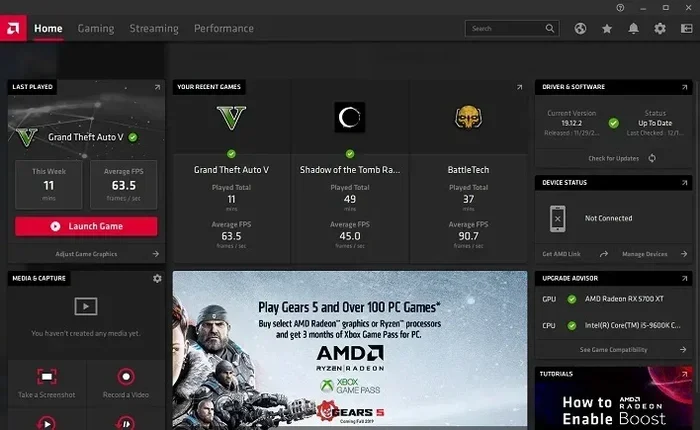
AMD Software Adrenalin Edition is AMD’s all-in-one graphics software suite designed for Radeon GPUs. It lets you manage drivers, tweak gaming settings, and boost performance from one simple app. Whether you are a gamer or a creative pro, this free software makes your AMD graphics card work smarter.
If you own a laptop with an AMD Radeon graphics card, you have probably seen the name “AMD Software Adrenalin Edition” pop up. Maybe you saw it in a notification. Maybe a friend mentioned it. Or maybe you just want to know what all the fuss is about. Either way, you are in the right place. This guide breaks down everything you need to know about AMD’s flagship graphics software.
AMD Software Adrenalin Edition is more than just a driver updater. It is a full-featured software suite that gives you control over your AMD GPU. From gaming performance tweaks to video editing enhancements, this tool covers a lot of ground. Let us dive into what makes it so popular and why it matters for your laptop.
## What Exactly Is AMD Software Adrenalin Edition?
AMD Software Adrenalin Edition is AMD’s central software platform for Radeon graphics cards. Think of it as the control center for your GPU. Before Adrenalin came along, users had to juggle multiple tools and outdated driver interfaces. AMD changed all of that with one unified app.
The software does several things at once. It installs and updates your graphics drivers. It lets you adjust in-game settings on the fly. It monitors your GPU’s health and performance. And it packs a bunch of gaming-specific features that can make your games run smoother.
### Why AMD Created This Software
AMD built Adrenalin to simplify the user experience. In the past, updating a graphics driver was a chore. You had to visit the AMD website, find the right version, and install it manually. Now, the Adrenalin app handles all of that in the background.
It also gives AMD a way to push new features directly to users. Things like Radeon Boost and Anti-Lag are delivered through Adrenalin updates. This means your software stays fresh without you lifting a finger.
### Who Should Use AMD Adrenalin?
Anyone with an AMD Radeon GPU should use this software. That includes gamers who want better frame rates. It includes content creators who rely on GPU acceleration. And it includes casual laptop users who just want their graphics to work properly.
If you have a laptop with a Ryzen processor and Radeon graphics, this software is especially important. The Ryzen 7 5700G and similar APUs benefit greatly from up-to-date Adrenalin drivers. Keeping your software current ensures you get the best performance from your hardware.
## Key Features of AMD Adrenalin Edition
AMD Adrenalin comes packed with features. Some are aimed at gamers. Others help with everyday tasks. Let us walk through the most important ones.
### Radeon Boost
Radeon Boost is one of the standout features. It dynamically lowers the resolution during fast-moving action in games. This boosts your frame rate without you noticing a big drop in visual quality.
The feature works by monitoring your frame rate in real time. When your FPS drops, Radeon Boost kicks in. It scales the resolution down temporarily. When things calm down, it scales back up. The result is a smoother gaming experience.
### Anti-Lag Technology
Anti-Lag reduces input lag in games. Input lag is the delay between you pressing a button and seeing the action on screen. Anti-Lag minimizes this delay, giving you a competitive edge.
This feature is especially useful in fast-paced shooters and fighting games. It works by optimizing the rendering pipeline. Your inputs register faster, which can make a real difference in competitive play.
### Smart Access Memory
Smart Access Memory lets your CPU access the full VRAM of your GPU. Normally, the CPU can only access a small portion at a time. Smart Access Memory removes that limitation.
This feature is available on compatible AMD systems. It can improve performance in games and creative applications. You will see better texture loading and smoother gameplay in supported titles.
### Radeon Chill
Radeon Chill is a power-saving feature. It dynamically adjusts your frame rate when you are not actively pressing buttons. This reduces GPU usage and lowers heat output.
It is a great feature for laptop users. Lower GPU usage means less heat. Less heat means your fan does not work as hard. And that means longer battery life when you are gaming on the go.
### Hardware Monitoring
The Adrenalin dashboard gives you real-time stats on your GPU. You can see your temperature, clock speed, fan speed, and power draw. This is incredibly useful for troubleshooting performance issues.
If your laptop is running hot, the monitoring tools help you identify the cause. You can check whether your GPU is throttling or if your idle GPU temperature is higher than it should be. This data helps you make informed decisions about cooling and performance.
### Video Streaming and Recording
AMD Adrenalin includes built-in tools for streaming and recording. You can capture your gameplay footage without installing third-party software. The Radeon ReLive feature lets you record or stream with minimal performance impact.
This is handy for content creators and streamers. It also works well for casual users who want to share clips of their favorite games. The built-in editor lets you trim and export clips quickly.
## How to Install and Set Up AMD Adrenalin
Setting up AMD Software Adrenalin Edition is straightforward. Here is a step-by-step guide to get you started.
### Step 1: Check Your System Compatibility
Before you install, make sure your laptop has an AMD Radeon GPU. You can check this through your Device Manager on Windows. Look for “AMD Radeon” under Display Adapters.
Most modern AMD laptops come with Adrenalin pre-installed. But if you are building or upgrading a system, you will need to download it yourself.
### Step 2: Download the Software
Visit the official AMD website and navigate to the Radeon Software section. Download the latest version of Adrenalin for Windows. The installer is free and relatively small in size.
Make sure you are connected to a stable internet connection. The installer will also pull down the latest graphics driver during setup.
### Step 3: Run the Installer
Double-click the downloaded file and follow the on-screen prompts. The installer will detect your GPU and install the appropriate drivers. You may be asked to restart your laptop after installation.
Once the restart is complete, the Adrenalin dashboard should appear in your system tray. You can open it by clicking the AMD icon near your clock.
### Step 4: Configure Your Settings
After installation, take a few minutes to explore the settings. Adjust the gaming profile for your favorite titles. Enable features like Radeon Boost or Anti-Lag if your games support them.
You can also set up custom profiles for different games. This lets you optimize settings per title. For example, you might want higher frame rates in competitive shooters and better visuals in single-player games.
## AMD Adrenalin vs. Other GPU Software
It helps to compare AMD Adrenalin with similar software from other brands. Here is a quick look at how it stacks up.
| Feature | AMD Adrenalin | NVIDIA GeForce Experience | Intel Arc Control |
|—|—|—|—|
| Driver Updates | Automatic | Automatic | Automatic |
| Gaming Optimization | Radeon Boost, Anti-Lag | GeForce Reflex, DLSS | XeSS, Deep Link |
| Hardware Monitoring | Yes | Yes | Yes |
| Streaming/Recording | Radeon ReLive | ShadowPlay | Intel Quick Sync |
| Price | Free | Free | Free |
| Platform | AMD Radeon GPUs | NVIDIA GPUs | Intel Arc GPUs |
As you can see, AMD Adrenalin holds its own against competitors. It offers a solid set of features for free. The main advantage is its tight integration with AMD Radeon hardware. If you have an AMD GPU, there is no better software choice.
## Common Issues and How to Fix Them
Like any software, AMD Adrenalin can sometimes cause issues. Here are a few common problems and their solutions.
### Adrenalin Won’t Open
If the software fails to launch, try restarting your laptop first. A simple reboot often fixes temporary glitches. If that does not work, try reinstalling the software.
You can also check for Windows updates. Sometimes missing system updates conflict with Adrenalin. Keeping your operating system current prevents many issues.
### High CPU Usage
Some users report high CPU usage when Adrenalin runs in the background. This is usually caused by the hardware monitoring feature. You can reduce CPU usage by disabling the overlay in settings.
Go to the Preferences menu and turn off the in-game overlay. This stops the software from constantly drawing on your screen. Your CPU will thank you for it.
### Driver Conflicts
If you recently updated your GPU driver and experience issues, use the AMD Cleanup Utility. This tool removes old driver files that might conflict with the new installation.
After cleanup, restart your laptop and reinstall Adrenalin fresh. This almost always resolves driver conflicts.
## Tips for Getting the Most Out of AMD Adrenalin
Here are some practical tips to help you squeeze every bit of performance from your AMD GPU.
- Keep your software updated. AMD releases regular updates that improve performance and fix bugs. Enable automatic updates in Adrenalin to stay current.
- Use Radeon Chill on laptops. This feature reduces heat and extends battery life during less intense gaming sessions.
- Monitor your GPU temperature. Regular monitoring helps you catch overheating issues early. This is especially important for thin and light laptops.
- Create game-specific profiles. Tailoring settings per game gives you the best balance of performance and visual quality.
- Explore the settings menu thoroughly. Adrenalin has many hidden features that most users never discover. Spending a few minutes exploring can pay off big.
- Pair with good laptop maintenance. Clean your laptop vents regularly and use a cooling pad when gaming. Good hardware care complements great software.
## Why AMD Adrenalin Matters for Laptop Users
Laptops have limited cooling and thermal headroom compared to desktop PCs. This makes GPU management software especially important. AMD Adrenalin gives laptop users tools to keep their graphics card running efficiently.
Features like Radeon Chill and hardware monitoring help you stay on top of thermals. You can spot problems before they become serious. This proactive approach protects your investment.
If you are investing in a laptop for gaming or creative work, the software you use matters just as much as the hardware. Investing in the right software like AMD Adrenalin extends the useful life of your machine.
## Final Thoughts
AMD Software Adrenalin Edition is a powerful, free tool that every AMD Radeon GPU owner should have. It simplifies driver management, boosts gaming performance, and gives you deep control over your graphics hardware. Whether you are a casual user or a hardcore gamer, it delivers real value.
The software continues to evolve with each update. AMD keeps adding new features and improving existing ones. This means your investment of time in learning the software pays off over the long run.
If you have not yet tried AMD Adrenalin, now is the perfect time. Download it, explore the features, and see the difference it makes. Your AMD graphics card will perform at its best, and your laptop will run cooler and quieter.
Key Takeaways
- AMD Adrenalin is AMD’s free graphics software: It replaces older AMD drivers with a modern, user-friendly interface.
- It offers gaming optimization tools: Features like Radeon Boost, Anti-Lag, and Smart Access Memory help improve frame rates.
- Easy to install and use: The setup process is simple and works on most Windows laptops with AMD Radeon GPUs.
- It includes system monitoring: You can track GPU temperature, clock speed, and usage in real time.
- Regular updates keep your system current: AMD releases frequent driver updates through the Adrenalin software.
- It works alongside laptop hardware: Pairing Adrenalin with the right GPU temperature settings can extend your laptop’s lifespan.
- It is not just for gamers: Video editors and 3D artists also benefit from its hardware acceleration features.
Frequently Asked Questions
Is AMD Software Adrenalin Edition free to use?
Yes, AMD Software Adrenalin Edition is completely free. You can download it from the official AMD website and use all its features without paying anything. There are no hidden fees or premium tiers.
Can I use AMD Adrenalin on a laptop without a dedicated GPU?
If your laptop has an AMD Radeon integrated GPU, you can still use Adrenalin. The software supports both dedicated and integrated Radeon graphics. However, some advanced features like Smart Access Memory require a dedicated GPU.
How often does AMD release updates for Adrenalin?
AMD releases driver updates through Adrenalin regularly, often multiple times per month. These updates include performance improvements, bug fixes, and new features. You can enable automatic updates to stay current.
Will AMD Adrenalin slow down my laptop?
No, AMD Adrenalin is designed to be lightweight. The in-game overlay can use some resources, but you can disable it if needed. Overall, the software has minimal impact on system performance.
Can I uninstall AMD Adrenalin if I do not like it?
Yes, you can uninstall Adrenalin through Windows Settings or the AMD Cleanup Utility. However, keep in mind that uninstalling will also remove your graphics drivers. You will need to reinstall them or use a different driver source.
Does AMD Adrenalin work with Windows 11?
Yes, AMD Software Adrenalin Edition is fully compatible with Windows 11. AMD regularly updates the software to support the latest Windows versions. Make sure you are running the latest Adrenalin version for the best experience.