What Is a Local Disk
A local disk is the internal storage drive inside your laptop where your operating system, files, and applications live. It is typically labeled as the C drive on Windows and serves as the main place your computer saves and reads data. Understanding your local disk helps you manage storage, boost performance, and keep your laptop running smoothly.
If you have ever opened your laptop and seen a drive labeled “Local Disk C:” or “Macintosh HD,” you have already used a local disk. But what exactly is a local disk, and why should you care? This guide breaks it all down in plain, simple language. Whether you are a student, a professional, or just someone who wants to understand their laptop better, this article has you covered.
Your laptop’s local disk is the physical storage device built right into your machine. It is where everything lives. Your operating system, your photos, your documents, your apps, and even the system files that make your laptop turn on. Without a local disk, your laptop would have nowhere to store anything. Think of it as the brain’s memory. It holds onto information even when you power off your device, unlike temporary memory (RAM) that clears when you shut down.
Understanding your local disk matters more than most people realize. When your disk fills up, your laptop slows down. When it gets fragmented or cluttered, programs take longer to open. When you do not know what type of disk you have, you might miss out on speed upgrades that could make your old laptop feel new again. Let us dive into everything you need to know about local disks.
Key Takeaways
- A local disk is your laptop’s built-in storage drive that holds your operating system, apps, and personal files.
- There are two main types of local disks: HDD (Hard Disk Drive) and SSD (Solid State Drive), each with different speed and price points.
- You can check your local disk space through simple built-in tools in Windows or macOS.
- Partitioning your local disk helps you organize data and run multiple operating systems.
- Regular disk cleanup and maintenance keep your local disk fast and free of clutter.
- A local disk is different from cloud storage because it lives physically inside your device.
- Upgrading your local disk can dramatically improve your laptop’s speed and responsiveness.
📑 Table of Contents
- What Exactly Is a Local Disk?
- Types of Local Disks: HDD vs SSD
- Why Your Local Disk Matters for Laptop Performance
- How to Check Your Local Disk on a Laptop
- Managing and Maintaining Your Local Disk
- Local Disk vs Cloud Storage: What Is the Difference?
- Can You Upgrade Your Local Disk?
- Common Local Disk Problems and How to Fix Them
- Final Thoughts
What Exactly Is a Local Disk?
A local disk is a physical storage device installed inside your laptop. It is called “local” because it is part of your machine, not stored somewhere else on the internet or on a remote server. When you save a file, it goes to the local disk. When you install a program, it goes to the local disk. When your laptop boots up, it reads from the local disk.
On Windows laptops, the local disk usually shows up as “Local Disk (C:).” You might also see other letters like D: or E: if you have more than one partition or drive. On Mac laptops, the local disk appears as “Macintosh HD” or a similar name. Both serve the same basic purpose, even though they work a little differently behind the scenes.
How Does a Local Disk Work?
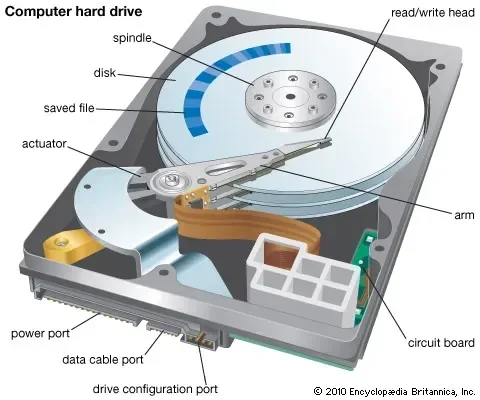
A local disk stores data using magnetic or electronic methods. Traditional hard drives use spinning magnetic platters to read and write data. Solid state drives use flash memory chips with no moving parts. Either way, the disk connects to your laptop’s motherboard through a cable or slot. When you ask your laptop to open a file, the disk retrieves that data and sends it to your processor and screen.
The speed of your local disk plays a huge role in how fast your laptop feels. A slow disk means long boot times and sluggish app launches. A fast disk means your laptop responds quickly and keeps up with your workflow. This is why many people upgrade their local disk when their laptop starts to feel slow.
Types of Local Disks: HDD vs SSD
Not all local disks are created equal. There are two main types you will find in laptops today. Each has its own strengths and weaknesses. Let us look at both so you can understand what your laptop has and what options you have for upgrading.
Hard Disk Drive (HDD)
An HDD is the older type of local disk. It uses spinning metal discs and a moving read/write head to access data. HDDs offer large storage capacities at low prices. You can easily find 1TB or 2TB HDDs for a reasonable cost. They work well for storing large files like videos, photos, and backups.
However, HDDs are slow compared to newer options. The moving parts create mechanical delays. They also make your laptop more prone to damage from drops or bumps. If your laptop came with an HDD, you might notice it takes a while to start up and load programs.
Solid State Drive (SSD)
An SSD is the modern type of local disk. It has no moving parts. Instead, it uses flash memory chips to store data. This makes SSDs much faster than HDDs. Your laptop boots up in seconds, apps open instantly, and file transfers happen in a flash. If you want a snappy laptop experience, an SSD is the way to go.
SSDs do tend to cost more per gigabyte than HDDs. But prices have dropped a lot over the years. Many modern laptops come with SSDs as standard. If your laptop still has an HDD, swapping it out for an SSD is one of the best upgrades you can make. Check out our guide on the biggest NVMe SSD available if you are considering an upgrade.
| Feature | HDD | SSD |
|---|---|---|
| Speed | Slow | Fast |
| Price per GB | Low | Moderate |
| Durability | Lower (moving parts) | Higher (no moving parts) |
| Storage Capacity | Up to 4TB+ | Up to 2TB common |
| Power Usage | Higher | Lower |
| Noise | Yes (spinning) | Silent |
Why Your Local Disk Matters for Laptop Performance
Your local disk has a direct impact on how your laptop performs every single day. Many people blame a slow laptop on viruses or old age. But often, the real culprit is a full or outdated local disk. Here is why your local disk is so important.
First, your operating system relies on the local disk to function. Every time you open an app, the laptop reads data from the disk. Every time you save a file, the laptop writes to the disk. A fast local disk means these operations happen quickly. A slow local disk creates bottlenecks that drag down your entire experience.
Second, storage space matters. When your local disk gets too full, your laptop struggles to find room for temporary files and system operations. This causes slowdowns, freezes, and even crashes. Keeping at least 15-20% of your local disk free helps maintain good performance.
Third, the type of local disk you have affects everything from boot time to battery life. SSDs use less power than HDDs because they have no spinning parts. This means an SSD can actually help your laptop battery last longer. If you are running low on RAM as well, consider checking what 8GB of RAM can do for your laptop to get the full picture of your system’s performance.
How to Check Your Local Disk on a Laptop
Wondering what kind of local disk your laptop has or how much space is left? Checking is quick and easy. Here is how to do it on both Windows and Mac laptops.
On Windows
Open File Explorer by clicking the folder icon on your taskbar. Look at “This PC” on the left side. You will see your local disk listed with a letter and a name. It will show how much space is used and how much is available. You can also right-click on the local disk and select “Properties” for more detailed information.
For deeper details, open the Disk Management tool. Press the Windows key, type “Disk Management,” and hit Enter. This shows you all your disks, their sizes, and how they are partitioned. It is a great way to see if you have room to create a new partition or expand an existing one.
On Mac
Click the Apple menu in the top left corner. Select “About This Mac.” Then click on “Storage.” You will see a breakdown of how your local disk space is being used. You can see how much is taken by apps, documents, system files, and other data. This helps you decide what to delete or move to free up space.
Managing and Maintaining Your Local Disk
Keeping your local disk healthy is essential for a smooth laptop experience. A well-maintained disk runs faster, lasts longer, and keeps your data safe. Here are some practical tips you can follow today.
Run Regular Disk Cleanup
Windows has a built-in Disk Cleanup tool that removes temporary files, empty the recycle bin, and delete old system files. On a Mac, you can use the built-in storage management tools or third-party apps to clean up junk files. Doing this once a month keeps your local disk from getting cluttered.
Uninstall Unused Programs
Over time, we all accumulate programs we no longer use. Each one takes up space on your local disk. Go through your installed apps and remove anything you do not need. This frees up valuable storage and can also improve performance.
Avoid Filling Your Disk Past 85%
When your local disk gets too full, it cannot operate efficiently. The system needs free space for virtual memory, temporary files, and system operations. Try to keep at least 15-20% of your disk free at all times. If you consistently run out of space, consider moving large files to an external drive or cloud storage.
Defragment Your HDD (Not Your SSD)
If your laptop uses an HDD, defragmenting the disk can improve performance. This reorganizes scattered data so your laptop can access it faster. However, if you have an SSD, do not defragment it. SSDs do not need defragmentation, and doing so can actually reduce their lifespan. Windows usually handles this automatically for SSDs.
Back Up Your Data
Your local disk can fail. It is not a matter of “if” but “when.” Regular backups protect your important files. You can use an external drive, a cloud service, or your laptop’s built-in backup tool. Having a backup means you never lose your data, even if your local disk dies unexpectedly.
Local Disk vs Cloud Storage: What Is the Difference?
People often confuse local disks with cloud storage. They serve different purposes and work in very different ways. Understanding the difference helps you make smart decisions about where to store your files.
A local disk is physical. It lives inside your laptop. You can access your files even without an internet connection. Your data stays on your device, which gives you full control and privacy. The downside is that local disk space is limited. Once you fill it up, you cannot add more unless you upgrade the hardware.
Cloud storage, on the other hand, lives on remote servers accessed through the internet. Services like Google Drive, Dropbox, and OneDrive let you store files online. You can access them from any device with an internet connection. But you need a reliable connection, and you are trusting a third party with your data.
The best approach uses both. Keep your most important and frequently used files on your local disk for fast access. Use cloud storage for backups, sharing, and files you need to access from multiple devices. This combination gives you the best of both worlds.
Can You Upgrade Your Local Disk?
Yes! Upgrading your local disk is one of the most effective ways to breathe new life into an older laptop. If your laptop currently has an HDD, swapping it for an SSD can make it feel like a brand new machine. The improvement in speed is dramatic.
Before you upgrade, check what type of disk your laptop supports. Some older laptops use a standard 2.5-inch SATA drive. Newer laptops often use M.2 NVMe SSDs. You can find out by checking your laptop’s manual or looking up the model online. Make sure to back up all your data before replacing the disk. Once you have the new disk installed, you can reinstall your operating system or clone your old disk to the new one.
If you are also considering adding more memory to help with performance, check out our article on what is a good RAM size for a laptop to make sure your system is balanced.
Common Local Disk Problems and How to Fix Them
Local disks can develop issues over time. Here are some common problems and simple solutions.
Disk Full Error: This happens when your local disk runs out of space. The fix is simple. Delete unnecessary files, uninstall unused programs, or move large files to an external drive or cloud storage.
Slow Disk Performance: A slow local disk makes everything take longer. Run a disk cleanup, check for malware, or consider upgrading to an SSD if you are still using an HDD.
Disk Errors and Bad Sectors: Your operating system can scan for and repair disk errors. On Windows, use the built-in CHKDSK tool. On Mac, use Disk Utility’s First Aid feature. Running these tools regularly helps catch problems early.
Unrecognized Disk: If your laptop cannot detect your local disk, check the cable connection first. If that does not work, the disk may need to be replaced. Back up any recoverable data immediately.
Final Thoughts
Your local disk is one of the most important parts of your laptop. It stores everything you care about. It affects how fast your laptop runs. And it determines how much space you have for your files and apps. Taking care of your local disk through regular maintenance, smart storage habits, and timely upgrades pays off in a smoother, faster laptop experience.
Whether you have an HDD or an SSD, knowing what you have and how it works puts you ahead. You can make informed decisions about storage, performance, and upgrades. Your local disk does a lot of heavy lifting every day. Give it the attention it deserves, and your laptop will reward you with reliable performance for years to come.
Start today by checking your local disk space, running a cleanup, and thinking about whether an upgrade makes sense for your needs. Small steps lead to big improvements in how your laptop performs every day.
Frequently Asked Questions
What is the difference between a local disk and an external drive?
A local disk is built inside your laptop and connected directly to the motherboard. An external drive connects through USB or another external port. Local disks offer faster speeds and are always available. External drives are portable and great for backups but depend on a connection to work.
Can a full local disk slow down my laptop?
Yes, absolutely. When your local disk gets too full, your laptop has less room for temporary files and virtual memory. This causes slowdowns, freezes, and even crashes. Keeping at least 15 to 20 percent of your disk free helps maintain smooth performance.
How do I know if I have an HDD or an SSD?
On Windows, open the Task Manager and go to the Performance tab. Click on Disk and it will show you the type. On Mac, click the Apple menu, select About This Mac, and look at the Storage tab. It will list your disk type as HDD or SSD.
Is it safe to delete files from my local disk?
Yes, as long as you are deleting files you no longer need. Be careful not to delete system files or program files that your operating system depends on. If you are unsure about a file, it is best to leave it alone or research it first.
How often should I clean up my local disk?
A good rule is to run a disk cleanup once a month. This removes temporary files, clears caches, and frees up space. If you notice your laptop running slow or getting low on space, clean it up right away.
Will upgrading my local disk erase all my data?
Replacing your local disk will erase all data on it. Always back up your important files before performing any hardware upgrade. You can clone your old disk to the new one to transfer everything over seamlessly.