What Is Computer Hardware Maintenance
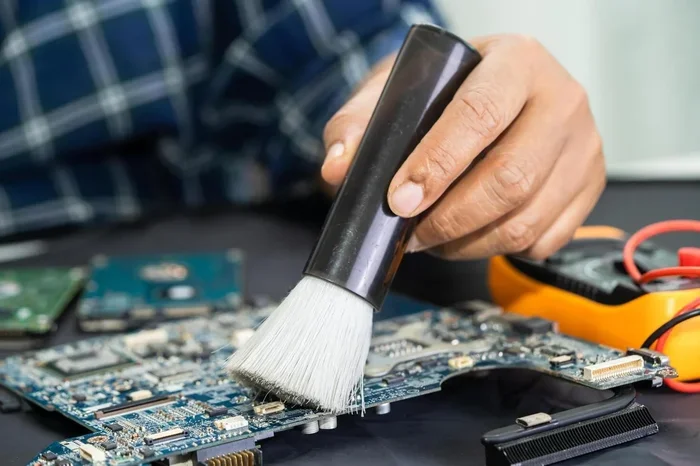
Computer hardware maintenance means taking care of your PC’s physical parts to keep them working well. It includes cleaning dust, updating drivers, checking temperatures, and replacing worn components. Regular maintenance helps your computer run faster, last longer, and avoid costly repairs.
Key Takeaways
- Definition: Hardware maintenance is the routine care of your computer’s physical components to keep them functioning properly.
- Core Tasks: Cleaning dust, managing cables, updating drivers, and monitoring temperatures are the basics.
- Benefits: It boosts performance, extends component lifespan, and prevents unexpected failures.
- Frequency: You should do basic upkeep every few months and deeper cleaning every 6 to 12 months.
- Tools Needed: Compressed air, microfiber cloths, thermal paste, and a screwdriver are all you need to start.
- What to Avoid: Using too much liquid, skipping backups, and ignoring warning signs like overheating can cause serious damage.
📑 Table of Contents
What Is Computer Hardware Maintenance?
Computer hardware maintenance is the practice of caring for the physical parts inside and outside your computer. This includes everything from the motherboard and CPU to the fans and cables. Think of it like changing the oil in your car. You do it regularly so things keep running smooth.
When you maintain your hardware, you are cleaning, inspecting, and updating the parts that make your system work. This is not just about fixing problems. It is about preventing them before they start. A well-maintained computer runs faster, stays cooler, and lasts much longer than one that is neglected.
Many people ignore their PC until something goes wrong. That is a mistake. A little care goes a long way. In this article, we will break down everything you need to know about computer hardware maintenance. You will learn what it is, why it matters, and how to do it yourself.
Why Hardware Maintenance Matters
Your computer is a collection of moving and electronic parts. Over time, dust builds up, thermal paste dries out, and drivers become outdated. All of this affects how well your system performs. Ignoring these issues can lead to slow speeds, crashes, and even permanent damage.
Here is why keeping up with hardware care is so important:
- Better Performance: Clean components work more efficiently. Dust can block airflow and cause your system to slow down.
- Longer Lifespan: Parts that are cared for last longer. Your PC components will serve you for many years.
- Fewer Repairs: Preventive maintenance catches small issues before they become big, expensive problems.
- Consistent Speed: A maintained system runs at its best, so you do not experience lag or freezes.
- Safety: Overheating hardware can be a fire risk. Proper maintenance keeps your system safe.
The Cost of Neglect
Skipping maintenance might save you a few minutes today, but it costs you down the road. Dust buildup can cause your CPU cooler to work harder, which leads to overheating. Overheating can reduce the life of your processor and other parts. Replacing a damaged component costs far more than simple routine cleaning.
Also, outdated drivers and firmware can cause compatibility issues. Your system might not run new software properly. Regular updates and checks keep everything compatible and stable.
Core Tasks in Hardware Maintenance
Now that you know why maintenance matters, let us look at the core tasks. These are the things you should do on a regular basis to keep your PC in top shape.
1. Cleaning Dust and Dirt
Dust is the number one enemy of computer hardware. It collects on fans, vents, heatsinks, and inside the case. Over time, it blocks airflow and traps heat. This causes your system to run hot and loud.
Here is how to clean your PC properly:
- Turn off the computer and unplug it.
- Open the case and use compressed air to blow out dust.
- Wipe the inside with a microfiber cloth.
- Clean the fans carefully. Hold them in place while blowing air.
- Do this every 3 to 6 months.
You can also clean the outside of your computer, your keyboard, and your monitor. A soft cloth and a little screen cleaner work great for this.
2. Updating Drivers and Firmware
Drivers are the software that tells your hardware how to work. When drivers are outdated, your components may not perform well. You might experience glitches, crashes, or slow speeds.
Firmware is similar but it lives on your hardware directly. Your motherboard, GPU, and even your SSD have firmware that gets updated. These updates often fix bugs and improve stability.
To keep things updated:
- Check for driver updates once a month.
- Use your manufacturer’s software or Device Manager in Windows.
- Visit the manufacturer’s website for the latest firmware.
- Never skip BIOS updates unless you know what you are doing.
3. Checking and Replacing Thermal Paste
Thermal paste helps transfer heat from your CPU to the cooler. Over time, this paste dries out and loses its effectiveness. When that happens, your CPU runs hotter than it should.
You should replace thermal paste every 2 to 3 years. This is a simple task that makes a big difference. Just clean off the old paste with isopropyl alcohol and apply a small dot of new paste. If you are unsure, check guides on the best CPU cooler for tips on proper application.
4. Cable Management
Messy cables inside your PC case block airflow and make cleaning harder. Good cable management keeps air flowing freely and makes future maintenance easier.
Here are some quick tips:
- Use cable ties or Velcro straps to bundle cables.
- Route cables behind the motherboard tray.
- Keep cables away from fans and vents.
- Label cables if you have many of the same type.
5. Monitoring Temperatures and Performance
Keeping an eye on your hardware temperatures is a key part of maintenance. High temperatures are a sign of problems. You can use free software like HWMonitor or Core Temp to check your CPU and GPU temps.
What should your temperatures look like? A good idle GPU temperature is usually between 30 and 50 degrees Celsius. Under load, it can go higher, but you should not see constant spikes above 85 degrees. If you do, something needs attention.
How Often Should You Maintain Your PC?
The answer depends on your environment and usage. A computer in a dusty room needs more frequent cleaning than one in a clean office. Here is a simple schedule to follow:
| Task | Frequency |
|---|---|
| Wipe down exterior | Weekly |
| Clean dust from vents | Monthly |
| Deep internal cleaning | Every 3 to 6 months |
| Update drivers and firmware | Monthly |
| Replace thermal paste | Every 2 to 3 years |
| Full hardware inspection | Every 6 months |
Sticking to this schedule keeps your system healthy without taking too much time. Even a quick 10-minute check every month can prevent big problems later.
Tools You Need for Hardware Maintenance
You do not need expensive tools to maintain your computer. Here is a simple list of what you should have on hand:
- Compressed air canister: For blowing out dust from tight spaces.
- Microfiber cloths: For wiping down surfaces gently.
- Isopropyl alcohol (90%+): For cleaning thermal paste and stubborn grime.
- Screwdriver set: Most PC cases use Phillips head screws.
- Cable ties: For organizing cables inside the case.
- Thermal paste: For reapplying paste when it dries out.
- Anti-static wrist strap: Optional but helpful to prevent static damage.
With these basic tools, you can handle most maintenance tasks yourself. You will save money and learn more about how your computer works.
Common Hardware Maintenance Mistakes to Avoid
Even with good intentions, people make mistakes when maintaining their PCs. Here are some common ones to watch out for:
- Using too much liquid: Never spray liquid directly onto your computer. Always apply it to the cloth first.
- Skipping backups: Before doing any hardware work, back up your data. A sudden power loss or accidental bump can cause data loss.
- Ignoring warning signs: If your PC is loud, hot, or crashing, do not ignore it. These are signs that something needs attention.
- Using the wrong thermal paste: Not all thermal pastes are the same. Choose a quality paste for best results.
- Opening the case while powered: Always unplug your computer before opening the case. Safety first.
Avoiding these mistakes keeps your hardware safe and your maintenance efforts effective.
Benefits of Regular Hardware Maintenance
When you take care of your computer regularly, the benefits are clear. Your system runs smoother, faster, and more reliably. You also save money in the long run by avoiding expensive repairs or premature replacements.
Regular maintenance also gives you peace of mind. You know your system is in good shape and you can trust it to work when you need it most. Whether you use your PC for work, gaming, or everyday tasks, a well-maintained machine makes everything better.
If you are wondering what upgrades are worth your investment, consider reading about the best investments for PC lifespan. It is a great companion to your maintenance routine.
Conclusion
Computer hardware maintenance is simple but essential. It keeps your PC running at its best and helps your components last longer. You do not need to be a tech expert to do it. With a little time and the right tools, anyone can maintain their system effectively.
Start with the basics. Clean the dust, update your drivers, check your temperatures, and manage your cables. Do these things regularly and your computer will thank you. A little care today saves a lot of trouble tomorrow.
Make maintenance a habit. Your future self will enjoy a faster, cooler, and more reliable computer because of it.
Frequently Asked Questions
What is included in computer hardware maintenance?
Hardware maintenance includes cleaning dust, updating drivers and firmware, checking temperatures, replacing thermal paste, managing cables, and inspecting components for wear. It covers all the physical care your PC needs to run well.
How often should I clean my computer’s hardware?
You should do a light cleaning every month and a deep internal cleaning every 3 to 6 months. If you live in a dusty area or have pets, you may need to clean more often. Regular cleaning prevents overheating and performance issues.
Can I do hardware maintenance myself or should I hire a professional?
Most hardware maintenance tasks are simple enough to do yourself. Cleaning dust, updating drivers, and managing cables do not require special skills. For more advanced tasks like replacing parts, you may want professional help. But basic upkeep is very doable at home.
What happens if I skip hardware maintenance?
Skipping maintenance leads to dust buildup, overheating, and slower performance. Over time, components wear out faster and may fail prematurely. You could also face more frequent crashes and compatibility issues with outdated drivers.
Is thermal paste replacement part of hardware maintenance?
Yes, replacing thermal paste is an important part of maintenance. Thermal paste dries out over time and loses its ability to transfer heat. Replacing it every 2 to 3 years keeps your CPU cool and running efficiently.
What tools do I need to start hardware maintenance?
You need compressed air, microfiber cloths, isopropyl alcohol, a screwdriver set, cable ties, and thermal paste. These basic tools cover most maintenance tasks. An anti-static wrist strap is optional but recommended.