What Is Ms Edge Used For
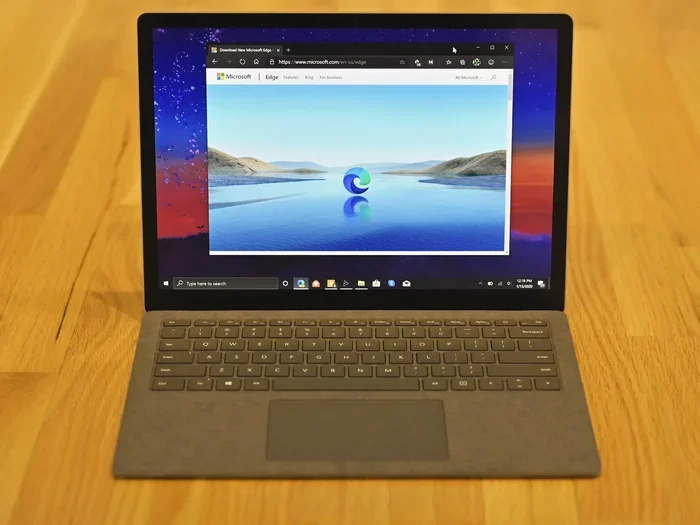
Microsoft Edge is a powerful web browser built into Windows that helps you browse the internet, manage passwords, organize tabs, and even use AI tools like Copilot. It is designed to work fast on laptops, save battery life, and keep your data safe. Whether you are streaming videos, studying, or working from home, Ms Edge has features that make everyday tasks easier and faster.
Microsoft Edge is one of the most popular web browsers in the world today. If you use a laptop running Windows, there is a strong chance Edge is already installed on your device. But what exactly is Ms Edge used for? The answer goes far beyond just opening websites.
Edge has grown into a full-featured browser that handles everything from casual browsing to heavy productivity work. It comes packed with tools that help you stay organized, save battery, and work faster. In this article, we will explore every major use of Microsoft Edge and why it is a great choice for laptop users.
Whether you are a student, a professional, or someone who simply wants a better browsing experience, understanding what Edge can do will help you get the most out of it. Let us dive into the many ways Ms Edge can make your laptop life easier.
Key Takeaways
- Web Browsing at Its Best: Ms Edge offers a fast, smooth, and secure browsing experience on any laptop.
- AI-Powered Copilot: Edge includes built-in AI tools that help with research, writing, and daily tasks.
- Battery and Performance Saver: Edge is optimized to use less power and RAM, making it ideal for laptops.
- Productivity Tools: Features like Collections, Vertical Tabs, and Reading Mode boost your workflow.
- Security First: Built-in tracking prevention and password management keep you safe online.
- Cross-Device Sync: Edge syncs your bookmarks, passwords, and settings across all your devices.
📑 Table of Contents
- Web Browsing Made Simple and Fast
- Productivity Features That Boost Your Workflow
- Built-In AI with Microsoft Copilot
- Security and Privacy Protections
- Edge for Students and Everyday Laptop Users
- Choosing the Right Browser for Your Laptop
- Tips to Get the Most Out of Ms Edge
- Common Mistakes People Make with Edge
- Final Thoughts
Web Browsing Made Simple and Fast
At its core, Ms Edge is a web browser. This means it lets you visit websites, search for information, and access online services. Edge uses the Chromium engine, which is the same technology that powers Google Chrome. This makes it fast, compatible with almost all websites, and reliable.
When you open Edge, you get a clean and modern interface. The address bar doubles as a search bar, so you can type any query and get results instantly. Edge also loads pages quickly, even on older laptops with limited ram size for a laptop. This is because Edge is designed to use system resources efficiently.
Tab Management That Works for You
One of the best things about Edge is how it handles multiple tabs. If you are someone who keeps dozens of tabs open at once, Edge has features that will save your sanity. You can use vertical tabs, which display your tabs on the left side of the screen. This makes it easy to find and switch between open pages.
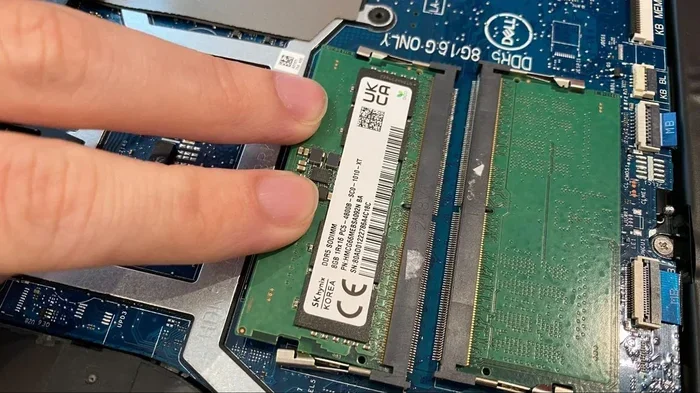
Edge also has a feature called sleeping tabs. When a tab has been inactive for a while, Edge puts it to sleep. This frees up memory and helps your laptop run faster. If you have been wondering whether your current setup has enough memory, check out this guide on what is a good ram size for a laptop to make sure your system can handle heavy browsing.
Collections for Organizing Your Research
Edge includes a feature called Collections. This lets you save links, text, and images from different websites into one organized list. It is perfect for students who are researching a project or professionals who are comparing products online. You can export Collections to Word or Excel, making it easy to move your research into a document.
Productivity Features That Boost Your Workflow
Ms Edge is not just about visiting websites. It is packed with productivity tools that help you get more done in less time. These features are built right into the browser, so you do not need to install extra software.
Reading Mode for Distraction-Free Reading
Edge has a built-in Reading Mode that strips away ads, pop-ups, and clutter from web pages. When you turn it on, you see only the text and images that matter. This is great for reading articles, blog posts, or long documents. You can also adjust the font size, background color, and spacing to make reading more comfortable.
Web Capture and Annotation
Need to save a part of a webpage? Edge lets you capture screenshots of any section of a page. You can also annotate these screenshots by drawing, highlighting, or adding text. This is a handy feature for creating quick notes or sharing information with colleagues.
Send Page to Your Devices
Edge has a feature called Send Page that lets you send a link or webpage from your laptop to your phone or another device. You just click the send button, and the page appears on your other device. This works seamlessly if you are signed into the same Microsoft account on all your devices.
Built-In AI with Microsoft Copilot
One of the most exciting features of Ms Edge is the built-in Copilot AI. Copilot is Microsoft’s artificial intelligence assistant, and it is integrated directly into the browser. You can open Copilot from the sidebar and ask it questions, get summaries of web pages, or even ask it to write content for you.
Here are some ways Copilot in Edge can help you:
- Summarize long articles: Copilot can read a webpage and give you a quick summary of the key points.
- Answer questions: Ask Copilot anything, and it will search the web and give you a clear answer.
- Write emails or essays: Copilot can help you draft text based on your instructions.
- Compare products: Ask Copilot to compare two products, and it will pull information from multiple websites.
For students who use their laptops for research and writing, Edge with Copilot is a game-changer. It saves hours of manual work and helps you find information faster.
Security and Privacy Protections
Security is a big deal when you are browsing the internet. Ms Edge comes with strong built-in protections that keep you safe from malicious websites, trackers, and scams. You do not need to install a separate security extension to stay protected.
Tracking Prevention
Edge has a Tracking Prevention feature that blocks websites from following you across the internet. You can choose between three levels of protection: Basic, Balanced, and Strict. The Balanced mode is the default and works well for most users. It blocks third-party trackers while still letting websites function properly.
Password Management
Edge includes a built-in password manager. It can save your login details for websites and auto-fill them the next time you visit. Edge also alerts you if any of your saved passwords have been exposed in a data breach. This is a simple way to keep your online accounts secure without using a third-party password tool.
SmartScreen Protection
Edge uses SmartScreen technology to warn you about dangerous websites and downloads. If you try to visit a site that is known for phishing or malware, Edge will block it and show you a warning. This extra layer of protection is especially useful for people who are not very tech-savvy.
Edge for Students and Everyday Laptop Users
Students and everyday laptop users benefit a lot from Ms Edge. The browser is designed to work well on laptops with varying levels of performance. If you are using a budget laptop with 8 GB of RAM, Edge runs smoothly without slowing things down.
For students, Edge offers features like Reading View, which makes studying easier. You can also use Collections to organize research materials for essays and projects. The built-in PDF reader lets you annotate study documents directly in the browser.
If you are a student wondering whether your laptop has enough memory to run Edge along with your other apps, this guide on is 8gb ram enough for laptop for students can help you figure out your needs.
Edge also supports all the essential extensions you need. You can add tools for note-taking, grammar checking, and ad blocking right from the Edge Add-ons store. This flexibility makes Edge a versatile browser for any student or casual user.
Choosing the Right Browser for Your Laptop
When it comes to picking a browser for your laptop, there are several options available. Chrome, Firefox, Safari, and Edge are all popular choices. But what makes Edge stand out? Let us look at some key reasons.
| Feature | Ms Edge | Google Chrome | Mozilla Firefox |
|---|---|---|---|
| Built into Windows | Yes | No | No |
| AI Assistant (Copilot) | Yes | No (Gemini) | No |
| Sleeping Tabs | Yes | Yes (Memory Saver) | No |
| Vertical Tabs | Yes | Yes | No (needs extension) |
| Tracking Prevention | Built-in | Needs extension | Built-in |
| Battery Efficiency | Excellent | Good | Good |
Edge is especially great for Windows laptop users because it is already integrated into the operating system. This means updates are automatic, and the browser works seamlessly with other Windows features like Windows Hello and OneDrive.
Choosing the right browser is an important part of getting the most out of your laptop. A good browser can improve your speed, security, and overall experience. If you want to learn more about making smart choices for your laptop’s longevity, check out this guide on what is best investment for lifespan of pc.
Tips to Get the Most Out of Ms Edge
Here are some quick tips to help you use Edge more effectively on your laptop:
- Enable Sleeping Tabs: Go to Settings and make sure Sleeping Tabs is turned on. This saves memory and battery life.
- Use Collections: Start using Collections for any project that involves gathering information from multiple websites.
- Try Copilot: Open the Copilot sidebar and experiment with asking it questions. It is a great way to learn what it can do.
- Set Up Password Monitor: Turn on the Password Monitor feature in settings to get alerts about compromised passwords.
- Customize Your Startup: Set Edge to open with specific pages or a blank tab, depending on your preference.
- Use Immersive Reader: This feature is great for reading long articles or documents without distractions.
Common Mistakes People Make with Edge
Even though Edge is a great browser, some users do not get the full benefit because of a few common mistakes:
- Ignoring updates: Edge updates automatically, but sometimes users delay restarting the browser. Always keep Edge up to date for the best security and performance.
- Not using built-in tools: Many people do not know about features like Collections, Reading Mode, or Copilot. Take a few minutes to explore what Edge offers.
- Installing too many extensions: While extensions add functionality, too many can slow down your browser. Only install the ones you actually need.
- Disabling Tracking Prevention: Some users turn off privacy features for convenience. This can expose you to trackers and ads. Keep it enabled for safer browsing.
Final Thoughts
Ms Edge is a versatile and powerful browser that does much more than just open websites. From fast browsing and AI-powered Copilot to built-in security and productivity tools, Edge has everything you need for a smooth laptop experience. Whether you are streaming videos, working on school projects, or shopping online, Edge handles it all with ease.
If you have been using a different browser, it is worth giving Edge a try. It is already on your Windows laptop, it is free, and it is constantly improving with new features. With its focus on performance, security, and user-friendly tools, Microsoft Edge is one of the best choices for anyone who uses a laptop in 2026.
Take some time to explore Edge’s features today. You might be surprised at how much it can do. A great browser can truly transform the way you work and browse, and Ms Edge is ready to deliver that experience.
Frequently Asked Questions
Is Ms Edge a free browser?
Yes, Microsoft Edge is completely free to use. It comes pre-installed on Windows laptops and can also be downloaded on Mac, iOS, and Android devices. There are no hidden fees or premium versions required for the core features.
Can I use Microsoft Edge on a Mac laptop?
Yes, Edge is available for Mac laptops. You can download it from the Microsoft website or the Mac App Store. It works just as well on macOS as it does on Windows, with all the same features and tools.
Is Edge better than Google Chrome?
Both browsers are excellent, but Edge has some advantages for Windows users. It uses less battery, has built-in AI with Copilot, and integrates well with Windows features. The best browser depends on your specific needs and what devices you use.
Does Edge use a lot of RAM on a laptop?
Edge is designed to be efficient with RAM. It uses features like Sleeping Tabs to free up memory when tabs are not in use. For most users, Edge uses less memory than many other modern browsers, especially when you have many tabs open.
Can I sync my Edge data across devices?
Yes, you can sync your bookmarks, passwords, history, and settings across all your devices. Just sign in with your Microsoft account, and Edge will keep everything updated and accessible whether you are on your laptop, phone, or tablet.
Is Microsoft Edge safe for online banking and shopping?
Yes, Edge is very safe for online banking and shopping. It has built-in tracking prevention, SmartScreen protection, and a password monitor that alerts you to potential security risks. These features help keep your personal and financial information safe while you browse.
=== CONCLUSION ===
Microsoft Edge is a feature-rich browser that serves a wide range of purposes for laptop users. From everyday web browsing and productivity tools to AI-powered features and strong security, Edge covers all the bases. It is fast, efficient, and designed to work seamlessly with Windows laptops.
Whether you are a student managing research, a professional working from home, or simply someone who enjoys spending time online, Ms Edge has the tools to make your experience better. Explore its features, customize your settings, and enjoy a faster, safer browsing experience today.