What Is My Default Search Engine
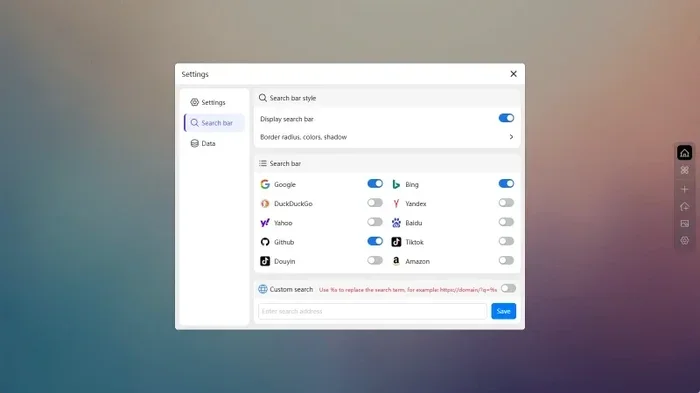
Your default search engine is the search tool that opens automatically when you type a query in your browser’s address bar. Whether you use Chrome, Firefox, Edge, or Safari, changing your default search engine is quick and easy. This guide walks you through finding your current search provider and switching to one that suits your needs.
Every time you open a new tab or type a question into the address bar, your browser relies on a specific tool to find answers for you. That tool is your default search engine. It might be Google, Bing, or something else entirely. But here is the thing many people overlook: you have the power to change it. Your search provider shapes every search result you see, every ad you encounter, and even how fast your pages load. Understanding what your default search engine is and how to manage it gives you more control over your daily browsing experience.
Whether you are using a work laptop or a personal computer, your browser settings determine which search engine handles your queries. Most people never think about this setting until something changes unexpectedly. Maybe your homepage settings shifted overnight, or perhaps you are just curious about what you are actually using. Whatever the reason, this guide covers everything you need to know about default search engines across all major browsers. We will walk you through finding your current engine, switching to a new one, and fixing common problems that keep your search bar from working the way you want.
Key Takeaways
- Your default search engine controls what happens when you type in the browser address bar.
- Popular options include Google, Bing, DuckDuckGo, Yahoo, and Brave Search.
- Changing your search engine takes just a few clicks in any major browser.
- Browser hijacking can silently change your default search without your permission.
- Privacy-focused engines like DuckDuckGo offer better data protection than traditional options.
- Your choice of search engine can affect browsing speed, privacy, and search result quality.
📑 Table of Contents
What Exactly Is a Default Search Engine?
A default search engine is the search tool your web browser uses by default whenever you enter a query. When you type words into the address bar at the top of your browser and press Enter, the browser sends those words to your chosen search provider. That provider then returns a list of results based on your query. The whole process happens in seconds, but the engine behind it matters more than most people realize.
Think of your default search engine like the front door of your browser. Every search starts there. If you have ever wondered why your results look a certain way or why certain ads follow you around the web, your search engine plays a big role. Different engines use different algorithms, different indexes of the web, and different privacy policies. Google dominates the market, but alternatives like Bing, DuckDuckGo, and Brave Search are growing fast because users want more choices and better privacy-focused search engine options.
How Your Browser Chooses the Default Engine
When you first install a browser, it comes preconfigured with a default search engine. Google Chrome uses Google. Microsoft Edge uses Bing. Safari on Apple devices uses Google by default. Firefox used to use Google but now uses a different partner depending on region. These choices are made by the browser developers, often based on partnerships and revenue agreements. Your browser configuration at setup determines your starting point, but you can always change it later.
Why Does Your Default Search Engine Matter?
You might think all search engines return the same results. They do not. Your choice of search provider affects what you see, how fast pages load, and how much of your data gets collected. This section explains why paying attention to your browser settings matters more than you might think.
Search Quality and Relevance
Google has spent decades refining its algorithm. It understands natural language, local intent, and personal context better than most competitors. But Bing has improved dramatically and sometimes delivers better results for certain types of queries. If you always stick with the default search engine without exploring alternatives, you might be missing out on a better experience. Trying a different search engine for a week can reveal differences in result quality that surprise you.
Privacy and Data Collection
This is where things get important. Traditional search engines like Google and Bing track your search history, location, and browsing behavior. They build profiles about you to serve targeted ads. A privacy-focused search engine like DuckDuckGo does not track your searches or store personal information. If you care about your digital privacy, your choice of default search engine is one of the simplest ways to protect yourself online. It is a small change that makes a real difference in your browser security posture.
Browsing Speed and Performance
Your search engine can also affect how quickly you get results. Some engines have lighter pages that load faster. Others inject heavy ads and tracking scripts that slow down your browser startup. If you notice your browser feeling sluggish every time you search, your search engine might be part of the problem. Switching to a cleaner, faster engine can improve your overall browsing experience without installing any extra software.
How to Find Your Current Default Search Engine
Before you can change your default search engine, you need to know what it currently is. Finding this information takes just a few seconds in any major browser. Here is how to check in each of the most popular browsers.
Checking in Google Chrome
Open Chrome and click the three dots in the top-right corner. Go to Settings and then click Search engine in the left sidebar. You will see a section labeled Search engine used in the address bar. The engine listed there is your current default search provider. Chrome lets you choose from Google, Bing, Yahoo, DuckDuckGo, and a few others.
Checking in Microsoft Edge
In Edge, click the three dots at the top right and select Settings. Go to Privacy, search, and services, then scroll down to Address bar and search. The search engine listed under Search engine used in the address bar is your default search engine. Edge offers Bing, Google, DuckDuckGo, and Yahoo as options.
Checking in Mozilla Firefox
Open Firefox and click the three lines in the top-right corner. Select Settings and then Search in the left panel. The Default Search Engine section shows your current search provider. Firefox supports Google, Bing, DuckDuckGo, Amazon, and several other engines. You can also add custom search engines through the Manage Search Engines option.
Checking in Safari
On Mac, open Safari and click Safari in the menu bar at the top. Select Preferences and then the Search tab. The Search engine dropdown shows your current default search engine. Safari defaults to Google but also offers Bing, DuckDuckGo, Yahoo, and Ecosia as alternatives.
How to Change Your Default Search Engine
Changing your default search engine is straightforward once you know where to look. Each browser has its own path to the browser settings where you can make the switch. Below are step-by-step instructions for the four most popular browsers.
Changing the Search Engine in Chrome
Open Chrome and go to Settings. Click Search engine in the left menu. Under Search engine used in the address bar, click the dropdown menu and select your preferred engine. Your choice takes effect immediately. You can also manage search engines by clicking Manage search engines and adding custom ones. This is especially useful if you want to use a niche search provider that is not listed by default.
Changing the Search Engine in Edge
In Edge, go to Settings and select Privacy, search, and services. Scroll down to Address bar and search. Click the dropdown under Search engine used in the address bar and pick your new engine. Edge also lets you manage search engine extensions, which can add even more options to your browser configuration. Restart Edge to make sure the change takes full effect.
Changing the Search Engine in Firefox
Go to Settings and click Search in Firefox. The Default Search Engine dropdown lets you pick a new engine. You can also set one-click search engines by adding them through the Manage Search Engines button. Firefox is known for supporting a wide range of search providers, including smaller privacy-focused options that are not available in other browsers.
Changing the Search Engine in Safari
Open Safari and go to Preferences, then the Search tab. Use the Search engine dropdown to select a new default. Safari keeps things simple with a clean list of popular engines. If you want a privacy-focused search engine like DuckDuckGo, Safari supports it natively. Close Preferences and your new setting is active right away.
Common Problems with Default Search Engines
Sometimes your default search engine keeps changing on its own, or you cannot find the setting to modify it. These problems are more common than you might think and usually have simple solutions.
Browser Hijacking
Browser hijacking happens when unwanted software changes your browser settings without your permission. Your homepage settings shift, your default search engine changes to something unfamiliar, and you may see extra ads or pop-ups. This is often caused by free software bundles, suspicious browser extensions, or malicious websites. To fix this, scan your computer with a trusted antivirus program and remove any unfamiliar extensions from your browser.
The Search Bar Does Not Work After Changing Settings
If you change your search engine and the address bar stops working, try clearing your browser cache and cookies. Sometimes old browser data conflicts with new settings. Restart your browser after clearing the data and test the search bar again. If the problem persists, check for browser updates. An outdated browser can cause compatibility issues with newer search providers.
Multiple Search Bars Confusing the Settings
Some browsers have separate search bars and address bars. In these cases, your default search engine for the address bar might differ from the one in the toolbar search box. Check both settings in your browser configuration to make sure they match your preference. This is a common source of confusion and often goes unnoticed by users.
Which Default Search Engine Should You Choose?
Choosing the right default search engine depends on what you value most. If speed and accuracy matter most, Google remains the strongest option. If privacy is your priority, DuckDuckGo or Brave Search are excellent choices. Bing offers good integration with Microsoft services and sometimes better image search results. Ecosia plants trees with its ad revenue, making it a popular choice for environmentally conscious users.
There is no single best engine for everyone. Try a few different options and see which one feels right for your workflow. You can always switch back if you do not like the new one. The key is to make an informed choice about your search provider rather than accepting whatever came preinstalled on your browser.
Your default search engine shapes your daily internet experience in ways you might not notice. From the results you see to the ads you encounter, this one setting has a big impact. Take a moment today to check your browser settings and make sure your search engine aligns with your needs. It is a small change that can improve your privacy, your search quality, and your overall browsing experience.
Final Thoughts
Your default search engine is one of the most overlooked settings on your computer, yet it affects nearly everything you do online. Every search, every click, and every result starts with this choice. Now that you know how to find, change, and troubleshoot your search provider, you are in control. Do not settle for a search engine that does not serve your needs. Take a few minutes to explore your options and make the switch if needed. Your browsing experience will thank you for it.
If you are also curious about other aspects of your laptop and browser setup, understanding your system better helps you make smarter choices. For instance, knowing how much RAM your laptop has can help you understand why your browser runs smoothly or struggles with multiple tabs. Check out our guide on what is good RAM for laptop to learn more about optimizing your system. Similarly, if you ever notice your browser slowing down, having enough memory makes a huge difference. You can also explore our article on what is a good amount of RAM for a laptop to find the right memory configuration for your needs.
Remember, your laptop is a tool, and every setting — from your default search engine to your hardware configuration — contributes to how well it serves you. Stay curious, stay informed, and keep optimizing your setup for the best possible experience.
Frequently Asked Questions
How do I know what my default search engine is?
Open your browser and go to Settings. Look for the Search engine or Search section in the menu. The engine listed under “Search engine used in the address bar” or similar wording is your current default search engine. This works the same way in Chrome, Edge, Firefox, and Safari.
Can I have a different search engine for the address bar and the search bar?
Yes, in some browsers you can set different engines for the address bar and the toolbar search box. Check your browser settings for separate options. In Chrome, for example, the address bar and the search bar are the same, but in Firefox you can configure them independently.
Why does my default search engine keep changing by itself?
This is usually caused by browser hijacking or a malicious extension. Unfamiliar software bundles or suspicious websites can alter your browser settings without your knowledge. Scan your computer with antivirus software, remove unknown extensions, and reset your browser configuration to fix the issue.
Is DuckDuckGo a good default search engine?
DuckDuckGo is an excellent choice if privacy is important to you. It does not track your searches, store personal data, or serve targeted ads. While its search results may not match Google’s level of detail for every query, it has grown significantly in quality and is a strong privacy-focused search engine option.
Will changing my default search engine slow down my browser?
No, changing your default search engine does not affect browser speed. In fact, switching to a lighter engine with fewer tracking scripts can actually improve performance. Your browser startup and search experience may feel faster with a cleaner, less cluttered search provider.
Can I add custom search engines to my browser?
Yes, most browsers let you add custom search providers. In Chrome and Firefox, you can manage search engines through the settings menu. This is useful if you use a niche search tool or want to add a specialized engine for specific tasks like shopping or academic research.