What Is F6 on Keyboard
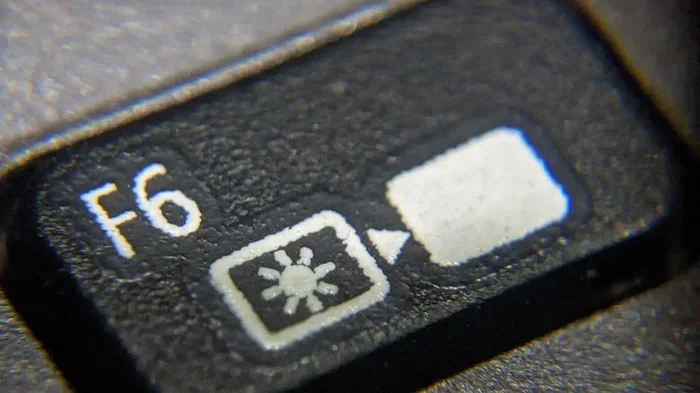
The F6 key is a function key located on the top row of your keyboard. It serves multiple purposes depending on what program you are using, from cycling through browser address bars to navigating Microsoft Word documents. On laptops, pressing F6 often requires the Fn key to access its standard function. This guide covers every F6 shortcut, troubleshooting tips, and how it works across different devices.
Key Takeaways
- F6 is a function key: It sits on the top row of your keyboard and has different roles in different programs.
- Browser shortcut: Pressing F6 in most web browsers moves your cursor to the address bar instantly.
- Laptop users need the Fn key: Many laptops require you to hold Fn + F6 to use the standard F6 function.
- Microsoft Office uses F6 too: In Word and PowerPoint, F6 jumps between the ribbon, document area, and status bar.
- F6 can control media playback: On some keyboards, F6 adjusts volume or toggles mute when paired with Fn.
- Troubleshooting is simple: If F6 is not working, check your Fn lock setting or update your keyboard drivers.
📑 Table of Contents
What Is the F6 Key on a Keyboard?
If you have ever looked at the top row of your keyboard and wondered what that little “F6” label does, you are not alone. The F6 key is part of the function key row, which spans from F1 to F12 on almost every standard keyboard. These keys have been around for decades, and they still play an important role in how we interact with our computers.
At its most basic level, the F6 key sends a specific signal to your computer or software. But what that signal actually does changes depending on the program you are using and the device you are on. Think of F6 as a Swiss Army knife. It has many tools, and each one comes out when you need it in a specific situation.
On desktop keyboards, F6 sits all by itself on the top row. But on many laptops, the function keys share space with media controls and brightness settings. This means you might need to press the Fn key along with F6 to get the standard function key behavior. We will dig deeper into this later in the article.
Whether you are a student, a office worker, or someone who just wants to get around your computer faster, understanding what F6 does can save you time. The shortcuts are simple, and once you make them a habit, you will wonder how you ever worked without them.
Where Is the F6 Key Located?
The F6 key is easy to find. Look at the very top row of your keyboard. It is usually the sixth key from the left, right between F5 and F7. On most full-size keyboards, the function keys sit in a thin, horizontal line above the number row.
On laptops, the layout can be a little different. Many modern laptops pack media controls into the function key row. You might see small icons for volume, play/pause, or brightness next to the F keys. In these cases, F6 might control something like microphone mute or brightness by default. To use it as a traditional function key, you hold down the Fn key first.
The keyboard layout matters here too. If you use a Mac keyboard, the function keys work a bit differently. On Macs, the F keys often control system functions like volume and brightness right out of the box. To use them as standard F keys, you hold the Fn key on a Mac. Some people also change this behavior in their system settings so the F keys work as standard function keys by default.
F6 Key on Different Devices
Here is a quick look at how the F6 key position and behavior change across devices:
- Desktop keyboards: F6 is always a standard function key. Just press it directly.
- Windows laptops: Press Fn + F6 to use the standard function. Without Fn, it may control a media or system feature.
- Mac keyboards: Hold Fn + F6 to use it as a standard function key. Without Fn, it controls system settings.
- External keyboards with laptops: If you use an external keyboard with your laptop, F6 usually works as a standard function key without needing the Fn key.
What Does F6 Do in Web Browsers?
This is probably the most common use of the F6 key. In almost every major web browser, including Chrome, Firefox, Edge, and Safari, pressing F6 moves your cursor directly to the address bar. This is a huge time saver when you want to type in a new website or search query.
Instead of reaching for your mouse and clicking on the address bar at the top of the browser window, you just tap F6. The address bar highlights immediately, and you can start typing your URL or search term right away. It is one of those small shortcuts that makes a big difference once you get used to it.
Here is how F6 works in popular browsers:
- Google Chrome: Press F6 to jump to the address bar. Press it again to cycle through page elements like bookmarks and the content area.
- Mozilla Firefox: F6 works the same way. It highlights the address bar and lets you type a new URL quickly.
- Microsoft Edge: Just like Chrome and Firefox, F6 takes you straight to the address bar.
- Safari (Mac): On a Mac, you may need to press Fn + F6 to activate the address bar shortcut.
You can also use F6 in combination with other keys to navigate within a webpage. For example, pressing F6 multiple times in a row cycles through different parts of the browser window. This is helpful for people who prefer keyboard navigation over using a mouse or trackpad.
If you are someone who uses keyboard shortcuts regularly, F6 is a must-know key. It pairs well with Ctrl and Shift combinations too. For instance, Ctrl + F6 in many programs switches between open windows or tabs, which is incredibly useful when you are multitasking.
F6 Shortcuts in Microsoft Office and Other Apps
The F6 key is not just for web browsers. It plays a useful role in many other programs, especially Microsoft Office applications like Word, Excel, and PowerPoint.
F6 in Microsoft Word
In Microsoft Word, pressing F6 moves your cursor through different parts of the screen. It cycles between the ribbon menu, the document area, the status bar at the bottom, and the task pane. This is a great way to navigate a document without touching your mouse, especially if you are working on a long report or essay.
Here are some handy F6 combos in Word:
- F6 alone: Moves to the next pane or area in the Word window.
- Ctrl + F6: Switches between open Word documents.
- Shift + F6: Moves to the previous pane or area, going in reverse order.
- Ctrl + Shift + F6: Switches to the previous open document.
F6 in Excel and PowerPoint
In Excel, F6 works similarly to Word. It helps you jump between the ribbon, the worksheet area, the zoom controls, and the status bar. In PowerPoint, F6 lets you navigate between the slide area, the notes pane, and the ribbon during your presentation.
These shortcuts are especially helpful for people who give presentations or work with spreadsheets for long hours. Using F6 and other function keys reduces the need to switch between keyboard and mouse constantly, which can improve your overall speed and comfort.
F6 in Other Common Programs
Beyond Microsoft Office, F6 shows up in a few other places:
- Windows Media Player: F6 can move the focus to different parts of the player interface.
- File Explorer: Press F6 to cycle through the navigation pane, the file list, and the address bar.
- Some video games: F6 may be assigned to save or load game functions, though this varies by game.
F6 on Laptops: The Fn Key Factor
If you are using a laptop, the F6 key might not work exactly the same way as on a desktop keyboard. This is because most laptop keyboards have a dual-purpose design for the function keys. The top row often controls things like screen brightness, volume, Wi-Fi, and battery settings by default.
To use F6 as a standard function key on a laptop, you usually need to hold down the Fn key while pressing F6. This tells your laptop to use the traditional function key behavior instead of the media or system control behavior.
Some laptops have a dedicated Fn Lock key or an Fn Lock setting in the BIOS. When Fn Lock is turned on, the function keys behave as standard F keys without needing to hold the Fn key. When it is off, you need to press Fn + F6 every time. The location of the Fn Lock key varies by brand. Some laptops put it near the Esc key, while others require you to change the setting in the system software.
Here is a quick tip: look at the bottom of your F keys. Many keyboards have small icons printed on the keys. The icons tell you what each key does when used with and without the Fn key. If F6 has a brightness or volume icon printed on it, that is its secondary function.
Common Laptop Brands and F6 Behavior
Different laptop brands handle F6 slightly differently:
- Dell: F6 typically controls a media or system function by default. Hold Fn to use the standard F6.
- HP: Similar to Dell. HP laptops often have an Fn Lock option in the BIOS or through the HP Quick Keys software.
- Lenovo: Lenovo ThinkPads often let you choose whether the F keys work as standard function keys or as media controls in the settings.
- ASUS: ASUS laptops usually require Fn + F6 for the standard function. Some models have a dedicated Fn Lock key.
Remember, what is the mouse on a laptop called is a different topic, but it is worth noting that your laptop’s keyboard and pointing device work together as input tools. If your mouse is not working on your laptop, function keys like F6 can sometimes help you navigate and troubleshoot the issue using keyboard shortcuts instead.
How to Troubleshoot F6 Key Problems
If your F6 key is not working, do not worry. Most F6 issues are easy to fix. Here are some common problems and their solutions.
F6 Is Not Responding
If pressing F6 does nothing, the first thing to check is whether you are on a laptop and whether the Fn key is involved. Try pressing Fn + F6 instead of just F6 alone. If that does not work, check whether the Fn Lock is enabled on your device.
Another common cause is that a program is overriding the F6 shortcut. For example, if a game or a full-screen app is running, it might have taken control of F6 for its own purpose. Try closing the active app and pressing F6 again.
F6 Opens the Wrong Function
If F6 opens a brightness or volume control instead of doing what you expect, your laptop is using the secondary function of the key. Hold the Fn key while pressing F6 to access the standard function. If you want to change this behavior permanently, look for the Fn Lock setting in your laptop’s control panel or keyboard settings.
F6 Not Working in a Specific Program
Some programs disable certain function keys for their own purposes. If F6 works everywhere else but not in one specific app, check that app’s keyboard shortcut settings. You may need to enable F6 shortcuts in the program’s preferences or settings menu.
If you are dealing with broader keyboard issues, you might also want to check whether your mouse is not working on your laptop, as some keyboard and input device problems share common causes like driver issues or USB conflicts.
Quick Troubleshooting Checklist
- Try pressing Fn + F6 instead of F6 alone.
- Check your Fn Lock setting in BIOS or system settings.
- Close any full-screen apps that might be intercepting the key.
- Restart your computer and try again.
- Update your keyboard drivers through Device Manager (Windows) or System Preferences (Mac).
- Test F6 in a different program to see if the problem is app-specific.
F6 Key and Accessibility Features
The F6 key also plays a role in accessibility features on both Windows and Mac computers. For users who rely on keyboard navigation due to mobility challenges, F6 is a valuable tool for moving through on-screen elements without a mouse.
On Windows, pressing F6 cycles through interactive elements on the screen, including menus, toolbars, and the desktop. This makes it easier for users with limited dexterity to navigate their computer using only the keyboard. Combined with other accessibility shortcuts, F6 becomes part of a powerful toolkit for inclusive computing.
On Mac, F6 serves a similar purpose in navigating dialog boxes and interface elements. Apple’s built-in accessibility settings allow users to customize how function keys behave, making F6 and the other F keys more useful for people who need alternative input methods.
Understanding these features is especially important for anyone who supports users with disabilities or who wants to set up a computer that is easy to use for everyone. The F6 key may seem small and simple, but it can make a big difference in how accessible your computer is.
Key Takeaways
- The F6 key is a function key: It sits on the top row of your keyboard and has different roles in different programs.
- Browser shortcut: Pressing F6 in most web browsers moves your cursor to the address bar instantly.
- Laptop users need the Fn key: Many laptops require you to hold Fn + F6 to use the standard F6 function.
- Microsoft Office uses F6 too: In Word and PowerPoint, F6 jumps between the ribbon, document area, and status bar.
- F6 can control media playback: On some keyboards, F6 adjusts volume or toggles mute when paired with Fn.
- Troubleshooting is simple: If F6 is not working, check your Fn lock setting or update your keyboard drivers.
Frequently Asked Questions
What is the F6 key used for?
The F6 key is primarily used to move your cursor to the address bar in web browsers. It also helps you navigate between different areas in Microsoft Office apps like Word and Excel. On some keyboards, F6 controls media functions like volume or mute when used with the Fn key.
Why does F6 not work on my laptop?
On most laptops, F6 has a secondary function like controlling brightness or volume. You need to hold the Fn key while pressing F6 to use it as a standard function key. If it still does not work, check your Fn Lock setting or update your keyboard drivers.
Can I change what F6 does on my keyboard?
Yes, you can. On Windows, you can use the Registry Editor or third-party tools to remap the F6 key to perform a different action. On Mac, you can change function key behavior in System Preferences under Keyboard settings. Some laptop manufacturers also offer software to customize function key behavior.
What does Ctrl + F6 do?
Ctrl + F6 switches between open windows or documents in many programs. In Microsoft Office, it cycles through open documents. In a web browser, it can switch between open tabs. This shortcut is a great way to multitask without using your mouse.
Is F6 the same on all keyboards?
Mostly, yes. The F6 key occupies the same position on almost all standard keyboards. However, its behavior can differ depending on whether you are using a desktop keyboard, a laptop keyboard, or a Mac keyboard. Laptops often assign secondary functions to F keys, which changes what F6 does by default.
How do I use F6 in Microsoft Word?
In Microsoft Word, pressing F6 moves your cursor through different parts of the screen, such as the ribbon, the document area, and the status bar. You can also use Ctrl + F6 to switch between open Word documents and Shift + F6 to move in the opposite direction through screen elements.
Conclusion
The F6 key on keyboard is one of those small but mighty tools that can make your daily computer use faster and more efficient. From jumping to the browser address bar to navigating through Word documents and Excel spreadsheets, F6 has a place in nearly every computing task. Once you start using it, you will wonder how you ever got along without it.
Remember that on laptops, you may need the Fn key to access the standard F6 function. And if you ever run into trouble, the troubleshooting steps in this guide should help you get things working again quickly. The best part is that these shortcuts are free to use and require no extra software or equipment.
Take some time to practice the F6 shortcuts mentioned in this article. Try them out in your browser, your office apps, and your file explorer. Within a few days, using F6 will feel completely natural, and you will wonder how you ever managed without it. Keyboard shortcuts like F6 are the secret weapon of fast and efficient computer users, and now you have one more tool in your toolkit.