What Is the Difference Between Dram Sdram
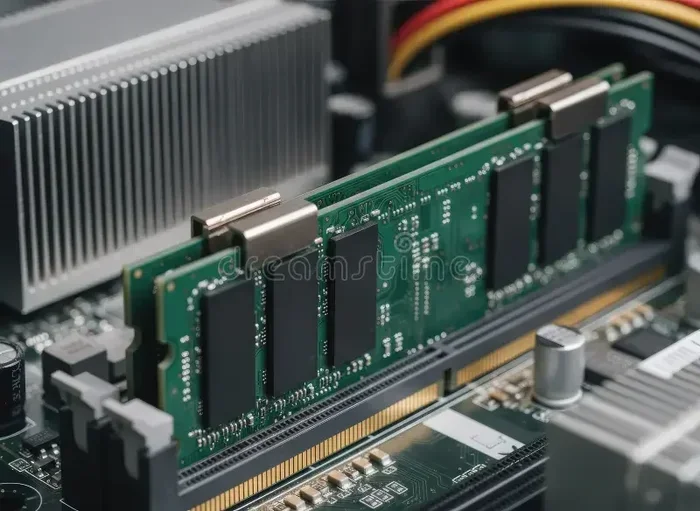
DRAM (Dynamic Random Access Memory) and SDRAM (Synchronous Dynamic Random Access Memory) are both types of computer memory, but they work differently. DRAM stores each bit of data in a separate capacitor and needs constant refreshing, while SDRAM syncs its speed with the computer’s clock for faster performance. Understanding this difference helps you choose the right memory for your system.
Key Takeaways
- DRAM is the broader category of memory that stores data using capacitors and requires constant refreshing.
- SDRAM is a specific type of DRAM that synchronizes with the system clock for improved speed.
- SDRAM replaced older asynchronous DRAM and became the foundation for modern DDR memory standards.
- Both types are volatile memory, meaning they lose stored data when power is turned off.
- SDRAM offers better bandwidth and performance compared to traditional DRAM designs.
- Understanding the difference matters when upgrading or building a computer.
- Modern computers use SDRAM-based modules like DDR4 and DDR5, not legacy DRAM alone.
📑 Table of Contents
What Is DRAM?
DRAM stands for Dynamic Random Access Memory. It is one of the most common types of memory used in computers, smartphones, and other digital devices. If your device has memory that temporarily holds data while it is running, there is a good chance it uses DRAM.
DRAM works by storing each bit of data in a tiny capacitor inside a memory cell. These capacitors hold electrical charges that represent either a 1 or a 0. The problem is that capacitors leak charge over time. This means DRAM must be refreshed thousands of times per second to keep the data intact.
This constant refreshing is what gives DRAM its name. It also means DRAM uses more power than some other memory types. But it is still very fast and cheap to produce, which is why manufacturers love it.
How DRAM Works
Each DRAM cell has a transistor and a capacitor. The transistor acts as a switch that controls whether the capacitor can be read or written to. When the capacitor holds a charge, it represents a 1. When it is discharged, it represents a 0.
Because the capacitor loses its charge quickly, the memory controller must constantly read and rewrite the data. This process is called refreshing. It happens automatically in the background without you noticing.
Types of DRAM
There are several types of DRAM that have been developed over the years:
- FPM DRAM – Fast Page Mode DRAM, one of the earliest forms.
- EDO DRAM – Extended Data Out DRAM, which improved speed slightly.
- SDRAM – Synchronous DRAM, which we will cover in detail next.
- DDR SDRAM – Double Data Rate SDRAM, the modern standard in most computers today.
What Is SDRAM?
SDRAM stands for Synchronous Dynamic Random Access Memory. It is a specific type of DRAM that synchronizes its operations with the computer’s internal clock. This synchronization allows SDRAM to work faster and more efficiently than older asynchronous DRAM designs.
Before SDRAM, memory operated independently of the CPU clock. This created a bottleneck because the memory and the processor were not working in sync. SDRAM solved this problem by aligning its timing with the system clock. The result was faster data transfer and better overall performance.
SDRAM became the standard memory type in the late 1990s and early 2000s. It paved the way for DDR (Double Data Rate) memory, which is what most modern systems use today. If you are looking at RAM on a laptop, you are almost certainly looking at SDRAM-based technology.
How SDRAM Differs from Asynchronous DRAM
The key difference is timing. Asynchronous DRAM responds to data requests as quickly as it can, without any reference to the system clock. SDRAM waits for a clock signal before responding. This might sound slower, but it actually allows for pipelining.
Pipelining means SDRAM can start a new operation before finishing the previous one. This overlapping of tasks dramatically increases throughput. Think of it like a well-organized factory assembly line instead of a single worker doing everything one step at a time.
SDRAM Generations
SDRAM evolved over time into several generations:
- SDR SDRAM – Single Data Rate, the original SDRAM standard.
- DDR SDRAM – Double Data Rate, transfers data on both the rising and falling edges of the clock signal.
- DDR2, DDR3, DDR4, and DDR5 – Each generation brought higher speeds, lower power consumption, and increased bandwidth.
DRAM vs SDRAM: Key Differences
Now that you understand what each one is, let us look at how they differ in practice. The table below breaks down the main distinctions.
| Feature | DRAM | SDRAM |
|---|---|---|
| Full Name | Dynamic Random Access Memory | Synchronous Dynamic Random Access Memory |
| Speed | Slower than SDRAM | Faster due to clock synchronization |
| Timing | Asynchronous (no clock sync) | Synchronous (synced to system clock) |
| Data Throughput | Lower | Higher |
| Power Consumption | Moderate | Optimized through pipelining |
| Usage Era | Early computers | Late 1990s to modern systems |
| Refresh Rate | Constant refreshing required | Also requires refreshing but manages it better |
| Modern Relevance | Largely legacy | Foundation of DDR4 and DDR5 memory |
The simplest way to think about it is this: DRAM is the general category, and SDRAM is a specific improved version of DRAM. All SDRAM is DRAM, but not all DRAM is SDRAM. It is like how all thumbs are fingers, but not all fingers are thumbs.
Why Does the Difference Matter?
You might wonder why you need to know this. If you are just using a computer, does it really matter whether your memory is DRAM or SDRAM? The answer is yes, especially if you are upgrading or building a system.
When you buy memory for your computer, you are buying SDRAM-based modules. The terms DDR4 and DDR5 that you see on memory boxes are types of SDRAM. Understanding this helps you make the right purchase. You do not want to buy old asynchronous DRAM modules for a modern system because they will not work properly.
Also, knowing the difference helps you understand why your computer slows down when you have too many programs open. What RAM does in a laptop is hold temporary data for active tasks. When that memory is full, your system struggles. Knowing whether your RAM is SDRAM tells you how fast it can handle that data.
Performance Impact
SDRAM provides better performance because it can handle multiple memory requests at once. This is thanks to the pipelining feature we discussed earlier. When your processor needs data, SDRAM can queue up the request and deliver it faster than older DRAM could.
For everyday tasks like browsing the web or watching videos, you might not notice a huge difference. But for gaming, video editing, or running virtual machines, the speed boost from SDRAM is significant.
Compatibility Considerations
Not all memory is compatible with all systems. Older computers might only support SDR SDRAM, while newer ones require DDR4 or DDR5. How to know what RAM is compatible with your laptop is an important question before making any upgrade. Always check your motherboard or device specifications before purchasing new memory.
How Modern Memory Evolved from DRAM to SDRAM
The journey from DRAM to modern SDRAM is a story of constant improvement. In the early days of computing, memory was slow and expensive. Engineers needed a way to make it faster without completely redesigning the system.
The solution was to make memory synchronous with the CPU clock. This simple idea revolutionized computing. SDRAM allowed memory and the processor to work together in harmony, eliminating the bottleneck that plagued earlier systems.
From there, the DDR standard emerged. DDR doubled the data rate by transferring data on both edges of the clock signal. Each new generation, from DDR2 to DDR5, brought faster speeds and better efficiency. Today, good RAM for a laptop means DDR4 or DDR5 SDRAM modules that deliver excellent performance.
The Role of SDRAM in Today’s Devices
Almost every modern device uses SDRAM in some form. Your laptop, desktop, gaming console, and even some smartphones use SDRAM-based memory. The technology has become so widespread that we rarely think about it anymore.
But understanding it gives you an edge when troubleshooting performance issues or planning upgrades. If your system feels slow, checking whether you have enough SDRAM or if your memory is outdated can point you in the right direction.
Common Mistakes People Make with DRAM and SDRAM
There are a few mistakes that many people make when thinking about memory:
- Using DRAM and SDRAM interchangeably – They are not the same thing. SDRAM is a type of DRAM, but they are not interchangeable terms.
- Assuming all RAM is the same – Different generations of SDRAM (DDR3, DDR4, DDR5) are not compatible with each other.
- Ignoring speed ratings – The MHz rating on memory modules matters. Higher speeds mean better performance, within reason.
- Overlooking latency – Speed is not everything. CAS latency also affects how quickly memory responds to requests.
Quick Tips for Choosing the Right Memory
Here are some practical tips to keep in mind:
- Always check your motherboard manual for supported memory types.
- Match the SDRAM generation to your system (DDR4 with DDR4, not DDR4 with DDR5).
- Consider both speed and capacity when upgrading.
- Buy memory in matched pairs for dual-channel performance.
- Check what a good amount of RAM for a laptop is for your specific use case before buying.
Final Thoughts
The difference between DRAM and SDRAM comes down to timing and performance. DRAM is the broader category of dynamic memory that stores data in capacitors and requires constant refreshing. SDRAM is a more advanced version that syncs with the system clock to deliver faster speeds and better efficiency.
Today, virtually all modern memory is SDRAM-based. When you buy DDR4 or DDR5 modules, you are buying SDRAM. Understanding this distinction helps you make smarter decisions when upgrading or building a computer. It also gives you a clearer picture of how your device handles memory tasks behind the scenes.
Whether you are a casual user or a tech enthusiast, knowing the difference between DRAM and SDRAM gives you a solid foundation for understanding computer memory. It is one of those small pieces of knowledge that pays off every time you upgrade, troubleshoot, or build a new system.
Frequently Asked Questions
Is SDRAM the same as DRAM?
No, SDRAM is a type of DRAM. DRAM is the general category, and SDRAM is a specific version that synchronizes with the system clock for better performance. Think of SDRAM as an improved, faster version of standard DRAM.
Can I use DRAM and SDRAM interchangeably?
You should not use these terms interchangeably in technical discussions. While SDRAM is a form of DRAM, they refer to different things. DRAM is the broad technology, while SDRAM refers specifically to synchronous DRAM that syncs with the clock speed.
Do modern computers still use DRAM?
Yes, in a way. Modern computers use SDRAM, which is a type of DRAM. When people say a computer has DRAM, they usually mean SDRAM-based memory like DDR4 or DDR5. The older asynchronous DRAM designs are no longer used in modern systems.
What is the fastest SDRAM available today?
DDR5 SDRAM is currently the fastest widely available SDRAM standard. It offers higher speeds, greater bandwidth, and improved power efficiency compared to DDR4. DDR5 continues to evolve with new speed tiers being released regularly.
Does SDRAM lose data when power is off?
Yes, SDRAM is volatile memory, just like all DRAM types. This means it loses all stored data when the power is turned off. This is why your computer needs to save files to a hard drive or SSD before shutting down.
How do I know if my laptop uses SDRAM?
Almost all modern laptops use SDRAM-based memory. You can check your laptop’s specifications in the system settings or the manufacturer’s website. Look for DDR4 or DDR5 in the memory details to confirm it is SDRAM.