What Is Windows 11 Bug Check Architecture
Windows 11 Bug Check Architecture is the built-in system that detects critical errors and triggers a blue screen stop error to protect your data. It works through crash dump generation, kernel mode analysis, and debugging tools to pinpoint what went wrong. Understanding this architecture helps you troubleshoot system crashes faster and keep your laptop running smoothly.
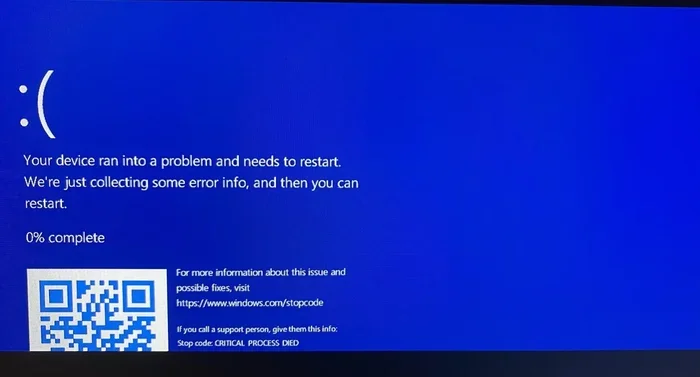
Have you ever seen the dreaded blue screen on your laptop and wondered what just happened? That screen is called a bug check, and it is part of a deeper system inside Windows 11 known as the Bug Check Architecture. This architecture is essentially the safety net your operating system uses when something goes seriously wrong. Instead of letting your laptop crash silently and possibly corrupt your files, it stops everything and shows you an error code.
The Bug Check Architecture in Windows 11 is more than just a blue screen. It is a carefully designed framework that handles system crashes, generates crash dump files, and gives you clues about what caused the problem. Whether you are a casual user or someone who tinkers with laptop Windows 11 settings, understanding how this system works can save you a lot of frustration.
In this guide, we will walk through every part of the Windows 11 bug check architecture. You will learn how crash dumps are created, what the different error codes mean, and how to use built-in debugging tools to fix recurring blue screen errors. By the end, you will have a clear picture of why your system crashes and how to prevent it from happening again.
Key Takeaways
- Bug Check Architecture is Windows 11’s built-in crash detection and error reporting system that activates during critical failures.
- Crash dumps and minidump files capture essential data at the moment of a system crash, making error analysis possible.
- Driver conflicts and memory management issues are among the most common causes of BSOD Windows 11 errors.
- Windows Debugger and Event Viewer are the primary tools you need to analyze bug check codes effectively.
- Good RAM for laptop systems and updated drivers significantly reduce the frequency of stop errors and system crashes.
- Blue screen troubleshooting becomes much easier once you understand the kernel mode processes behind each error.
- Regular driver updates and system restore points can prevent many Windows 11 crash scenarios.
📑 Table of Contents
What Is Bug Check Architecture in Windows 11?
The bug check architecture is the core framework inside Windows 11 that handles critical system failures. When Windows detects a problem it cannot recover from on its own, it initiates a bug check, which is commonly known as the blue screen or stop error. This mechanism is built into the Windows kernel and operates at the deepest level of your system.
Think of it like a circuit breaker in your home. When too much current flows through a wire, the breaker trips to prevent a fire. Similarly, when your system encounters a condition it cannot safely handle, the bug check architecture stops the system to prevent data loss or hardware damage. It then creates a memory dump file that captures the state of your system at the exact moment of the crash.
This architecture is not just about showing you an error message. It involves several layers of error analysis, memory management, and debugging support. The Windows kernel works hand in hand with hardware abstraction layers to ensure that every crash is recorded with as much detail as possible. This is why blue screen troubleshooting has become more precise with each version of Windows.
How the Bug Check Process Works
The bug check process follows a specific sequence of events. First, the system detects an error condition that it cannot resolve. This could be a driver conflict, a memory access violation, or a hardware failure. Once detected, the Windows kernel halts all processing and initiates the bug check.
Next, the system generates a crash dump or minidump file depending on your settings. These files contain a snapshot of your system’s memory at the time of the crash. Finally, Windows restarts the system (if configured to do so) and displays the bug check code on the blue screen. This code is your starting point for error analysis.
Common Bug Check Codes and What They Mean
Every blue screen error in Windows 11 comes with a specific bug check code. These codes are like error fingerprints. Each one points to a different type of problem. Learning to read them is the first step in effective blue screen troubleshooting.
Here are some of the most common bug check codes you will encounter:
- CRITICAL_PROCESS_DIED (0x000000EF) – This means a vital Windows process stopped working. It often points to driver conflicts or corrupted system files.
- MEMORY_MANAGEMENT (0x0000001A) – This code indicates a problem with memory management. It could be caused by faulty RAM or a memory dump file issue.
- DRIVER_IRQL_NOT_LESS_OR_EQUAL (0x000000D1) – This happens when a kernel mode driver tries to access memory it should not. Driver updates often fix this.
- SYSTEM_THREAD_EXCEPTION_NOT_HANDLED (0x0000003B) – This points to an unhandled exception in a system thread, usually caused by outdated or incompatible drivers.
- WHEA_UNCORRECTABLE_ERROR (0x00000124) – This is often a hardware-related error, sometimes linked to CPU or motherboard issues.
Each of these codes tells a story about what went wrong inside your Windows 11 system. The key is to match the code with the right debugging tools and error analysis methods to find the root cause.
Crash Dumps: The Heart of Bug Check Analysis
Crash dumps are one of the most important parts of the bug check architecture. Without them, diagnosing a system crash would be like trying to solve a mystery with no evidence. A crash dump captures the exact state of your system’s memory when the bug check was triggered.
Windows 11 offers several types of dump files. The minidump is a smaller file that contains just the essential information. It is quick to generate and easy to share. The kernel memory dump captures only the kernel-mode memory, which is where most stop errors originate. The full memory dump captures everything, giving you the most complete picture but requiring more disk space.
To make sure crash dumps are working properly, go to System Properties, click Advanced System Settings, and look under the Startup and Recovery section. Make sure your dump file settings are configured correctly. If you are running a Windows 11 16GB RAM laptop or a laptop Windows 11 16GB RAM setup, you have plenty of memory to capture detailed dumps that will help with error analysis.
Having enough good RAM for laptop performance also ensures that crash dumps are written correctly. Insufficient or faulty memory can sometimes cause incomplete dumps, making blue screen troubleshooting harder. If you are unsure about your RAM configuration, check whether your laptop 16GB RAM Windows 11 setup is running optimally.
Tools for Analyzing Bug Check Errors
Once you have a crash dump or minidump file, you need the right tools to analyze it. Windows 11 comes with several built-in debugging tools that can help you understand what caused the system crash.
Event Viewer
Event Viewer is one of the easiest tools to start with. It logs system events, including bug check occurrences. You can access it by typing “Event Viewer” in the Start menu. Look under Windows Logs and then System. Filter for critical and error events to find details about your blue screen errors.
Windows Debugger (WinDbg)
For deeper error analysis, the Windows Debugger or WinDbg is the go-to tool. It is a powerful application from Microsoft that lets you read crash dump files in detail. You can load a dump file, examine the kernel mode state, and identify the exact driver or process that caused the stop error. It has a learning curve, but it is incredibly powerful for advanced blue screen troubleshooting.
BlueScreenView
If WinDbg feels too complex, BlueScreenView by NirSoft is a great alternative. It reads minidump files automatically and displays the bug check code along with the likely cause. It is a simple, free tool that makes crash dump analysis accessible to everyone.
Preventing Bug Checks and System Crashes
Prevention is always better than troubleshooting. While you cannot eliminate every system crash, you can take steps to reduce the frequency of bug checks and blue screen errors in Windows 11.
Keep Your Drivers Updated
Driver conflicts are one of the leading causes of stop errors. Outdated or incompatible drivers can trigger kernel mode crashes without warning. Make it a habit to update your graphics drivers, network drivers, and chipset drivers regularly. Windows Update handles many of these, but checking directly with your hardware manufacturer is a good practice.
Run System File Checks
Corrupted system files can also lead to bug check errors. Open Command Prompt as an administrator and run the sfc /scannow command. This scans your system for corrupted files and repairs them automatically. It is a simple step that can prevent many blue screen troubleshooting scenarios.
Check Your Hardware
Faulty RAM is a silent killer of system stability. If you are using a 16GB RAM Windows 11 laptop or a Windows 11 laptop 16GB RAM configuration, run the Windows Memory Diagnostic tool. Type “Windows Memory Diagnostic” in the Start menu and restart your PC to check for memory errors. Good system stability starts with healthy hardware.
Create System Restore Points
Setting up system restore points gives you a safety net. If a recent change caused BSOD Windows 11 errors, you can roll back your system to a previous state. This is especially helpful after installing new software or drivers that trigger system crashes.
When to Seek Professional Help
Most bug check errors can be resolved with the steps above. However, some system crashes point to deeper hardware issues that require professional attention. If you notice your crash dump files consistently pointing to a hardware component, or if your laptop crashes frequently despite updated drivers and clean system files, it may be time to consult a technician.
Also, if you are running a Windows 11 8GB RAM laptop or a budget setup, your system may be more prone to memory management errors. Upgrading to more RAM for laptop stability can make a significant difference. Check out resources on what is good RAM on a laptop to find the right upgrade path for your system.
Final Thoughts
The Windows 11 bug check architecture is a sophisticated system designed to protect your data and give you actionable information when things go wrong. From crash dump generation to bug check codes, every part of this framework serves a purpose. Understanding it empowers you to take control of blue screen troubleshooting and keep your laptop running at its best.
Remember to keep your drivers updated, run regular system checks, and ensure your hardware is in good shape. With the right debugging tools and a bit of patience, most stop errors can be resolved quickly. Your system stability depends on how well you understand and maintain the systems running beneath the surface.
Frequently Asked Questions
What triggers a bug check in Windows 11?
A bug check is triggered when Windows 11 encounters a critical error it cannot recover from. Common triggers include driver conflicts, memory access violations, hardware failures, and corrupted system files. The bug check architecture stops the system to prevent further damage and displays a blue screen stop error with a specific code.
How do I find my bug check code?
Your bug check code appears on the blue screen when your laptop crashes. It is usually displayed in uppercase letters followed by a hexadecimal number, such as CRITICAL_PROCESS_DIED or MEMORY_MANAGEMENT. You can also find recent bug check details in Event Viewer under Windows Logs and System events.
What is a crash dump file?
A crash dump file is a snapshot of your system’s memory captured at the exact moment a bug check occurs. It contains detailed information about the state of your kernel mode processes, drivers, and system resources. These files are essential for error analysis and are saved to your hard drive for later review with debugging tools.
Can outdated drivers cause BSOD Windows 11 errors?
Yes, outdated or incompatible drivers are one of the most common causes of BSOD Windows 11 errors. When a kernel mode driver tries to access memory incorrectly or conflicts with another driver, it triggers a stop error. Keeping your drivers updated through Windows Update or manufacturer websites significantly reduces the risk of system crashes.
How much RAM do I need to avoid bug checks?
Having enough good RAM for laptop performance helps maintain system stability and reduces memory-related bug check codes. For most users, 16GB is a solid baseline for Windows 11. If you are running a laptop Windows 11 16GB RAM setup, you should have sufficient memory for smooth operation and reliable crash dump generation.
Is the Windows Debugger hard to learn?
The Windows Debugger (WinDbg) has a learning curve, but it is the most powerful tool for analyzing crash dump files and bug check codes. If you are new to blue screen troubleshooting, you might want to start with simpler tools like BlueScreenView or Event Viewer before diving into WinDbg. There are many free tutorials available online to help you get started with error analysis.