What Ports Does a Remote Desktop Use
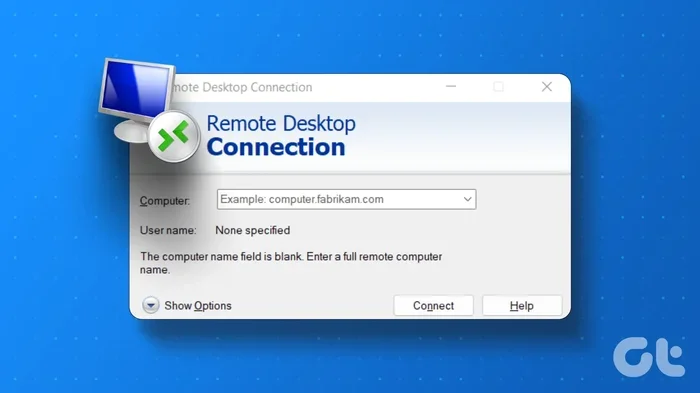
Remote desktop connections rely on specific network ports to work properly. The most important port is TCP 3389, which handles the core Remote Desktop Protocol traffic. You also need to know about UDP port 3389 and other related ports for features like audio, printers, and clipboard sharing. Understanding these ports helps you set up remote access safely and fix connection problems fast.
Have you ever tried to set up a remote desktop connection and hit a wall? Maybe the connection just would not go through, or your IT admin told you to check the ports. Either way, you are not alone. Understanding what ports a remote desktop uses can feel confusing at first. But once you grasp the basics, everything clicks into place.
Remote desktop technology lets you control one computer from another location. You can access your work PC from home, help a friend fix their laptop, or manage servers across the world. But none of this works without the right ports being open and properly configured. In this guide, we will walk through every port involved, explain what each one does, and show you how to set things up the right way.
Key Takeaways
- TCP Port 3389: This is the main port used by Remote Desktop Protocol for screen sharing and input.
- UDP Port 3389: Used for faster data transfer in newer versions of Remote Desktop.
- Firewall Configuration: You must open the correct ports in your firewall to allow remote connections.
- Security Matters: Exposing RDP ports to the internet can be risky without proper protection like a VPN or strong passwords.
- Custom Ports: You can change the default RDP port to add an extra layer of security.
- Multiple Protocols: Remote desktop can also use VNC, SSH, and other protocols with their own ports.
📑 Table of Contents
What Is Remote Desktop Protocol?
Remote Desktop Protocol, or RDP, is the technology that makes remote desktop possible. It was developed by Microsoft and comes built into Windows. When you use RDP, your screen, keyboard, and mouse inputs travel over the network to another computer. The other computer sends back its screen in real time. It feels like you are sitting right in front of it.
RDP uses a set of specific network ports to send and receive data. Think of ports like doors on a building. Each door leads to a different room. Some doors handle screen data, others handle sound, and others handle file transfers. If the wrong door is locked, that feature will not work.
For anyone who uses a laptop for remote work, understanding what RAM means for a laptop also matters because remote desktop sessions can be demanding on system memory. You want enough RAM to handle both the local tasks and the remote connection smoothly.
The Main Port: TCP 3389
The most important port for remote desktop is TCP port 3389. This is the default port that Microsoft RDP uses for all core communication. When you type a computer name or IP address into your remote desktop client, it tries to connect through this port first.
How TCP 3389 Works
TCP stands for Transmission Control Protocol. It is a reliable way to send data over a network. When your computer sends a signal through TCP 3389, it waits for confirmation that the data arrived. This makes sure nothing gets lost during the connection.
Here is what TCP 3389 handles:
- Screen display data: The remote computer sends its screen image to you.
- Keyboard and mouse input: Your clicks and keystrokes travel to the remote machine.
- Session management: The port keeps the connection alive and manages user sessions.
- Encryption setup: It starts the security handshake to protect your data.
If you are running a remote desktop on a laptop, you might also want to check how much power a laptop uses when plugged in, since sustained remote sessions can draw more battery and processing power than normal use.
Why TCP 3389 Is the Default
Microsoft chose 3389 as the standard port for RDP back in the early days of Windows XP and Windows Server 2003. It has remained the default ever since. Almost every remote desktop tool and guide references this port. That is why it is the first port you should know about.
Other Ports Used by Remote Desktop
While TCP 3389 is the main port, remote desktop uses several other ports too. These handle specific features like sound, printing, and clipboard sharing. Let us break them down one by one.
UDP Port 3389
In newer versions of Windows, RDP can also use UDP port 3389. UDP stands for User Datagram Protocol. Unlike TCP, UDP does not wait for confirmation before sending data. This makes it faster but less reliable.
UDP is used for:
- Real-time audio and video streaming during remote sessions.
- Faster screen updates when you are moving your mouse quickly.
- Reduced latency in high-bandwidth situations.
Most modern RDP clients automatically use UDP when available. If UDP fails, they fall back to TCP 3389. So you should open both TCP and UDP versions of port 3389 for the best experience.
Dynamic RPC Ports
Remote Procedure Call, or RPC, uses a range of dynamic ports. These ports are not fixed. They change each time a remote desktop session starts. Windows typically assigns them from a range like 49152 to 65535.
RPC handles tasks like:
- Printer redirection to the remote session.
- Drive mapping between local and remote computers.
- Clipboard sharing for copy and paste.
Managing dynamic RPC ports can be tricky. One approach is to set a fixed port range in the Windows registry. This makes firewall rules much easier to configure.
Port 80 and Port 443 for Remote Desktop Gateway
If you use Remote Desktop Gateway, which lets you connect over the internet securely, you need ports 80 and 443 open. Port 80 handles HTTP traffic, and port 443 handles HTTPS traffic. These are the same ports used for regular web browsing.
Using a gateway adds a layer of security. Instead of exposing port 3389 directly to the internet, all traffic goes through the gateway. This is a much safer approach for businesses and remote workers alike.
Additional Ports for Specific Features
Some remote desktop features use extra ports. Here are a few examples:
- Port 3389 (TCP/UDP): Core RDP communication.
- Port 5900: Used by VNC, an alternative remote desktop protocol.
- Port 22: Used by SSH for secure shell access as an alternative to RDP.
- Dynamic RPC range (49152-65535): For printer, drive, and clipboard redirection.
Knowing these ports helps when you are troubleshooting. If a specific feature is not working, checking the related port is a great first step.
How to Configure Ports for Remote Desktop
Setting up the right ports is essential for a working remote desktop connection. The process depends on whether you are connecting over a local network or the internet.
Configuring Ports on a Local Network
On a local network, things are simpler. Both computers are behind the same router. Here is what you need to do:
- Open the Windows Firewall settings on the host computer.
- Go to “Allow an app or feature through Windows Firewall.”
- Find “Remote Desktop” in the list and check both Private and Public boxes.
- Click OK and restart the remote desktop service.
This opens TCP 3389 automatically. Most routers on a local network do not block this traffic, so you should be good to go.
Configuring Ports for Internet Access
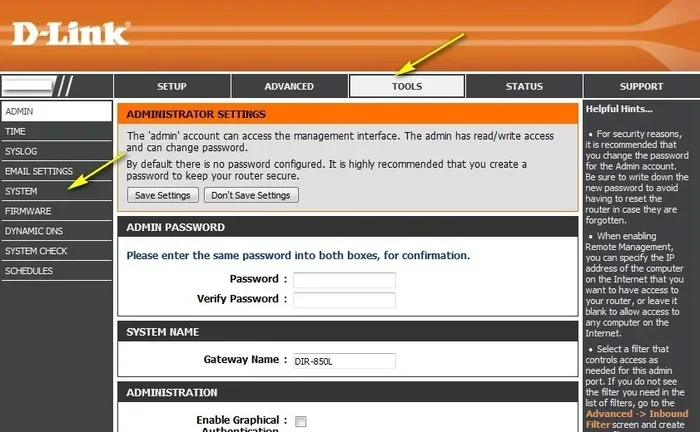
Connecting over the internet requires more steps. You need to configure your router and firewall carefully:
- Log in to your router’s admin panel.
- Find the port forwarding section.
- Forward TCP port 3389 to the internal IP address of the host computer.
- If using UDP, forward UDP port 3389 as well.
- Consider forwarding the dynamic RPC port range (49152-65535) for full feature support.
- Save settings and test the connection from outside the network.
Warning: Opening port 3389 directly to the internet can be risky. Attackers often scan for open RDP ports. Always use strong passwords and consider using a VPN instead.
Changing the Default RDP Port
You can change the default RDP port from 3389 to something else. This adds a small layer of security through obscurity. Here is how:
- Open the Registry Editor on the host computer.
- Navigate to HKEY_LOCAL_MACHINE\System\CurrentControlSet\Control\Terminal Server\WinStations\RDP-Tcp.
- Find the “PortNumber” value.
- Change it from 3389 to your desired port number.
- Restart the computer and update your firewall rules.
Just remember that if you change the port, you must tell your remote desktop client to use the new port. You can do this by typing the IP address followed by a colon and the port number, like this: 192.168.1.100:5000.
Security Best Practices for Remote Desktop Ports
Security should always come first when dealing with remote desktop ports. Exposing RDP to the internet without protection is one of the most common ways computers get hacked. Let us look at how to stay safe.
Use a VPN Instead of Port Forwarding
A Virtual Private Network, or VPN, is the safest way to access remote desktops over the internet. Instead of opening ports on your router, you connect to a VPN first. The VPN creates an encrypted tunnel between your computer and the network. Then you use the local RDP connection inside that tunnel.
This method has several advantages:
- You do not need to expose any ports to the internet.
- All traffic is encrypted, protecting your data.
- Only authorized VPN users can attempt RDP connections.
Enable Network Level Authentication
Network Level Authentication, or NLA, is a built-in RDP security feature. It requires you to authenticate before the full remote session starts. This prevents unauthorized users from even reaching the login screen.
To enable NLA, go to Remote Desktop Connection settings, click “Show Options,” and go to the “Advanced” tab. Check the box for “Connect from any running version of Remote Desktop.”
Use Strong Passwords and Account Lockout
Weak passwords are the number one way attackers break into RDP sessions. Use long, complex passwords with a mix of letters, numbers, and symbols. Also, enable account lockout policies so that repeated failed login attempts temporarily block the account.
Keep Your System Updated
Microsoft regularly releases security patches for RDP vulnerabilities. Always keep your Windows system updated. Missing updates can leave your open RDP ports exposed to known exploits.
For those interested in overall laptop performance during remote sessions, understanding what more RAM does for a laptop can help ensure smooth operation when running resource-intensive remote desktop applications.
Troubleshooting Common Port Issues
Even with the right setup, you can run into port-related problems. Here are the most common issues and how to fix them.
Connection Refused or Timeout
If your remote desktop client says “connection refused” or times out, the most likely cause is a blocked port. Check these things first:
- Is TCP 3389 open in the Windows Firewall on the host computer?
- Is port 3389 forwarded correctly on your router?
- Is the host computer turned on and connected to the network?
- Are you using the correct IP address or hostname?
Screen Flickering or Lag
Slow or flickering screens often relate to UDP settings. Try these fixes:
- Disable UDP in the Remote Desktop Connection client under the “Experience” tab.
- Lower the display resolution on the remote session.
- Check your internet speed and latency.
- Make sure UDP port 3389 is open if you want to keep UDP enabled.
Printer or Clipboard Not Working
If you cannot share printers or copy and paste between computers, the dynamic RPC ports may be blocked. Try opening the full RPC port range (49152-65535) in your firewall. Alternatively, set a fixed RPC port range in the registry for easier management.
GPU Temperature During Remote Sessions
Running a remote desktop session can put extra load on your graphics card, especially if you are using the remote computer for graphics-heavy tasks. If you notice performance issues, check what a good idle GPU temperature is for your card, and monitor temperatures during active remote sessions to make sure your hardware is not overheating.
Key Takeaways
- TCP Port 3389: This is the main port used by Remote Desktop Protocol for all core communication between computers.
- UDP Port 3389: Used alongside TCP for faster audio, video, and screen updates in modern RDP versions.
- Dynamic RPC Ports: Handle printer redirection, drive mapping, and clipboard sharing through a range of ports.
- Ports 80 and 443: Required when using Remote Desktop Gateway for secure internet access.
- Firewall Configuration: Always ensure the correct ports are open in your firewall, both on the computer and the router.
- Security First: Use a VPN, enable NLA, and keep your system updated to protect open RDP ports from attackers.
Frequently Asked Questions
What is the default port for Remote Desktop?
The default port for Remote Desktop is TCP 3389. This is the port that Microsoft RDP uses for all core communication. When you connect to a remote computer without specifying a port, your client automatically tries this one first.
Can I change the default RDP port?
Yes, you can change the default RDP port by editing the Windows Registry. Navigate to the RDP-Tcp settings and modify the PortNumber value. After changing it, you must also update your firewall rules and specify the new port in your remote desktop client.
Is it safe to expose port 3389 to the internet?
Exposing port 3389 directly to the internet is risky. Attackers frequently scan for open RDP ports and attempt brute-force attacks. If you must access RDP over the internet, always use a VPN, enable Network Level Authentication, and use strong passwords.
What is the difference between TCP and UDP for remote desktop?
TCP is reliable and ensures all data arrives correctly, making it ideal for screen and input data. UDP is faster but less reliable, making it better for real-time audio and video. Modern RDP uses both, falling back to TCP if UDP fails.
Do I need to open multiple ports for remote desktop to work fully?
Yes, for full functionality you need TCP 3389, UDP 3389, and access to the dynamic RPC port range (49152-65535). Without the RPC ports, features like printer sharing and clipboard copy-paste may not work properly.
What is Remote Desktop Gateway and why does it use ports 80 and 443?
Remote Desktop Gateway is a service that lets you connect to remote computers over the internet securely. It uses ports 80 (HTTP) and 443 (HTTPS) to create a secure web-based tunnel. This avoids the need to expose port 3389 directly to the internet, adding an extra layer of security.
=== CONCLUSION ===
Understanding what ports a remote desktop uses is essential for anyone who works remotely or manages computers from a distance. The main port, TCP 3389, handles the core connection. UDP 3389 adds speed for audio and video. Dynamic RPC ports enable features like printing and clipboard sharing. And ports 80 and 443 come into play when using Remote Desktop Gateway.
Setting up these ports correctly ensures smooth, reliable remote connections. But more importantly, securing them properly protects your computers from unauthorized access. Always use a VPN when possible, enable Network Level Authentication, and keep your systems updated.
Whether you are a home user helping a friend from across the room or an IT professional managing servers around the world, knowing your ports puts you in control. Take the time to configure them right, and your remote desktop experience will be faster, safer, and far less frustrating.