What to Do When an on Board Graphics Card Is Not Working
When your on board graphics card stops working, it can freeze your screen, cause display errors, or leave you with no output at all. The good news is that most issues are fixable with simple steps like updating drivers, checking BIOS settings, or reseating connections. This guide walks you through every proven solution to get your integrated graphics back up and running fast.
Nothing is more frustrating than sitting down at your computer, pressing the power button, and getting nothing but a blank screen. If your on board graphics card is not working, you are not alone. This is one of the most common tech headaches people face, and it can happen on desktops and laptops alike. The good news is that you do not need to be a tech expert to fix it. Most of the time, the problem has a simple solution that you can handle in minutes.
Your integrated graphics chip is built right into your processor or motherboard. It handles everything from displaying your desktop to playing videos. When it fails, your entire visual experience breaks down. This guide will show you exactly what to do step by step. We will cover driver fixes, BIOS checks, hardware troubleshooting, and more. By the end, you will know how to bring your display back to life.
Key Takeaways
- Update your graphics driver first: This solves the majority of on board graphics issues quickly and easily.
- Check your BIOS settings: Sometimes the integrated GPU gets disabled by accident and needs to be re-enabled.
- Try a dedicated GPU as a workaround: If your on board graphics card is dead, a discrete GPU can take over immediately.
- Reseat RAM and connections: Loose hardware contacts are a common and overlooked cause of display adapter failures.
- Know when to seek professional help: Motherboard-level GPU failure may require expert repair or replacement.
- Prevent future issues: Regular driver updates and proper cooling keep your integrated graphics running smoothly.
📑 Table of Contents
- Understand What an On Board Graphics Card Does
- Step One: Update or Reinstall Your Graphics Driver
- Step Two: Check Your BIOS and UEFI Settings
- Step Three: Check Your Physical Connections and Hardware
- Step Four: Use a Dedicated GPU or External Graphics Solution
- Step Five: Run Advanced Troubleshooting Tools
- Step Six: Know When to Seek Professional Help
- Prevent Future Graphics Card Issues
- Conclusion
Understand What an On Board Graphics Card Does
Before diving into fixes, it helps to understand what you are dealing with. An on board graphics card is also called integrated graphics. It is a small GPU built into your CPU or motherboard chipset. Unlike a dedicated GPU, it shares system memory instead of having its own separate video RAM. This makes it cost effective and energy efficient.
Most everyday computers rely on integrated graphics for normal tasks. Web browsing, office work, video streaming, and light gaming all work fine with on board graphics. Brands like Intel and AMD build these chips into their processors. Intel calls them Intel HD Graphics or Intel Iris. AMD uses the Radeon branding for their integrated solutions. They are perfectly capable for regular use, but they can and do fail sometimes.
Common Signs Your Integrated Graphics Have Failed
How do you know your display adapter is not working? Look for these telltale signs:
- No display output at all: Your screen stays black even though the computer powers on.
- Screen flickering or artifacts: You see random lines, dots, or color distortions on screen.
- Driver crashes: Your display freezes, then recovers with a message about a graphics driver stopping responding.
- Reduced performance: Everything feels sluggish, and videos stutter or lag badly.
- External monitors not detected: You plug in a second screen, but nothing shows up.
If you notice any of these, do not panic. There are clear steps you can take to diagnose and fix the problem.
Step One: Update or Reinstall Your Graphics Driver
The number one cause of on board graphics card not working issues is a bad or outdated driver. Your graphics driver is the software that tells your operating system how to communicate with the GPU. When it gets corrupted or outdated, your display suffers.
How to Update Your Graphics Driver on Windows
Updating your driver is straightforward. Follow these steps:
- Right click on the Start menu and select Device Manager.
- Expand the Display adapters section.
- Right click on your integrated graphics card and select Update driver.
- Choose Search automatically for drivers and let Windows do the work.
If Windows does not find a new driver, you can visit the manufacturer website directly. For Intel integrated graphics, go to Intel Driver and Support Assistant. For AMD processors, check the AMD website. Download the latest driver and install it manually.
How to Reinstall a Corrupted Graphics Driver
Sometimes updating is not enough. You need a clean reinstall. Here is how:
- Open Device Manager and expand Display adapters.
- Right click your integrated GPU and select Uninstall device.
- Check the box that says Delete the driver software for this device.
- Restart your computer.
- Windows will automatically reinstall a fresh driver on boot.
This simple process fixes many display issues. If you are using your laptop for work, you might want to plug in a USB mouse while you troubleshoot, since your touchpad may also stop responding if the graphics driver is completely broken.
Step Two: Check Your BIOS and UEFI Settings
Your BIOS controls the hardware settings before your operating system loads. Sometimes the integrated graphics get accidentally disabled in BIOS. This is more common than you might think, especially after a system update or a BIOS reset.
How to Access Your BIOS
Restart your computer and press the BIOS key during startup. This is usually F2, Del, F10, or Esc, depending on your motherboard or laptop brand. Once inside the BIOS menu, look for a section called Advanced, Chipset, or Built-in Device Configuration.
Enable Integrated Graphics in BIOS
Find the setting for your internal GPU. It might be labeled as:
- Integrated Graphics Configuration
- Primary Display Adapter
- Onboard Graphics
- Internal Graphics
Make sure it is set to Enabled. If it was set to Auto, try switching it to Enabled manually. Save your changes and exit BIOS. Your display should come back on during the next boot.
Some laptops have a toggle in the BIOS that switches between the integrated GPU and a dedicated GPU. If your laptop has both, make sure the internal graphics are not set to disabled or switched off.
Step Three: Check Your Physical Connections and Hardware
Software fixes do not always solve the problem. Sometimes the issue is physical. Loose connections, faulty cables, or damaged ports can all mimic a graphics card failure.
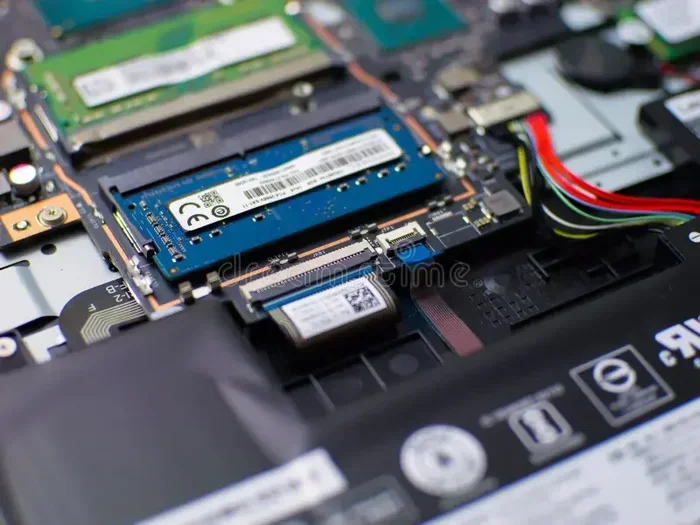
Reseat Your RAM and GPU Connections
On desktop computers, open the case and check the following:
- Make sure your RAM sticks are firmly seated in their slots.
- Check that your display cable is securely connected to the correct port.
- If you have a dedicated GPU, ensure it is properly seated in the PCIe slot.
- Look for any visible damage on the motherboard or graphics chip area.
On laptops, physical inspection is harder, but you can still check the display cable connection by opening the back panel if you are comfortable doing so. Some laptop models have known issues where the display ribbon cable loosens over time from regular opening and closing.
Test with Different Cables and Ports
Do not assume your cable is fine. Try a different HDMI, DisplayPort, or VGA cable. Plug into a different port on your monitor or TV. Sometimes the simplest fix is just a bad cable or a loose connection.
Step Four: Use a Dedicated GPU or External Graphics Solution
If your on board graphics card is truly dead and cannot be revived, you have options. A dedicated GPU can take over all display duties immediately.
Installing a Dedicated GPU
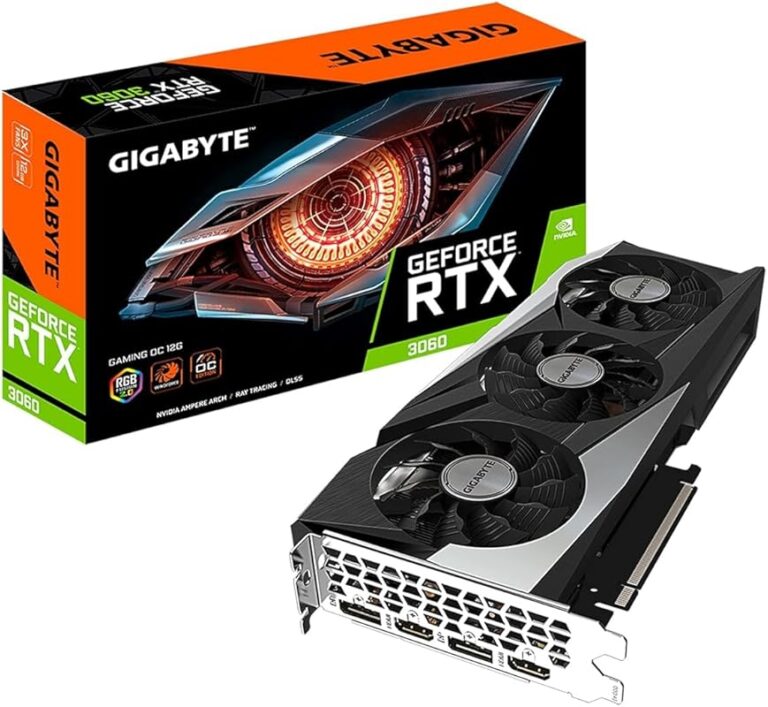
For desktop users, installing a discrete graphics card is the most reliable fix. You simply plug the card into a PCIe slot, connect your display cable to the new GPU, and your system will use it instead of the broken integrated graphics. This also gives you a major performance boost for gaming and creative work.
Before buying a new GPU, check what your power supply can handle and whether your case has enough space. If you are not sure which GPU fits your system, look up your processor model first. For example, if you have a Ryzen 7 5700G, you already have strong integrated graphics, but adding a dedicated card can push your performance even further.
Using an External GPU (eGPU)
For laptop users who cannot open the machine easily, an external GPU enclosure is a great alternative. You connect the eGPU through a Thunderbolt or USB-C port. This gives you the power of a dedicated graphics card without opening your laptop. It is not as fast as an internal GPU, but it works well for most tasks.
Keep in mind that an eGPU setup works best when your integrated graphics are completely non functional. If your on board GPU is partially working, the system might still try to use it and cause conflicts.
Step Five: Run Advanced Troubleshooting Tools
If the basic steps above did not fix your issue, it is time to dig deeper. Several tools can help you pinpoint exactly what is wrong with your graphics hardware.
Use Windows Display Diagnostic Tools
Windows has built-in tools that can help identify display problems:
- Event Viewer: Check for error messages related to your display adapter under Windows Logs.
- DirectX Diagnostic Tool: Type dxdiag in the Run dialog. This shows detailed information about your graphics hardware and drivers.
- Display settings: Right click your desktop and go to Display Settings. If your monitor is not detected, the problem is likely hardware related.
Run a System File Check
Corrupted system files can interfere with your graphics driver. Open Command Prompt as Administrator and run the following command:
sfc /scannow
This tool scans your system for corrupted files and repairs them automatically. It is a simple step that often resolves hidden issues affecting your display adapter.
Check for Windows Updates
Sometimes a Windows update fixes graphics bugs that were causing your problems. Go to Settings, then Update and Security, and check for updates. Install any pending updates and restart your computer.
Step Six: Know When to Seek Professional Help
Not every graphics problem is fixable at home. If you have tried all the steps above and your on board graphics card is still not working, it may be time to consult a professional.
Here are signs that the problem is beyond a simple fix:
- The GPU chip on your motherboard has physically burned out.
- Your motherboard has suffered liquid damage or a short circuit.
- Multiple hardware components have stopped working at the same time.
- Your computer is still under warranty and professional repair is covered.
A qualified technician can run hardware diagnostics and determine if your motherboard needs replacement. In many cases, if your computer is under warranty, the manufacturer will repair or replace it at no cost to you.
Prevent Future Graphics Card Issues
Once you get your display working again, you want to keep it that way. Here are simple habits that protect your integrated graphics:
- Update your drivers regularly: Set a reminder to check for driver updates once a month.
- Keep your system cool: Overheating damages your GPU over time. Clean your fans and vents regularly.
- Avoid overclocking your integrated graphics: While it is possible, it increases heat and can shorten the lifespan of your GPU.
- Use a surge protector: Power surges can fry your graphics hardware instantly.
- Run regular maintenance: Disk cleanup, driver updates, and malware scans keep your system healthy overall.
For tasks that demand heavy graphics work, consider whether a dedicated GPU is necessary. Not everyone needs one, but if you do programming, video editing, or gaming, a discrete graphics card takes the load off your integrated GPU and prevents it from burning out.
Conclusion
A failing on board graphics card is stressful, but it is almost always fixable. Start with the simplest solution, which is updating or reinstalling your graphics driver. From there, move on to BIOS checks, physical inspections, and advanced troubleshooting. Most people resolve the issue without ever needing professional help.
If your integrated graphics are truly beyond repair, a dedicated GPU or external graphics solution gets you back to full display functionality right away. The key is to stay calm, follow the steps in order, and not rush to buy new hardware before you have tried the free fixes first. With the right approach, your screen will be back to normal in no time.
Frequently Asked Questions
Can I use my laptop without an on board graphics card?
No, you need some form of graphics processing to get any display output. If your integrated GPU fails, you must install a dedicated graphics card or use an external GPU enclosure to get your screen working again.
How do I know if my integrated graphics or dedicated GPU is the problem?
Disconnect any external GPU and try booting with only the integrated graphics. If the display works, your dedicated GPU is the issue. If it does not work, the problem is with your on board graphics card or the motherboard itself.
Is it safe to update my graphics driver manually?
Yes, it is completely safe. Always download drivers from the official manufacturer website rather than third party sources. This ensures you get a clean, virus free driver that is compatible with your hardware.
Why does my screen go black but the computer is still running?
This usually means your graphics driver has crashed or your display adapter has stopped responding. Try pressing Ctrl+Alt+Delete to open Task Manager and restart the graphics driver from there. If that does not work, a driver reinstall or BIOS check may be needed.
Can overheating cause my integrated graphics to stop working?
Yes, absolutely. Overheating is one of the most common causes of graphics failures. When your GPU gets too hot, it will throttle performance or shut down entirely to protect itself. Keep your computer well ventilated and clean the dust from your fans regularly.
Do I need a graphics card for everyday tasks like browsing and office work?
No, most everyday tasks run perfectly fine on integrated graphics. You only need a dedicated GPU for demanding tasks like gaming, 3D rendering, or heavy video editing. If you are not sure whether your workload requires more graphics power, check if your current setup handles it smoothly first.