What Will a Computer Do Without a Hard Drive
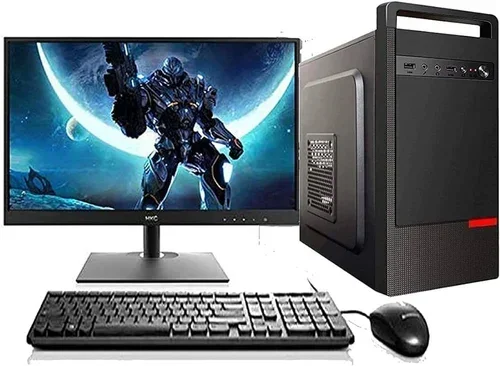
A computer without a hard drive can still power on and perform basic tasks, but it won’t have permanent storage for your files, programs, or operating system. You can boot from a USB drive, use a live operating system, or rely entirely on RAM and cloud storage. Understanding what happens without a hard drive helps you make smart decisions about your computer setup.
A computer without a hard drive might sound like it’s completely useless. But the truth is, your machine can still do a surprising amount even when there’s no storage drive inside. Whether you’re dealing with a failed hard drive, testing a setup, or just curious about how your system works, understanding what happens without a hard drive is incredibly useful.
When you remove or lose a hard drive, your computer loses its ability to store files permanently. Your operating system, personal documents, downloaded programs, and settings all live on that drive. Without it, everything changes. But that doesn’t mean your computer becomes a paperweight. It simply shifts how it operates and what it can do.
In this guide, we’ll walk through exactly what a computer does when there’s no hard drive attached. We’ll cover booting without a drive, using live operating systems, relying on RAM, and finding smart workarounds. By the end, you’ll know whether running a computer without a hard drive makes sense for your situation.
Key Takeaways
- A computer can boot and run without a hard drive: It uses RAM and external media like USB drives to operate temporarily.
- You lose permanent storage: Without a hard drive, your files, settings, and installed programs won’t persist after shutdown.
- Live operating systems work great: Linux and Windows can run entirely from a USB stick or network connection.
- RAM becomes even more important: Since there’s no storage, your computer relies heavily on what RAM does in a laptop for temporary memory.
- Cloud storage fills the gap: You can store files online instead of on a local drive.
- Hard drive failure doesn’t mean game over: You can recover data and still use your computer with the right approach.
📑 Table of Contents
- What Happens When You Remove a Hard Drive?
- Can a Computer Boot Without a Hard Drive?
- What Can You Do With a Computer That Has No Hard Drive?
- How to Set Up a Computer Without a Hard Drive
- Common Mistakes People Make Without a Hard Drive
- When Should You Actually Remove Your Hard Drive?
- Hard Drive Alternatives Worth Considering
- Final Thoughts
What Happens When You Remove a Hard Drive?
Removing a hard drive from your computer changes everything about how the machine stores and accesses data. The hard drive is the main storage device in most computers. It holds your operating system, applications, and all your personal files. When it’s gone, the computer still has its other hardware components working.
The Boot Process Changes Completely
Without a hard drive, your computer can’t find the operating system in its usual location. When you press the power button, the BIOS or UEFI firmware looks for a bootable device. If no hard drive is present, it searches for alternatives. These include USB drives, network connections, or even CD/DVD media. If it finds nothing bootable, you’ll see an error message on screen.
The error message varies by manufacturer. Some show “No bootable device found.” Others display “Operating System not found.” Either way, the message means the same thing: your computer has no storage device to load the system from. This is the first clue that something is missing from your setup.
Your Computer Still Powers On
Here’s something many people don’t expect. A computer without a hard drive still powers on. The fans spin. The motherboard lights up. The RAM still gets initialized. Your computer hardware still functions. The graphics card still works if you have one. The keyboard and mouse still connect. The screen still displays output.
The computer just can’t load your usual desktop environment. It can’t open your files or run your installed programs. But the core machine is alive and well. This distinction matters because people often think a missing hard drive means a dead computer. It doesn’t. The machine is fully operational at a hardware level.
Can a Computer Boot Without a Hard Drive?
Yes, a computer can boot without a hard drive. But it needs an alternative source for the operating system. This is where bootable USB drives and live operating systems come into play. Many people don’t realize that you don’t need a permanent internal drive to get a computer running.
Booting from a USB Drive
A bootable USB drive is one of the easiest ways to run a computer without a hard drive. You create a USB with an operating system installed on it. Then you change the boot order in your BIOS settings to prioritize the USB port. When the computer starts, it loads everything from the USB stick.
This method works with most computers, whether desktops or laptops. You can use it to run Linux distributions, Windows installers, or even recovery environments. The USB acts as your temporary hard drive. Everything you save to the USB persists between sessions, but your main computer’s internal storage remains empty.
Using a Live Operating System
A live operating system runs entirely from external media. It doesn’t need to install anything on a hard drive. Linux distributions like Ubuntu and Linux Mint are popular choices for live USB setups. You plug in the USB, restart the computer, and the full operating system loads into RAM.
Live operating systems are great for troubleshooting. They let you access your files even when your main drive has failed. They also work well for testing hardware or trying out a new system without committing to an installation. The tradeoff is speed. Running from a USB is slower than running from an internal drive, especially on older machines.
What Can You Do With a Computer That Has No Hard Drive?
A computer without a hard drive isn’t completely limited. You can still do plenty of useful things. The key is understanding what your machine can access without permanent storage and finding creative workarounds.
Using Cloud Storage
Cloud storage becomes your best friend when you don’t have a hard drive. Services like Google Drive, Dropbox, and OneDrive let you store files online. You can upload documents, photos, and videos from your computer and access them from any other device. This replaces the need for local storage almost completely.
The main requirement is a stable internet connection. Without internet, cloud storage doesn’t help much. But for everyday tasks like writing documents, sending emails, or browsing the web, cloud storage works perfectly. Your files stay safe in the cloud even if your computer has no internal drive.
Running Lightweight Applications
Many applications now run directly from a browser or USB drive. You don’t need to install them on a hard drive. Google Docs, online spreadsheets, web-based email, and streaming services all work without local storage. Portable versions of popular apps can run from a USB stick, leaving no trace on the computer itself.
This approach works well for basic computing tasks. Writing emails, browsing the web, watching videos, and light document editing all run smoothly. But anything that requires significant local storage, like video editing or gaming, becomes difficult or impossible without a drive.
Relying on RAM for Temporary Operations
RAM plays a bigger role when there’s no hard drive. Since there’s no permanent storage, your computer loads everything into memory temporarily. RAM holds the operating system, open applications, and active data while the computer runs. When you shut down, everything in RAM disappears.
This is why having enough RAM matters more than ever without a hard drive. If you want to learn more about how more RAM affects your laptop’s performance, it’s especially relevant in a drive-less setup. More RAM means smoother operation and the ability to run more applications simultaneously.
How to Set Up a Computer Without a Hard Drive
Setting up a computer without a hard drive is straightforward. You just need the right tools and a clear plan. Here’s how to get started and make the most of a drive-less setup.
Step-by-Step Setup Process
- Check your BIOS settings: Restart your computer and enter the BIOS or UEFI menu. Change the boot order so USB or network boot comes first.
- Create a bootable USB: Download a Linux ISO or Windows installation media. Use a tool like Rufus or BalenaEtcher to write it to a USB drive.
- Plug in the USB and restart: Your computer should now boot from the USB instead of looking for a hard drive.
- Choose your operating system: Select a live option if you don’t want to install anything. Choose full installation if you want to set up on the USB drive itself.
- Connect to the internet: Once the system loads, connect to Wi-Fi or Ethernet to access cloud services and online tools.
Recommended USB Drives for Booting
Not all USB drives work equally well for booting. You want a fast drive with good read speeds. USB 3.0 or higher is strongly recommended. A drive with at least 16 GB of storage gives you room for the operating system and your files. Look for drives from reputable brands to avoid reliability issues.
Speed matters a lot when running from USB. A slow drive makes everything feel sluggish. A fast USB 3.0 drive makes the experience much closer to running from an internal drive. It’s a small investment that makes a big difference in daily use.
Tips for Better Performance Without a Hard Drive
- Use an SSD-based USB drive: Some portable SSDs connect via USB and offer much faster speeds than traditional flash drives.
- Close unused applications: Without a hard drive, your RAM is doing more work. Free up memory by closing programs you aren’t using.
- Keep your USB backed up: Since everything lives on the USB, losing it means losing everything. Keep a backup copy of your bootable drive.
- Use a lightweight operating system: Lightweight Linux distros use less RAM and run faster from USB than heavy operating systems.
Common Mistakes People Make Without a Hard Drive
Running a computer without a hard drive comes with a few pitfalls. Knowing these mistakes helps you avoid frustration and data loss.
Forgetting to Save Files
The biggest mistake is forgetting that everything is temporary without a drive. If you work on a document and don’t save it to the USB or cloud, it’s gone when you shut down. Always save your work to external media or cloud storage before closing anything.
Using a Slow or Unreliable USB Drive
Cheap USB drives fail more often and run slower. Using a low-quality drive for your main operating system leads to crashes and data loss. Invest in a reliable, fast drive. Your computer’s functionality depends on it when there’s no hard drive present.
Ignoring RAM Limitations
Without a hard drive, your computer depends heavily on RAM for everything. If you have very little memory, even basic tasks become slow. Make sure your system has enough RAM to handle your workload. Check your computer’s specifications and upgrade if needed.
When Should You Actually Remove Your Hard Drive?
There are valid reasons to remove a hard drive from a computer. Sometimes it’s for security. Sometimes it’s for repair. Understanding when it makes sense helps you decide if a drive-less setup is right for you.
Data Security and Privacy
Removing a hard drive protects your data when disposing of or selling a computer. Your files, passwords, and personal information stay safe on the removed drive. This is one of the most secure ways to ensure no one accesses your data later.
Hard Drive Failure and Recovery
If your hard drive fails, you might temporarily remove it while you replace it or recover data. In the meantime, you can still use the computer with a bootable USB. This gives you continued access to basic functions while you address the storage problem.
Testing and Troubleshooting
Removing the hard drive helps identify whether the drive itself is causing problems. If your computer works fine without the drive, you know the issue is with the storage device, not the motherboard or other components. This simple test saves time during computer troubleshooting.
Hard Drive Alternatives Worth Considering
If you’re thinking about going without a traditional hard drive, there are alternatives that give you storage without the bulk or fragility of a conventional drive.
Solid State Drives (SSDs)
SSDs are faster, more durable, and more efficient than traditional hard drives. They have no moving parts, which makes them less prone to mechanical failure. If you’re replacing an old hard drive, an SSD is the best upgrade you can make. Your computer will boot faster and run more smoothly.
External Hard Drives
An external hard drive connects via USB and gives you portable storage. You can plug it in when you need it and disconnect it when you don’t. This works as a flexible alternative to an internal drive. External drives are great for backups and storing large files you don’t need every day.
Network Attached Storage (NAS)
NAS devices connect to your home network and provide shared storage for all your devices. You don’t need a hard drive inside your computer to access files. Everything lives on the NAS server. This setup works well for households with multiple computers and users who need shared access to files.
Final Thoughts
A computer without a hard drive is far from useless. It can still boot, run applications, browse the web, and handle basic tasks. The key is knowing how to work with what you have and using the right alternatives. Bootable USB drives, cloud storage, and sufficient RAM keep your computer functional even without internal storage.
Whether you’re dealing with a failed drive, setting up a temporary system, or just exploring how computers work, understanding this topic gives you real power. You’re never truly stuck just because your hard drive is gone. There’s always a path forward. What a computer does without a hard drive might surprise you once you see it in action.
So next time someone tells you a computer is useless without a drive, you’ll know better. With the right setup and a little creativity, your machine keeps working. The hard drive is just one piece of the puzzle. Your computer is capable of much more than most people realize.
Frequently Asked Questions
Can you use a laptop without a hard drive?
Yes, you can use a laptop without a hard drive. You just need a bootable USB drive or access to a network to load an operating system. The laptop will function normally for basic tasks like browsing the web, writing documents, and using online applications. Everything you do will be temporary unless you save to the USB or cloud storage.
How long can a computer run without a hard drive?
A computer can run indefinitely without a hard drive as long as it has power and an alternative boot source. The limiting factors are your RAM capacity and the lifespan of your USB drive or external storage. As long as you save your work properly, there’s no time limit on using a drive-less computer.
Will removing a hard drive damage my computer?
No, removing a hard drive will not damage your computer. The other hardware components continue to work normally. Your motherboard, RAM, processor, and graphics card are all unaffected. Just be careful when handling internal components and make sure the computer is powered off before removing any parts.
What’s the difference between RAM and a hard drive?
RAM is temporary memory that your computer uses while it’s running. A hard drive is permanent storage that keeps your files and programs even when the computer is off. RAM handles active tasks while the hard drive stores everything long-term. Without a hard drive, your computer relies entirely on RAM for temporary operations.
Can you install Windows without a hard drive?
Yes, you can install Windows without a hard drive by booting from a USB drive. The installation process loads into RAM, and you can run Windows entirely from the USB. However, performance will be slower than running from an internal drive. For the best experience, use a fast USB 3.0 drive or portable SSD.
Is cloud storage a good replacement for a hard drive?
Cloud storage works well as a partial replacement for a hard drive. It’s great for documents, photos, and files you access regularly. However, it requires a constant internet connection and isn’t ideal for large files or offline work. For the best setup, combine cloud storage with a USB boot drive for a complete drive-less computing experience.