Does Apple Use Usb A
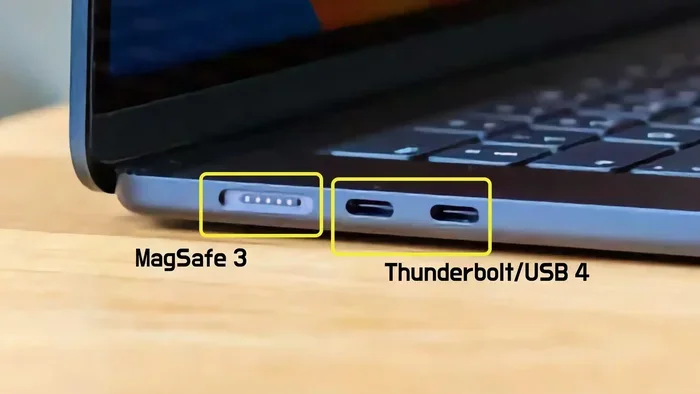
Apple has largely moved away from USB-A ports, shifting to USB-C and Thunderbolt across most devices. If you own a modern MacBook, iMac, or Mac Mini, you will not find traditional USB-A ports. However, Apple still supports USB-A through adapters and accessories, so your older devices are not left behind.
Does Apple Use Usb A? That is a question many Mac users ask, especially when they dig out an old USB-A flash drive or mouse and cannot find a matching port on their shiny new MacBook. The short answer is no, Apple does not include USB-A ports on its modern lineup of devices. But the full story is much more interesting and useful to understand.
Over the past decade, Apple has made a clear and deliberate shift away from the traditional USB-A connector. Today, almost every Apple device ships with USB-C or Thunderbolt ports. This change has confused some users and thrilled others. Let us dive deep into why Apple made this move, what it means for you, and how you can still use your favorite USB-A gear with a Mac.
Key Takeaways
- Apple does not include USB-A ports on modern MacBooks, iMacs, or Mac Studios.
- USB-C and Thunderbolt are Apple’s preferred connection standards today.
- You can still use USB-A devices with Apple products by using simple adapters.
- Older Apple devices like certain Mac minis and Mac Pros still include USB-A ports.
- Apple’s shift to USB-C aligns with industry standards and offers faster data transfer speeds.
- Third-party adapters make it easy to connect USB-A accessories to modern Macs.
- The future of Apple ports points toward USB-C as the universal standard.
📑 Table of Contents
- The History of USB-A and Apple
- Which Apple Devices Still Have USB-A?
- How to Use USB-A Devices with Modern Apple Products
- USB-A vs USB-C: What Is the Difference?
- Apple’s Ecosystem and the USB-C Transition
- What the Future Holds for Apple Ports
- Common Mistakes When Using USB-A with Apple Devices
- Quick Tips for a Smooth USB-A to USB-C Transition
- Conclusion
The History of USB-A and Apple
For many years, USB-A was the universal standard for connecting peripherals. You know the rectangular, flat connector. It was on every desktop computer, every printer, and every external hard drive. Apple embraced USB-A for a long time, and older Macs featured plenty of these ports. If you owned a Mac between 2005 and 2015, you likely had several USB-A ports ready to go.
But technology moves fast. Apple started phasing out USB-A around 2015 with the introduction of the first MacBook with a single USB-C port. This was a bold and controversial decision. Many people pushed back. They did not want to buy new cables or adapters just to connect their existing devices. However, Apple stood firm and continued the transition across its entire product line.
Why Did Apple Make the Switch?
Apple has given several reasons for dropping USB-A over the years. The USB-C connector is much smaller, which allows for thinner and lighter devices. It also supports much faster data transfer speeds and can carry more power for charging. These benefits made the switch a no-brainer from a design perspective.
Another big factor was simplification. USB-C is reversible, so you never have to flip the cable to get it right. It also handles video output, data transfer, and charging all through a single cable. For Apple, fewer ports meant a cleaner design and fewer points of failure. The company believes USB-C is the future of connectivity, and it has invested heavily in the Thunderbolt standard built on top of USB-C.
Which Apple Devices Still Have USB-A?
If you are wondering whether any current Apple products still include USB-A ports, the answer is very few. Apple has mostly eliminated USB-A from its active product lineup. Here is a closer look at what is available today and what still carries the old connector.
Modern Apple Devices Without USB-A
Every modern MacBook, whether it is the MacBook Air or the MacBook Pro, uses only USB-C or Thunderbolt ports. The same goes for the iMac, Mac Studio, and Mac Mini. Even the iPad Pro and iPad Air now feature USB-C instead of the older Lightning connector. Apple has made a clear statement that USB-A is a thing of the past.
When you buy a new Mac today, you will find USB-C or Thunderbolt 4 ports. These offer blazing fast speeds up to 40 Gbps with Thunderbolt 4. They also support DisplayPort video output and can charge your device with up to 100 watts of power. It is a massive upgrade from the old USB-A standard in every way.
Older Apple Devices That Still Use USB-A
Some older Apple devices still have USB-A ports. Certain Mac Pro models and older Mac mini versions include them. If you have an older iMac or a legacy Mac Pro sitting around, you may still find USB-A ports on the back. These machines were built before Apple’s USB-C transition, so they rely on the traditional connector.
If you own one of these older machines, you are in luck. You can plug in USB-A devices directly without any adapters. But if you are using a modern Mac, you will need a bridge to connect your older USB-A accessories.
How to Use USB-A Devices with Modern Apple Products
Even though Apple does not include USB-A ports on modern devices, that does not mean you cannot use your USB-A gear. There are several simple and affordable ways to make it work. Let us walk through the options.
USB-C to USB-A Adapters
The easiest solution is a USB-C to USB-A adapter. These small dongles plug directly into your Mac’s USB-C port and give you a full-size USB-A port. You can connect flash drives, keyboards, mice, and printers without any hassle. Apple sells its own official adapter, but many third-party options work just as well at a lower price point.
These adapters are small enough to keep in your laptop bag. They are perfect for travelers who need to connect USB-A devices on the go. Just plug one into your Mac, and you are ready to go. They are a simple and reliable way to keep your older accessories working with your new Mac.
USB Hubs and Docking Stations
If you need multiple USB-A ports or a variety of connections, a USB hub is the way to go. A good USB hub plugs into one USB-C port on your Mac and gives you several ports in return. You can get hubs with USB-A ports, HDMI outputs, SD card readers, and even Ethernet connections all in one device.
For professionals who work at a desk all day, a docking station is even better. A docking station connects to your Mac and provides a full set of ports for your monitor, keyboard, mouse, external drives, and more. This setup turns your MacBook into a desktop workstation with minimal clutter. Many docking stations also support charging through the same USB-C connection, so you only need one cable for everything.
Connecting Peripherals Like Mice and Keyboards
One of the most common reasons people need USB-A on a Mac is for peripherals. Many people still prefer wired mice and keyboards over wireless options. If you want to connect a USB-A mouse or keyboard to your MacBook, a simple adapter does the trick. You can also look into Bluetooth options, which eliminate the need for any cables at all.
For those who rely on wired input devices, the adapter approach works seamlessly. Just plug your USB-A device into the adapter, plug the adapter into your Mac, and you are good to go. The experience feels just like using a USB-A port on an older computer. It is fast, reliable, and requires zero setup.
USB-A vs USB-C: What Is the Difference?
Understanding the difference between USB-A and USB-C helps you appreciate why Apple made the switch. These two connectors look and perform very differently, and each has its strengths.
USB-A is the classic rectangular connector you have seen for decades. It is reliable and widely supported. Almost every printer, external hard drive, and older accessory uses USB-A. But it is bulky, and it only supports older USB standards like USB 3.0, which maxes out at 5 Gbps data transfer speeds.
USB-C is the modern, compact connector that Apple has fully embraced. It is reversible, so you never have to worry about orientation. It supports much faster speeds with USB 3.1 and USB 3.2, reaching up to 10 Gbps or even 20 Gbps. When paired with Thunderbolt, speeds can hit 40 Gbps. USB-C also supports video output and higher wattage charging, making it a true all-in-one connector.
The transition from USB-A to USB-C is not just about Apple. The entire tech industry is moving in this direction. Android phones, Windows laptops, and gaming consoles have all adopted USB-C. It is becoming the universal standard for connectivity across all devices.
Speed and Performance Comparison
When it comes to raw performance, USB-C leaves USB-A in the dust. Here is a quick comparison of the two standards.
- USB-A (USB 3.0): Up to 5 Gbps data transfer speeds
- USB-C (USB 3.2 Gen 2): Up to 10 Gbps data transfer speeds
- USB-C (Thunderbolt 3): Up to 40 Gbps data transfer speeds
- USB-C (Thunderbolt 4): Up to 40 Gbps with enhanced security features
As you can see, USB-C offers significantly faster speeds than USB-A. This matters if you work with large files, edit video, or transfer huge photo libraries. The speed difference is noticeable in everyday use, too. Copying a 10GB file takes seconds longer on USB-A than on USB-C, and that adds up over time.
Apple’s Ecosystem and the USB-C Transition
Apple’s move to USB-C is part of a bigger strategy to unify its ecosystem. With the introduction of USB-C across the iPad, iPhone (in Europe due to regulations), and Mac lines, Apple is building a consistent connection experience. One cable type fits all your devices, which is incredibly convenient.
This shift also benefits accessory makers. A single USB-C cable can charge your phone, connect your laptop to a monitor, and transfer data to an external drive. The versatility of USB-C means fewer cables in your bag and less clutter on your desk. It is a win for everyone, even if it takes a little getting used to.
For those who have invested in USB-A accessories over the years, the transition can feel frustrating. But the market has responded quickly. USB-C adapters, hubs, and docks are everywhere now, and they are more affordable than ever. You can find high-quality options for under $20 that make the transition seamless.
What About the Apple USB-C to USB Adapter?
Apple sells an official USB-C to USB adapter that is compact and reliable. It gives you one USB-A port and a USB-C charging port in a tiny package. It is perfect for occasional use, like plugging in a USB-A flash drive or connecting a wired keyboard. The adapter is small enough to leave plugged into your Mac without taking up much space.
However, if you use USB-A devices frequently, you might want a dedicated USB hub instead. The Apple adapter only provides one USB-A port, and it does not support charging while in use. A USB hub solves both of these problems and gives you more flexibility. Look for a hub with its own power supply if you plan to connect multiple USB-A devices at once.
What the Future Holds for Apple Ports
Apple shows no signs of bringing USB-A back. The company has fully committed to USB-C and Thunderbolt as its standard connection methods. Every new Mac and iPad released in recent years uses USB-C exclusively. This trend is likely to continue for years to come.
Thunderbolt technology is evolving quickly, and the next generation promises even faster speeds and more capabilities. Apple is at the forefront of this development, and its adoption of USB-C positions it well for the future. If you are buying new accessories today, look for USB-C options to future-proof your setup.
For users who still rely on USB-A devices, adapters and hubs will remain essential tools for the foreseeable future. The good news is that these accessories are widely available and very affordable. You do not need to replace all your USB-A gear just because Apple dropped the port. A simple adapter bridges the gap perfectly.
Common Mistakes When Using USB-A with Apple Devices
Many users run into problems when trying to connect USB-A devices to their Macs. Here are some common mistakes to avoid.
- Using a cheap or uncertified adapter. Poor-quality adapters can cause connection issues, slow speeds, or even damage your device. Always buy from reputable brands.
- Plugging in too many devices without a powered hub. USB-C ports have limited power output. Connecting too many USB-A devices through an unpowered hub can cause problems. Use a powered hub for multiple devices.
- Forgetting that some adapters do not support data transfer. Some cheap USB-C to USB-A cables only support charging, not data. Check the specifications before you buy.
- Assuming all USB-C ports are the same. Not all USB-C ports support Thunderbolt or even USB 3.0 speeds. Check your specific Mac model to know what your ports can do.
Quick Tips for a Smooth USB-A to USB-C Transition
- Keep a USB-C to USB-A adapter in your laptop bag at all times.
- Label your adapters so you always know which one works for what.
- Buy a quality USB hub with its own power supply if you use multiple USB-A devices daily.
- Check your Mac model specifications to know exactly which ports you have.
- When shopping for new accessories, choose USB-C versions whenever possible.
- Consider going wireless for peripherals like mice and keyboards to avoid cable hassles entirely.
Conclusion
Does Apple Use Usb A? The answer is clear: modern Apple devices do not include USB-A ports. Apple has made a firm and deliberate shift to USB-C and Thunderbolt across its entire product lineup. This change brings faster speeds, thinner designs, and a more unified ecosystem. While it may take some adjustment, the benefits are significant and long-lasting.
If you still rely on USB-A devices, do not worry. Adapters, hubs, and docking stations make it easy to keep using your favorite gear with your Mac. The transition is simpler than it looks, and the accessories are affordable and widely available. Apple’s commitment to USB-C is here to stay, and embracing it now will keep your setup future-ready.
The world of connectivity is evolving, and Apple is leading the charge toward USB-C as the universal standard. Whether you are a casual user or a professional, understanding this shift helps you make smarter purchasing decisions and keeps your workflow running smoothly. So the next time someone asks, does Apple use USB-A, you will have the full answer ready.
Frequently Asked Questions
Can I still use USB-A flash drives with a MacBook?
Yes, you can use USB-A flash drives with a modern MacBook by using a USB-C to USB-A adapter or a USB hub. Simply plug the adapter into your MacBook’s USB-C port, connect your USB-A flash drive to the adapter, and your Mac will recognize it just like any other external drive.
Why did Apple remove USB-A from the MacBook?
Apple removed USB-A to make devices thinner and lighter, to support faster data transfer speeds, and to simplify the port lineup with USB-C. USB-C is smaller, reversible, and supports higher power delivery and video output through a single cable.
Do any current Apple products still have USB-A ports?
Very few current Apple products include USB-A ports. Most modern Macs, iPads, and accessories use USB-C exclusively. Some older models like certain Mac Pro and Mac mini versions may still have USB-A, but these are no longer in active production.
Is a USB-C to USB-A adapter safe to use with Apple devices?
Yes, as long as you buy a quality adapter from a reputable brand. Apple sells its own official USB-C to USB adapter, and many third-party options work reliably. Avoid very cheap uncertified adapters, as they may cause connection problems or slow speeds.
What is the difference between USB-C and Thunderbolt on Macs?
All Thunderbolt ports use the USB-C connector, but not all USB-C ports support Thunderbolt. Thunderbolt ports offer faster speeds (up to 40 Gbps), support daisy-chaining multiple devices, and can connect to external displays more easily than standard USB-C ports.
Will Apple ever bring USB-A back to the MacBook?
It is very unlikely. Apple has fully committed to USB-C and Thunderbolt across its entire product ecosystem. The industry as a whole is moving toward USB-C as the universal standard, and Apple is leading that transition rather than reversing it.