Why Amd Drivers Time Out After A Windows 11 Update

AMD drivers often timeout after a Windows 11 update due to compatibility conflicts, outdated driver versions, and changes in system security settings. This guide walks you through the root causes, proven fixes, and prevention tips to keep your AMD graphics running smoothly after every Windows update.
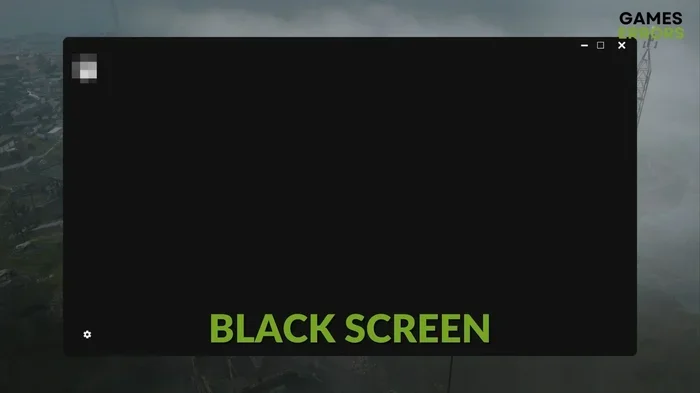
You just finished installing a Windows 11 update, and suddenly your screen goes blank or your games stutter. You check the device manager and see a red warning icon next to your AMD graphics card. This is a frustrating experience, but you are not alone. Thousands of users report the same problem every time Microsoft pushes a major Windows 11 update. The root cause usually comes down to one thing: AMD drivers timeout after a Windows 11 update. Let us break down exactly why this happens and how you can fix it fast.
When Windows 11 downloads a new update, it replaces or modifies system files that your graphics driver depends on. Sometimes the new system files are not yet compatible with your current AMD driver version. The result is a driver timeout, which means your operating system stops communicating with the GPU properly. This can cause screen flickering, black screens, game crashes, and even a blank desktop. Understanding this process is the first step toward solving the problem.
Key Takeaways
- Driver incompatibility: Windows 11 updates can clash with older AMD driver versions, causing timeouts and display errors.
- Simple fixes work: Rolling back drivers, updating via AMD Software, and running the Windows troubleshooter often resolve the issue quickly.
- Prevention is possible: Pausing Windows updates temporarily and keeping AMD drivers current helps avoid future timeout problems.
- System restore is a safety net: If all else fails, restoring your PC to a point before the update can undo driver damage.
- Hardware matters too: Systems with 16GB RAM and proper cooling handle driver updates better than underpowered machines.
📑 Table of Contents
- What Causes AMD Drivers to Time Out After a Windows 11 Update
- How to Fix AMD Driver Timeout Issues on Windows 11
- Preventing AMD Driver Timeouts in the Future
- How Your System Specs Affect Driver Stability
- Common Mistakes Users Make When Fixing Driver Timeouts
- When to Contact AMD Support or a Professional
- Final Thoughts
What Causes AMD Drivers to Time Out After a Windows 11 Update
Several factors come together to create this annoying problem. Let us look at the most common causes in detail.
Driver Version Mismatch
AMD releases driver updates regularly to support new games and applications. However, Microsoft also releases Windows 11 updates on a fixed schedule. When a Windows update arrives before AMD releases a matching driver, the two can clash. Your old driver simply does not know how to talk to the new system files. This mismatch triggers the timeout error almost every time.
Windows Security and Driver Signing Policies
Windows 11 has stricter driver signing requirements than earlier versions. After an update, the system may reject unsigned or outdated AMD drivers. This security feature protects your PC, but it also blocks older drivers from loading correctly. The timeout happens because Windows cannot verify the driver signature, so it stops the driver from running.
Conflicting Background Processes
Windows updates often run background services that compete for system resources. During a driver installation or update, these background processes can interrupt the GPU communication. The driver times out because it cannot complete its handshake with the operating system within the allowed time window.
Incomplete Driver Cleanup
When Windows updates, it does not always clean up old driver files properly. Leftover driver files from a previous version can conflict with the new installation. This creates a messy environment where the AMD driver cannot function correctly, leading to repeated timeouts.
How to Fix AMD Driver Timeout Issues on Windows 11
The good news is that you can fix this problem with several straightforward methods. Try them in order, starting with the simplest solution.
Method 1: Update Your AMD Drivers Manually
The fastest fix is to download the latest AMD driver directly from the AMD website. Do not rely on Windows Update to provide the correct driver. Go to the AMD Drivers and Support page, select your graphics card model, and download the newest version. Install it with a clean installation option checked. This removes old files and installs fresh ones that match the current Windows 11 build.
Method 2: Roll Back the Windows 11 Update
If the new driver does not work right away, you can roll back the Windows 11 update that caused the problem. Go to Settings, then Windows Update, then Update History, and click Uninstall Updates. Find the most recent update and remove it. This gives you time to wait for AMD to release a compatible driver. Many users find this to be the quickest path back to a working system.
Method 3: Use the Windows Device Manager Troubleshooter
Windows 11 has a built-in troubleshooter for display drivers. Right-click the Start button and select Device Manager. Find your AMD graphics card, right-click it, and select Troubleshoot. The tool will scan for problems and attempt to fix them automatically. While it does not always work, it can resolve simple timeout errors in seconds.
Method 4: Perform a System Restore
If nothing else works, a system restore can undo all changes made by the recent Windows update. Search for Create a Restore Point in the Windows search bar, open System Protection, and click System Restore. Choose a restore point from before the update. Your PC will revert to that state, and your AMD drivers should work again. Note that this will remove any programs installed after the restore point.
Method 5: Clean Install AMD Drivers Using DDU
For stubborn timeout issues, use Display Driver Uninstaller (DDU) to completely remove all AMD driver traces. Download DDU from the official site, boot into safe mode, and run the clean removal tool. Then restart your PC and install the fresh AMD driver. This method guarantees no leftover files cause conflicts. It is the most thorough fix available for persistent driver timeout problems.
Preventing AMD Driver Timeouts in the Future
Once you fix the problem, you want to stop it from happening again. Here are practical steps to protect your system.
- Keep AMD drivers updated: Check the AMD website monthly for new driver releases. Set a reminder if needed. Staying current reduces the chance of version mismatches.
- Pause Windows updates temporarily: When a major Windows 11 update drops, pause updates for a few days. This gives AMD time to release a compatible driver. You can pause updates in Settings under Windows Update.
- Use a system with adequate RAM: Systems with 16GB RAM handle driver updates more gracefully because they have enough memory to manage background processes. If your current setup has less RAM, consider upgrading. Check out this Windows 11 16GB RAM laptop guide for help choosing the right machine.
- Create restore points before updates: Always create a system restore point before letting Windows install any major update. This gives you a safety net if something goes wrong.
- Disable automatic driver updates through Windows: Go to Device Manager, right-click your AMD GPU, select Properties, and go to the Driver tab. Click Disable Driver Updates. This stops Windows from replacing your working AMD driver with an incompatible one.
Taking these simple precautions can save you hours of frustration. A little prevention goes a long way toward keeping your AMD graphics card running at peak performance.
How Your System Specs Affect Driver Stability
Your hardware setup plays a bigger role in driver stability than many people realize. A powerful system with enough memory and a solid-state drive handles driver updates much better than an older or underpowered machine.
For example, systems with 16GB RAM and a fast SSD provide enough headroom for Windows to process updates without disrupting the GPU driver. On the other hand, systems with only 8GB RAM may struggle when background update processes consume memory. This can cause the AMD driver to lose connection with the operating system, triggering a timeout error.
If you are running a laptop with limited RAM, you might want to check whether your system can be upgraded. A well-configured Windows 11 laptop with 16GB RAM provides a much smoother experience during driver updates and heavy gaming sessions. You can explore options at this laptop Windows 11 16GB RAM resource for guidance on finding the right configuration.
Cooling also matters. When your GPU runs hot during an update process, it can behave unpredictably. Make sure your fans are working and your vents are not blocked. A well-cooled system keeps your AMD drivers stable even during demanding tasks.
Common Mistakes Users Make When Fixing Driver Timeouts
Many users make the same mistakes when trying to fix AMD driver timeouts. Avoid these pitfalls to save time and effort.
- Installing drivers from third-party sites: Always download AMD drivers directly from AMD.com. Third-party sites may bundle malware or provide outdated versions that cause more problems.
- Skipping the clean install option: When installing a new AMD driver, always choose the clean installation option. This removes old driver files that could conflict with the new version.
- Ignoring Windows Update history: Checking which update caused the problem helps you understand the timeline and choose the right fix. Do not guess, check.
- Updating multiple drivers at once: Only update your AMD graphics driver first. If you update your audio, network, and chipset drivers all at the same time, you will not know which one caused a new problem.
- Forgetting to restart after installation: Always restart your PC after installing a new driver. A simple reboot can resolve many timeout issues that seem complicated.
By avoiding these common mistakes, you will fix driver timeouts faster and keep your system stable for longer.
When to Contact AMD Support or a Professional
Most driver timeout issues resolve with the methods described above. However, some situations require professional help. If you have tried DDU, a clean driver install, and system restore, and the problem persists, it is time to reach out for support.
Contact AMD Support if you see error codes that do not match standard timeout messages. If your GPU physically fails after a Windows 11 update, that is a hardware issue, not a driver issue, and you may need a replacement. For laptop users, check whether your warranty covers driver-related damage. Some manufacturers provide dedicated support lines for post-update driver problems.
Before contacting support, gather your system information. Note your Windows 11 build number, your AMD driver version, and the exact error message you see. This information helps support agents diagnose the problem faster and provide a more targeted solution.
Final Thoughts
AMD drivers timing out after a Windows 11 update is a common and fixable problem. The key is to act quickly, use the right tools, and follow proven steps. Start with a manual driver update or a system restore, and work your way down to more advanced fixes like DDU if needed. Prevention is your best long-term strategy, so keep your drivers current, pause updates when needed, and always create restore points before major Windows changes.
Your AMD graphics card is a powerful piece of hardware that deserves smooth, reliable performance. With the right knowledge and a few simple habits, you can keep it running perfectly no matter how many Windows 11 updates come your way. Stay proactive, stay updated, and your PC will reward you with stable, glitch-free performance every single day.
Frequently Asked Questions
Why do my AMD drivers keep timing out after every Windows 11 update?
This usually happens because Windows 11 updates modify system files that your current AMD driver version is not compatible with. The driver cannot communicate with the updated system files, so it times out. Updating to the latest AMD driver or rolling back the Windows update typically fixes this.
Is it safe to roll back a Windows 11 update to fix driver timeouts?
Yes, it is safe. Rolling back an update simply removes the recent update and restores your system to its previous state. Your files and personal data remain untouched. Go to Settings, then Windows Update, then Update History, and select Uninstall Updates to remove the problematic update.
Can I prevent Windows 11 from automatically updating my AMD drivers?
Yes, you can. Open Device Manager, right-click your AMD GPU, select Properties, go to the Driver tab, and click Disable Driver Updates. This stops Windows from replacing your manually installed AMD driver with an automatic one that may not be compatible.
Do I need to use DDU every time I update AMD drivers?
No, you only need DDU when standard driver updates fail to fix timeout issues. For regular updates, the AMD Software installer with the clean installation option works well. Use DDU only when you are dealing with persistent driver conflicts or stubborn timeout errors.
How long does it take to fix an AMD driver timeout on Windows 11?
Most fixes take between 10 and 30 minutes. A simple driver update takes about 10 minutes. A system restore takes around 15 to 20 minutes. A DDU clean install may take up to 30 minutes because it requires booting into safe mode and fully removing old driver files before reinstalling.
Will my games and applications work normally after fixing the driver timeout?
Yes, once the driver timeout is resolved, your games and applications should return to normal performance. If you still experience issues after fixing the driver, check your game settings and make sure your AMD Software is up to date. A system restart after fixing the driver is also recommended to ensure all changes take effect.
=== CONCLUSION ===
AMD drivers timing out after a Windows 11 update is a well-known issue with clear solutions. Whether you choose to update your drivers manually, roll back the update, use the troubleshooter, or perform a clean install with DDU, you have multiple paths to a working system. The most important takeaway is to act quickly and keep your drivers current. With the prevention tips shared in this guide, you can minimize the chances of running into this problem again. Your AMD graphics card and your Windows 11 system can work together in harmony, as long as you stay on top of updates and take the right protective steps.