Why Is Windows 10 Installer Not Detecting Usb
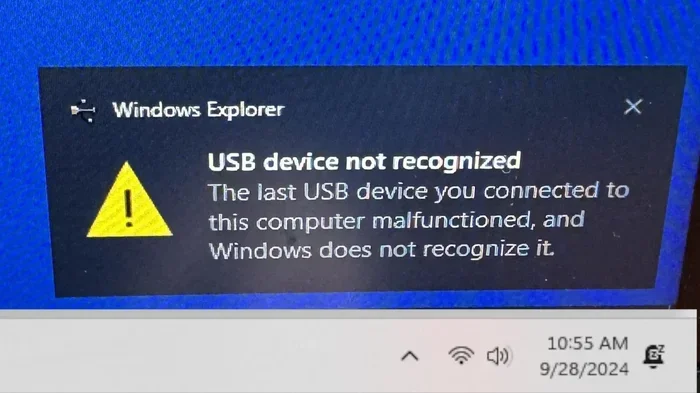
Why Is Windows 10 Installer Not Detecting Usb? This frustrating problem usually happens due to USB port issues, wrong drive format, outdated drivers, or BIOS settings. In this guide, we walk you through the most common causes and easy fixes so you can install Windows 10 without a hitch. You will learn how to format your USB correctly, update drivers, change BIOS settings, and more.
Have you ever plugged in a USB drive during a Windows 10 install and found that the installer simply does not see it? It is one of the most common and annoying problems people face when setting up or reinstalling their operating system. The good news is that this issue is almost always fixable.
In this article, we will explore why Windows 10 installer is not detecting USB drives and walk you through every solution you need. Whether you are using a USB flash drive, an external hard drive, or a bootable installation media, this guide covers it all. We will keep things simple and practical so you can get back to your setup quickly.
Let us start by understanding what causes this problem in the first place. Then we will move into step-by-step fixes that anyone can follow, even if you are not very tech-savvy. By the end, you will know exactly what to do when your Windows 10 installer fails to detect USB again.
Key Takeaways
- Wrong USB format is one of the top reasons the installer cannot find your drive.
- Outdated or missing USB drivers can block Windows 10 from detecting your USB device.
- BIOS and UEFI settings often need adjustment to allow USB detection during setup.
- Damaged USB ports or drives can cause persistent detection failures.
- Using the correct USB port (USB 2.0 vs. USB 3.0) matters a lot during installation.
- Windows USB/DVD Download Tool and Rufus are reliable tools for creating bootable drives.
- Simple fixes like replugging or trying another port solve the problem more often than you think.
📑 Table of Contents
Common Reasons Why Windows 10 Installer Does Not Detect USB
Before jumping into fixes, it helps to understand what might be going wrong. Several factors can cause the Windows 10 installer to ignore your USB drive entirely. Let us look at the most common ones.
Wrong File System or Format
Windows 10 expects your USB drive to be formatted in a specific way. If the drive is formatted as NTFS or exFAT, the installer might not recognize it. The installer works best with FAT32 or NTFS formats depending on your setup. Using the wrong format is one of the top reasons for detection failure.
USB Port Compatibility Issues
Not all USB ports are created equal. A USB 3.0 port on some older motherboards may not be fully supported during the early stages of Windows setup. This can cause the installer to skip the drive entirely. Sometimes a simple port swap fixes the problem right away.
Outdated USB Drivers
The Windows 10 installer relies on built-in drivers to communicate with your USB hardware. If these drivers are outdated or missing, the installer will not detect your drive. This is especially common with newer USB 3.1 and USB-C drives on older systems.
BIOS or UEFI Settings Blocking USB Detection
Your computer’s BIOS or UEFI firmware controls which devices are visible during the boot and setup process. If USB support is disabled or set to the wrong mode, the installer will not see your drive. This is a very common culprit that many people overlook.
Damaged USB Drive or Cable
A physically damaged USB drive or a faulty cable can prevent detection completely. If the drive has bad sectors or the connector is worn out, the installer simply cannot read it. Trying a different drive or cable is always worth a shot.
Bootable USB Created Incorrectly
If you used a tool to create your bootable Windows 10 USB and something went wrong during the process, the installer might not recognize it as a valid boot device. The creation process needs to be done correctly for the installer to find the drive.
How to Fix Windows 10 Installer Not Detecting USB
Now that you know the common causes, let us get into the solutions. Try each fix in order and check if your USB drive appears after each step.
Fix 1: Try a Different USB Port
This is the simplest fix and it works more often than you might expect. If you are using a USB 3.0 port, try switching to a USB 2.0 port instead. Some older systems have better compatibility with USB 2.0 during the Windows setup phase.
Also, avoid using USB hubs or extension cables. Plug the drive directly into the motherboard’s rear USB ports for the best results. Front panel ports on desktop cases can sometimes be less reliable during installation.
If you are on a laptop, try every available USB port. Some ports may share controllers and cause conflicts. A different port can sometimes solve the detection problem instantly.
Fix 2: Recreate the Bootable USB Drive
If your bootable USB was not created properly, the installer will not detect it. Here is how to do it the right way:
- Download the Windows 10 Media Creation Tool from the official Microsoft website.
- Insert a USB drive with at least 8GB of storage.
- Run the Media Creation Tool and select “Create installation media for another PC.”
- Choose your language, edition, and architecture (64-bit or 32-bit).
- Select “USB flash drive” as the media type.
- Pick your USB drive from the list and wait for the process to finish.
Alternatively, you can use Rufus, a free and reliable tool that many people prefer for creating bootable USB drives. Rufus gives you more control over the formatting and partitioning options, which can help avoid detection issues.
Make sure your USB drive is completely empty before recreating it. Any leftover data can sometimes interfere with the bootable setup process.
Fix 3: Check and Update USB Drivers
Outdated USB drivers are a sneaky cause of detection problems. Here is how you can address this:
- Boot into your current Windows installation if possible.
- Open Device Manager by right-clicking the Start button.
- Expand the “Universal Serial Bus controllers” section.
- Right-click each USB controller and select “Update driver.”
- Choose “Search automatically for drivers” and let Windows do its work.
If updating does not help, try uninstalling the USB controller drivers and restarting your PC. Windows will automatically reinstall fresh drivers on boot. This simple trick often resolves detection issues that seem stubborn at first.
For systems running older versions of Windows or with unique hardware, you may need to download drivers directly from your motherboard or laptop manufacturer’s website. Look for USB 3.0 or USB-C drivers specific to your model.
Fix 4: Adjust BIOS or UEFI Settings
Your BIOS or UEFI settings control how your computer interacts with USB devices during the boot process. Here is what to check:
- Restart your computer and press the BIOS key (usually F2, F12, Del, or Esc) during startup.
- Look for a section called “Boot,” “Advanced,” or “USB Configuration.”
- Ensure that “USB Legacy Support” or “Legacy USB Support” is enabled.
- Check if “Secure Boot” is enabled and try disabling it if necessary.
- Look for “XHCI Handoff” and make sure it is enabled.
- Save your changes and exit the BIOS.
Some systems have a setting called “USB Boot” that needs to be turned on for the installer to detect USB devices. Check your motherboard or laptop manual for specific BIOS settings related to USB support.
If you are using a newer system with UEFI firmware, make sure the USB drive is formatted with GPT (GUID Partition Table) rather than MBR (Master Boot Record). This mismatch can cause the installer to skip your drive entirely.
Fix 5: Reformat the USB Drive
Sometimes the USB drive itself has a file system issue that prevents the installer from reading it. Reformatting can fix this:
- Insert the USB drive into a working computer.
- Open “This PC” or “My Computer” and right-click the USB drive.
- Select “Format” from the context menu.
- Choose “FAT32” as the file system for drives under 32GB.
- For drives larger than 32GB, choose “NTFS.”
- Check “Quick Format” and click “Start.”
- Once complete, recreate your bootable Windows 10 USB using the Media Creation Tool.
Reformatting wipes the drive clean, which removes any corrupted data or incorrect partition tables that might be causing the detection problem. After reformatting, the installer should be able to see the drive without issues.
If you are dealing with a larger drive, you might also want to use the diskpart command-line tool to fully clean the drive before recreating the bootable media. This ensures there are no leftover partitions that confuse the installer.
Prevention Tips to Avoid USB Detection Issues in the Future
Once you get your USB drive working with the Windows 10 installer, you will want to avoid running into this problem again. Here are some simple prevention tips that save a lot of headaches.
Always Use High-Quality USB Drives
Cheap or generic USB drives are more likely to have compatibility issues with the Windows installer. Invest in a reputable brand like SanDisk, Samsung, or Kingston for reliable performance during installations.
Keep Your USB Drives in Good Condition
Physical damage to USB connectors or internal components can cause detection failures. Store your drives safely, avoid bending the connectors, and keep them away from extreme heat or moisture.
Create Bootable Media on a Stable System
If you are using the Media Creation Tool or Rufus, make sure your computer is running smoothly without errors. A system with corrupted files or driver issues can create a faulty bootable USB that the installer will not recognize.
Update Your System BIOS Regularly
BIOS updates from manufacturers often include improved USB compatibility and bug fixes. Check your motherboard or laptop manufacturer’s website periodically for updates, especially if you frequently use USB drives for installations.
Keep a Backup USB Drive Ready
It is always smart to have a spare USB drive ready with Windows 10 installation media. If one drive fails to be detected, having a backup saves you time and frustration. You can also use this backup drive to troubleshoot detection issues on different computers.
Expert Insights and Common Mistakes to Avoid
Even with the right fixes, some common mistakes can make USB detection problems worse. Here is what the experts want you to know.
Do Not Use a USB Hub During Installation
USB hubs can cause power delivery issues that prevent the installer from detecting your drive. Always connect the USB directly to the computer. If you are dealing with a situation where your USB mouse is not working on your laptop during setup, this same rule applies. Plug peripherals directly into the machine for the best results.
Do Not Skip the BIOS Check
Many people jump straight to troubleshooting the USB drive itself without checking the BIOS. As we covered above, BIOS settings are often the real cause. Always verify your USB-related BIOS settings before trying other fixes.
Do Not Ignore the USB Cable
If you are using an external drive with a USB cable, the cable itself might be faulty. A damaged cable can prevent detection even if the drive is perfectly fine. Try a different cable to rule this out.
Do Not Force the Issue
If the installer does not detect your USB after trying all the fixes, the drive itself might be defective. USB flash drives have a limited lifespan, and older drives can fail unexpectedly. Try the drive on another computer to confirm whether it is the drive or your setup.
Another thing to keep in mind is that some users experience issues where their mouse is not connecting to their laptop while trying to navigate the Windows installer. This can happen for the same USB detection reasons we have been discussing. Using a wired mouse directly plugged into the computer can help bypass wireless receiver issues during setup.
When to Seek Professional Help
Most USB detection issues during Windows 10 installation can be resolved with the steps we have covered. However, there are times when professional help is the right call.
If you have tried every fix and the installer still does not detect your USB, there may be a deeper hardware issue. A failing motherboard USB controller or a corrupted system firmware can cause persistent detection problems that are beyond simple fixes.
Similarly, if you are working on an older laptop and notice that your mouse is not showing up on your laptop even after trying multiple USB ports, the internal USB controller might be damaged. In these cases, a professional technician can diagnose the issue with specialized tools and offer solutions that go beyond standard troubleshooting.
Do not hesitate to reach out to a qualified technician if you are uncomfortable working with BIOS settings or if you suspect hardware failure. It is always better to be safe than to risk further damage to your system.
Conclusion
Why Is Windows 10 Installer Not Detecting Usb? As we have seen, the answer usually comes down to one of several fixable causes. Whether it is the wrong format, outdated drivers, incorrect BIOS settings, or a simple port issue, there is almost always a solution waiting for you.
The key is to work through the fixes systematically. Start with the easiest solutions like changing ports or recreating the bootable drive, and work your way up to BIOS adjustments and driver updates. Most of the time, one of these steps will resolve the problem and get your Windows 10 installation back on track.
Remember to keep your USB drives in good condition, use reliable tools to create bootable media, and always check your BIOS settings before assuming the worst. With the right knowledge and a little patience, you will never have to worry about Windows 10 installer not detecting USB again.
Now that you have all the tools and knowledge you need, go ahead and give your system a try. You will be up and running with a fresh Windows 10 installation in no time.
Frequently Asked Questions
Why is my Windows 10 installer not showing the USB drive at all?
This usually happens because of a wrong file format, outdated USB drivers, or incorrect BIOS settings. Try reformatting your drive to FAT32, updating your USB drivers, and checking that USB Legacy Support is enabled in your BIOS. These three fixes resolve the issue for most users.
Can a USB 3.0 drive cause detection issues during Windows 10 installation?
Yes, it can. Some older motherboards and systems do not fully support USB 3.0 ports during the early stages of Windows setup. Try plugging your USB drive into a USB 2.0 port instead. This simple switch often solves the detection problem immediately.
What is the best tool to create a bootable Windows 10 USB drive?
The official Microsoft Media Creation Tool is the most reliable option for most users. Rufus is another excellent free tool that gives you more control over formatting and partitioning. Both tools create bootable drives that the Windows 10 installer can detect without problems.
Should I use FAT32 or NTFS for my Windows 10 installation USB?
FAT32 is the safest choice for drives under 32GB because the Windows installer can read it without issues. For larger drives, NTFS works better. If the installer cannot detect your drive, reformatting it to FAT32 is a quick and effective fix.
Why does my USB work on my computer but not during Windows installation?
This happens because the Windows installer uses a minimal environment with limited drivers and support. Your USB drive might rely on drivers or hardware features that are not available during setup. Reformatting the drive, updating BIOS settings, or using a different USB port usually resolves this mismatch.
Is it possible that a faulty USB port is causing the detection problem?
Yes, absolutely. A damaged or loose USB port can prevent the installer from detecting your drive. Try every available port on your computer and inspect the ports for physical damage. If only certain ports fail, the port itself may need repair or replacement by a professional.