Why Wont My Phone Connect to the Usb

Your phone may not connect to the USB because of a damaged cable, a dirty port, wrong USB settings, or outdated software. This guide walks you through the most common causes and the easiest fixes so you can get your phone back up and running. Most USB connection problems are quick to solve at home without any special tools or technical skills.
There are few things more frustrating than plugging your phone into a USB cable and watching nothing happen. No charging light. No data transfer. No connection at all. You stare at the screen wondering, why won’t my phone connect to the USB?
The good news is that you are not alone. This is one of the most common tech problems people face every single day. The fix is often simpler than you think. In this article, we will walk through every major reason your phone might refuse to connect and give you clear, step-by-step solutions. Whether you are trying to charge your phone, transfer photos, or sync data, we have you covered.
Let us dive right in and get your phone connected again.
Key Takeaways
- Faulty or damaged USB cables are the number one cause of phone connection failures.
- Dust and debris in the charging port can block a proper connection and stop data transfer.
- Wrong USB mode settings on your phone can prevent it from being recognized by a computer.
- Software and driver issues on your computer often cause phones to show up as unknown devices.
- Restarting both devices solves the majority of temporary USB connection glitches.
- Trying a different port or computer helps you quickly isolate the problem source.
- Regular port cleaning and cable care prevent most USB connection problems from returning.
📑 Table of Contents
Common Reasons Why Your Phone Won’t Connect to USB
Before you start troubleshooting, it helps to understand what could be going wrong. USB connection problems usually fall into a few clear categories. Let us look at each one.
Damaged or Low-Quality USB Cables
The USB cable is the most likely culprit. Over time, cables wear out. They get bent, frayed, and chewed on by pets. A cable that looks fine on the outside might have broken wires inside. This means it can no longer carry power or data properly.
Cheap, non-branded cables are especially prone to this problem. They often use thin wiring and poor connectors that fail quickly. If you have been using the free cable that came in a gas station gift shop, that could be your entire issue.
Here are signs your cable might be the problem:
- The cable is visibly frayed or bent at the connectors.
- Your phone only charges when you hold the cable at a certain angle.
- The cable works intermittently or stops working after a few uses.
- You notice the cable gets unusually hot while charging.
Try swapping in a different cable first. This is the fastest way to rule out cable issues. If a new cable fixes the problem, you know exactly what was wrong.
Dirty or Damaged USB Port
Your phone’s charging port collects dust, lint, and debris over time. This is especially true if you keep your phone in your pocket or purse. Even a small bit of lint inside the port can push the USB connector away from the right contact points.
When the metal pins inside the port cannot make proper contact, your phone will not connect. You might see a blinking charging icon or no response at all.
To clean your port safely:
- Turn off your phone first.
- Use a wooden toothpick or a soft brush to gently remove debris.
- Never use metal objects like pins or paper clips. These can damage the port.
- You can also use compressed air to blow out loose particles.
- Inspect the port with a flashlight to check for any remaining dirt or damage.
If the port looks physically damaged or bent, you may need a professional repair. A damaged port is not something you should try to fix yourself unless you have experience with micro-soldering.
Wrong USB Connection Mode
Many people do not realize that phones have different USB modes. When you plug your phone into a computer, it needs to be set to the right mode for the computer to recognize it. If it is set to charge only, you will not get a data connection.
On most Android phones, you can change this by pulling down the notification shade after plugging in the USB cable. Look for a notification that says “Charging this device via USB” and tap it. You should see options like “Charging,” “File Transfer,” or “MTP.” Select “File Transfer” or “MTP” to enable data sharing.
On iPhones, the process is slightly different. You may need to unlock your phone and tap “Trust This Computer” when prompted. If you do not see this prompt, try disconnecting and reconnecting the cable.
Computer and Software Issues That Block USB Connections
Sometimes the problem is not your phone at all. It is your computer. Several software and hardware issues on the computer side can stop your phone from connecting properly.
Outdated or Missing USB Drivers
Your computer needs the right drivers to talk to your phone. If these drivers are missing, outdated, or corrupted, your phone will not show up when you plug it in. This is especially common on Windows computers.
To fix driver issues, try these steps:
- Open Device Manager on your Windows PC.
- Look for your phone under “Portable Devices” or “Other Devices.”
- If you see a yellow warning icon, right-click and select “Update Driver.”
- Choose “Search automatically for drivers” and let Windows do its thing.
- If that does not work, uninstall the device and restart your computer. Windows should reinstall the driver automatically.
For Mac users, you may need to download Android File Transfer or check for macOS updates. Apple devices generally do not have driver issues since they work natively with iTunes and Finder.
USB Port Problems on Your Computer
Not all USB ports are created equal. An older USB 2.0 port might not provide enough power for some phones. Or the port itself might be loose or dirty. Try plugging your phone into a different USB port on your computer.
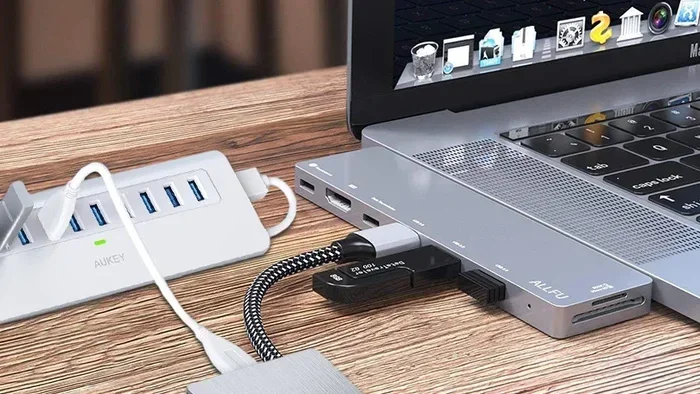
If you are using a USB hub, that could also be the problem. Hubs sometimes do not provide enough power or stable connections. Plug your phone directly into the computer instead. You can also try a different computer entirely to see if the issue follows your phone or stays with the original machine.
Phone Software Glitches
Sometimes a simple software bug on your phone can cause USB connection problems. This is more common after a major software update or if your phone has been running for a long time without a restart.
A quick restart often fixes temporary glitches. Power off your phone completely, wait about 10 seconds, and turn it back on. Then try connecting the USB cable again. This clears out temporary files and resets your phone’s connection services.
How to Troubleshoot Your Phone USB Connection Step by Step
Now that you know the common causes, let us walk through a systematic troubleshooting process. Follow these steps in order for the best results.
Step 1: Check the Cable and Adapter
Start with the simplest possible cause. Try a different USB cable. If you have a cable you know works well with another device, test it now. Also check any USB adapter you might be using. Some adapters, like M.2 NVMe SSD to USB 3.1 adapters, can cause compatibility issues if they are not designed for your device type. Make sure your adapter supports data transfer, not just charging.
Step 2: Clean the Port
Inspect your phone’s USB port carefully. Use a flashlight to look inside. If you see any lint, dust, or debris, clean it out gently with a toothpick or soft brush. This one step solves a surprising number of USB connection problems.
Step 3: Try a Different Power Source
Plug your phone into a wall charger instead of your computer. If it charges fine from the wall but not from the computer, the problem is likely on the computer side. If it does not charge from the wall either, your cable or phone port is the issue.
Step 4: Change the USB Mode
After plugging your phone into the computer, check the USB mode notification. Make sure it is set to “File Transfer” or “MTP” mode. This is a step many people overlook, but it is one of the most common reasons a phone will not show up on a computer.
Step 5: Restart Both Devices
Restart your phone and your computer. This clears temporary connection issues and refreshes USB services on both ends. It is a simple step that works more often than people expect.
Step 6: Update Software
Check for software updates on both your phone and your computer. Sometimes a USB connection bug is fixed in a software update that you have not yet installed. Go to your phone’s settings and check for system updates. On your computer, run Windows Update or check for macOS updates.
Step 7: Try a Different Computer
If none of the above steps work, try connecting your phone to a different computer. This tells you whether the problem is with your phone or with your original computer. If the phone works on a different computer, you know the issue is with your first computer’s drivers, ports, or settings.
Preventing Future USB Connection Problems
Once you get your phone connected again, you will want to keep it working smoothly. Here are some simple habits that prevent most USB connection problems from coming back.
- Invest in good quality cables. Name-brand or reputable third-party cables last much longer than cheap ones. They also charge faster and are safer for your phone’s battery.
- Keep your ports clean. Make it a habit to check your phone’s charging port every few weeks. A quick brush with a soft toothbrush can remove lint before it builds up.
- Avoid bending the cable sharply. Do not run cables under heavy furniture or wrap them too tightly. Sharp bends break the internal wires over time.
- Store cables properly. Coil them loosely and keep them in a dedicated spot. Tangled cables are more likely to develop internal damage.
- Update your phone and computer regularly. Software updates often include fixes for connectivity bugs. Keeping both devices up to date prevents many issues before they start.
Some people also keep a spare cable at their desk and one in their bag. This way, you are never stuck with a dead cable and no backup. It is a small habit that saves a lot of frustration.
When to Seek Professional Help
Most USB connection problems are easy to fix at home. But sometimes the issue is deeper than a bad cable or dirty port. Here are signs you should take your phone to a professional repair shop:
- The USB port is physically damaged or bent.
- Your phone gets very hot when you try to charge it.
- The phone shows no signs of life even with a known working cable and power source.
- You see burn marks or discoloration around the charging port.
- Software troubleshooting has not resolved the issue after multiple attempts.
Professional repair shops have specialized tools and replacement parts that can fix hardware issues safely. Trying to repair a damaged port yourself can sometimes make the problem worse and cost more in the long run.
Comparing Wired vs. Wireless Alternatives
If your USB connection issues keep coming back, you might want to consider wireless alternatives for some tasks. Here is a quick comparison:
| Feature | USB Wired | Wireless (Bluetooth/Wi-Fi) |
|---|---|---|
| Charging Speed | Fast and stable | Slower, varies by charger |
| Data Transfer Speed | Very fast | Moderate |
| Convenience | Requires cable | No cable needed |
| Reliability | High when cable is good | Can have interference |
| Port Wear | Yes, ports degrade over time | No port wear |
Wireless options are great for everyday use, but they cannot fully replace a wired USB connection for tasks like large file transfers or fast charging. If you are dealing with recurring USB issues, a wireless backup for charging and file sharing can be a helpful complement.
Final Thoughts
Dealing with a phone that will not connect to the USB can feel like a small crisis, especially when you need to transfer files or charge quickly. But as we have seen, the causes are usually straightforward and the fixes are within reach. Start with the cable and port, check your settings, and work your way through the troubleshooting steps.
Most of the time, a simple cable swap or port cleaning is all it takes. Keep your cables in good shape, your ports clean, and your software updated, and you will avoid most USB connection headaches. The next time you ask yourself why your phone will not connect to the USB, you will already know exactly what to do.
Frequently Asked Questions
Why does my phone say “USB device not recognized”?
This message usually means your computer cannot communicate with your phone. It is often caused by a faulty cable, a dirty USB port, or missing drivers. Try a different cable first, then check your phone’s USB mode and update your computer’s drivers.
Can a damaged USB port on my phone be repaired?
Yes, a damaged USB port can usually be repaired by a professional. They can replace the port assembly or solder new connections. Avoid trying to fix it yourself unless you have experience with phone hardware repairs.
Why does my phone connect to some computers but not others?
This points to a problem with the specific computer, not your phone. It could be a driver issue, a faulty USB port, or incompatible software on that computer. Try updating drivers or using a different port on the problem computer.
Is it safe to use third-party USB cables for my phone?
Yes, but only if you buy from reputable brands. Cheap, uncertified cables can be dangerous and may not charge your phone properly or transfer data reliably. Look for cables that are certified by the manufacturer or meet USB-IF standards.
How do I know if my phone’s USB port is dirty?
Shine a flashlight into the port and look for dust, lint, or debris. If you see any particles blocking the metal contacts, that is likely your problem. A gentle cleaning with a toothpick or soft brush usually fixes it right away.
What should I do if my phone only charges but does not transfer data over USB?
This is almost always a USB mode issue. Pull down your notification shade after plugging in the cable and select “File Transfer” or “MTP” mode. On iPhones, unlock your phone and tap “Trust This Computer” when the prompt appears.