Why Is My Usb Not Getting Detected

When your USB is not getting detected, it can stop your work dead in its tracks. This guide walks you through the most common reasons behind USB detection failures, from loose connections and driver issues to hardware damage. You will learn simple, step-by-step fixes that restore your USB devices to working order fast.
You plug in your USB drive, external hard drive, or keyboard, and nothing happens. The screen stays quiet. No notification pops up. No new drive appears. This frustrating moment happens to almost everyone at some point. Why is my USB not getting detected is one of the most searched tech questions online. The good news is that most causes are simple and fixable at home.
A USB device failing to show up can come from many directions. It might be a loose cable, a driver conflict, a power setting, or even a damaged port. Before you panic or rush to buy a new device, try the steps in this guide. We cover every major cause and give you clear, actionable fixes. By the end, you will know exactly what to check and how to solve the problem.
Key Takeaways
- Loose or damaged cables are the number one cause of USB devices not being detected.
- Outdated or corrupted drivers can prevent your operating system from recognizing USB peripherals.
- Power management settings in Windows and macOS often disable USB ports to save energy.
- BIOS and firmware settings control whether USB ports are active at the hardware level.
- Physical port damage or debris inside the port can block detection entirely.
- Device Manager is your best first stop for diagnosing USB recognition problems.
- Trying a different port or computer quickly isolates whether the issue is with the device or the machine.
📑 Table of Contents
Common Reasons Why Your USB Is Not Getting Detected
Understanding the root cause saves you time. Instead of trying random fixes, you can target the real problem. Below are the most common reasons a USB device fails to get detected.
Loose or Faulty Connections
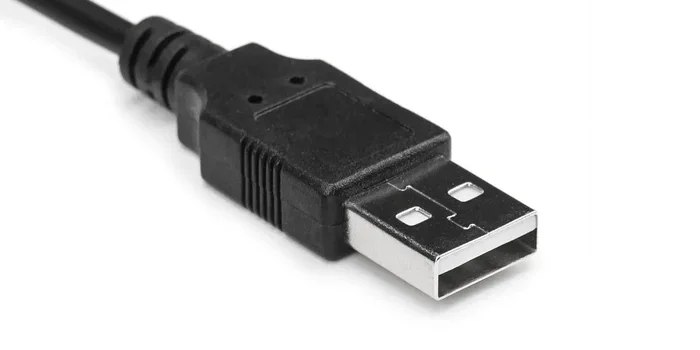
The simplest explanation is often the right one. A USB cable that is slightly loose will not transfer data or power properly. Over time, USB connectors wear out. The plastic housing breaks, the pins bend, or the cable frays near the plug.
Try unplugging the device and plugging it back in firmly. If you are using a USB hub or extension cable, remove it and connect the device directly to the laptop or desktop port. A faulty USB cable is one of the top reasons devices go undetected. Swap the cable with a known working one to rule this out quickly.
Driver Issues and Outdated Software
Your operating system relies on drivers to communicate with USB devices. When a driver becomes corrupted or outdated, the system simply does not recognize the device anymore. This happens after Windows updates, macOS upgrades, or when you connect a new peripheral.
Device Manager on Windows lets you see all connected hardware and their driver status. If you see a yellow triangle next to a USB controller, that signals a driver problem. Updating or reinstalling the driver often fixes detection issues immediately. On macOS, resetting the USB controller through a system restart can also clear driver conflicts.
Power Management Settings
Both Windows and macOS include power-saving features that automatically turn off USB ports to conserve energy. This is helpful for battery life but can cause your device to disappear unexpectedly. Your system may also selectively suspend USB devices to reduce power draw.
In Windows, you can check this setting by going to the USB controller properties in Device Manager. Look for the power management tab and uncheck the option that allows the computer to turn off the device to save power. This single change resolves many USB detection problems on laptops running on battery.
Physical Port Damage or Debris
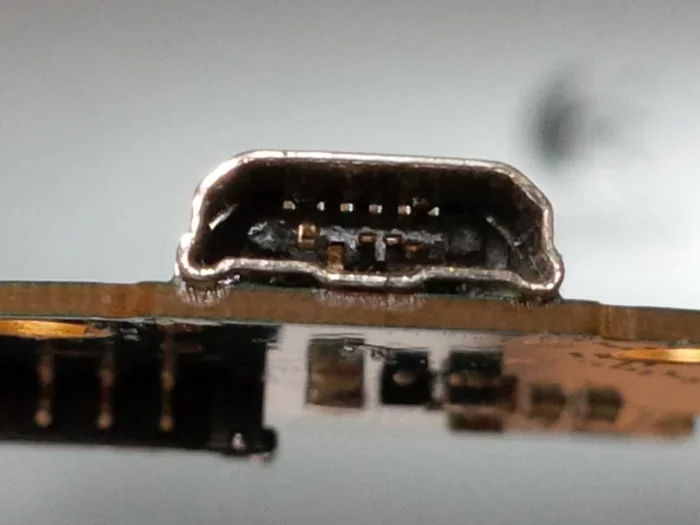
USB ports endure a lot of daily wear. Dust, lint, and crumbs can accumulate inside the port and block the connector from making proper contact. Bent or broken pins inside the port prevent any device from being recognized. A loose port that wobbles when you insert a cable also indicates physical damage.
Inspect the port carefully with a flashlight. Use compressed air to blow out any debris. If the port feels loose or looks physically damaged, you may need professional repair. Trying a different port on the same device can help confirm whether the problem is port-specific.
BIOS and Firmware Settings
Your computer’s BIOS or UEFI firmware controls hardware-level settings, including USB port functionality. If USB ports are disabled in BIOS, no operating system setting can override that. This usually happens after a system update or a manual configuration change.
To check BIOS settings, restart your computer and press the designated key during boot, typically F2, Del, or Esc depending on your manufacturer. Navigate to the USB configuration section and ensure USB ports are enabled. This is a less common cause but important to rule out when nothing else works.
Step-by-Step Fixes to Get Your USB Detected Again
Now that you know the main causes, here is a practical walkthrough of fixes you can try right now. Follow these steps in order for the best results.
Step 1: Check the Cable and Device
Start with the basics. Unplug the USB device and inspect both the cable and the connector. Look for visible damage like fraying, bent pins, or discoloration. Try a different cable first. Then try a different port on your computer. If you have access to another computer, test the device there too.
This quick test tells you whether the problem is with the cable, the port, or the device itself. If the device works on another computer, the issue is with your original machine. If it fails everywhere, the device or cable is likely the problem.
Step 2: Open Device Manager and Troubleshoot
On Windows, right-click the Start button and select Device Manager. Expand the Universal Serial Bus controllers section. Look for any devices with a yellow warning icon. Right-click on any problematic entry and select Update Driver. If updating does not help, choose Uninstall Device, then restart your computer. Windows will automatically reinstall the driver on boot.
You can also run the Windows USB Troubleshooter. Go to Settings, then System, then Troubleshoot, and select Additional Troubleshooters. The USB troubleshooter will automatically detect and attempt to fix common issues.
Step 3: Adjust Power Management Settings
Go back to Device Manager and expand Universal Serial Bus controllers. Right-click each USB Root Hub and select Properties. Navigate to the Power Management tab. Uncheck Allow the computer to turn off this device to save power. Click OK and repeat for every USB Root Hub listed.
This prevents your system from powering down USB ports during idle periods. Many users report that their USB devices suddenly stop being recognized because of this setting. Adjusting it often brings the device back immediately.
Step 4: Update USB Drivers and Chipset Drivers
Outdated chipset drivers can cause widespread USB issues across all ports. Visit your computer manufacturer’s website and download the latest chipset driver package for your specific model. Install the update and restart your machine.
For generic USB drivers, open Device Manager, right-click the USB controller, and select Update Driver. Choose Search Automatically for Drivers. This method works well for most standard USB detection problems on Windows 10 and Windows 11.
Step 5: Check BIOS USB Settings
Restart your computer and enter BIOS by pressing F2, Del, or Esc during startup. Look for a section labeled USB Configuration, Integrated Peripherals, or similar. Ensure that USB Legacy Support and all USB ports are enabled. Save changes and exit.
This step is especially important if your USB devices stopped working after a BIOS update or a system reset. If USB ports were accidentally disabled in BIOS, no software fix will restore them.
USB Detection Issues on Different Operating Systems
The troubleshooting steps vary slightly depending on your operating system. Here is how USB detection problems differ across platforms.
Windows USB Detection Fixes
Windows is the most common platform for USB detection issues. Device Manager is your primary tool for diagnosis. Beyond the steps already covered, you can also try resetting the USB hub through the Device Manager. Right-click the USB hub, uninstall it, and restart the computer. Windows will rebuild the USB hub driver on the next boot.
Windows also has a built-in tool called SFC (System File Checker) that scans for corrupted system files. Running sfc /scannow in the Command Prompt can fix USB issues caused by damaged system files. This is a powerful fix that many users overlook.
macOS USB Detection Fixes
On Mac computers, USB issues often resolve with a simple SMC reset. The process varies by Mac model. For Intel Macs with removable batteries, you hold Shift, Control, and Option for ten seconds, then press the power button. For newer Macs, you follow a specific key combination or use Apple’s official reset instructions.
macOS also has a feature called USB selective suspend that can disable ports. You can find this in Energy Saver settings. Disabling USB selective suspend keeps all ports active and prevents devices from being disconnected unexpectedly.
Linux USB Detection Fixes
Linux users can check USB detection using the terminal command lsusb, which lists all connected USB devices. If a device does not appear, the issue could be a missing kernel module or a permissions problem. Running dmesg | grep usb in the terminal shows real-time USB connection messages and helps identify the exact point of failure.
Installing or updating the linux-headers package often resolves USB detection issues on Linux distributions like Ubuntu and Fedora. This ensures the kernel has the latest drivers for USB controllers.
When to Seek Professional Help
Most USB detection issues resolve with the steps above. However, some situations require professional attention. If you have tried every fix and the device still does not get detected, the problem may be hardware-related.
A damaged motherboard USB controller, a short circuit in the port, or a failing internal USB hub on a laptop all need professional repair. If you notice a burning smell, visible scorch marks, or a port that feels physically broken, stop using it immediately. Continuing to force devices into a damaged port can cause further harm to your computer.
Similarly, if your USB mouse not working on my laptop or other peripherals fail across all ports, the issue likely lies with the USB controller on the motherboard rather than individual ports. A technician can diagnose this with specialized hardware testing tools.
Preventing Future USB Detection Problems
Prevention is always better than troubleshooting. A few simple habits can keep your USB devices working reliably for years.
- Eject devices properly before unplugging them. Always use the Safely Remove Hardware option in Windows or the Eject command on macOS.
- Keep cables organized and avoid yanking them out. Pull from the connector, not the cable itself.
- Use quality cables and hubs from reputable brands. Cheap USB cables often lack proper shielding and can cause intermittent detection issues.
- Keep your operating system updated. Windows and macOS regularly release driver updates that improve USB compatibility.
- Clean your USB ports periodically with compressed air to prevent dust buildup that blocks connections.
- Avoid overloading USB ports with too many high-power devices on a single hub. This can trigger power protection and disable the ports.
Following these simple practices reduces the chances of facing USB not getting detected issues in the future. A little care goes a long way in protecting your USB devices and ports.
Final Thoughts
A USB device that is not getting detected is frustrating but rarely a permanent problem. In most cases, the fix is quick and does not require technical expertise. Start with the simplest checks like cable connections and work your way through the steps in this guide. Device Manager, power settings, and BIOS checks cover the vast majority of detection failures.
Remember that every situation is slightly different. What works for one person may not work for another, but the structured approach in this article gives you the best chance of a fast resolution. If all else fails, professional repair is always an option. Keep this guide bookmarked for the next time a USB device refuses to show up on your screen.
Frequently Asked Questions
Why is my USB flash drive not showing up on my computer?
Your flash drive may not be showing up because of a loose connection, a corrupted driver, or a power management setting. Try plugging it into a different port and check Device Manager for any warning icons. Updating the USB controller driver often resolves this issue quickly.
Can a damaged USB cable cause detection problems?
Yes, absolutely. A damaged or frayed USB cable is one of the most common reasons a device fails to get detected. The cable may still carry power but fail to transfer data, or it may not work at all. Swapping to a known working cable is always the first step in troubleshooting.
How do I know if my USB port is physically damaged?
Signs of physical damage include a loose or wobbly port, visible bending or breaking of the internal pins, or scorch marks around the port. If the port feels different from other ports on your device or if devices keep disconnecting when you move them slightly, the port is likely damaged.
Does updating Windows help fix USB detection issues?
Yes, Windows updates often include driver improvements and bug fixes for USB controllers. Running the latest version of Windows ensures your system has the most current USB drivers. You can also manually update drivers through Device Manager for faster results.
Why does my USB device work on one computer but not another?
This usually means the problem is with the second computer, not the USB device. The second computer may have an outdated driver, a disabled USB port in BIOS, or a faulty port. Testing the device on multiple machines helps you isolate whether the device or the computer is the source of the problem.
Is it safe to use a USB hub with multiple devices?
Yes, USB hubs are safe to use, but overloading a hub with too many high-power devices can cause detection failures. Use a powered USB hub for devices that require more current, such as external hard drives. A quality hub from a reputable brand will provide stable connections and better detection rates.