
Why Is My Website So Slow WordPress
Your slow WordPress website is likely caused by bloated themes, unoptimized images, too many plugins, or poor hosting. These issues create a domino effect, burning visitor patience and hurting your search rankings. The good news? Most speed problems are fixable with targeted tweaks, not a complete rebuild. Start by auditing your site with free tools, then tackle the biggest culprits systematically. Speed is a non-negotiable factor for success—don’t ignore it.
You hit “Publish” on what you thought was a masterpiece. A beautiful, functional WordPress website ready to attract customers and acclaim. Then you visit it yourself… and wait. And wait. The spinner spins. The content dribbles in. That sinking feeling hits: why is my website so slow WordPress? You’re not alone. This is the single most common pain point for website owners, and it’s a critical problem. A slow site isn’t just an annoyance; it’s a business killer. It drives visitors away before they read a word, crushes your SEO rankings, and destroys your conversion rates. But here’s the empowering truth: the reason why is my website so slow is almost always diagnosable and fixable. This guide will walk you through the exact reasons, from the obvious to the deeply hidden, and give you the precise steps to transform your sluggish site into a speed demon. Let’s crack the code together.
Key Takeaways
- Poor hosting is the #1 hidden culprit: Cheap shared hosting often lacks resources, causing slow server response times (TTFB) that bottleneck everything else.
- Too many/inefficient plugins are like carrying bricks: Each plugin adds code and queries; low-quality ones are major performance hogs that cripple your site.
- Unoptimized images are silent speed killers: Huge, uncompressed images uploaded directly from cameras are the most common front-end issue we see.
- Your theme might be a bloated monster: Multipurpose themes with tons of built-in features you don’t use load unnecessary JavaScript and CSS.
- No caching is like starting from scratch every time: Without caching, WordPress rebuilds every page from scratch for each visitor, wasting massive resources.
- An unchecked database is a cluttered workshop: Post revisions, spam comments, and transient options accumulate, making database queries sluggish over time.
- You’re likely missing a CDN: Without a Content Delivery Network, visitors far from your server wait longer for every single file to load.
📑 Table of Contents
- 1. The Foundation: Your Web Hosting Is Probably Weak
- 2. Plugin Overload: The Weight of Too Many Tools
- 3. Theme Trouble: Your Design Is Costing You Speed
- 4. Image Apocalypse: Unoptimized Media Files
- 5. Database Debris: The Clogged Engine
- 6. The Missing Layer: Caching & CDN
- Conclusion: Speed Is a Journey, Not a Destination
1. The Foundation: Your Web Hosting Is Probably Weak
Before we blame WordPress itself, we must look at the ground it’s built on: your web hosting. This is the most fundamental and often overlooked answer to why is my website so slow WordPress. You could have the most optimized code in the world, but if your server is struggling, your site will crawl.
Shared Hosting: The “Cheap” Trap
Most beginners start on shared hosting—think $3-$10/month plans. The name says it all: you share server resources (CPU, RAM, disk I/O) with hundreds or thousands of other websites. If one site on your server gets a traffic spike or has a bug, it can hog resources and slow everyone down, including you. This is the classic “noisy neighbor” problem. The result? High server response times, technically called “Time to First Byte” (TTFB). If your TTFB is over 600ms, your hosting is likely the primary bottleneck. You’re essentially renting a tiny, overbooked apartment in a huge, chaotic building.
Geography Matters: Server Location vs. Audience
Where is your host’s server physically located? If your hosting company’s data center is in New York and your audience is in Sydney, Australia, every single file has to travel half the globe. This physical distance adds latency—a delay before the transfer even begins. For a local business serving one city, this might be negligible. For anyone with a national or global audience, it’s a significant drag on speed.
How to Test & Fix Your Hosting
First, test your TTFB. Use a tool like Pingdom or GTmetrix. Look at the “Waterfall” chart. The very first bar is your TTFB. If it’s red or over 1 second, your host is the first place to look. The fix? Upgrade. Move to a managed WordPress hosting provider (like Kinsta, WP Engine, SiteGround’s GoGeek, or A2 Hosting) that offers optimized stacks (like Litespeed or Nginx), dedicated resources, and servers closer to your audience. For serious sites, this is the single best investment you can make in speed.
2. Plugin Overload: The Weight of Too Many Tools
Plugins are WordPress’s superpower, but they are also its kryptonite for speed. The question why is my website so slow WordPress often has a simple answer: you have too many plugins, or the wrong ones.

Visual guide about Why Is My Website So Slow WordPress
Image source: d19d9m2dcgrxq7.cloudfront.net
Quantity vs. Quality: The Real Metric
It’s not just about the number. A single poorly coded plugin can be worse than ten lightweight, well-coded ones. Every plugin you activate does the following on the front-end (what visitors see) and/or the back-end (admin area): loads its own CSS files, loads its own JavaScript files, and often makes additional database queries. This creates HTTP requests—the more requests, the longer the page takes to render. Use a plugin like Query Monitor (free) to see exactly which plugins are making the most database queries and loading the most scripts on your homepage. You’ll often be shocked.
The “Must-Have” Plugin Trap
We all do it: “I need a contact form, a SEO plugin, a security plugin, a backup plugin, a cache plugin, a social share plugin…” That’s 6+ plugins right there. Some plugins try to do too much. For example, a “multipurpose” plugin that includes form building, SEO tools, and analytics might load all that code even if you only use the contact form. The solution is ruthless consolidation. Can your SEO plugin (like Rank Math or SEOPress) handle your XML sitemaps and schema, eliminating another plugin? Does your security suite (like Wordfence) include firewall features that replace another? Audit every active plugin. If you can achieve its function with a lighter alternative or native WordPress code, deactivate and delete it.
Practical Deactivation & Cleanup
Go to Plugins > Installed Plugins. Sort by “Last Updated.” Any plugin not updated in over a year is a major red flag—it may be incompatible with your WordPress version and a security risk. Deactivate it first, then test your site’s speed. If nothing breaks, delete it. Next, use Query Monitor on your homepage. Note the top 3-5 plugins by “Queries” and “Scripts.” Research lighter alternatives. For example, replace a heavy page builder with Gutenberg blocks if possible. Replace Jetpack with individual, specific plugins for its features (e.g., a dedicated image CDN, a dedicated stats tool).
3. Theme Trouble: Your Design Is Costing You Speed
Your WordPress theme is the framework for your entire site’s appearance and, often, functionality. A bad theme is a core reason why is my website so slow. Many popular, beautiful themes are poorly built speed disasters.

Visual guide about Why Is My Website So Slow WordPress
Image source: reduxlabs.com
The Multipurpose Theme Bloat
Themes like Avada, Enfold, or X are bestsellers because they let you build any site with drag-and-drop tools. The trade-off? They come with hundreds of pre-built demos, dozens of slider types, complex portfolio layouts, and integrated plugins—all loaded by default, even if you never use 95% of the features. They load massive JavaScript libraries and CSS files on every single page. This is the equivalent of driving a massive, fully-loaded semi-truck to go get a carton of milk.
How to Choose a Fast Theme
Look for themes that advertise “performance-focused,” “lightweight,” or “SEO friendly.” Great examples include GeneratePress, Astra, Kadence, and Neve. These themes are built with speed as a primary goal: they have minimal CSS/JS, clean code, and are designed to work seamlessly with page builders without adding bloat. Before buying or installing any theme, always check its speed demo. Go to the theme’s website and look for a “Performance” or “Speed Test” link. A fast theme’s demo should load in under 2 seconds on a standard connection. If they don’t publish this, be wary.
Fixing an Existing Bloated Theme
If you’re stuck with a heavy theme, all is not lost. First, go to Appearance > Customize and disable every feature you don’t absolutely need: sliders, complex animations, pre-loaders, unused page templates. Second, see if the theme has a “Performance” tab to disable unused scripts (like jQuery Migrate). Third, and most powerfully, use a caching plugin (we’ll cover this later) that can combine and minify the theme’s CSS/JS files. This reduces the number of requests and file sizes, mitigating some of the damage.
4. Image Apocalypse: Unoptimized Media Files
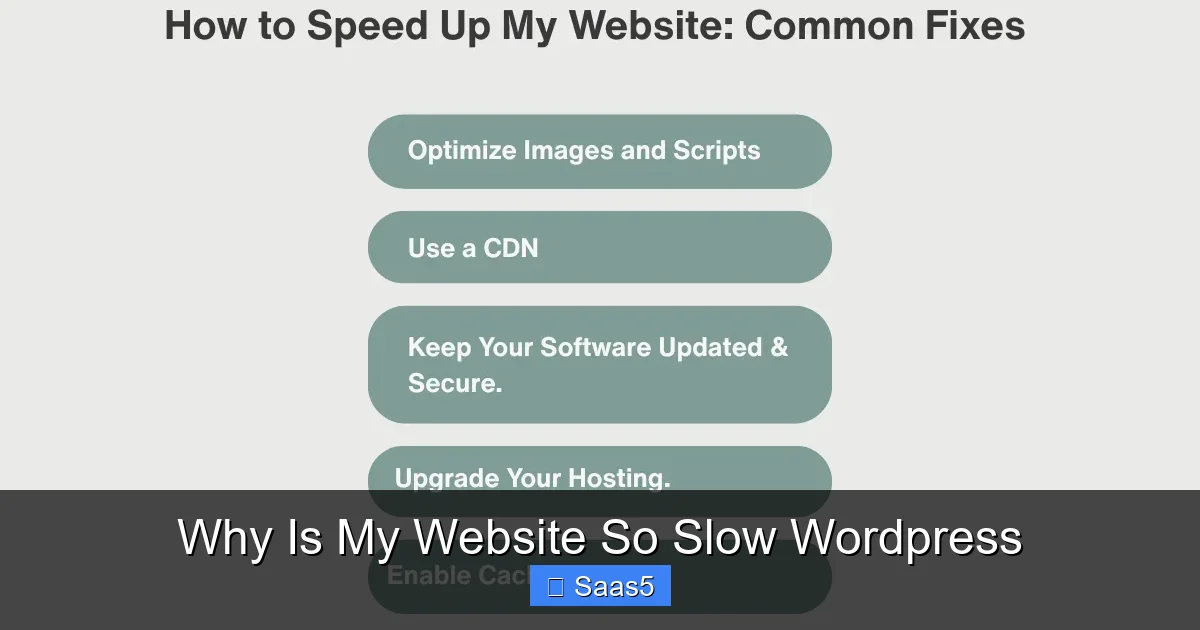
If you had to pick one single action that would most often answer why is my website so slow WordPress for a new client, it’s this: they uploaded 3MB photos taken on their smartphone directly to WordPress. Images make up, on average, over 50% of a page’s total weight. Unoptimized images are the #1 front-end performance killer.
Visual guide about Why Is My Website So Slow WordPress
Image source: thecyberiatech.com
The “Upload Directly” Disaster
A modern smartphone or DSLR camera produces images that are 4000-6000 pixels wide and can be 3-8MB in size. Your website, however, might only display that image at 800 pixels wide in a blog post. When you upload that 5MB file and WordPress displays it at 800px, the browser still has to download the entire 5MB and then scale it down. You’re wasting 90% of the file size. Multiply that by 10 images per page, and you’re loading 50MB of data where 5MB would suffice.
The Solution: A Three-Step Image Workflow
Step 1: Resize BEFORE Upload. Use a free tool like TinyPNG (for JPG/PNG) or Squoosh (by Google). Upload your large image, set the maximum width to the largest size it will ever be displayed on your site (usually 1200-2000px), and compress it aggressively. You can often reduce file size by 70% with no visible quality loss.
Step 2: Use a WordPress Image Optimization Plugin. Install a plugin like ShortPixel, Imagify, or WP-Optimize. These plugins can automatically compress and resize every image you upload in the future. They also have “bulk optimization” tools to process your existing media library. Set them to “lossy” compression for photos—it’s the best balance.
Step 3: Implement Lazy Loading. Modern WordPress (since 5.5) has native lazy loading for images. This means images below the fold (not immediately visible) only load as the user scrolls down. Ensure this is enabled. If your theme or a plugin is disabling it, re-enable it. This dramatically speeds up initial page load.
5. Database Debris: The Clogged Engine
Your WordPress database is like your site’s filing cabinet and engine combined. Over years of use, it fills with digital junk that slows every single query. This is a deep, technical reason why is my website so slow WordPress that’s often missed by surface-level fixes.
What’s Clogging Your Database?
WordPress, by default, does a few things that accumulate: Post Revisions every time you click “Update,” it saves a new copy. 20 updates on a post = 20 redundant rows. Spam/Trash Comments even if you delete them, they might linger. Transient Options are temporary cached data; some plugins leave them behind. Expired User Sessions and orphaned metadata from deleted plugins also pile up. A bloated database makes every page view slower because WordPress has to sift through more tables to find what it needs.
Cleaning Safely and Regularly
First, BACK UP YOUR DATABASE. Always. Then, use a plugin like WP-Optimize or Advanced Database Cleaner. These tools present the clutter in a readable list. Clean up: post revisions (keep the latest 2-3), spam comments, transient options, and orphaned tables. Schedule this to run automatically every week or month. Never use a plugin that claims to “optimize” tables by running a MySQL OPTIMIZE TABLE command on a live, busy site—it can lock tables and crash your site. The cleanup tools above handle this safely. For advanced users, phpMyAdmin can be used, but plugins are safer for most.
6. The Missing Layer: Caching & CDN
This is the most powerful and easiest fix for why is my website so slow WordPress. Without caching, WordPress is like a chef who has to grow the vegetables, milk the cow, and bake the bread from scratch for every single meal a customer orders. Caching is the prepared meal.
How Caching Works (Simply)
When a visitor loads your page, WordPress normally runs PHP scripts, queries the database, and assembles the HTML page from scratch. This is resource-intensive and slow. A caching plugin (like WP Rocket—premium, or W3 Total Cache/WP Super Cache—free) takes the finished HTML page and saves it as a static file. For the next visitor, WordPress serves that ready-made file instantly, skipping all the heavy PHP and database work. This can cut load times by 50-80%.
Page Caching vs. Object Caching vs. Browser Caching
Page Caching (the most important) is what the plugins above do. Object Caching (like Redis or Memcached) caches individual database query results. This is more complex and often requires your host to enable it. If you’re on managed hosting, they usually have it. Browser Caching tells the visitor’s browser to store static files (images, CSS, JS) locally so it doesn’t have to re-download them on every page visit. A good caching plugin handles this via .htaccess rules.
The Global Speed Boost: A CDN
A Content Delivery Network (CDN) is a network of servers around the world. When a visitor from Tokyo loads your site hosted in Dallas, the CDN serves your images, CSS, and JS from a server in Osaka instead. This slashes geographic latency. For a global audience, a CDN is non-negotiable. Many caching plugins integrate with CDNs like Cloudflare (which has a great free plan) or Bunny.net. Cloudflare also provides additional security and optimization features. Setting up a basic Cloudflare CDN for your site can be done in under 30 minutes and provides a noticeable speed boost for international visitors.
Conclusion: Speed Is a Journey, Not a Destination
So, why is my website so slow WordPress? The answer is usually a combination of the factors we’ve covered: underpowered hosting, plugin/theme bloat, massive images, a dirty database, and missing caching. Don’t be overwhelmed. You don’t have to fix everything at once. Start with the audit: run GTmetrix or PageSpeed Insights on your homepage. Look at the “Opportunities” and “Diagnostics” sections. It will literally tell you what’s slowing you down—”Reduce unused JavaScript,” “Properly size images,” “Eliminate render-blocking resources.” This is your roadmap.
Begin with the highest-impact, lowest-effort fixes: install a caching plugin, run an image optimizer on your media library, and delete unused plugins/themes. Then, consider a hosting upgrade if your TTFB is poor. Finally, dive into the database cleanup and deeper code optimization. Remember, speed is a continuous process. As you add new content and plugins, re-audit. A fast WordPress site is a secure, ranking, converting asset. It’s worth every minute you invest. Now, go make it lightning fast.
Frequently Asked Questions
How do I check if my WordPress site is actually slow?
Use free online tools like GTmetrix, Google PageSpeed Insights, or Pingdom Tools. Enter your URL. They will give you a performance score, a fully-loaded time (aim for under 3 seconds), and specific, actionable recommendations on what is slowing your site down.
Can a single plugin really make my WordPress site slow?
Absolutely. A poorly coded plugin can load excessive scripts, make dozens of unoptimized database queries on every page, or add large, unnecessary CSS files. Use the Query Monitor plugin to identify which plugins are making the most queries and loading the most assets on your critical pages.
Is a “lightweight” WordPress theme really necessary for speed?
Yes, especially if you don’t need complex built-in features. Multipurpose themes are convenient but heavy. A lightweight theme like GeneratePress or Astra loads in under 0.5 seconds by itself. You then add only the specific functionality you need via a few, quality plugins, resulting in a much leaner, faster site than a bloated all-in-one theme.
How often should I clean my WordPress database?
For most sites, a monthly cleanup using a plugin like WP-Optimize is sufficient. This removes post revisions, spam comments, and transient options that accumulate. If you have a very active site with many edits and user registrations, consider a weekly schedule. Always ensure you have a recent backup before any database operation.
Is a caching plugin enough, or do I need a CDN too?
A caching plugin is essential and provides the biggest single speed boost for your server’s location. A CDN is a powerful supplement that helps visitors far from your server. For a local business with a local audience, a great caching plugin and good hosting may suffice. For any site with a national or global audience, a CDN like Cloudflare’s free plan is a critical next step for optimal speed.
What’s the single fastest way to speed up my images?
The fastest single action is to install an image optimization plugin like ShortPixel or Imagify and run their “Bulk Optimization” tool on your existing media library. Set it to “lossy” compression. This one step will often reduce your total page size by 30-50% immediately, with no visible drop in quality. Then, ensure all future uploads are automatically compressed by the plugin.