How to Use a Mouse with a Laptop

Using a mouse with a laptop is simple and can make your work faster and more comfortable. Whether you choose a wired or wireless mouse, this guide walks you through every step—from connection to customization—so you can get the most out of your setup.
Key Takeaways
- Easy Connection: You can connect a mouse to your laptop via USB, Bluetooth, or a wireless dongle in just a few steps.
- Wired vs. Wireless: Wired mice offer plug-and-play simplicity, while wireless mice give you more freedom of movement.
- Customization Options: Adjust pointer speed, button functions, and scrolling behavior in your laptop’s settings.
- Troubleshooting Tips: If your mouse isn’t working, check connections, batteries, drivers, or try a different USB port.
- Ergonomics Matter: Using an external mouse can reduce strain and improve posture during long work sessions.
- Compatibility: Most modern mice work with Windows, macOS, and Linux without extra software.
- Portability: Compact and travel-friendly mice are perfect for on-the-go use with your laptop.
📑 Table of Contents
- How to Use a Mouse with a Laptop
- Why Use a Mouse with Your Laptop?
- Types of Mice You Can Use with a Laptop
- How to Connect a Mouse to Your Laptop
- Customizing Your Mouse Settings
- Troubleshooting Common Mouse Issues
- Tips for Using a Mouse Comfortably and Efficiently
- When to Consider Upgrading Your Mouse
- Conclusion
How to Use a Mouse with a Laptop
If you’ve ever felt cramped or frustrated using your laptop’s trackpad, you’re not alone. Many people find that adding an external mouse makes computing easier, faster, and more comfortable—especially for long work sessions or detailed tasks like photo editing or spreadsheet navigation.
But if you’re new to using a mouse with a laptop, you might wonder: How do I even start? Don’t worry—it’s simpler than you think. In this guide, we’ll walk you through everything you need to know about how to use a mouse with a laptop, from choosing the right type to setting it up and customizing it for your needs.
By the end, you’ll be clicking, scrolling, and navigating like a pro—with less hand strain and more productivity.
Why Use a Mouse with Your Laptop?
Your laptop’s built-in trackpad is convenient, but it has limitations. It’s small, can be imprecise, and often leads to awkward hand positions that cause fatigue over time. An external mouse solves these problems.

Visual guide about How to Use a Mouse with a Laptop
Image source: wallpapers.com
Better Precision and Control
A mouse gives you finer control over cursor movement. This is especially helpful for tasks like graphic design, gaming, or even just selecting text accurately. You’ll notice fewer mistakes and smoother navigation.
Improved Ergonomics
Using a mouse lets you keep your hands in a more natural position. This reduces wrist strain and lowers the risk of repetitive stress injuries—something many laptop users experience after hours of trackpad use.
Faster Workflow
With extra buttons and customizable features, a mouse can speed up common actions like right-clicking, switching tabs, or scrolling through long documents. Once you get used to it, you’ll wonder how you ever worked without one.
Types of Mice You Can Use with a Laptop
Not all mice are created equal. The best choice depends on your lifestyle, budget, and how you plan to use it.

Visual guide about How to Use a Mouse with a Laptop
Image source: i.etsystatic.com
Wired Mice
These connect directly to your laptop via a USB port. They’re reliable, require no batteries, and usually cost less. The downside? The cable can feel restrictive, especially if you move around a lot.
Wireless Mice
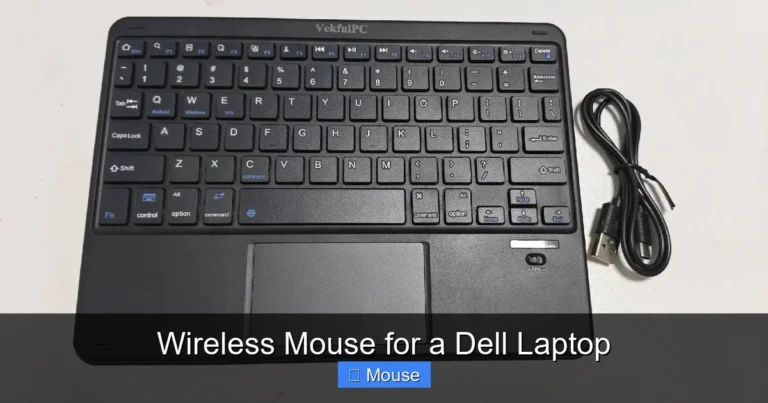
Wireless mice use either a USB receiver (called a dongle) or Bluetooth. They’re cleaner-looking and more portable. Just remember to keep them charged or have spare batteries handy.
Bluetooth Mice
These pair directly with your laptop’s built-in Bluetooth—no dongle needed. They’re great for minimalist setups and work well with modern laptops that support Bluetooth 4.0 or higher.
How to Connect a Mouse to Your Laptop
Connecting a mouse is usually quick and painless. Here’s how to do it based on the type you have.

Visual guide about How to Use a Mouse with a Laptop
Image source: redcarpet-fashionawards.com
Connecting a Wired Mouse
- Locate an available USB port on your laptop.
- Plug the mouse’s USB connector into the port.
- Wait a few seconds—your laptop should recognize it automatically.
- Start using your mouse right away!
No drivers or software are typically needed for basic functionality.
Connecting a Wireless Mouse with a Dongle
- Insert the USB dongle into an open USB port.
- Turn on the mouse (usually a switch on the bottom).
- Your laptop should detect it within seconds.
- If it doesn’t work, try restarting your laptop or reinserting the dongle.
Connecting a Bluetooth Mouse
- Make sure your laptop’s Bluetooth is turned on.
- Put your mouse into pairing mode (check the manual—often involves holding a button).
- On your laptop, go to Bluetooth settings and select “Add device.”
- Choose your mouse from the list and follow the prompts.
- Once paired, you’re good to go!
For step-by-step help with wireless setup, check out our guide on how to connect a wireless mouse to my laptop.
Customizing Your Mouse Settings
Once your mouse is connected, you can tweak its behavior to match your preferences. Both Windows and macOS offer built-in tools for this.

Visual guide about How to Use a Mouse with a Laptop
Image source: dailybanhtrungthu.com.vn
Adjusting Pointer Speed
If the cursor feels too slow or too fast, head to your system settings. On Windows, go to Settings > Devices > Mouse. On macOS, go to System Settings > Mouse. Slide the pointer speed until it feels just right.
Changing Button Functions
Most mice let you swap left and right buttons (great for left-handed users). You can also assign special functions to side buttons—like opening a new tab or going back a page in your browser.
Customizing Scroll Behavior
Love smooth scrolling? Or prefer line-by-line? You can adjust scroll direction and speed in your OS settings. Some advanced mice even let you toggle between free-spin and click-to-click scrolling.
Troubleshooting Common Mouse Issues
Sometimes things don’t go as planned. Here’s how to fix the most common problems.

Visual guide about How to Use a Mouse with a Laptop
Image source: i.headtopics.com
Mouse Not Responding
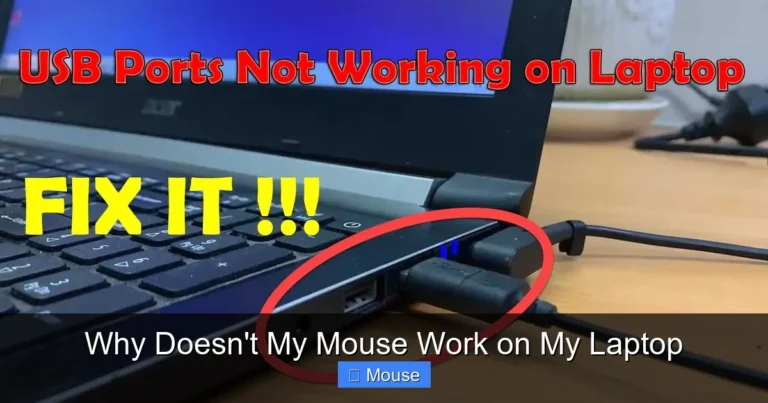
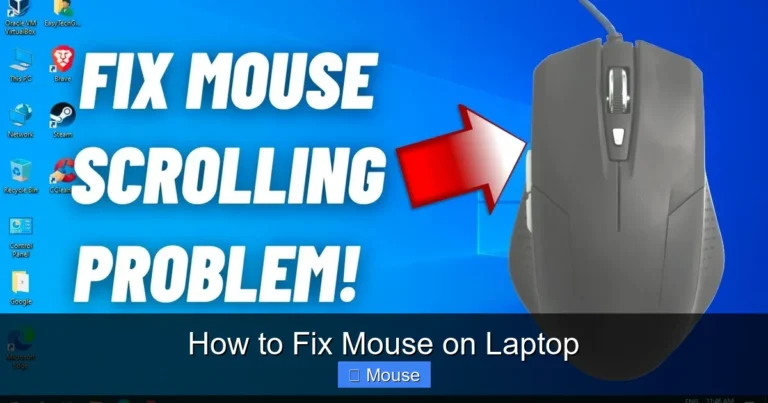
First, check the basics: Is it plugged in? Is the battery charged? Try a different USB port. If it’s wireless, make sure the dongle is fully inserted. Restarting your laptop can also help.
Cursor Jumping or Lagging
This often happens with wireless interference or low battery. Move other wireless devices away, replace batteries, or switch to a wired connection temporarily.
Driver Problems
Outdated or missing drivers can cause issues. On Windows, go to Device Manager, find your mouse under “Mice and other pointing devices,” and choose “Update driver.” On macOS, ensure your system is up to date.
If your mouse suddenly stops working and you’re not sure why, our article on how to get the mouse back on a laptop offers more detailed fixes.
Tips for Using a Mouse Comfortably and Efficiently
Getting the most out of your mouse isn’t just about setup—it’s also about how you use it.
Use a Mouse Pad
A good mouse pad improves tracking and protects your desk surface. It also gives your wrist a smoother surface to glide over.
Take Breaks
Even with a mouse, repetitive motions can cause strain. Follow the 20-20-20 rule: every 20 minutes, look at something 20 feet away for 20 seconds. Stretch your hands and wrists regularly.
Keep It Clean
Dust and grime can build up on your mouse sensor and buttons. Wipe it down weekly with a soft cloth. For optical mice, clean the lens gently with a cotton swab.
When to Consider Upgrading Your Mouse
Not every mouse is a keeper. Here are signs it might be time for an upgrade.

Visual guide about How to Use a Mouse with a Laptop
Image source: show-channel.net
- Frequent disconnects: If your wireless mouse drops connection often, it may be time for a new one.
- Unresponsive buttons: Worn-out switches mean it’s time to replace it.
- Poor ergonomics: If you’re experiencing pain or discomfort, try an ergonomic model designed to reduce strain.
- Outdated features: Modern mice offer better battery life, precision, and customization.
And if you’re using your laptop’s trackpad more than you’d like because your mouse isn’t working, don’t forget you can still perform essential actions without one. Learn how in our guide on how to right-click on a laptop without a mouse.
Conclusion
Using a mouse with your laptop is one of the easiest upgrades you can make for comfort, speed, and precision. Whether you go wired or wireless, the setup is straightforward, and the benefits are immediate.

Visual guide about How to Use a Mouse with a Laptop
Image source: doujin-assets.dmm.co.jp
From connecting your mouse to customizing its settings and troubleshooting issues, this guide has covered everything you need to get started. Remember to choose a mouse that fits your workflow, keep it clean, and take care of your hands with regular breaks.
Now that you know how to use a mouse with a laptop, why not give it a try? Your wrists—and your productivity—will thank you.
Frequently Asked Questions
Can I use any mouse with my laptop?
Yes! Most modern mice are compatible with Windows, macOS, and Linux. As long as your laptop has a USB port or Bluetooth, you should be able to connect a standard mouse without issues.
Do I need to install drivers for my mouse?
Basic mice work plug-and-play—no drivers needed. However, gaming or advanced mice may require software for full customization of buttons, lighting, or DPI settings.
Why is my wireless mouse not connecting?
Check if the batteries are charged, the dongle is properly inserted, and the mouse is turned on. Also, ensure your laptop’s Bluetooth is enabled if it’s a Bluetooth model.
How do I make my mouse faster or slower?
Go to your laptop’s mouse settings (Settings > Devices > Mouse on Windows or System Settings > Mouse on macOS) and adjust the pointer speed slider to your preference.
Is a mouse better than a trackpad?
For most people, yes—especially for long work sessions or precision tasks. A mouse offers better control, reduces hand strain, and often includes extra buttons for shortcuts.
Can I use a mouse and trackpad at the same time?
Absolutely! Your laptop will recognize both. You can switch between them freely, or disable the trackpad in settings if you prefer using only the mouse.