Will Any Usb C Adapter Work with Macbook Pro
Not every USB C adapter works seamlessly with a MacBook Pro. The right adapter depends on your MacBook model, the USB C standard it supports, and what you need to connect. Thunderbolt 3 and Thunderbolt 4 adapters offer the best performance, while older USB 3.1 options still handle everyday tasks well. Choosing the wrong adapter can lead to slow transfers, display issues, or even damage. This guide breaks down everything you need to know before buying.
If you own a MacBook Pro, you have probably noticed the sleek USB C ports on the sides. They look simple enough, but the truth is that not every USB C adapter will work with your laptop. Some adapters charge your device, some transfer data, and some connect to external displays. The wrong choice can lead to frustration, slow speeds, or even hardware issues.
In this guide, we will walk through everything you need to know about USB C adapter compatibility with MacBook Pro. We will cover which adapters work, which do not, and how to pick the right one for your needs. Whether you need a simple dongle or a full USB-C docking station, this article has you covered.
Key Takeaways
- Compatibility matters: Not all USB C adapters are created equal, and MacBook Pro models have different port standards.
- Thunderbolt adapters deliver the best speeds: Thunderbolt 3 and Thunderbolt 4 offer up to 40Gbps data transfer rates.
- Check your MacBook model: Older MacBook Pro models may not support the latest USB C features.
- Power delivery is key: Some adapters support USB-C power delivery, which keeps your laptop charged while using peripherals.
- Avoid cheap generic adapters: They often lack proper chipsets and can cause connectivity or performance problems.
- USB-C hubs vs. adapters: Hubs offer multiple ports, while adapters convert one connection type to another.
📑 Table of Contents
- What Is a USB C Adapter and Why Does It Matter for MacBook Pro?
- Will Any USB C Adapter Work with MacBook Pro?
- Types of USB C Adapters for MacBook Pro
- How to Choose the Right USB C Adapter for MacBook Pro
- Common Mistakes When Buying USB C Adapters for MacBook Pro
- Expert Insights on USB C Adapter Compatibility
- Quick Tips for Getting the Most Out of Your USB C Adapter
- Conclusion
What Is a USB C Adapter and Why Does It Matter for MacBook Pro?
A USB C adapter is a small device that converts one type of connection into another. For example, it can turn a USB C port into a USB A port, an HDMI output, or an SD card reader. These adapters are essential because MacBook Pro models have dropped traditional ports like USB A and HDMI in favor of the smaller USB C design.
The reason this matters is that USB C is not just one single standard. It is a shape of connector that can support different protocols. Some USB C ports on MacBook Pro support Thunderbolt 3 or Thunderbolt 4, which are much faster than standard USB C. Others only support basic USB 3.1 or USB 3.2 speeds. If you buy an adapter that does not match your port’s capabilities, you will not get the best performance.
Understanding USB C Standards
Here are the main USB C standards you should know about:
- USB 3.1 Gen 1: Offers speeds up to 5Gbps. Fine for basic file transfers.
- USB 3.1 Gen 2: Delivers up to 10Gbps. Good for large files and external drives.
- USB 3.2 Gen 2×2: Reaches speeds up to 20Gbps. Found on newer MacBook Pro models.
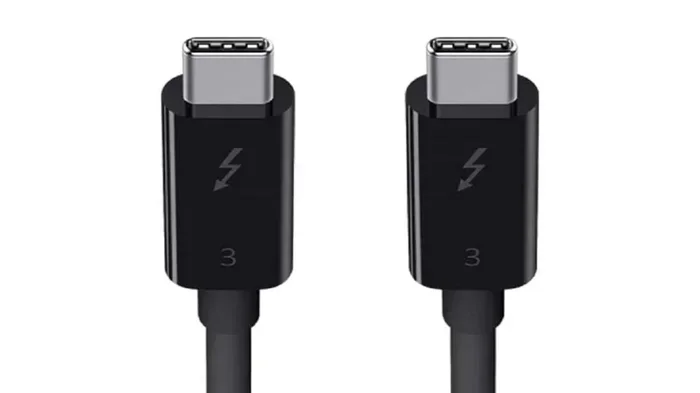
- Thunderbolt 3: Supports up to 40Gbps and can connect to external GPUs and high-speed storage.
- Thunderbolt 4: Also supports 40Gbps but adds stricter compatibility requirements and better security features.
When shopping for a USB C adapter, check which standard your MacBook Pro supports. You can find this in your system settings or on Apple’s website.
Will Any USB C Adapter Work with MacBook Pro?
The short answer is no. While most USB C adapters will physically plug into your MacBook Pro, not all of them will function correctly. The issue comes down to the chipset inside the adapter and the protocol it uses. A cheap USB-C adapter might fit into the port but fail to transfer data or charge your device.
MacBook Pro models from 2016 onward use USB C ports that support USB Power Delivery and DisplayPort over USB C. However, older adapters designed for smartphones or tablets may not handle the power or data demands of a laptop. Always look for adapters specifically rated for laptops or Mac devices.
Physical Compatibility vs. Functional Compatibility
Physical compatibility means the adapter fits into the port. Functional compatibility means the adapter actually works the way you need it to. A USB-C to USB-A adapter will almost always be physically compatible with MacBook Pro, but it may only support USB 2.0 speeds if the adapter is low quality. That means file transfers will be painfully slow.
On the other hand, a Thunderbolt 3 adapter will work at full speed only if your MacBook Pro has a Thunderbolt 3 port. If you plug a Thunderbolt adapter into a standard USB C port, it will still work but at slower USB speeds. This is a common mistake many users make.
Types of USB C Adapters for MacBook Pro
There are several types of adapters available, and each serves a different purpose. Let us break them down so you can find the right one for your setup.
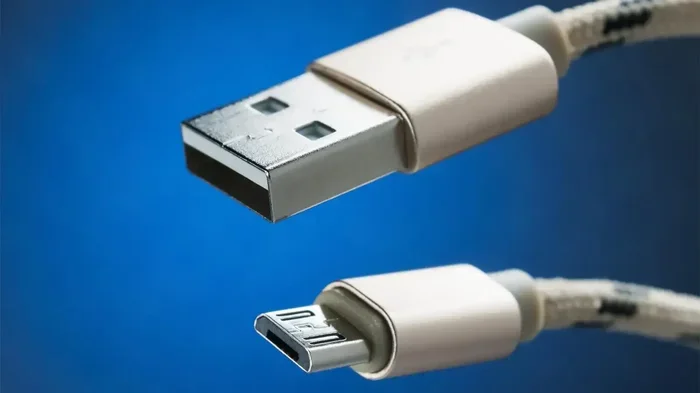
USB-C to USB-A Adapters
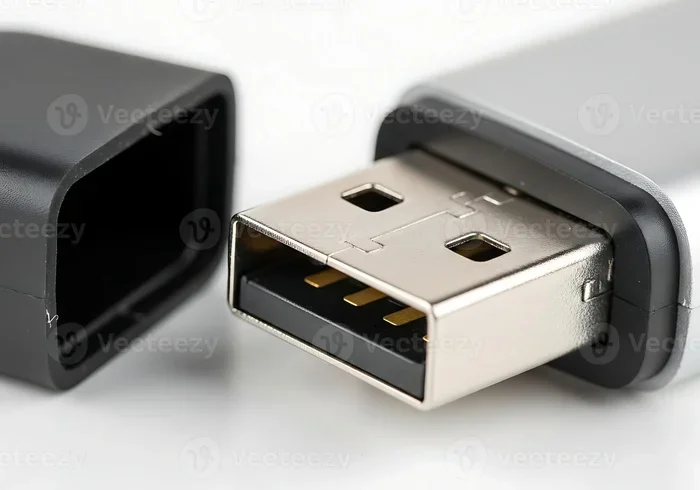
This is the most common type of adapter. It lets you connect older USB A devices like flash drives, keyboards, and mice to your MacBook Pro. Most of these adapters work fine, but look for ones that support USB 3.0 or higher to get decent speeds. A basic USB-C to USB-A adapter from a reputable brand will cost around $10 to $20.
USB-C Hubs with Multiple Ports
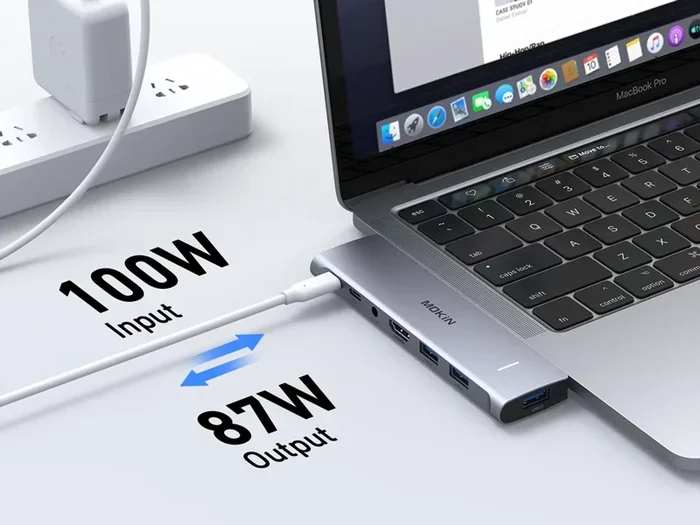
A USB-C hub expands a single port into multiple connections. A good hub might include USB A ports, an HDMI output, an SD card reader, and a USB C charging port. Hubs are great for people who need to connect several devices at once. Just make sure the hub supports USB-C power delivery so you can charge your MacBook Pro while using it.
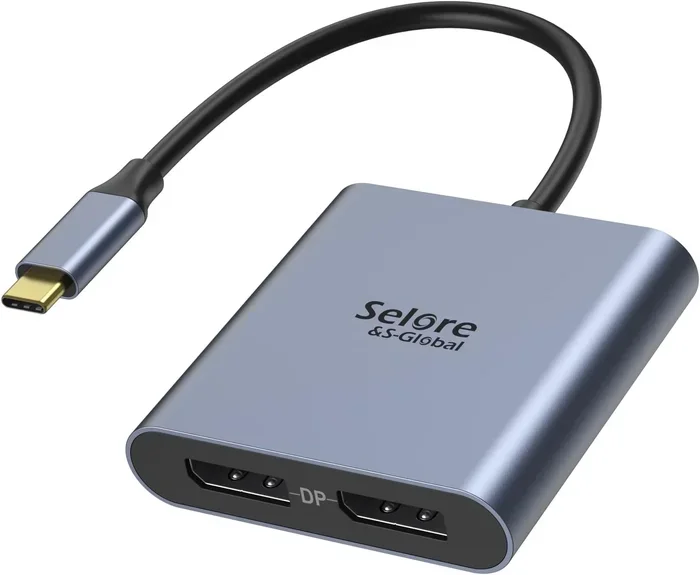
USB-C to HDMI or DisplayPort Adapters
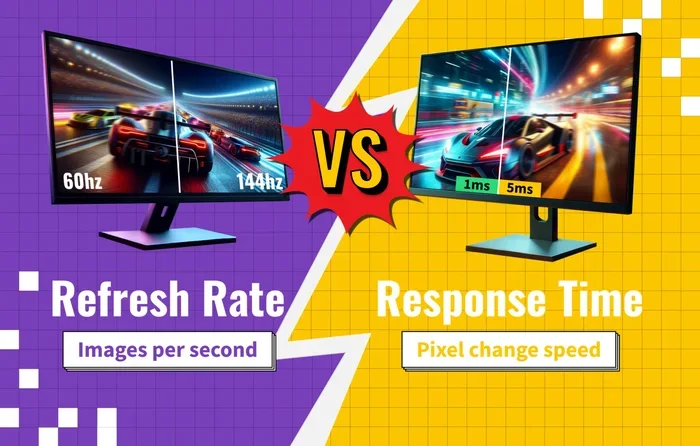
If you want to connect your MacBook Pro to an external monitor, you need a USB-C to HDMI or USB-C to DisplayPort adapter. For 4K displays at 60Hz, you need an adapter that supports Thunderbolt 3 or Thunderbolt 4. Standard USB C adapters may only support 4K at 30Hz or lower resolutions.
NVMe SSD Enclosures and Adapters
For users who work with large video files or need portable storage, an NVMe SSD enclosure with a USB C connection is a game-changer. These enclosures let you plug a bare NVMe SSD directly into your MacBook Pro for blazing-fast transfer speeds. Products like the NVMe SSD to USB adapter from UG Technology offer a compact and reliable way to access external NVMe storage. Similarly, the M.2 NVMe SSD to USB 3.1 adapter is a popular choice for anyone who needs to connect an NVMe drive without a full enclosure.
USB-C Docking Stations
A USB-C docking station is the most complete solution. It sits on your desk and connects to your MacBook Pro with a single cable, then provides multiple ports for monitors, keyboards, mice, ethernet, and more. Docking stations are ideal for users who switch between a laptop and a desktop setup. Look for docks that support Thunderbolt 4 for the best performance and reliability.
How to Choose the Right USB C Adapter for MacBook Pro
Buying the right adapter does not have to be confusing. Follow these simple steps to make the right choice.
Step 1: Check Your MacBook Pro Model
First, find out which USB C standard your MacBook Pro supports. Go to the Apple menu, click About This Mac, and look at the model year. Here is a quick reference:
- 2016-2019 MacBook Pro: Thunderbolt 3 ports (40Gbps)
- 2020-2021 MacBook Pro: Thunderbolt 3 and USB 3.2 ports
- 2022-2024 MacBook Pro: Thunderbolt 4 ports (40Gbps)
Knowing your model helps you choose an adapter that matches your port’s capabilities.
Step 2: Decide What You Need to Connect
Make a list of the devices you want to connect. Do you need to hook up a monitor? Connect a USB A flash drive? Charge your phone? Write down your needs before shopping, and you will avoid buying adapters you do not actually need.
Step 3: Check for USB-C Power Delivery Support
If you want to charge your MacBook Pro through the adapter, make sure it supports USB Power Delivery. This feature allows the adapter to pass through charging power while also connecting your other devices. Without PD support, your laptop may slowly lose battery while you work.
Step 4: Stick with Reputable Brands
Cheap no-name adapters are tempting, but they often use low-quality chipsets that cause disconnects, slow speeds, or even port damage. Brands like UG Technology, Satechi, Anker, and CalDigit are known for reliable USB-C accessories. Investing a little more upfront saves you from headaches later.
Step 5: Read Reviews and Check Compatibility
Before buying, read user reviews and check the product description for compatibility with macOS. Some adapters may work on Windows but not on Mac. Look for adapters that explicitly state they are compatible with MacBook Pro.
Common Mistakes When Buying USB C Adapters for MacBook Pro
Even experienced users make mistakes when buying adapters. Here are the most common ones to avoid.
Assuming All USB C Is the Same
The biggest mistake is thinking that any USB C adapter will work at full speed. As we discussed earlier, USB C is just a connector shape. The actual speed depends on the protocol inside the adapter. Always check whether the adapter supports Thunderbolt, USB 3.2, or just basic USB 2.0.
Ignoring Power Delivery Ratings
If you plan to charge your MacBook Pro through the adapter, check the wattage rating. Most MacBook Pro models need at least 60W to charge properly. A cheap adapter that only supports 30W will charge your laptop slowly or not at all while you are using it.
Buying an Adapter That Does Not Support Your Display Resolution
If you connect an external monitor, make sure the adapter supports the resolution and refresh rate you need. A basic adapter might only push 1080p or 4K at 30Hz. For a smooth 4K 60Hz experience, you need a Thunderbolt 3 or Thunderbolt 4 adapter.
Using Adapters for Data and Power at the Same Time Without Checking
Some adapters split power delivery between charging your laptop and powering connected devices. If you are using a USB-C hub with multiple ports, make sure the total power budget is enough for everything you have plugged in.
Expert Insights on USB C Adapter Compatibility
According to tech experts at UG Technology, the key to a smooth experience is matching your adapter to your MacBook Pro’s port capabilities. They recommend using Thunderbolt-certified adapters whenever possible, especially for professional workflows involving video editing or large file transfers. For users who need portable storage on the go, a quality NVMe SSD enclosure paired with a reliable USB C connection can deliver speeds that rival internal drives.
Experts also suggest keeping a spare adapter in your laptop bag. Since USB C adapters are small and easy to lose, having a backup ensures you are never stuck without a connection. The Satechi USB4 NVMe SSD Pro Enclosure is one example of a premium accessory that combines fast data transfer with macOS compatibility, making it a great choice for MacBook Pro users who work with external storage.
Quick Tips for Getting the Most Out of Your USB C Adapter
- Always check the adapter’s chipset: The chipset determines the actual speed and compatibility, not just the connector shape.
- Use short cables when possible: Longer USB C cables can reduce data transfer speeds and charging efficiency.
- Keep your macOS updated: Apple regularly updates USB C driver support, which can fix compatibility issues.
- Test your adapter with different devices: If an adapter works on one device but not another, the issue may be with the device, not the adapter.
- Avoid daisy-chaining cheap adapters: Plugging one adapter into another can cause signal loss and connectivity problems.
Conclusion
So, will any USB C adapter work with MacBook Pro? The honest answer is that it depends. Physical fit is not the issue, but functional compatibility is. The right USB C adapter depends on your MacBook Pro model, the standard your ports support, and what devices you need to connect. Thunderbolt 3 and Thunderbolt 4 adapters offer the best performance and broadest compatibility. For everyday tasks, a quality USB 3.1 or USB 3.2 adapter will get the job done.
Take the time to check your MacBook Pro’s specifications before buying. Read the product details carefully, stick with trusted brands, and always verify that the adapter supports the features you need. With the right USB C adapter, your MacBook Pro becomes a powerful hub for monitors, storage drives, and peripherals of all kinds.
Whether you need a simple USB-C to USB-A adapter or a full USB-C docking station, the key is making an informed choice. Your MacBook Pro is a significant investment, and the right accessories will help you get the most out of it every single day.
Frequently Asked Questions
Can I use any USB C adapter with my MacBook Pro?
Most USB C adapters will physically fit, but not all will work properly. Check that the adapter supports the right standard, such as Thunderbolt 3 or USB 3.2, and that it is compatible with macOS. Cheap adapters may not support data transfer or power delivery correctly.
What is the difference between USB C and Thunderbolt 3?
USB C is just a connector shape, while Thunderbolt 3 is a protocol that uses the USB C connector. Thunderbolt 3 offers much faster speeds of up to 40Gbps and supports more devices, including external GPUs and high-speed NVMe enclosures. All Thunderbolt 3 ports look like USB C ports, but not all USB C ports support Thunderbolt.
Do I need a Thunderbolt adapter for my MacBook Pro?
You only need a Thunderbolt adapter if you want the fastest speeds or plan to connect Thunderbolt-specific devices like external SSDs or high-refresh-rate monitors. For basic tasks like connecting a USB flash drive or a mouse, a standard USB C adapter is perfectly fine.
Can I charge my MacBook Pro through a USB C adapter?
Yes, but the adapter must support USB Power Delivery. Check the wattage rating to make sure it can deliver enough power for your MacBook Pro model. Most MacBook Pro models need at least 60W for proper charging while in use.
Why is my USB C adapter not working with my MacBook Pro?
This could be due to a few reasons. The adapter may not support the correct protocol, the cable may be faulty, or the adapter may not be compatible with macOS. Try resetting your System Management Controller (SMC) and test the adapter with a different device to narrow down the issue.
Are USB C hubs better than USB C adapters?
It depends on your needs. A USB C adapter converts one connection type to another, while a USB C hub provides multiple ports in one device. If you need to connect several devices at once, a hub is more convenient. If you only need one extra port, a simple adapter works just as well.