Will Roku Work on Any Tv with Hdmi
Yes, Roku works on almost any TV with an HDMI port. This streaming device is designed to be compatible with most HDTVs and smart TVs made in the last decade. You just need an available HDMI port, a power source, and a stable internet connection to get started.
Key Takeaways
- Broad HDMI Compatibility: Roku works with nearly any TV that has an HDMI port, regardless of the brand.
- Simple Setup: Connecting a Roku to your TV takes only a few minutes with step-by-step guidance.
- Multiple Models Available: Different Roku models offer various features like 4K streaming, voice search, and mobile casting.
- Troubleshooting Is Straightforward: Most common issues can be fixed with basic steps like checking cables and restarting the device.
- Internet Matters: A strong and stable Wi-Fi connection is essential for smooth streaming on your Roku.
- Older TVs Can Work Too: With the right adapter, even TVs without HDMI can support Roku streaming.
📑 Table of Contents
- What Is Roku and How Does It Connect to Your TV?
- Does Roku Work on Any TV with an HDMI Port?
- What You Need Before Setting Up Roku
- How to Set Up Roku on Any HDMI-Enabled TV
- Common Issues and How to Fix Them
- Roku Models and Their HDMI Compatibility
- Tips for Getting the Best Roku Experience
- Final Thoughts
What Is Roku and How Does It Connect to Your TV?
Roku is a popular streaming device that lets you watch movies, TV shows, and live channels on your television. It works by connecting to your TV through an HDMI cable, which carries both video and audio signals in one simple connection. Think of it as a small box or stick that turns any screen into a smart TV.
The beauty of Roku is its simplicity. You plug it in, connect to your Wi-Fi, and start streaming. There is no complicated setup process. Even if you are not tech-savvy, you can get a Roku device up and running in minutes. It has become one of the most trusted names in home entertainment for good reason.
Roku offers a wide range of streaming channels and apps. From Netflix and Hulu to free channels like Pluto TV and Tubi, there is something for everyone. The Roku Channel store has thousands of options, and new ones are added regularly.
Does Roku Work on Any TV with an HDMI Port?
The short answer is yes. Roku works on almost any TV with an HDMI port. Whether your TV is a brand-new smart TV or an older model from a decade ago, Roku can work with it as long as it has an available HDMI input. This makes Roku one of the most versatile streaming devices on the market.
Here is what matters for HDMI compatibility:
- Your TV must have at least one HDMI port available.
- The HDMI port should be functional and not damaged.
- Your TV should support at least 720p or 1080p resolution for a good viewing experience.
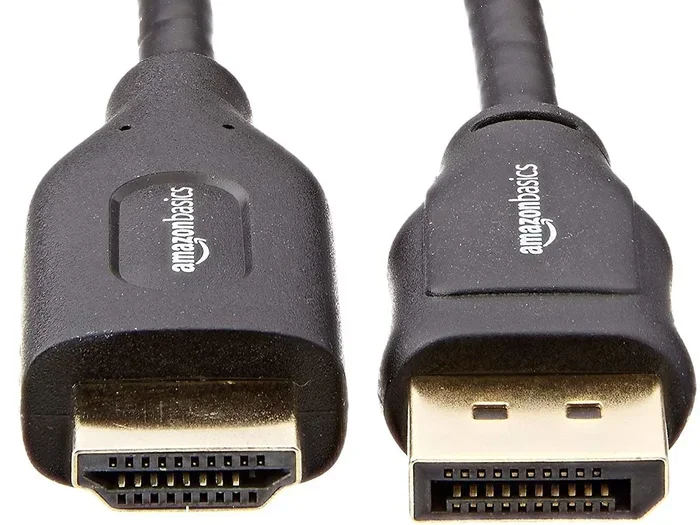
- The HDMI cable you use should be in good condition.
Most modern TVs have multiple HDMI ports, so finding an open one is usually easy. If your TV is older and does not have HDMI, do not worry. You can still use Roku with an HDMI-to-composite adapter. This small accessory converts the HDMI signal to older cable types like red, white, and yellow RCA connectors.
What About Smart TVs? Do You Still Need Roku?
Many people wonder if they need a Roku when they already own a smart TV. The answer depends on your needs. Smart TVs come with built-in apps, but those apps can sometimes be slow or limited. A Roku device often provides a faster and smoother experience with a much larger selection of channels.
Roku also offers features that some smart TVs lack. For example, Roku devices support voice search, private listening through headphones, and easy screen mirroring from mobile devices. If your smart TV feels clunky or outdated, adding a Roku can breathe new life into it.
What You Need Before Setting Up Roku
Before you start, make sure you have everything you need. The setup process is simple, but having the right items ready saves time and frustration.
Here is a quick checklist of what you need:
- A television with at least one working HDMI port.
- A Roku device (Roku Express, Roku Streaming Stick, Roku Ultra, or Roku Premiere).
- A high-speed internet connection with a Wi-Fi router nearby.
- A functional HDMI cable (most Roku devices come with one in the box).
- A power outlet or USB port on your TV to power the Roku device.
- A smartphone or computer for completing the initial setup through the Roku app.
Having all of these ready before you begin makes the entire process seamless. It also helps if you have your Wi-Fi password handy. If you have ever dealt with device connectivity issues before, you know how important it is to have everything in place. The same principle applies here — just like when you are trying to get a peripheral device working, preparation is key.
How to Set Up Roku on Any HDMI-Enabled TV
Setting up your Roku device is straightforward. Follow these steps to get streaming in no time.
Step 1: Connect the Roku to Your TV
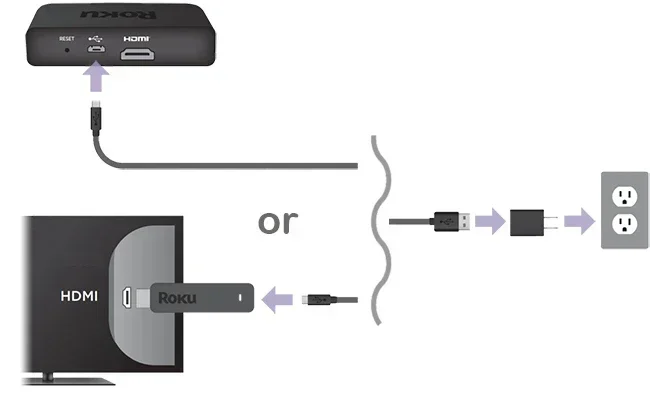
Plug the Roku device into an available HDMI port on your TV. If your Roku came with an HDMI cable, use it. If not, any standard HDMI cable will work. Make sure the connection is firm and secure.
Step 2: Power the Roku Device
Connect the Roku to a power source. Most Roku devices come with a USB power cable. You can plug it into the USB port on your TV or use the included wall adapter. Make sure the device turns on.
Step 3: Switch Your TV Input
Use your TV remote to switch to the correct HDMI input. Look for labels like HDMI 1, HDMI 2, or HDMI 3 depending on which port you used. The Roku home screen should appear once you select the right input.
Step 4: Connect to Wi-Fi
Follow the on-screen instructions to connect your Roku to your Wi-Fi network. Select your network name and enter your password. A stable connection is essential for smooth streaming quality.
Step 5: Complete the Setup Through the Roku App
Download the Roku app on your phone. It will guide you through the final steps, including linking your Roku to your account and updating the software. Once complete, you are ready to start streaming.
The entire setup process usually takes less than ten minutes. If anything goes wrong, do not panic. Most issues have simple solutions.
Common Issues and How to Fix Them
Even though Roku is designed to be user-friendly, you may encounter some issues. Here are the most common problems and their fixes.
No Signal on Your TV Screen
If your TV shows no signal, first check that the HDMI cable is firmly connected. Try unplugging it and plugging it back in. Switch to a different HDMI port on your TV if possible. If the problem persists, try a different HDMI cable altogether.
Poor Streaming Quality or Buffering
Slow or choppy playback usually means your internet connection is not strong enough. Move your Wi-Fi router closer to your TV or use a Wi-Fi extender. You can also check your internet speed to make sure it meets the minimum requirements for streaming.
Roku Remote Not Responding
If your remote is not working, try replacing the batteries first. If that does not help, make sure nothing is blocking the infrared sensor on the Roku device. You can also use the Roku app on your phone as a temporary remote.
Device Freezing or Restarting
A frozen Roku can often be fixed with a simple restart. Unplug the power cable, wait about ten seconds, and plug it back in. This clears temporary glitches and refreshes the system. If the problem continues, check for software updates through the settings menu.
These troubleshooting steps are similar to what you would do when fixing connectivity problems with other devices. The basic principle is the same — check connections, restart, and update. Whether you are dealing with a Roku not connecting issue or any other device problem, these steps usually resolve the issue.
Roku Models and Their HDMI Compatibility
Roku offers several models, and each one works with TVs that have HDMI ports. Here is a quick look at the main options:
- Roku Express: The most affordable option. It plugs directly into the HDMI port and delivers 1080p HD streaming. Great for basic setups and older TVs.
- Roku Streaming Stick: A slim stick that plugs directly into the HDMI port. It is compact and easy to hide behind your TV. Supports 1080p streaming.
- Roku Premiere: Similar to the Express but with a slightly faster processor. Also supports 1080p HD.
- Roku Ultra: The top-tier model. It supports 4K HDR streaming, has a remote with headphones jack, and includes an ethernet port for wired connections.
- Roku Streaming Stick+: A premium stick that supports 4K HDR and has an extended wireless range for better connectivity.
All of these models use the same basic HDMI connection method. The main differences are in streaming resolution, processing speed, and extra features. If your TV supports 4K, consider the Roku Ultra or Streaming Stick+ for the best picture quality. If you have an older TV, the Roku Express or Streaming Stick will work perfectly fine.
One thing to keep in mind is that the HDMI port on your TV determines the maximum resolution you can get. If your TV only supports 1080p, a 4K Roku will still work but will output at 1080p. This is a common point of confusion, so it is worth checking your TV specifications before purchasing.
Do You Need a 4K TV for Roku?
No, you do not need a 4K TV to use Roku. A standard HDTV with an HDMI port works just fine. The Roku device will automatically adjust the output resolution to match your TV’s capabilities. This means even older HDTVs can enjoy Roku streaming without any issues.
Tips for Getting the Best Roku Experience
To get the most out of your Roku, keep these tips in mind:
- Place your Wi-Fi router close to your TV for the strongest signal.
- Use a high-quality HDMI cable for the best picture and sound.
- Keep your Roku software updated to access the latest features and channels.
- Use the Roku mobile app for private listening with headphones.
- Organize your channels on the home screen for quick access to your favorites.
- Consider using a wired ethernet connection with the Roku Ultra for the most stable streaming.
These simple steps can make a big difference in your streaming experience. A little preparation goes a long way toward ensuring smooth, buffer-free viewing every time you sit down to watch something.
Final Thoughts
Roku is one of the easiest and most affordable ways to turn any TV into a smart TV. As long as your television has an HDMI port, you can use a Roku device to access thousands of streaming channels. The setup is simple, the interface is user-friendly, and the compatibility is excellent across virtually all TV brands and models.
Whether you have a brand-new 4K smart TV or an older HDTV from years ago, Roku has a model that fits your needs and budget. The key is to make sure your TV has an HDMI port and that you have a decent internet connection. With those two things in place, you are ready to enjoy all that Roku has to offer.
Do not let compatibility concerns hold you back. Roku works on any TV with HDMI, and that is a promise backed by years of positive user experiences. Grab a Roku device, follow the simple setup steps, and start streaming your favorite content today.
Frequently Asked Questions
Can I use Roku with a TV that only has HDMI ports?
Yes, Roku is designed to work with any TV that has at least one HDMI port. Just plug the Roku into the HDMI port, connect to power, and follow the on-screen setup. You do not need any special adapters if your TV has HDMI.
Will Roku work on a non-smart TV?
Absolutely. Roku turns any TV with an HDMI port into a smart TV. You do not need a built-in smart TV platform to use Roku. The Roku device provides all the smart features you need, including access to streaming apps and channels.
Do I need a special HDMI cable for Roku?
No, any standard HDMI cable will work with Roku. The cable that comes in the Roku box is sufficient for most users. If you want better build quality or a longer cable, you can purchase a third-party HDMI cable separately.
Can I use Roku on multiple TVs?
Yes, you can move your Roku device between TVs as long as each TV has an HDMI port. You will need to set it up again on each TV, but your channels and account settings stay the same. Just log in with your Roku account on the new TV.
What should I do if my Roku keeps disconnecting from Wi-Fi?
Start by moving your Wi-Fi router closer to your TV. You can also restart both your Roku device and your router. If the problem continues, check for firmware updates on your Roku. A weak Wi-Fi signal is the most common cause of disconnections.
Is Roku compatible with older TVs from brands like Samsung or LG?
Yes, Roku works with TVs from all major brands including Samsung, LG, Sony, TCL, and Vizio. As long as the TV has an HDMI port, it is compatible with Roku. The brand of your TV does not affect Roku functionality.