How to Increase Gpu Utilization Why Is Your Gpu Under Utilized
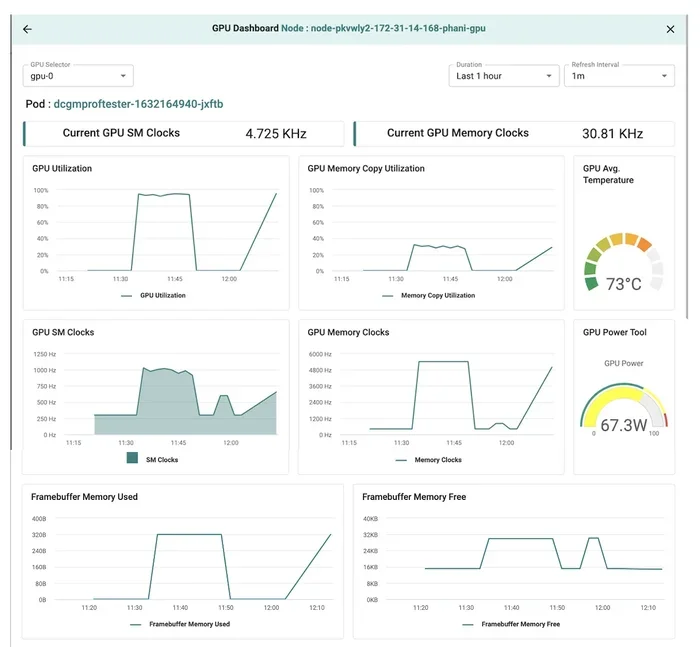
GPU underutilization is a common problem that wastes your graphics card’s potential and hurts performance. This guide explains the real reasons your GPU usage stays low and shows you exactly how to increase GPU utilization with practical, step-by-step fixes. You will learn to identify bottlenecks, optimize settings, and get the most out of your hardware.
Your graphics card is one of the most expensive parts of your PC. But if it is barely working while you game or render, you are wasting money and performance. Many users notice that their GPU utilization stays low even during demanding tasks. This guide breaks down exactly why this happens and, more importantly, how to fix it.
Whether you are a gamer, a content creator, or someone who just wants smoother visuals, understanding GPU usage percentage is the first step toward better performance. We will walk you through every major cause of low GPU usage and give you actionable fixes you can start today. Let us get into it.
Key Takeaways
- Low GPU usage often comes from CPU bottlenecks, outdated drivers, or wrong game settings.
- Monitoring your GPU utilization helps you pinpoint the exact cause of underperformance.
- Updating GPU drivers and enabling hardware acceleration can boost usage significantly.
- Matching your CPU and GPU properly prevents one component from holding back the other.
- Adjusting in-game settings like resolution and quality presets directly impacts GPU workload.
- Background apps and Windows settings can silently steal GPU resources from your games.
📑 Table of Contents
Why Is My GPU Underutilized?
Seeing your graphics card not running at full capacity can be frustrating. You paid for a powerful GPU, but it sits idle while your games stutter or your renders take forever. The reasons are usually straightforward, and most are easy to fix.
CPU Bottleneck Limits Your GPU
The most common reason for low GPU utilization is a CPU bottleneck. Your processor feeds data to your graphics card. If your CPU cannot keep up, your GPU just waits around doing nothing. This is especially common when pairing a high-end graphics card with an older or weaker processor.
For example, if you have a powerful RTX 4070 but an older Intel i5 from a few generations back, your CPU might not send frames fast enough. The result? Your GPU usage stays around 30 to 50 percent even in heavy games. You can learn more about matching these components properly in our guide on how to match a CPU and GPU.
Outdated or Corrupt GPU Drivers
Your GPU drivers are the bridge between your hardware and your software. When they are outdated, corrupted, or simply not optimized for a new game, your graphics processing unit may not perform at its best. Old drivers can cause low GPU usage, stuttering, and poor frame rates.
Manufacturers like NVIDIA and AMD release regular driver updates that improve performance for new games and applications. Skipping these updates means you miss out on optimizations that directly boost GPU workload efficiency.
In-Game Settings Are Too Low
This might sound backwards, but running your game on low settings can actually cause low GPU usage. When you turn everything down, your CPU does most of the work. Your GPU gets very little to do because the game is not asking it to render complex visuals.
Settings like resolution, shadow quality, anti-aliasing, and texture detail all directly affect how hard your GPU works. If you want to see high GPU usage percentage, you need to push those settings up.
Background Applications Steal GPU Resources
Do you have a browser with 30 tabs open? Is Discord, Spotify, or a streaming app running in the background? These applications use your GPU for rendering, hardware acceleration, and video decoding. They quietly eat into your GPU’s available power.
When you launch a game, all those background apps compete for the same GPU resources. This splits the workload and keeps your GPU utilization rate lower than it should be.
How to Monitor Your GPU Utilization
Before you can fix low GPU usage, you need to know what is actually happening. Monitoring tools give you real-time data on how hard your card is working.
Built-in Windows Task Manager
Windows Task Manager has a built-in GPU monitor. Press Ctrl + Shift + Esc, click the Performance tab, and select your GPU. You will see your GPU usage percentage, dedicated GPU memory usage, and utilization engine details.
This is the easiest free way to check if your graphics card not running at full capacity is actually a problem. If you see 30 percent usage during a demanding game, something is definitely wrong.
Third-Party Monitoring Tools
For more detailed insights, try tools like MSI Afterburner, GPU-Z, or HWiNFO. These programs give you real-time graphs of GPU clock speed, temperature, power draw, and utilization. They help you spot patterns and identify exactly when and why your GPU drops in usage.
Pro Tip: If your GPU usage spikes to 100 percent in some scenarios but stays low in others, check out our article on why does my GPU spike to 100 to understand those sudden changes.
How to Increase GPU Utilization
Now for the part you have been waiting for. Here are the most effective ways to boost your GPU utilization and get your graphics card working as it should.
Update Your Graphics Drivers
Start with the simplest fix. Go to NVIDIA GeForce Experience, AMD Adrenalin, or Intel Arc Control and check for driver updates. New drivers often include game-specific optimizations that improve GPU workload distribution and performance.
After updating, restart your PC and test your game or application again. You may see an immediate improvement in GPU usage and frame rates.
Increase In-Game Graphics Settings
Turn up the settings that stress your GPU the most. These include:
- Resolution: Higher resolution demands more from your GPU.
- Shadow Quality: Shadows are GPU-heavy to render.
- Anti-Aliasing: Smooths edges and uses significant GPU power.
- Texture Quality: High-res textures fill VRAM and increase load.
- Ray Tracing: If supported, this pushes GPU usage to the max.
Start with one setting at a time and watch your GPU utilization in Task Manager. You will quickly see which settings have the biggest impact on your graphics card performance.
Enable Hardware Acceleration
Many applications and browsers support hardware acceleration. This feature offloads tasks from your CPU to your GPU, increasing your GPU usage percentage during everyday tasks.
In Google Chrome, go to Settings, scroll to System, and toggle on “Use hardware acceleration when available.” In Discord, go to Settings, Advanced, and enable hardware acceleration. These small changes can noticeably boost your GPU workload during non-gaming tasks too.
Close Background Applications
Before you start gaming or doing GPU-intensive work, close everything you do not need. Browser tabs, streaming services, voice chat apps, and cloud storage sync tools all use GPU resources.
Use Task Manager to identify which apps are consuming GPU power. Right-click the taskbar, open Task Manager, go to the Processes tab, and sort by GPU usage. Close anything you do not need to free up your graphics processing unit for the task at hand.
Fix CPU Bottlenecks
If your CPU is the bottleneck, you have a few options:
- Upgrade your CPU: This is the most effective but expensive fix.
- Overclock your CPU: This can squeeze out more performance without buying new hardware.
- Lower CPU-intensive settings: Settings like draw distance, physics, and population density shift workload back to the GPU.
- Use a lower resolution: This reduces CPU load and lets your GPU catch up.
Understanding the balance between your CPU and GPU is key to maximizing GPU utilization. If you want deeper guidance on pairing components, check out our guide on how to match a CPU and GPU.
Adjust Windows Settings for Better GPU Performance
Windows has several settings that can limit your GPU. Here are a few tweaks that help:
- Hardware-accelerated GPU scheduling: Go to Settings, System, Display, Graphics, and toggle on hardware-accelerated GPU scheduling. This lets your GPU manage its own memory more efficiently.
- Power plan: Set your Windows power plan to High Performance. This prevents your system from throttling your GPU to save energy.
- Game Mode: Turn on Game Mode in Settings, Gaming, Game Mode. This prioritizes system resources for games.
These small changes can make a real difference in your GPU utilization rate and overall system performance tuning.
Common Mistakes That Keep GPU Usage Low
Many users unknowingly do things that prevent their GPU from reaching full capacity. Avoid these common mistakes.
Running Games on Very Low Settings
Some players set everything to low to get more frames. But this shifts the workload to the CPU and leaves the GPU underused. If your goal is to maximize GPU utilization, you need to give your graphics card something demanding to render.
Ignoring Driver Updates
It is easy to ignore update notifications. But outdated drivers are one of the top reasons for poor graphics card performance. Set your GPU software to auto-update or check manually every two weeks.
Not Monitoring Actual Usage
Many people assume their GPU is working hard without checking. Without monitoring, you cannot tell if your GPU usage percentage is where it should be. Get into the habit of checking your utilization before troubleshooting.
When Low GPU Utilization Is Actually Normal
Not all low GPU usage is a problem. Some situations naturally result in lower GPU utilization. Understanding these helps you stop worrying when there is nothing wrong.
When you are browsing the web, watching videos, or working in office applications, your GPU usage will be low. These tasks are mostly CPU-bound. Your graphics processing unit only needs to handle display output and basic rendering.
Similarly, older games or esports titles like CS2 or Valorant are designed to be CPU-friendly. They will not push your GPU to 100 percent. If you are getting smooth frame rates, low GPU usage in these scenarios is perfectly fine.
However, if you are playing a demanding AAA game or running a GPU-heavy workload and your usage is still below 70 percent, that is when you should investigate further.
Expert Tips to Maximize GPU Performance
Here are some extra tips from the experts to help you squeeze every bit of performance from your graphics card.
Use NVIDIA DLSS or AMD FSR
These upscaling technologies render games at a lower resolution and upscale them using AI or spatial algorithms. This reduces the load on your GPU while maintaining visual quality. You get higher frame rates without sacrificing too much image sharpness.
Undervolt Your GPU
Undervolting reduces the power your GPU draws while maintaining or even improving performance. It lowers temperatures and allows your card to sustain higher boost clocks for longer. This can improve your GPU workload consistency during long sessions.
Keep Your PC Cool
Overheating causes thermal throttling, which reduces GPU clock speeds and utilization. Make sure your case has good airflow, your fans are working, and your GPU thermal paste is fresh. Keeping temperatures in check ensures your graphics card performance stays at its peak.
Cap Your Frame Rate
Sometimes uncapped frame rates cause your GPU to work inconsistently. Capping your frame rate to match your monitor’s refresh rate (like 60Hz or 144Hz) gives your GPU a steady and predictable workload. This often results in more stable and higher average GPU utilization.
Conclusion
Dealing with a GPU underutilized state is frustrating, but it is almost always fixable. The key is identifying the root cause, whether it is a CPU bottleneck, outdated drivers, wrong game settings, or background apps eating your resources. By following the steps in this guide, you can increase GPU utilization and unlock the true potential of your graphics card.
Start with the easiest fixes like driver updates and closing background apps. Then move on to in-game settings and Windows tweaks. Monitor your progress using Task Manager or third-party tools. With patience and the right approach, you will see your GPU usage percentage climb where it belongs.
Remember, your GPU is a powerful piece of hardware. It deserves to be pushed. Use these tips, stay consistent with maintenance, and enjoy the performance boost that comes with a properly utilized graphics card.
Frequently Asked Questions
Why is my GPU usage so low even when gaming?
Low GPU usage during gaming is usually caused by a CPU bottleneck, outdated drivers, or very low in-game settings. Your processor may not be feeding data to your GPU fast enough, or your game settings are too easy for your graphics card to handle. Check your GPU utilization in Task Manager and adjust your settings or drivers accordingly.
How do I know if my GPU is being underutilized?
Open Windows Task Manager and go to the Performance tab. Select your GPU and watch the GPU usage percentage while gaming or running a demanding app. If it stays below 60 to 70 percent during heavy workloads, your GPU is likely underutilized. Use monitoring tools like MSI Afterburner for more detailed data.
Can a CPU bottleneck cause low GPU usage?
Yes, absolutely. A CPU bottleneck is the most common reason for low GPU utilization. When your processor cannot process data fast enough, your graphics card sits idle waiting for instructions. Matching your CPU and GPU properly is essential for balanced system performance tuning.
Does updating GPU drivers increase GPU utilization?
Yes, updated drivers often include optimizations for new games and applications. These improvements can significantly boost your GPU workload efficiency and fix bugs that cause low usage. Make it a habit to check for updates every two weeks.
What settings should I adjust to increase GPU usage?
Increase resolution, shadow quality, anti-aliasing, texture quality, and ray tracing if supported. These settings are GPU-intensive and will push your graphics card performance higher. Avoid turning everything to low, as this shifts the workload to your CPU instead.
Is low GPU usage bad for my graphics card?
Low GPU usage itself does not damage your card. However, it means you are not getting the value you paid for. Your graphics card not running at full capacity also means you may be experiencing poor frame rates or stuttering if the CPU is struggling to compensate. Fixing low utilization improves both performance and your overall experience.