Windows Couldnt Connect To The Printer Heres How To Fix It
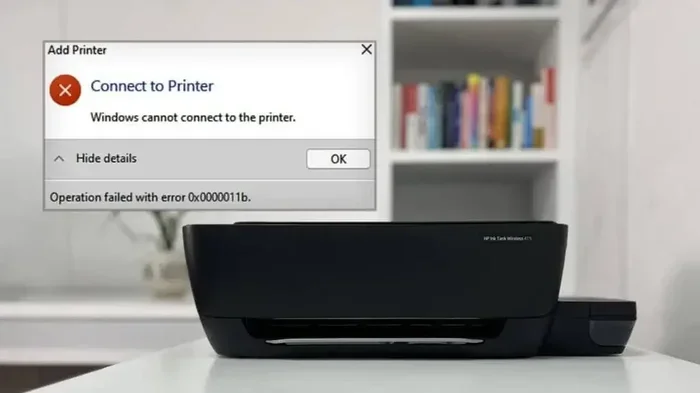
Windows couldnt connect to the printer is a frustrating but common issue that affects many PC users. This guide walks you through step-by-step solutions to restore your printer connection, from basic checks to advanced troubleshooting. Whether your printer is wireless, USB, or network-based, you will find the fix that works for your setup.
You sit down to print an important document, click that Print button, and then you see it. A dreaded error message pops up on your screen: Windows couldnt connect to the printer. Your stomach drops. You need this printed, and now you are stuck staring at a blank error box wondering what went wrong.
This problem happens to thousands of PC users every single day. It does not matter if you use a brand-new wireless printer or an older USB model. The error can strike at any time. Sometimes a Windows update breaks the connection. Other times the printer driver simply quits working overnight. Whatever the cause, the good news is that most fixes are simple and do not require a computer science degree.
In this article, we will walk you through every possible solution. We start with the easiest checks and work our way up to more advanced fixes. By the end, your printer should be working again. Let us get started.
Key Takeaways
- Check Physical Connections First: A loose cable or powered-off printer causes more connection errors than people realize.
- Update or Reinstall Printer Drivers: Outdated drivers are the number one cause of Windows printer connection failures.
- Restart the Print Spooler Service: This simple fix resolves many stubborn printer errors on Windows.
- Use Windows Troubleshooter: Built-in tools can automatically detect and fix common printer problems.
- Set Your Printer as Default: Sometimes Windows sends print jobs to the wrong device, causing confusion.
- Check Network Settings for Wireless Printers: IP address conflicts and Wi-Fi disconnections often block printer communication.
📑 Table of Contents
Why Does Windows Fail to Connect to Your Printer?
Before jumping into fixes, it helps to understand what is going wrong. Printer connection errors on Windows can come from many different places. Each cause needs a different solution, so knowing the root problem saves you time.
Common Causes of Printer Connection Failures
Here are the most frequent reasons Windows loses its connection to a printer:
- Loose or damaged cables: A USB cable that is barely plugged in will cause connection drops.
- Outdated or corrupted printer drivers: Windows relies on drivers to talk to your printer. When they get old or damaged, communication breaks down.
- Print Spooler service stopped: This background service manages all print jobs. If it crashes or freezes, nothing prints.
- Wi-Fi or network issues: Wireless printers need a stable network connection. If your router or printer IP address changes, Windows loses track.
- Windows updates: Sometimes a Windows update removes or conflicts with existing printer drivers.
- Printer set to offline: Your printer might be in offline mode, which blocks all incoming print requests from the computer.
Once you identify which of these causes applies to your situation, you can move on to the right fix. Most people find that the first few solutions on our list resolve the problem entirely.
Step-by-Step Fixes for Windows Printer Connection Errors
Now let us get into the actual fixes. Follow these steps in order. Most users find that one of the first three solutions does the trick.
1. Check the Physical Connection
This sounds too simple, but it works more often than you would think. Start by checking every cable connected to your printer. If you use a USB connection, unplug the cable from both the printer and the computer, then plug it back in firmly.
For wireless printers, make sure the printer is powered on and connected to your Wi-Fi network. Look for a Wi-Fi icon on the printer display. If it shows a solid connection, you are good. If it blinks or shows an error, you need to reconnect the printer to your network first.
Also check the power cable. A printer that lost power mid-job will not respond to any commands from your PC. Sometimes simply pressing the power button to turn the printer off and back on resets the entire connection.
Quick Tip: If you recently moved your printer or rearranged cables, double-check that nothing got accidentally unplugged. A loose power cord is the sneakiest cause of printer connection failures.
2. Restart the Print Spooler Service
The Print Spooler is a Windows service that handles all print jobs. When it gets stuck, your computer cannot send anything to the printer. Restarting this service clears the queue and often fixes the connection instantly.
Here is how to do it:
- Press Windows Key + R to open the Run dialog.
- Type services.msc and press Enter.
- Scroll down and find Print Spooler in the list.
- Right-click it and select Restart.
- Wait a few seconds, then try printing again.
If the service will not restart, try stopping it first, waiting ten seconds, and then starting it again. This method works for many users who see the Windows couldnt connect to the printer error after a long printing session.
3. Update or Reinstall Printer Drivers
Printer drivers are the software that lets Windows understand your printer. When these drivers become outdated or corrupted, your PC simply cannot communicate with the device. Updating printer drivers is one of the most effective fixes available.
To update your driver through Device Manager:
- Right-click the Start button and select Device Manager.
- Expand the Print Queues or Printers section.
- Right-click your printer and select Update Driver.
- Choose Search automatically for drivers.
If Windows does not find a new driver, visit your printer manufacturer website. Brands like HP, Canon, Epson, and Brother all offer free driver downloads. Download the latest driver for your specific model and Windows version, then run the installer.
Sometimes a clean reinstall works better than an update. Uninstall the current driver from Device Manager, restart your PC, and then install the fresh driver from scratch. This approach clears out any corrupted files that might be blocking the connection.
Similar to how you might troubleshoot a Bluetooth mouse connect to laptop issue, printer driver problems often stem from outdated software that needs refreshing.
4. Run the Windows Printer Troubleshooter
Windows has a built-in troubleshooter designed specifically for printer problems. This tool automatically scans for common issues and applies fixes where possible. It is a great first step if you are not sure what is wrong.
Here is how to run it:
- Open Settings (press Windows Key + I).
- Go to System and then Troubleshoot.
- Click on Other Troubleshooters.
- Find Printer and click Run.
- Follow the on-screen instructions.
The troubleshooter will check your printer settings, connections, and services. It often catches things you might have missed, like a disabled printer port or a misconfigured default printer setting.
5. Set Your Printer as the Default Device
Sometimes Windows tries to send print jobs to the wrong printer. This happens especially if you have multiple printers or recently removed one. Setting your active printer as the default ensures all print jobs go to the right place.
To set a default printer:
- Open Settings and go to Bluetooth & Devices, then Printers & Scanners.
- Click on your desired printer.
- Select Manage and then click Set as Default.
Also, make sure the Let Windows manage my default printer option is turned off if it is causing conflicts. This gives you manual control over which printer Windows uses for each print job.
6. Check Network and IP Settings for Wireless Printers
If your printer connects over Wi-Fi, network issues are a common culprit. Your printer has an IP address that Windows uses to find it on the network. If that IP address changes, Windows can no longer locate the printer.
To check your printer IP address:
- Print a network configuration page directly from the printer menu.
- Look for the IP address listed on that page.
- On your PC, open a browser and type that IP address into the address bar.
- If the printer setup page loads, the connection is working.
If the IP address changed, you can set a static IP on your printer through its settings menu. This prevents the address from changing every time your router restarts. You can also try restarting your router to refresh all network connections on your home network.
Preventing Future Printer Connection Problems
Once you get your printer working again, you want to keep it that way. Prevention is always easier than troubleshooting. Here are a few habits that help maintain a stable printer connection on Windows:
- Keep your drivers updated: Check for driver updates once a month, especially after Windows updates.
- Restart your printer regularly: A weekly restart clears temporary glitches and keeps the printer responsive.
- Use quality cables: If you use USB, invest in a good-quality cable. Cheap cables cause intermittent connection drops.
- Keep your Wi-Fi network stable: Place your wireless printer close to your router for a strong signal.
- Clear the print queue regularly: Stuck print jobs can block new ones from going through.
These small habits take minimal effort but save you from the frustration of dealing with another Windows couldnt connect to the printer error down the road. Think of it like maintaining any other device. A little care goes a long way.
When all else fails, you can also try connecting your printer to a different USB port or testing it on another computer. This helps you figure out whether the problem is with the printer itself or with your Windows setup. If the printer works on another PC, the issue is definitely on your computer side. If it fails everywhere, the printer hardware might need professional attention.
When to Seek Professional Help
Most printer connection issues resolve with the steps above. However, some situations call for expert assistance. If your printer still will not connect after trying every fix, there may be a deeper hardware problem. A faulty network card in a wireless printer or a damaged USB port on your computer could be the real issue.
Also, if you recently replaced your computer or upgraded to a new Windows version, compatibility issues might be at play. Some older printers do not support newer versions of Windows. Check your printer manufacturer website for compatibility information before investing more time in troubleshooting.
Final Thoughts
Dealing with a printer that Windows cannot connect to is incredibly frustrating, especially when you need to print something urgent. But as you have seen, most causes are simple and fixable. Start with the basic checks like cables and power, then move on to driver updates and service restarts. The Windows troubleshooter is also a powerful tool that many people overlook.
Remember that printer connection problems happen to everyone. You are not alone, and there is almost always a solution waiting. Keep this guide bookmarked for the next time your printer decides to misbehave. With the right steps, you will be back to printing in no time.
If you found this guide helpful, share it with someone who is still struggling with their printer connection. Sometimes a fresh pair of eyes catches the simple fix that you might have missed. Happy printing!
Frequently Asked Questions
Why does Windows keep saying it could not connect to the printer?
This error usually happens because of outdated printer drivers, a stopped Print Spooler service, or a loose physical connection. Start by checking your cables and restarting the Print Spooler service. If the problem persists, update your printer drivers through Device Manager or download the latest drivers from your manufacturer website.
How do I fix a wireless printer that is not connecting to Windows?
First, make sure your printer is connected to the same Wi-Fi network as your computer. Check the printer display for the Wi-Fi status indicator. If the connection is weak, move the printer closer to your router. You can also try setting a static IP address on the printer to prevent connection drops caused by IP address changes.
Can a Windows update cause printer connection problems?
Yes, Windows updates sometimes remove or conflict with existing printer drivers. If your printer worked fine before a recent update, try rolling back the update or downloading a fresh driver from the manufacturer. Running the Windows printer troubleshooter after an update can also help restore the connection.
What is the Print Spooler and how do I restart it?
The Print Spooler is a Windows service that manages all print jobs sent to your printer. When it stops working, your computer cannot send anything to the printer. To restart it, open the Run dialog with Windows Key + R, type services.msc, find Print Spooler, right-click it, and select Restart.
Should I set my printer as the default device on Windows?
Yes, setting your printer as default prevents Windows from sending print jobs to the wrong device. Go to Settings, then Bluetooth and Devices, then Printers and Scanners. Click your printer, select Manage, and choose Set as Default. This simple step can prevent many connection confusion issues.
How often should I update my printer drivers?
It is a good practice to check for printer driver updates once a month, especially after major Windows updates. Outdated drivers are one of the leading causes of printer connection errors. Most manufacturers also release driver updates when they fix known bugs or add support for new Windows features.