How to Upgrade RAM and SSD in Asus Vivobook 16 2024
Upgrading the RAM and SSD in your Asus Vivobook 16 2024 is one of the best ways to breathe new life into your laptop. This guide walks you through everything you need, from choosing compatible parts to installing them yourself. You will learn how a simple RAM and SSD upgrade can dramatically improve speed, multitasking, and storage capacity.
Upgrading the RAM and SSD in your Asus Vivobook 16 2024 might seem scary at first. But honestly, it is one of the easiest and most rewarding DIY projects you can do. In just about 30 minutes, you can turn a slow laptop into a fast machine that handles everything you throw at it.
This guide covers the entire process from start to finish. You will learn which parts to buy, how to open your laptop safely, and how to install everything step by step. Whether you want more memory for multitasking or a bigger, faster solid state drive, we have you covered.
Many people think they need to buy a new laptop when their old one starts feeling slow. That is simply not true. A memory and storage upgrade can give your Asus Vivobook 16 2024 a second life. Let us dive in and show you how.
Key Takeaways
- Easy Process: Upgrading RAM and SSD in the Asus Vivobook 16 2024 is straightforward and does not require expert skills.
- Big Performance Boost: More RAM and a faster SSD make your laptop snappier for everyday tasks and multitasking.
- Compatible Parts Matter: Choosing the right RAM type and SSD form factor is essential for a smooth upgrade.
- Cost Effective: A DIY upgrade saves money compared to buying a brand new laptop.
- Quick Results: You will notice faster boot times and smoother performance right after the upgrade.
- Backup First: Always back up your data before opening up your laptop.
📑 Table of Contents
Why Upgrade RAM and SSD in Your Asus Vivobook 16 2024?
Your laptop came with a set amount of RAM and storage. Over time, software gets heavier and demands more from your hardware. What felt fast when you first bought it can start to lag and frustrate you.
Adding more RAM gives your laptop more workspace to handle multiple apps at once. Upgrading to a faster SSD slashes load times for your operating system, apps, and files. Together, these two upgrades deliver a massive improvement.
Here are some real benefits you can expect:
- Faster boot times — your laptop starts up in seconds instead of minutes.
- Smoother multitasking — switch between browser tabs, apps, and videos without stuttering.
- More storage space — store all your files, photos, and games without worrying about running out of room.
- Better overall responsiveness — everything feels snappier and more fluid.
- Extended laptop lifespan — delay the need for a costly replacement.
If you have been on the fence about upgrading, now is the perfect time. The process is simpler than most people think. And the results are immediately noticeable.
What You Will Need for the Upgrade
Before you start, gather the right tools and parts. Having everything ready makes the whole process much smoother and faster.
Compatible RAM for the Asus Vivobook 16 2024
The Asus Vivobook 16 2024 typically uses DDR5 RAM in a SO-DIMM form factor. Check your specific model to confirm the exact type and maximum supported capacity. Most users find that 16 GB RAM or 32 GB RAM strikes the perfect balance between performance and value.
When shopping for RAM, look for these specs:
- Type: DDR5 SO-DIMM
- Speed: 4800 MHz or 5600 MHz (match your existing module if possible)
- Capacity: 8 GB, 16 GB, or 32 GB per stick
- Voltage: 1.1V standard for DDR5
If you are unsure about compatibility, check the Asus Vivobook Laptop RAM Upgrade guide for helpful tips. It covers the basics of finding the right memory module for your model.
Choosing the Right SSD
The Asus Vivobook 16 2024 uses a 2.5-inch SATA SSD or an M.2 NVMe SSD depending on the configuration. An NVMe SSD offers much faster read and write speeds compared to a traditional SATA drive.
Consider these options:
- 512 GB SSD: Great for everyday use and light storage needs.
- 1 TB SSD: Ideal for users who store lots of files, games, or creative projects.
- 2 TB SSD: Perfect for power users who need maximum space.
If you want a reliable option with solid performance, a 16 GB RAM 1 TB SSD configuration is a popular choice. You can also explore pre-configured options like the 16 GB RAM 1 TB SSD Laptop lineup for reference on compatible builds.
Tools You Need
You do not need a lot of tools for this upgrade. Here is a simple checklist:
- Phillips-head screwdriver (small size)
- Anti-static wrist strap (optional but recommended)
- Soft cloth or mat to work on
- USB drive or external storage for backing up data
- Your new RAM and SSD
Step-by-Step Upgrade Guide
Now for the fun part. Follow these steps carefully and you will have your upgraded laptop running in no time.
Step 1: Back Up Your Data
Before you touch any hardware, back up your important files. Use an external hard drive, cloud storage, or a USB flash drive. This step protects your data in case anything goes wrong during the installation.
Step 2: Power Down and Disconnect
Shut down your laptop completely. Unplug the power adapter and disconnect any external devices. Remove any SD cards or USB drives plugged into the laptop.
Step 3: Open the Back Panel
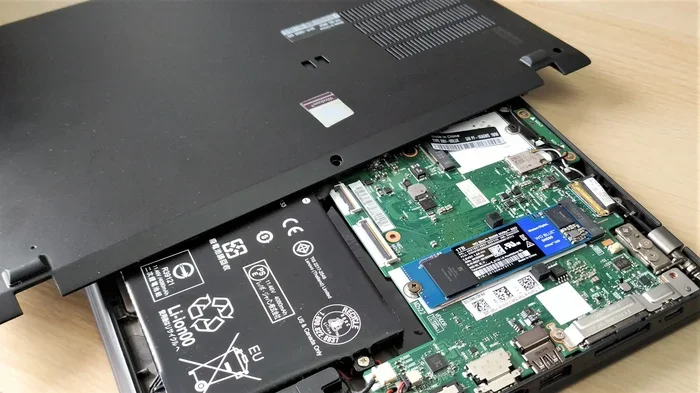
Flip your laptop over and locate the screws on the bottom panel. Use your Phillips-head screwdriver to remove them carefully. Keep the screws in a safe place — a small bowl or magnetic tray works great. Gently pry off the bottom panel using a plastic spudger or your fingernail.
Step 4: Install the New RAM
Locate the RAM slots on your motherboard. The Asus Vivobook 16 2024 usually has one or two accessible slots. To insert the new RAM module:
- Align the notch on the RAM stick with the slot.
- Insert the module at a 30-degree angle.
- Press it down firmly until it clicks into place.
- Make sure the metal clips on both sides lock securely.
If you are replacing existing RAM, gently release the side clips and remove the old module first. For more detailed instructions on the RAM upgrade process, check out the How To Upgrade The RAM Of A Laptop article for a deeper walkthrough.
Step 5: Install the New SSD
Locate the SSD bay inside your laptop. You will see the current drive held in place by a screw or bracket. Remove the screw and gently slide out the old drive.
Insert your new SSD into the bay. Secure it with the screw or bracket. Make sure it sits flat and is not loose.
If your laptop supports an M.2 NVMe SSD, the process is even simpler. Just remove the retention screw, insert the SSD at an angle, and press it down flat. Secure it with the screw.
Step 6: Close Up and Power On
Place the bottom panel back on and screw it in securely. Reconnect your power adapter and turn on the laptop. Once it boots up, check that the new RAM and SSD are recognized by the system.
You can verify this by going to Settings > System > About on Windows. You should see your new total RAM and the new SSD listed as your main drive.
Step 7: Clone or Reinstall Your Operating System
If you installed a brand new SSD, you will need to transfer your operating system and files to it. You can use cloning software like Macrium Reflect or Samsung Data Migration. Alternatively, you can do a fresh Windows installation using a USB installer.
Cloning saves time because it copies everything exactly as it was. A fresh install gives you a clean slate but takes more setup time. Choose whichever method feels more comfortable for you.
How Much Does the Upgrade Cost?
One of the best things about upgrading your Asus Vivobook 16 2024 is how affordable it is. A 16 GB RAM kit typically costs between $40 and $80. A 1 TB NVMe SSD usually runs from $60 to $100 depending on the brand and speed.
Compare that to the cost of a brand new laptop, and the savings are significant. You get near-new performance for a fraction of the price. Plus, the satisfaction of doing it yourself is unbeatable.
| Component | Price Range | Performance Impact |
|---|---|---|
| 16 GB DDR5 RAM | $40 – $80 | Smoother multitasking and faster app switching |
| 1 TB NVMe SSD | $60 – $100 | Much faster boot and load times |
| 32 GB DDR5 RAM | $80 – $150 | Excellent for heavy workloads and creative tasks |
| 2 TB NVMe SSD | $120 – $200 | Maximum storage for large files and media |
Keep in mind that prices fluctuate. Check reputable retailers and Amazon for the best deals. Brands like Samsung, Crucial, Kingston, and WD offer reliable options that work great in the Asus Vivobook 16 2024.
Common Mistakes to Avoid
Even though this upgrade is beginner-friendly, a few common mistakes can cause problems. Here is what to watch out for:
- Forgetting to ground yourself: Static electricity can damage components. Touch a metal surface before handling any parts.
- Using incompatible RAM: Not all RAM works with every laptop. Double-check the type, speed, and form factor before buying.
- Over-tightening screws: This can strip the threads or damage the motherboard. Tighten just until snug.
- Skipping the backup: Always back up your data first. It takes 10 minutes and saves you hours of headache.
- Not updating BIOS: After a major hardware upgrade, check for BIOS updates from Asus to ensure full compatibility.
Avoiding these simple mistakes will make your upgrade experience smooth and stress-free. Take your time and follow each step carefully.
Expert Tips for Maximum Performance
Want to get the most out of your upgraded laptop? Here are some pro tips:
- Install RAM in matched pairs: If your laptop has two slots, use identical modules for dual-channel mode. This boosts memory bandwidth and performance.
- Enable XMP profiles: In your BIOS settings, you can enable XMP to run your RAM at its rated speed instead of the default slower speed.
- Keep your SSD at 10-20% free space: SSDs perform best when they have some free space available. This helps with wear leveling and speed.
- Update your drivers: After the upgrade, update your storage and chipset drivers for the best stability and performance.
- Use thermal paste: If you are already inside the laptop, consider reapplying thermal paste to keep temperatures cool during heavy use.
These small tips can make a big difference in how your laptop feels day to day. They take just a few extra minutes but pay off in long-term reliability and speed.
How to Verify Your Upgrade Was Successful
After completing the installation, you want to make sure everything is working correctly. Here is how to confirm:
- Check RAM recognition: Go to Settings > System > About and verify that the total RAM matches your new modules.
- Check SSD detection: Open Disk Management and confirm that your new SSD appears with the correct capacity.
- Run a speed test: Use tools like CrystalDiskMark to measure your SSD read and write speeds.
- Monitor temperatures: Use HWMonitor or a similar tool to make sure your laptop is running at normal temperatures.
- Test multitasking: Open several apps and browser tabs at once to feel the difference in responsiveness.
If everything checks out, congratulations! You have successfully upgraded your Asus Vivobook 16 2024. Enjoy the faster speeds and extra storage.
Conclusion
Upgrading the RAM and SSD in your Asus Vivobook 16 2024 is one of the smartest investments you can make. It costs a fraction of a new laptop, takes less than an hour, and delivers noticeable results immediately. Your laptop will boot faster, run smoother, and handle more tasks without breaking a sweat.
Whether you are a student, a professional, or a casual user, this upgrade transforms your daily computing experience. You do not need to be a tech expert to do it. With the right parts, a few basic tools, and this guide, you can upgrade your laptop with confidence.
Do not let a slow laptop hold you back any longer. Grab your new RAM and SSD, follow the steps in this guide, and enjoy a faster Asus Vivobook 16 2024 today.
Frequently Asked Questions
Can I upgrade the RAM in the Asus Vivobook 16 2024 myself?
Yes, absolutely. The Asus Vivobook 16 2024 is designed for easy user upgrades. You just need a small screwdriver and about 15 minutes. The process is straightforward and does not require any special technical skills or professional help.
What type of RAM does the Asus Vivobook 16 2024 use?
The Asus Vivobook 16 2024 uses DDR5 SO-DIMM RAM modules. Most configurations support up to 32 GB of RAM. Always double-check your specific model number to confirm the exact RAM type and maximum capacity supported.
Do I need to reinstall Windows after upgrading the SSD?
If you are replacing your existing drive with a new one, yes, you will need to reinstall Windows or clone your existing drive to the new SSD. Cloning is faster and preserves everything exactly as it was. A fresh install gives you a clean system but requires more setup time.
How much does it cost to upgrade both RAM and SSD?
A typical upgrade with 16 GB of DDR5 RAM and a 1 TB NVMe SSD will cost between $100 and $180 total. Prices vary by brand and retailer, but this is a small investment compared to buying a brand new laptop with similar specs.
Will upgrading RAM and SSD void my warranty?
In most cases, upgrading RAM and SSD does not void your warranty because these are user-replaceable components. However, it is always a good idea to check your specific warranty terms from Asus. Keep your original parts in case you need to return the laptop for service.
How long does the upgrade process take?
Most people complete the entire RAM and SSD upgrade in about 30 to 45 minutes. The actual installation takes around 15 to 20 minutes. The remaining time goes toward backing up data, cloning the drive, or reinstalling the operating system.