Logitech X 530 Speakers Manual

The Logitech X 530 speakers manual covers everything you need to set up, control, and maintain your 5.1 surround sound system. This guide walks you through connection steps, remote features, and simple troubleshooting fixes. You will learn how to place each speaker for clear audio and avoid common setup mistakes. Whether you are connecting to a PC or console, this manual-style overview keeps things easy and practical.
Key Takeaways
- Simple setup: The Logitech X 530 connects quickly to PCs, laptops, and gaming consoles using clear color-coded cables.
- 5.1 surround sound: This system uses five satellite speakers and one subwoofer for immersive movie and game audio.
- Control pod features: The control unit manages volume, bass, and headphone output without reaching for the main device.
- Smart placement: Proper speaker positioning improves soundstage, dialogue clarity, and bass response.
- Basic troubleshooting: Most sound issues come from loose connections, muted channels, or wrong audio settings.
- Care and maintenance: Dusting, cable management, and moderate volume levels help your system last longer.
- Manual-style guidance: This guide acts like a full Logitech X 530 speakers manual for everyday use and quick reference.
📑 Table of Contents
- Logitech X 530 Speakers Manual: Quick Setup Overview
- What Is Included in the Logitech X 530 System
- Logitech X 530 Speakers Manual: Connection Steps
- Speaker Placement for Better Sound
- Using the Controls and Settings
- Logitech X 530 Speakers Manual: Troubleshooting Basics
- Care, Maintenance, and Long-Term Use
- Quick Tips for Better Performance
- Common Mistakes to Avoid
- Expert Insights
- Key Takeaways
Logitech X 530 Speakers Manual: Quick Setup Overview
Setting up a surround sound system does not have to feel complicated. The Logitech X 530 is built for home entertainment, and the connection process is straightforward once you know where each cable belongs. This Logitech X 530 speakers manual guide starts with the basics so you can get sound running without guessing.
Most users want two things right away: clear dialogue and strong bass. The good news is that this system is designed to deliver both with a simple layout. You get five satellite speakers and a subwoofer, which work together to create a full surround experience. If you are coming from built-in laptop speakers or a small desktop setup, the difference will feel immediate.
Before you begin, clear a little space near your listening area. You will want easy access to the back of your computer, console, or audio source. It also helps to keep the control pod nearby since it handles the day-to-day adjustments. Once everything is within reach, the setup becomes much easier.
What Is Included in the Logitech X 530 System
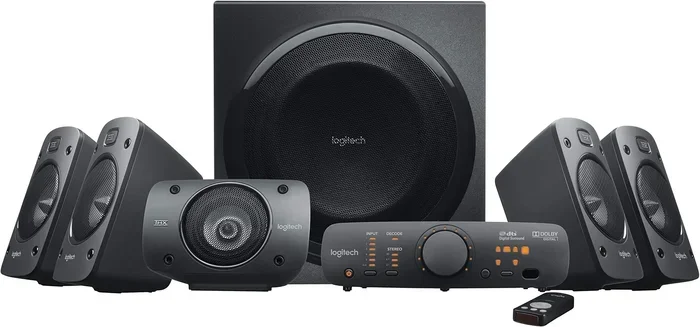
Visual guide about Logitech X 530 speakers
Image source: m.media-amazon.com
Main Components at a Glance
A system like this feels more useful when you know exactly what you have to work with. The Logitech X 530 package is centered around a complete surround layout rather than a single pair of speakers. That makes it a strong choice for movie nights, gaming sessions, and general desktop listening.
You can usually expect the following parts in the system:
- Subwoofer: Handles low-frequency sound and gives your audio more depth.
- Five satellite speakers: Placed around the listening area for surround effects.
- Control pod: Lets you adjust volume, bass, and headphone output with ease.
- Cables and connections: Used to link the speakers, subwoofer, and audio source.
If you are comparing this setup with smaller options, it helps to understand how speaker size affects sound. For example, some users explore compact choices like 6 x 4 car speakers when they want a tighter fit in limited spaces. That is a different use case, but it shows why component size matters when planning audio.
Understanding the Control Pod
The control pod is one of the most practical parts of the system. It keeps the most common adjustments close at hand, so you do not need to crawl behind your desk or entertainment setup every time you want to change the sound. This is especially helpful when you are watching a film and want to raise the volume quickly or lower the bass a little.
A good control layout should feel intuitive. You should be able to identify the main volume control, bass adjustment, and headphone jack without much effort. That kind of simple design makes the system more enjoyable for everyday use.
Logitech X 530 Speakers Manual: Connection Steps
Step 1: Place the Subwoofer First
Start with the subwoofer because it often determines where the rest of the system makes sense. Place it on the floor near your main listening position, but not directly in the center of a narrow shelf or cramped corner. Give it enough room to breathe and enough space for the cable to reach without stretching.
The subwoofer is responsible for the low end, so its position can affect how the bass feels in the room. If it is too hidden, the sound may seem weak. If it is too close to a wall, the bass may feel boomy. A balanced spot usually works best for most rooms.
Step 2: Connect the Satellite Speakers
Next, connect the satellite speakers to the subwoofer or control hub, depending on the layout of your system. Match each speaker to its corresponding cable and make sure the connections are secure. A loose plug can cause intermittent sound or silence on one channel.
When placing the satellites, think about the listening triangle. The front speakers should face the listener, while the surround speakers should sit to the sides or slightly behind. This arrangement helps create a more natural sound field. If you want a deeper comparison of speaker formats, you may also find it useful to read about the difference between subs and speakers.
Step 3: Link the System to Your Audio Source
After the speakers are in place, connect the system to your computer, laptop, or other audio device. Use the appropriate audio cable and check that it is inserted fully into the correct jack. If your source has multiple output options, choose the one that matches your intended use.
Once connected, test the sound with a short video or game clip. Start with the volume low and raise it gradually. This gives you a safe way to confirm that every speaker is working before you settle in for a longer session.
Speaker Placement for Better Sound
Front Speakers and Center Imaging
Good placement makes a bigger difference than many people expect. The front speakers should create a clear path toward the listener without being blocked by monitors, shelves, or walls. If you are using a center speaker, it should point toward the listening position so dialogue stays clear.
Try to keep the front speakers at a similar height when possible. This helps the sound feel more balanced and keeps voices from seeming like they are coming from the wrong direction. Even small adjustments can improve the overall experience.
Surround Speakers and Room Shape
The surround speakers add depth and motion to the soundstage. They work best when they are not blocked by furniture or crowded into a tight corner. If your room is small, you may need to compromise a little, but try to keep the sound path open.
Room shape matters too. Hard surfaces can make audio feel brighter, while soft furnishings can absorb some of the energy. If your room sounds a little harsh, moving a chair, rug, or shelf slightly can help. If you want to understand more about speaker types and how they differ, you can also look at the difference between 2 way and 4 way speakers.
Using the Controls and Settings
Volume, Bass, and Daily Adjustments
Once the system is running, the control pod becomes your main tool for tuning the sound. Use the volume control to set a comfortable baseline, then adjust the bass to match the type of content you are enjoying. Movies often benefit from a fuller low end, while games may sound clearer with a more balanced setting.
It is best to make small changes instead of large jumps. A slight bass increase can add impact without overwhelming dialogue or sound effects. If the sound starts to feel muddy, lower the bass a little and listen again. Fine-tuning is usually easier than starting over.
Headphone Use and Private Listening
One of the convenient features of this kind of setup is the headphone option. If you want to listen late at night or keep the room quiet, the headphone output gives you a simple private alternative. That can be especially useful in shared spaces or during late gaming sessions.
When using headphones, start at a low volume and increase slowly. Surround systems can produce strong dynamics, and those same dynamics can feel intense through headphones if the level is too high. A careful start helps you avoid sudden loud moments.
Logitech X 530 Speakers Manual: Troubleshooting Basics
No Sound or Weak Sound
If you are not getting any sound, start with the easiest checks first. Make sure the system is powered on and the volume is not set too low. Then confirm that the audio cable is connected to the correct output on your computer or device.
If only one speaker seems quiet, inspect the connections on that channel. A cable may be partially inserted or damaged. It is also worth checking your device audio settings, since some computers route sound in ways that can confuse new setups. If your speakers suddenly stop working later on, you may want to review tips for when car speakers stopped working all sudden, since some basic diagnostic habits overlap across audio systems.
Distortion, Hum, or Imbalanced Channels
Distortion often appears when the volume is pushed too high or when the bass setting is too strong for the room. Lower the volume a little and listen for improvement. If the sound still seems harsh, try reducing the bass and testing again with a different song or game.
A hum or buzz can come from cable placement or interference. Keep audio cables away from power cords when possible. Also, make sure the speakers are not sitting on a surface that vibrates too much. If one side sounds louder than the other, recheck the balance settings on both the control pod and your device.
Care, Maintenance, and Long-Term Use
Keeping the System Clean
A little care goes a long way with any audio gear. Dust the speaker grilles and control pod regularly so dirt does not build up over time. Use a soft cloth instead of harsh cleaners, especially on surfaces that you touch often.
Cable management also helps. Tidy loose wires so they do not get bent, pulled, or pinched behind furniture. That simple habit reduces wear and makes the setup easier to use. If you ever need to move the system, handle the cables gently and avoid yanking them from the connectors.
Protecting Your Listening Experience
Moderate volume is one of the best ways to protect both your speakers and your ears. Very high levels can make the system sound strained and can also fatigue your hearing over time. If you enjoy loud moments for action movies or games, keep the average level reasonable and save the extremes for short stretches.
It also helps to think about your broader audio habits. If you use other gear alongside this system, such as a turntable or different speaker setup, it can be useful to understand how various sources compare. For example, some listeners ask do I need speakers with a turntable when they are building a more complete audio setup. Those broader questions can help you make smarter choices as your setup grows.
Quick Tips for Better Performance
- Start low: Power on the system with the volume down, then raise it slowly.
- Check cables first: Many sound problems are caused by loose or mismatched connections.
- Balance the room: Small placement changes can improve clarity and bass response.
- Use the control pod: Keep adjustments simple and within easy reach.
- Test with different content: Try music, movies, and games to hear how the system behaves.
Common Mistakes to Avoid
- Blocking speakers: Placing speakers behind obstacles can weaken the soundstage.
- Overpowering the bass: Too much bass can muddy dialogue and effects.
- Ignoring cable strain: Pulling or bending cables sharply can cause connection problems.
- Skipping the test phase: Always verify each speaker before settling into long sessions.
- Forgetting device settings: Your computer or console audio settings can affect output more than you expect.
Expert Insights
A good surround setup is less about chasing perfection and more about creating a consistent, enjoyable listening experience. Small adjustments often matter more than expensive upgrades. If the sound feels off, change one thing at a time so you can tell what actually helped.
It is also smart to think about how you use the system most often. If you watch a lot of movies, prioritize dialogue clarity and steady bass. If you play games, focus on directional cues and balanced volume. Matching the setup to your habits makes the system feel more useful every day.
For users who eventually expand into other audio projects, the same basic habits still apply: check connections, test gradually, and keep the listening environment in mind. Whether you are comparing different speaker sizes or exploring other formats, the fundamentals stay the same.
Key Takeaways
- Plan placement early: Good positioning improves clarity, surround effect, and bass balance.
- Connect carefully: Secure cables and correct jacks prevent many common issues.
- Use the control pod often: Small adjustments make the sound more comfortable and adaptable.
- Test before long sessions: Verify all channels with short audio checks first.
- Keep it clean and protected: Simple maintenance helps the system stay reliable over time.
Frequently Asked Questions
How do I set up the Logitech X 530 speakers for the first time?
Start by placing the subwoofer near your listening area, then connect each satellite speaker to the matching cable. After that, link the system to your computer or console and test the sound with the volume set low. Raise the volume gradually once you confirm every channel is working.
Where should I place the surround speakers for the best effect?
The surround speakers usually work best to the sides or slightly behind the listening position. Keep them clear of heavy furniture and avoid blocking the sound path. Small placement changes can make the soundstage feel more open and natural.
Why is there no sound from one speaker?
Check that the cable for that speaker is fully connected and that the channel is not muted or turned down. It is also a good idea to test your device audio settings, since some systems route sound in ways that can hide one channel. If the problem continues, try a different cable if available.
Can I use headphones with this system?
Yes, the headphone output gives you a simple way to listen privately without disturbing others. Start at a low volume and increase slowly, especially if the system is playing dynamic movie or game audio. This is a practical option for late-night listening.
How do I reduce muddy bass or distorted sound?
Lower the bass setting a little and reduce the overall volume if the sound feels strained. Distortion often happens when the system is pushed too hard or when the bass is too strong for the room. Repositioning the subwoofer can also help improve clarity.
What is the best way to keep the speakers working well over time?
Dust the speakers regularly, keep the cables tidy, and avoid setting the volume at extreme levels for long periods. Gentle handling and basic cable care go a long way in preventing avoidable issues. A little maintenance helps the system stay reliable and sound more consistent.