How to Install Ram into Laptop
Learning how to install ram into laptop is easier than you think. This guide walks you through every step, from picking the right memory to popping it in place. You will need just a few basic tools and about 15 minutes.
Is your laptop running slow? It might be time for a laptop memory upgrade. Adding more memory can make your computer faster and smoother. In this guide, we will show you exactly how to install ram into laptop. You do not need to be a tech expert. We will keep things simple and easy to follow.
Upgrading your laptop ram is one of the best ways to improve speed. Whether you use your laptop for work, school, or gaming, more memory helps. Your computer can handle more tasks at once. It loads programs faster too. The whole process takes about 15 minutes. You just need a little patience and the right steps.
We have broken this guide into clear sections. Each part covers one step of the process. By the end, you will feel confident doing it yourself. Let us get started.
Key Takeaways
- Know your laptop type: Check your current ram and find compatible memory before buying.
- Gather simple tools: A screwdriver and an anti-static wrist strap are all you need.
- Follow each step carefully: Power down, open the panel, remove old ram, and seat the new module.
- Test after installation: Always verify the new ram is recognized by your system.
- Avoid common mistakes: Do not force ram sticks and always match the ram type.
- Boost performance fast: A ram upgrade is one of the cheapest ways to speed up your laptop.
📑 Table of Contents
- Why You Should Upgrade Your Laptop RAM
- Understanding RAM Types and Compatibility
- Tools You Need for the Installation
- Step-by-Step Guide to Install RAM Into Laptop
- Common Mistakes to Avoid
- How Much RAM Does Your Laptop Need?
- Quick Tips for a Smooth Installation
- When to Seek Professional Help
- Conclusion
Why You Should Upgrade Your Laptop RAM
Before we dive into the how-to, let us talk about why this matters. Computer memory plays a big role in how fast your laptop works. When you open many apps at once, your memory gets used up. The laptop starts to slow down. It might freeze or lag.
More ram means your laptop can juggle more tasks. You can browse the web with many tabs open. You can edit videos or photos without waiting. Games run better too. A memory upgrade gives your old laptop new life.
Here are some signs you need more ram:
- Your laptop takes a long time to start up.
- Apps crash or freeze often.
- You cannot open many browser tabs at once.
- Your laptop gets hot when doing simple tasks.
- You see a message saying memory is low.
If you notice these issues, a laptop memory upgrade can help a lot. It costs much less than buying a new laptop.
Understanding RAM Types and Compatibility
What Kind of RAM Does Your Laptop Use?
Not all ram is the same. Laptops use a special type called SODIMM modules. These are smaller than the ram sticks you find in desktop computers. Before you buy new memory, you need to know which type your laptop takes.
The most common types today are DDR4 and DDR3. DDR4 is newer and faster. DDR3 is older but still works in many laptops. You must match the type your laptop supports. Mixing types will not work.
How to Check Your Current RAM
Before you buy anything, check what you already have. You can check the ram of a laptop in a few easy ways:
- Open Task Manager on Windows and go to the Performance tab.
- Use the System Information tool in your laptop settings.
- Download a free tool like CPU-Z to see detailed memory info.
Write down how much memory you have now. Also note the type and speed. This helps you choose the right new memory module. If you want to learn more about checking your current setup, you can read our guide on how to check the ram of a laptop.
RAM Speed and Dual Channel
RAM speed is measured in megahertz (MHz). Higher numbers mean faster memory. Most laptops work best with matching pairs of ram sticks. This is called dual channel mode. When both slots have the same type and speed, your laptop runs faster.
If you only have one slot filled, you can add a matching stick. If both slots are filled, you may need to replace both. Always check your laptop manual for the right ram type and speed.
Tools You Need for the Installation
Installing laptop ram does not require fancy tools. You likely already have everything you need. Here is a quick list:
- Small Phillips screwdriver: Most laptops use tiny screws. A magnetic tip is very helpful.
- Anti-static wrist strap: This protects your memory from static electricity. It is cheap and easy to use.
- Clean, flat workspace: A table or desk with good lighting works best.
- Your new RAM module: Make sure it matches your laptop type.
You do not need any special software for the physical install. Everything happens on the hardware side. If you want a full walkthrough on the tools and process, check out our article on how to install ram in laptop for extra details.
Step-by-Step Guide to Install RAM Into Laptop
Step 1: Power Down and Unplug Your Laptop
Safety comes first. Turn off your laptop completely. Do not just close the lid. Shut it down from the menu. Then unplug the power cable. Remove the battery if your laptop allows it. This keeps you safe and protects your computer memory.
Wait a minute after shutting down. This lets any leftover charge die out. Static electricity can harm your new memory module. So grounding yourself is a smart move.
Step 2: Find the RAM Access Panel
Flip your laptop over. Look for a small panel on the bottom. It is usually labeled with a memory icon. Some laptops have one panel for ram. Others have separate panels for the battery and the memory.
If you are not sure where it is, check your laptop manual. You can also search online for your laptop model. Most access panels are held down by one or two screws.
Step 3: Open the Panel and Remove Old RAM
Use your screwdriver to remove the screws. Set them somewhere safe. Gently lift off the panel.
You should see your existing ram sticks inside. They are held in place by small clips on each side. Here is what to do:
- Push the clips outward gently. They will tilt the old module up at an angle.
- Grab the old ram stick and pull it straight out.
- Repeat for the second slot if there is one.
Do not force anything. If a stick does not come out easily, check the clips again. They should release the module smoothly.
Step 4: Insert the New RAM Module
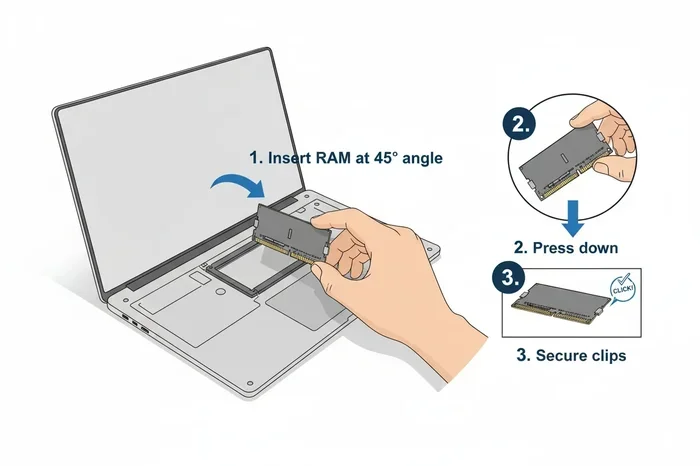
Now it is time to put in the new laptop ram. Hold the module by the edges. Do not touch the gold connectors on the bottom. Align the notch on the module with the ridge in the slot.
Push the module in at a 30 to 45 degree angle. Press down firmly until the clips snap into place. You should hear a click. The module should be flush with the slot. It should not stick up at an angle anymore.
If your laptop has two slots, repeat the process for the second memory module. Make sure both sticks are fully seated. This is key for dual channel performance.
Step 5: Close the Panel and Power Up
Put the access panel back on. Press it down gently. Screw it back in. Reinsert the battery if you removed it. Plug in the power cable.
Turn on your laptop. Wait for it to fully start up. Now comes the exciting part: checking if the new memory is working.
Step 6: Verify the New RAM Is Recognized
Right-click on This PC or My Computer. Select Properties. Look for the installed memory amount. It should show your new total.
You can also open Task Manager and go to the Performance tab. Click on Memory. It should show the new ram speed and total capacity.
If the new memory is not showing, do not panic. Try reseating the module. Turn off the laptop, open the panel, and push the sticks back in. Sometimes they do not click in fully on the first try.
For more tips on verifying your setup after an upgrade, you can visit our guide on how to upgrade ram laptop.
Common Mistakes to Avoid
Even simple tasks can go wrong if you are not careful. Here are some mistakes people make when installing laptop ram:
- Forcing the module in: If it does not fit, check the alignment. Forcing it can break the slot.
- Mixing ram types: DDR3 and DDR4 are not interchangeable. Always match the type.
- Touching the gold connectors: Oils from your fingers can cause connection problems.
- Skipping the anti-static strap: Static discharge can damage memory. Always ground yourself first.
- Not checking compatibility: Some laptops only support certain capacities. Check your manual before buying.
Avoiding these mistakes saves you time and money. It also protects your laptop from damage.
How Much RAM Does Your Laptop Need?
The right amount of memory depends on how you use your laptop. Here is a quick breakdown:
| Usage Type | Recommended RAM |
|---|---|
| Basic browsing and documents | 4 GB to 8 GB |
| Multitasking with many apps | 8 GB to 16 GB |
| Photo and video editing | 16 GB or more |
| Gaming | 16 GB or more |
Most people today do well with 8 GB. If your laptop only has 4 GB, upgrading to 8 GB makes a huge difference. If you already have 8 GB, going to 16 GB helps with heavy tasks.
Remember, you can only install as much as your laptop supports. Check your laptop model for the maximum memory capacity.
Quick Tips for a Smooth Installation
Here are some extra tips to make your laptop memory upgrade go smoothly:
- Work on a hard surface. Avoid carpets and fabric.
- Take photos before you open the panel. This helps you remember how things look.
- Keep your old ram stick. It can serve as a backup if needed.
- Buy from a trusted brand. Kingston, Corsair, and Crucial are reliable choices.
- Take your time. Rushing leads to mistakes.
These small tips make a big difference. They help you avoid problems and get the best results from your computer memory upgrade.
When to Seek Professional Help
Most people can install laptop ram on their own. But sometimes it is best to ask for help. If your laptop does not have an access panel on the bottom, opening it may be harder. Some laptops have the ram soldered to the motherboard. In those cases, you cannot upgrade the memory yourself.
Also, if you feel unsure at any point, it is okay to ask a professional. Many computer repair shops will install ram for a small fee. It is better to be safe than to risk damaging your laptop.
Conclusion
Learning how to install ram into laptop is a valuable skill. It saves you money. It makes your laptop faster. And it only takes about 15 minutes once you know the steps.
Start by checking your current memory and finding the right ram type. Gather your tools. Follow each step carefully. Avoid common mistakes. And always test your system after the install.
A laptop memory upgrade is one of the easiest and cheapest ways to breathe new life into your computer. Try it today and feel the difference. Your laptop will thank you.
Frequently Asked Questions
Can I install ram into any laptop?
Most laptops allow ram upgrades, but not all. Some models have soldered memory that cannot be replaced. Check your laptop manual or look up your model online before buying new ram. You need to confirm that your laptop has an accessible memory slot.
Do I need to turn off my laptop before installing ram?
Yes, always power down completely and unplug the charger. Removing the battery is also recommended if possible. This protects both you and the memory modules from electrical damage. Never install ram while the laptop is powered on.
What happens if I install the wrong type of ram?
The wrong ram type will not work. DDR3 and DDR4 have different notches and shapes. Forcing the wrong type into a slot can damage the motherboard. Always double-check the ram type before purchasing and installing.
How do I know if my laptop has dual channel ram?
Dual channel means your laptop uses two memory slots. You can check by opening the access panel and looking inside. Task Manager on Windows also shows if dual channel is active. Matching pairs of ram sticks in both slots enable the best performance.
Can I mix different brands of ram?
Yes, you can mix brands if the type, speed, and size match. However, using matching pairs from the same brand is always better. It reduces the chance of compatibility issues and improves stability. When in doubt, buy a kit that includes two matching sticks.
Will installing more ram make my laptop faster?
Yes, more ram helps your laptop run faster, especially when multitasking. If your current memory is fully used, adding more makes a noticeable difference. However, if your laptop already has enough ram for your tasks, the upgrade may not feel much faster.