What Does Ram Mean for a Laptop
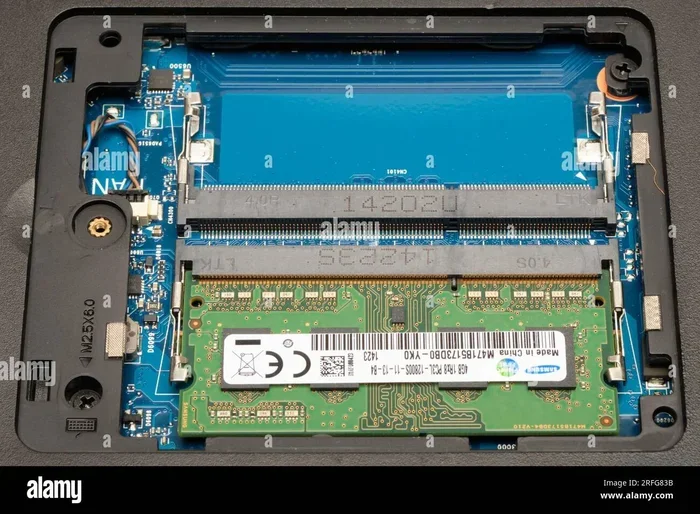
RAM stands for Random Access Memory, and it is the short-term memory your laptop uses to handle active tasks. When you open apps, browse the web, or edit files, your laptop relies on system memory to keep everything running smoothly. Understanding what RAM means for a laptop helps you choose the right amount, avoid slowdowns, and get the best performance from your device.
When you buy a new laptop, the specs sheet throws a lot of numbers at you. Processor speed, storage size, screen resolution, and of course, RAM. But what does ram mean for a laptop exactly? In simple terms, RAM is the short-term workspace your computer uses to handle everything you do right now. Whether you are streaming a video, editing a spreadsheet, or playing a game, your laptop depends on this memory to keep things moving fast.
If your laptop has too little RAM, everything slows down. Apps take longer to open, tabs crash, and your system starts to lag. On the other hand, having enough memory means your device runs smoothly, even when you are juggling several tasks at once. In this guide, we will break down exactly what RAM means for a laptop, how it works, and how to make sure you have the right amount for your needs.
Key Takeaways
- RAM is temporary memory: It stores data your laptop needs right now, but loses everything when powered off.
- More RAM means smoother multitasking: Running multiple apps at once requires sufficient memory to avoid lag.
- DDR4 and DDR5 are the current standards: Newer RAM types offer faster speeds and better efficiency.
- 8GB is the minimum for most users: Heavy users should aim for 16GB or more for a comfortable experience.
- Upgrading RAM is often possible: Many laptops allow you to add or replace memory modules easily.
- RAM speed and capacity both matter: Faster RAM and larger capacity work together to boost overall performance.
📑 Table of Contents
What Does Ram Mean for a Laptop
RAM stands for Random Access Memory. Think of it as your laptop’s short-term brain. Every time you open an app, browse a website, or edit a document, your laptop loads that data into RAM so it can access it quickly. This is different from your hard drive or SSD, which stores your files permanently. RAM is temporary — it only holds data while your laptop is powered on. Once you shut down, the memory clears out and starts fresh the next time you turn the machine on.
So what does ram do on a laptop? It acts as a bridge between your processor and your long-term storage. Your processor is incredibly fast, but it needs quick access to data. RAM provides that access at lightning speed. Without enough of it, your processor sits idle, waiting for data to load from a slower storage drive. This is why people often confuse a slow laptop with a weak processor when the real issue is insufficient laptop memory.
How RAM Differs from Storage
Many people mix up RAM and storage, but they serve very different purposes. Your SSD or hard drive is like a big filing cabinet. It holds all your files, apps, and operating system permanently. RAM is like your desk surface. It holds only the documents and tools you are actively working on right now. The bigger your desk, the more things you can spread out and work on simultaneously.
Here is a simple way to think about the difference:
- Storage (SSD or HDD): Keeps your files safe long-term, even when the laptop is off.
- RAM (Memory): Holds active data temporarily so your processor can work with it quickly.
- Processor (CPU): Does the actual thinking and computing with the data stored in RAM.
When people ask what does ram do for a laptop, this relationship is the answer. RAM gives your processor the fast, temporary workspace it needs to keep everything running without bottlenecks.
How Laptop RAM Affects Performance
The amount of memory in your laptop directly affects how well it handles daily tasks. If you have ever noticed your laptop freezing when you open too many browser tabs, that is a classic sign of running out of RAM. Your system starts using your storage drive as a substitute, which is much slower and causes frustrating delays.
Multitasking and Memory
Modern workflows demand a lot from your system. You might have a browser with 20 tabs open, a music app running, a word processor active, and a video call in the background. All of these apps need a share of your system memory to stay responsive. When your memory fills up, your laptop has to constantly swap data between RAM and storage. This process, sometimes called virtual memory, is much slower and causes noticeable lag.
For light users who mostly browse the web and check email, 8GB of memory is usually enough. But if you are a multitasker who runs several demanding apps at once, you will benefit from 16GB or more. To learn more about the right amount for your needs, check out our guide on what is a good ram size for a laptop.
Speed Matters Too
It is not just about how much RAM you have — speed matters as well. RAM speed is measured in megahertz (MHz), and faster memory allows your processor to access data more quickly. For example, DDR4 RAM commonly runs at 3200MHz, while the newer DDR5 standard can reach 4800MHz or higher.
However, speed differences are most noticeable in specific tasks like video editing, 3D rendering, and gaming. For everyday use like browsing and office work, the capacity of your memory matters more than the speed. The key is finding the right balance between RAM capacity and RAM speed for your particular use case.
Types of RAM Used in Laptops
Not all memory modules are the same. Over the years, RAM technology has evolved significantly. Understanding the different types helps you make informed decisions when buying a laptop or planning an upgrade.
DDR4 vs DDR5
Most modern laptops use either DDR4 or DDR5 memory. DDR4 has been the standard for years and still powers millions of devices. It offers reliable performance at an affordable price. DDR5 is the newer generation and brings faster speeds, better power efficiency, and improved overall throughput.
Here is a quick comparison of the two main types:
- DDR4 RAM: Speeds range from 2133MHz to 3200MHz. It is widely available and budget-friendly.
- DDR5 RAM: Speeds start at 4800MHz and go higher. It offers better performance and energy efficiency.
- DDR3 RAM: An older standard found in some legacy laptops. It is slower and less efficient than DDR4.
When shopping for a new laptop, look for DDR4 or DDR5 memory. These are the current standards and will serve you well for years. If you are curious about what RAM is good for in a laptop specifically, DDR4 and DDR5 are your best options for a balance of speed and value.
SO-DIMM vs UDIMM
Laptops use smaller memory modules called SO-DIMMs (Small Outline Dual In-Line Memory Modules). These are different from the larger DIMMs used in desktop computers. SO-DIMMs take up less space, which is essential for the compact design of laptops. Most consumer laptops use UDIMM (Unbuffered DIMM) modules, which are straightforward and cost-effective.
If you are thinking about upgrading your laptop’s memory, make sure you buy the right type of module. Check your laptop’s specifications to confirm whether it uses SO-DIMM DDR4 or SO-DIMM DDR5 memory.
How Much RAM Do You Actually Need
This is one of the most common questions people ask. The right amount of memory depends entirely on what you use your laptop for. There is no one-size-fits-all answer, but here is a practical breakdown.
Light Use (4GB to 8GB)
If your laptop usage is basic — web browsing, email, streaming videos, and light document editing — 4GB to 8GB of memory will get the job done. However, 4GB is becoming increasingly limited. Many modern web browsers and apps simply use too much memory to run comfortably on 4GB alone. For a better experience, aim for at least 8GB.
To see if 4GB is still viable for your needs, you can read our article on is 4gb of ram good for a laptop.
Medium Use (16GB)
16GB is the sweet spot for most users today. It handles multitasking with ease, supports light photo and video editing, and runs modern games without breaking a sweat. If you use your laptop for work, school, or entertainment, 16GB gives you room to grow and future-proof your device.
Heavy Use (32GB or More)
Professionals who work with large datasets, 4K video editing, 3D modeling, or software development benefit greatly from 32GB or more. These tasks demand a lot of memory, and having enough ensures smooth performance without frustrating slowdowns. For more details on pricing and options, check out our 32gb ram price for laptop guide.
Quick Reference Table
- Basic browsing and email: 4GB to 8GB is enough for light daily tasks.
- General productivity: 16GB handles multitasking, light editing, and office apps with ease.
- Creative professionals: 32GB or more supports video editing, 3D rendering, and coding workloads.
Remember, having more memory than you need does not hurt performance. It simply gives your laptop headroom to handle unexpected demands. If you want to understand more about what RAM is good for in a laptop, consider your daily workflow and choose accordingly.
Can You Upgrade RAM on a Laptop
The short answer is: it depends on your laptop. Some machines allow easy upgrades, while others have memory soldered directly to the motherboard. Understanding your options before purchasing a laptop can save you from future frustration.
Laptops with Upgradeable RAM
Many laptops, especially business models and gaming rigs, come with accessible memory slots. You can open the back panel, remove the existing module, and insert a new one. This is a cost-effective way to boost performance without buying a new device.
If you want to learn how to do this yourself, our guide on how to install ram into a laptop walks you through the process step by step.
Laptops with Soldered RAM
Some modern laptops, particularly ultrabooks and thin designs, have memory soldered to the motherboard. This means you cannot upgrade it after purchase. This is why it is so important to choose the right amount of memory when you buy the laptop in the first place.
If your laptop has soldered memory and you need more, your only option is to buy a new device. This is a key consideration when shopping for a laptop, especially if you anticipate your memory needs will grow over time.
How to Check Your Current RAM
Before upgrading, you should check how much memory your laptop currently has and what type of slots are available. On Windows, you can open Task Manager and go to the Performance tab. On a Mac, click the Apple menu and select About This Mac. These tools show you your current memory configuration and help you plan your upgrade effectively.
Common RAM Mistakes to Avoid
Even tech-savvy users sometimes make mistakes when it comes to laptop memory. Avoiding these common pitfalls can save you money and frustration.
Buying the Wrong Type
Not all memory modules are compatible with every laptop. Buying DDR5 RAM for a laptop that only supports DDR4 will not work. Always check your laptop’s specifications before purchasing any memory module. Look for the RAM type, speed, and maximum supported capacity in your user manual or on the manufacturer’s website.
Ignoring Speed Ratings
While capacity is the most important factor for most users, ignoring speed entirely can also be a mistake. If you are building or upgrading a laptop for gaming or creative work, faster memory can provide a noticeable performance boost. Balance your budget between capacity and speed for the best results.
Assuming More RAM Always Equals Better Performance
Adding more RAM will not fix every performance issue. If your laptop is slow because of an outdated processor or a failing hard drive, more memory will not help much. Identify the actual bottleneck first before spending money on upgrades.
Expert Tips for Getting the Most from Your Laptop RAM
Getting the most out of your laptop’s memory is not just about buying more. A few smart habits can keep your system running efficiently and extend the useful life of your device.
Close Unused Apps and Tabs
Every open app and browser tab consumes a portion of your available memory. Make it a habit to close apps you are not actively using. This frees up memory for the tasks that matter most. You will be surprised how much smoother your laptop runs with just a few unused tabs closed.
Restart Your Laptop Regularly
Over time, background processes accumulate and eat into your available memory. Restarting your laptop clears out these processes and gives your system a fresh start. If you notice your laptop slowing down, a simple restart can often restore performance quickly.
Monitor Your Memory Usage
Keep an eye on how much memory your laptop is using. Both Windows and macOS include built-in tools that show real-time memory usage. If you consistently see your memory maxed out, it is a clear sign that you need an upgrade or should reduce the number of active apps.
Consider Dual-Channel Configuration
If your laptop supports it, using two smaller memory modules instead of one large one can improve performance through a technique called dual-channel mode. This allows your laptop to access memory more efficiently and can result in noticeable speed improvements, especially in memory-intensive tasks like gaming and video editing.
For more practical tips on improving your laptop’s overall performance, check out our article on what does ram do for a laptop.
Conclusion
Understanding what does ram mean for a laptop is one of the most valuable things you can do as a laptop user. Memory is the temporary workspace that keeps your apps running, your browser open, and your system responsive. Without enough of it, even the best processor and fastest storage will feel sluggish.
Whether you are a casual user who needs 8GB for everyday tasks or a professional who requires 32GB for demanding workloads, choosing the right amount of memory makes a real difference. Keep in mind the type of RAM your laptop uses, whether you can upgrade it, and how your daily habits affect your memory needs.
The bottom line is simple: invest in enough laptop memory to match your workflow, and your laptop will reward you with smoother, faster performance every day. Take the time to evaluate your needs, follow the tips in this guide, and you will be well on your way to getting the most out of your device.
Frequently Asked Questions
What does RAM stand for in a laptop?
RAM stands for Random Access Memory. It is the temporary, short-term memory your laptop uses to store data for active tasks. Unlike your storage drive, RAM clears its data every time you turn off your laptop.
Is 8GB of RAM enough for a laptop?
For most everyday users, 8GB of memory is sufficient for browsing, streaming, and office work. However, if you multitask heavily or run demanding applications, 16GB will provide a much smoother experience.
Can I add more RAM to my laptop?
It depends on your laptop model. Some laptops have accessible memory slots that allow upgrades, while others have memory soldered to the motherboard. Check your laptop’s specifications or user manual to confirm your upgrade options.
What is the difference between RAM and storage?
RAM is temporary memory that holds active data for quick access by your processor. Storage (SSD or HDD) is permanent and keeps your files safe even when the laptop is powered off. Both are essential, but they serve very different roles in your system.
Does more RAM make a laptop faster?
More RAM helps prevent slowdowns when you have many apps open at once. However, it will not speed up a slow processor or fix issues caused by an outdated hard drive. RAM improves performance by removing memory bottlenecks.
What type of RAM do modern laptops use?
Most modern laptops use DDR4 or DDR5 SO-DIMM memory modules. DDR5 is the newer standard and offers faster speeds and better efficiency. Always check your laptop’s compatibility before purchasing any memory upgrade.