Can I Use 3200mhz Ram in 2400mhz Laptop
Yes, you can use 3200mhz RAM in a 2400mhz laptop, but there are important limits you need to know. Your laptop will run the RAM at its supported speed, not the faster speed. This guide covers compatibility, BIOS settings, and practical steps to upgrade your laptop memory safely.
Can you put 3200mhz RAM into a 2400mhz laptop? This is one of the most common questions people ask when they want to speed up their old machine. The short answer is yes. But the full answer has some important details you need to understand before you spend your money.
Many laptop users try to boost performance by swapping in faster memory. It sounds simple on paper. You buy 3200mhz sticks, pop them in, and boom — instant speed, right? Not quite. Your laptop has limits. The motherboard and the processor decide what memory speeds your system can actually handle. This article walks you through everything you need to know about using 3200mhz RAM in a 2400mhz laptop. You will learn what happens, why it happens, and how to get the best results.
Key Takeaways
- Backward Compatibility Works: A 2400mhz laptop can physically accept 3200mhz RAM, but it will downclock to 2400mhz.
- Check Your Motherboard First: Not all laptops support high-speed RAM. Always verify your laptop’s specs before buying.
- BIOS Settings Matter: You may need to adjust XMP or DOCP profiles in BIOS to unlock faster speeds.
- Dual Channel Boosts Performance: Matching RAM sticks in pairs can improve speed more than just increasing frequency.
- You Won’t Damage Your Laptop: Using faster RAM is safe. It simply runs at the slower supported speed.
- Know Your Current RAM: Use built-in tools to check what RAM you already have and what your laptop supports.
📑 Table of Contents
- What Happens When You Put 3200mhz RAM in a 2400mhz Laptop?
- Can You Unlock 3200mhz Speed on a 2400mhz Laptop?
- Is It Safe to Use 3200mhz RAM in a 2400mhz Laptop?
- How to Check What RAM Speed Your Laptop Supports
- Should You Upgrade to 3200mhz RAM if Your Laptop Supports 2400mhz?
- Common Mistakes When Upgrading Laptop RAM
- What Does RAM Speed Actually Do for Your Laptop?
- How to Install Your New RAM Correctly
- Final Thoughts
What Happens When You Put 3200mhz RAM in a 2400mhz Laptop?
When you install faster RAM into a slower laptop, the system automatically adjusts. Your laptop will run the memory at 2400mhz, not 3200mhz. This is called backward compatibility. The memory controller inside your processor sets the ceiling. It tells the RAM to work at the highest speed the system officially supports.
Think of it like driving a car with a speed limiter. You can put a powerful engine in the car, but the limiter keeps it from going over a certain speed. The engine is there and working. It just cannot reach its full potential. The same thing happens with RAM speed.
That said, your laptop will still work fine. You will not break anything. The 3200mhz stick will simply operate at 2400mhz. You might wonder, “Why bother then?” Good question. There are a few reasons people still do this. We will cover those below.
Why Does the Laptop Downclock the RAM?
Your laptop’s motherboard and CPU have a memory controller. This controller manages how fast data moves between the processor and the RAM. If the controller only supports up to 2400mhz, it will cap any faster RAM at that speed. This is a hardware limitation, not a software bug.
The JEDEC standard sets baseline speeds for memory. 2400mhz is a common baseline for older laptops. 3200mhz is a faster standard that newer processors support. When you mix them, the system falls back to the lower standard. This ensures stability. Your laptop will not crash or act strangely. It just runs at the speed it was designed for.
Can You Unlock 3200mhz Speed on a 2400mhz Laptop?
Sometimes, yes. But it depends on your laptop model and BIOS settings. Some laptops have hidden support for faster RAM. The manufacturer may have locked it to protect the system. But in many cases, you can unlock the full speed with a few tweaks.
Checking Your BIOS for XMP or DOCP Profiles
XMP stands for Extreme Memory Profile. DOCP stands for Direct Overclock Profile. These are settings in your BIOS that let you run RAM at speeds above the standard rating. Many laptops include these profiles but disable them by default.
To check for XMP or DOCP:
- Restart your laptop and press F2, F12, or Del during startup to enter BIOS.
- Look for a section called “Memory Settings,” “Overclocking,” or “AI Tweaker.”
- Find the XMP or DOCP profile option.
- Enable the profile that matches your 3200mhz RAM.
- Save and exit.
If your laptop does not have XMP or DOCP options, the BIOS may not support 3200mhz. In that case, the RAM will stay at 2400mhz. This is very common in older or budget laptops.
Expert Insight: Not all laptops support XMP profiles. Business and enterprise laptops often lock these features. Gaming laptops and enthusiast models are more likely to offer them. Always check your laptop’s user manual or the manufacturer’s website before assuming XMP is available.
Is It Safe to Use 3200mhz RAM in a 2400mhz Laptop?
Yes, it is completely safe. Your laptop will not be damaged by faster RAM. The memory controller regulates the speed. If the system cannot handle 3200mhz, it simply runs the RAM slower. There is no risk of overheating, short circuits, or permanent damage.
Some people worry that mixing RAM speeds could cause instability. In most cases, this is not true. Modern operating systems handle mixed RAM speeds very well. Windows and Linux both auto-detect the memory and adjust accordingly. Your system will run smoothly.
When Could There Be Problems?
There are a few rare situations where issues can pop up:
- Different RAM types: If you mix DDR4 with DDR5, it will not work at all. They are not compatible.
- Mismatched voltages: Some 3200mhz RAM runs at 1.2V while others need 1.35V. Mixing voltages can cause instability.
- Single stick vs. dual channel: Using one stick instead of two can reduce performance. We recommend always using matched pairs.
As long as you match the RAM type (DDR4 or DDR5) and use similar modules, you should have zero problems.
How to Check What RAM Speed Your Laptop Supports
Before you buy any RAM, you need to know what your laptop can handle. Guessing can waste money. Here is how you check.
Method 1: Use Built-In Windows Tools
Windows has a simple tool called Task Manager that shows your current RAM speed:
- Press Ctrl + Shift + Esc to open Task Manager.
- Click on the “Performance” tab.
- Select “Memory” on the left side.
- Look at the “Speed” field. It shows your current RAM speed in MHz.
This tells you what your system is currently running. It does not always tell you the maximum supported speed. For that, you need to check your laptop’s specs.
Method 2: Check Your Laptop Manual or Manufacturer Website
Every laptop model has a maximum RAM speed listed in its specifications. You can find this by:
- Searching for your laptop model number online.
- Visiting the manufacturer’s support page.
- Looking up the “Memory Specifications” section.
This is the most reliable way to know your laptop’s true RAM limits. If the spec sheet says 2400mhz, that is your ceiling unless you can unlock XMP.
Method 3: Use a Free Memory Scanner Tool
Tools like CPU-Z can scan your system and tell you exactly what RAM you have and what your memory controller supports. This is a great option if you want detailed information without digging through manuals.
Should You Upgrade to 3200mhz RAM if Your Laptop Supports 2400mhz?
This is where things get interesting. If your laptop only supports 2400mhz, is it worth buying 3200mhz RAM? The answer depends on your situation.
When It Makes Sense
There are a few scenarios where buying faster RAM is a smart move:
- Future-proofing: If you plan to upgrade your laptop’s processor later, faster RAM may already be in place.
- Resale value: A laptop with faster RAM sells for more on the used market.
- XMP support: If your laptop supports XMP profiles, you can actually run the RAM at 3200mhz and get the full benefit.
When It Does Not Make Sense
On the other hand, there are times to skip the upgrade:
- No XMP support: If your laptop cannot run 3200mhz, you are paying extra for speed you will never use.
- Budget limits: 3200mhz RAM often costs more than 2400mhz. If you are on a tight budget, stick with what your laptop supports.
- Other bottlenecks: If your laptop has a slow hard drive or weak processor, upgrading RAM alone will not make a huge difference. Consider upgrading your laptop RAM alongside other improvements for the best results.
Quick Tips:
- Always buy RAM in matched pairs for dual channel mode. This doubles the data bandwidth and improves performance more than a frequency boost alone.
- Check your laptop’s maximum RAM capacity before buying. A 2400mhz laptop might only support 16GB or 32GB total.
- Buy from reputable brands like Corsair, Kingston, Crucial, or G.Skill to ensure quality and compatibility.
- If you are unsure about your laptop’s RAM limits, check how much RAM you actually need before making a purchase.
Common Mistakes When Upgrading Laptop RAM
Many people make avoidable mistakes when upgrading their laptop memory. Here are the most common ones:
- Buying the wrong RAM type: DDR3, DDR4, and DDR5 are not interchangeable. Always check which type your laptop uses.
- Ignoring CAS Latency: CAS latency (CL) affects real-world performance. A 3200mhz stick with CL16 is faster than one with CL22, even at the same frequency.
- Forgetting to remove power: Always disconnect your laptop from power and remove the battery (if possible) before installing RAM. Static electricity can damage components.
- Not seating the RAM properly: If the RAM stick is not fully clicked in, your laptop may not recognize it. Listen for the click.
- Mixing old and new RAM: Using old 2400mhz RAM alongside new 3200mhz RAM will cause all sticks to run at 2400mhz. For best results, replace all RAM at once.
Common Mistake: Many users assume that buying 3200mhz RAM will automatically make their laptop faster. This is not true if the laptop cannot run the RAM at full speed. Always verify compatibility first.
What Does RAM Speed Actually Do for Your Laptop?
RAM speed, measured in megahertz (MHz), affects how fast your laptop can access and transfer data. Higher speed means more data moves between the RAM and the processor every second. This can improve performance in certain tasks.
But here is the thing: RAM speed is not the only factor that matters. The following also play a huge role:
- RAM capacity: Having enough RAM (8GB, 16GB, or 32GB) matters more than speed for most users.
- Dual channel mode: Two sticks working together are faster than one stick alone, regardless of frequency.
- CAS latency: Lower timings mean faster response times.
- Processor support: Your CPU must be able to handle the speed you are offering.
For everyday tasks like browsing, streaming, and office work, RAM speed barely makes a noticeable difference. For gaming, video editing, and heavy multitasking, faster RAM can help — but only if your system actually supports it.
Want to learn more about what RAM actually does in your laptop? Check out this guide on what RAM does in a laptop for a deeper understanding.
How to Install Your New RAM Correctly
Once you have the right RAM, installing it is straightforward. Here is a step-by-step guide.
- Shut down your laptop completely and unplug the power cable.
- Remove the battery if it is removable.
- Ground yourself by touching a metal surface to discharge static electricity.
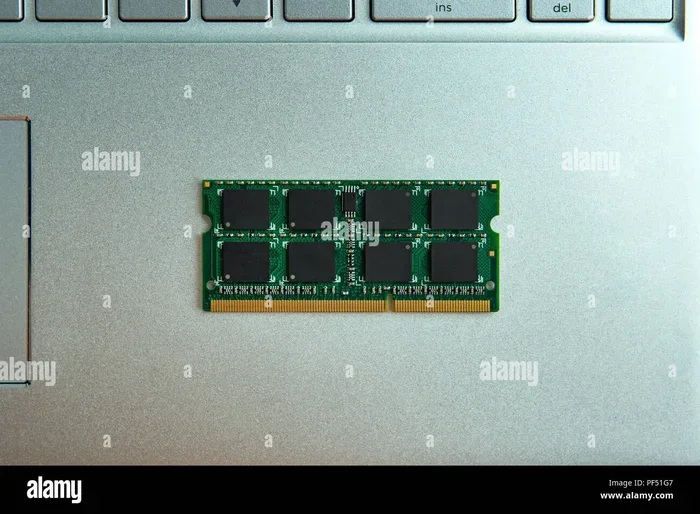
- Locate the RAM compartment on the bottom of your laptop. Use a screwdriver to remove the panel.
- Press the metal clips on either side of the existing RAM stick. The stick will pop up at an angle.
- Remove the old stick by pulling it straight out.
- Align the notch on the new 3200mhz RAM stick with the slot.
- Press the stick down firmly until the clips click into place.
- Replace the panel and reinsert the battery.
- Power on your laptop and check if the new RAM is recognized.
If you want a more detailed walkthrough, our guide on how to install RAM in a laptop provides in-depth instructions with images.
Final Thoughts
So, can you use 3200mhz RAM in a 2400mhz laptop? Absolutely. Your laptop will run the faster RAM at 2400mhz, and everything will work safely. You will not damage your system or void your warranty in most cases. The key is to know your laptop’s limits before you buy. Check the motherboard specs, look for XMP support, and always match your RAM type.
If your laptop supports XMP and you can unlock 3200mhz speeds, you will get a real performance boost. If not, you still get the benefit of having fresh, modern RAM installed. Either way, upgrading your memory is one of the best and easiest ways to breathe new life into an aging laptop.
Take the time to do your research. Check what your laptop supports, buy the right RAM, and install it carefully. You will be surprised how much smoother your laptop feels after a memory upgrade. It is one of the most cost-effective upgrades you can make, and the satisfaction of doing it yourself is unbeatable.
Frequently Asked Questions
Will using 3200mhz RAM in a 2400mhz laptop damage my computer?
No, it is completely safe. Your laptop’s memory controller will automatically run the RAM at 2400mhz. There is no risk of damage, overheating, or system failure. The faster stick simply operates at the slower speed your laptop supports.
Can I mix 2400mhz and 3200mhz RAM in the same laptop?
Yes, you can mix them. However, all RAM sticks will run at the speed of the slowest module. If you pair a 2400mhz stick with a 3200mhz stick, both will run at 2400mhz. For best results, use matching RAM sticks in terms of speed, size, and brand.
How do I know if my laptop supports XMP profiles?
Restart your laptop and enter the BIOS by pressing F2, F12, or Del during startup. Look for a section called “Memory Settings,” “Overclocking,” or “AI Tweaker.” If you see an XMP or DOCP option, your laptop supports faster RAM profiles. If not, your laptop will cap RAM at its default speed.
Does faster RAM make a laptop faster for gaming?
Yes, faster RAM can improve gaming performance, especially in CPU-bound games. However, the difference is often small compared to upgrading your GPU or adding more RAM capacity. Make sure your laptop’s processor and motherboard actually support the faster speed before investing in high-frequency RAM.
What is the difference between DDR4 and DDR5 RAM?
DDR4 and DDR5 are different generations of memory. DDR5 is newer, faster, and more power-efficient than DDR4. They are not compatible with each other. You cannot put DDR5 RAM in a laptop designed for DDR4, and vice versa. Always check your laptop’s specifications to confirm which type it uses.
How much RAM does a laptop need for everyday use?
For most everyday tasks like browsing, streaming, and office work, 8GB of RAM is the minimum. 16GB is the sweet spot for smooth multitasking. If you do video editing, gaming, or programming, 32GB provides a comfortable buffer. Find the right amount for your needs with this guide on how much RAM you need on your laptop.